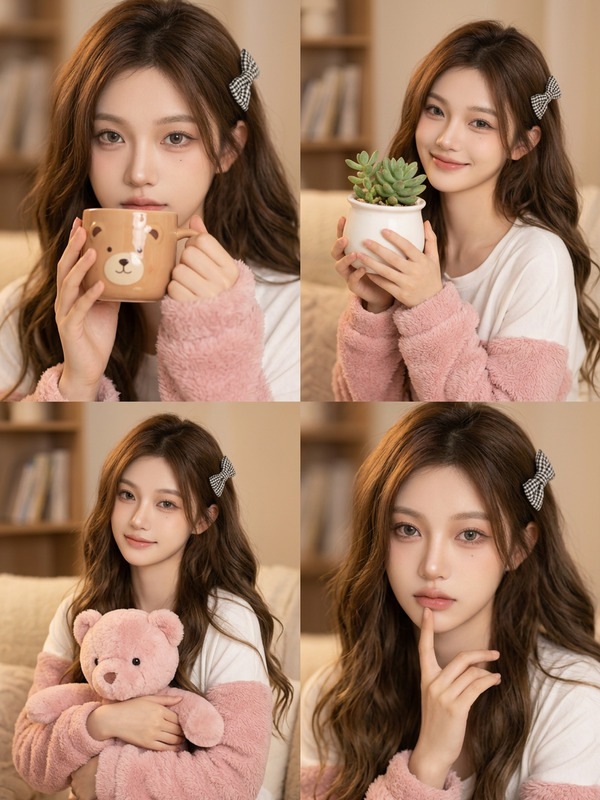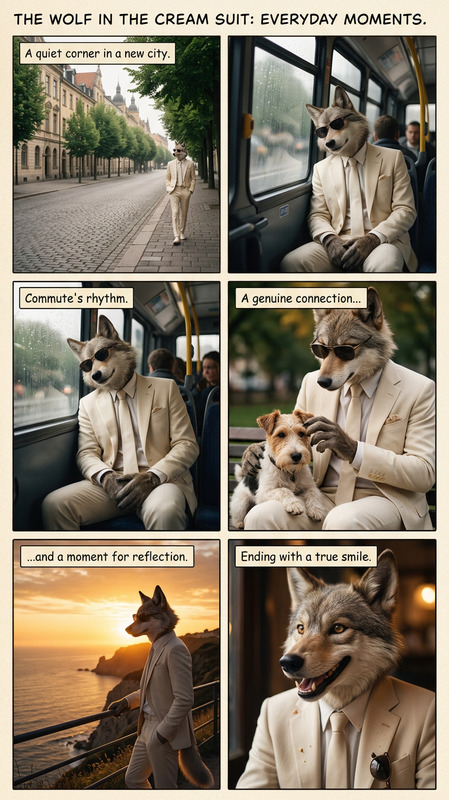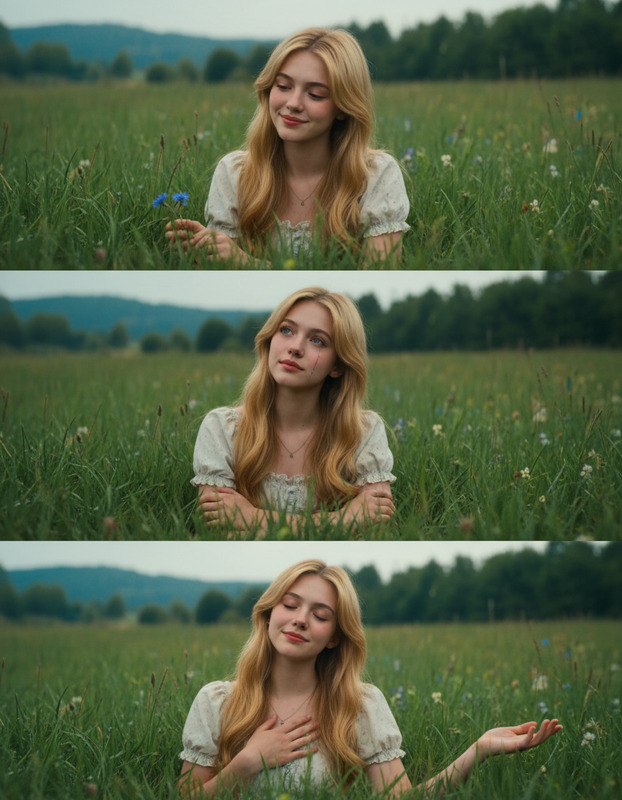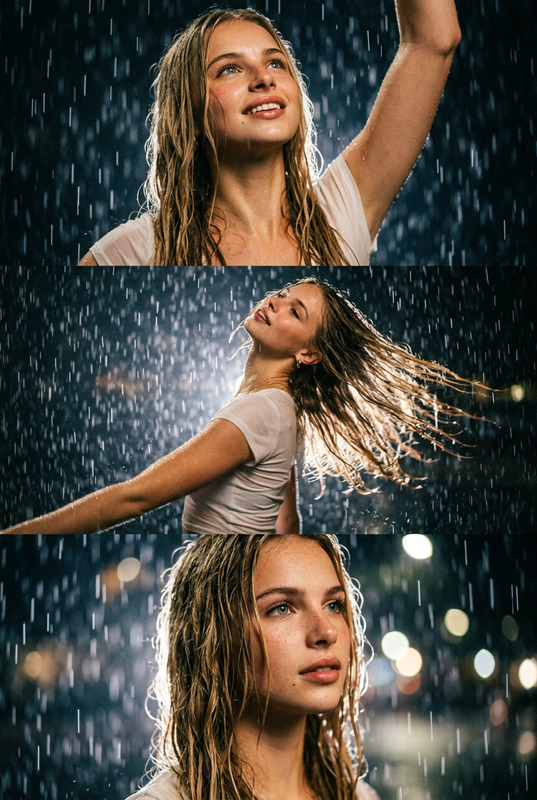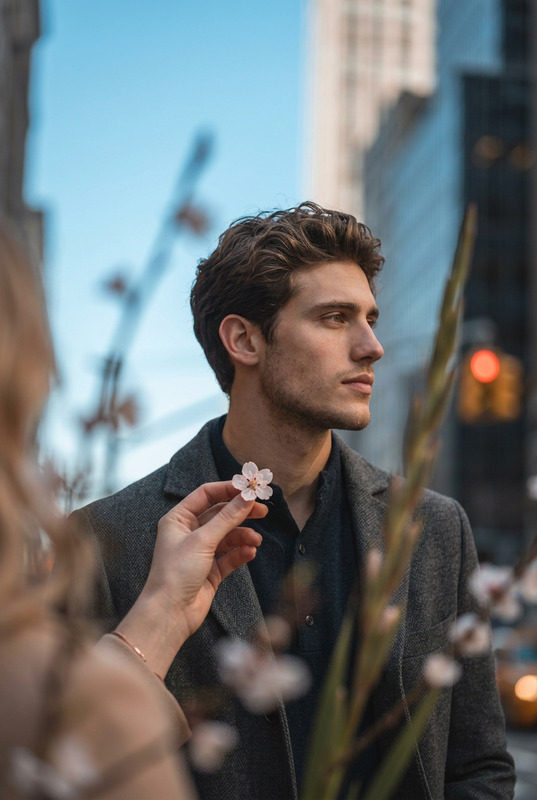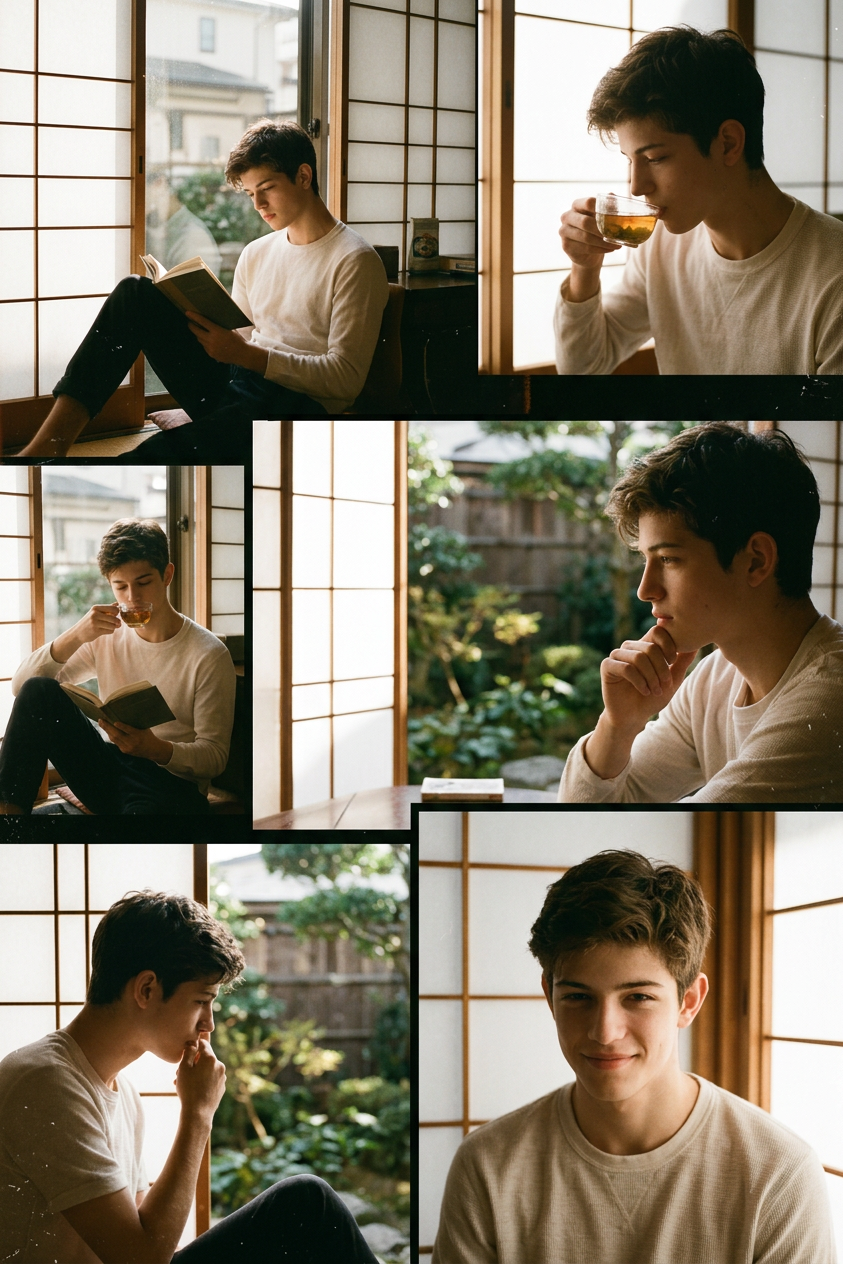
Morning Shoji Moments

Morning Shoji Moments

ai-image-editor

1 clip
3 uses

Any aspect ratio

Prompt

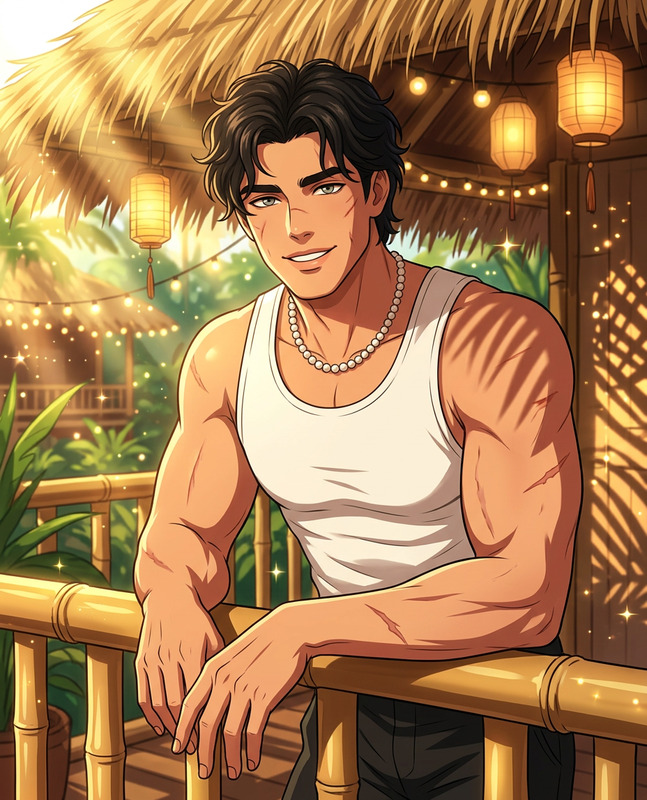
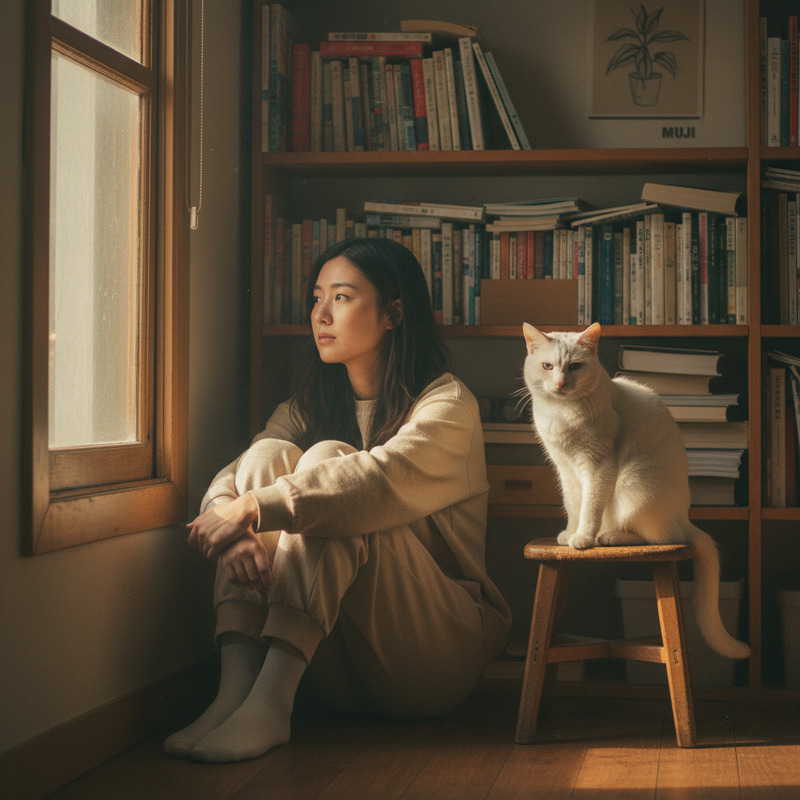
Subject in a Japanese-style photo collage, set in a cozy living room with shoji windows and soft morning sunlight. Multiple frames capturing small daily moments in a calm, intimate atmosphere. Warm tones, 90s cinematic feel, nostalgic mood. Soft film grain, gentle light, subtle imperfections, cohesive collage layout with quiet storytelling.

AI Image Editor Template – Clean, On‑Brand Visuals in Minutes

Use this template to quickly clean up, retouch, and transform images with the AI Image Editor. It’s designed for creators, marketers, and product teams who need production‑ready visuals without opening Photoshop.


What this template is best for

This template is optimized for:

  • Product photos – remove distractions, swap backgrounds, and sharpen details for ecommerce, landing pages, and ads.
  • Social content – turn quick snapshots into polished posts, carousels, and thumbnails.
  • Brand assets – create consistent imagery for pitch decks, websites, and presentations.
  • Campaign experiments – rapidly test visual variations for ads, emails, and landing pages.

Under the hood, it uses Magic Hour’s AI Image Editor to combine object removal, background editing, inpainting, and upscaling in a single workflow.


How to remix this template in Magic Hour

You can create your own version of this template in a few minutes:

  1. Start from this template

    • Open this template inside Magic Hour and click “Remix” to duplicate it into your workspace.
    • Rename it to match your use case (e.g. “Ecommerce Product Cleanup” or “LinkedIn Post Optimizer”).
  2. Define your input images

    • Decide what users will upload: product shots, portraits, screenshots, or marketing imagery.
    • Add simple, explicit instructions like:
      • “Upload a front‑facing product image on a plain background”
      • “Upload a head-and-shoulders photo with clear lighting”
  3. Add AI Image Editor steps

    • Use the AI Image Editor to:
      • Remove unwanted objects or text overlays
      • Clean up backgrounds or replace them with solid colors or minimal scenes
      • Fill in missing areas and fix artifacts via inpainting
      • Enhance sharpness and clarity with an AI image upscaler
  4. Wire in related tools if needed
    Depending on your workflow, you can chain this template with other Magic Hour tools:

  5. Set clear output descriptions

    • Decide what the template always produces (e.g. “Square image on white background, centered object, high resolution”).
    • Add example outputs so users instantly see what “good” looks like.
  6. Save and share

    • Publish your remix as a reusable template for your team or community.
    • Document when to use it (“Use this for new product launches / hero images / ad creative testing”).

Popular ways creators and teams use this template

Teams typically adapt this template into a handful of repeatable workflows:


Example remixes you can build

You can clone this template pattern to build specialized editors:

  • “Founder Headshot Upgrader”

  • “App Screenshot Cleaner”

    • Input: raw product screenshots.
    • Steps: remove test data, blur sensitive info with AI Remover, drop device frames via Image Editor, and export clean UI shots for docs and marketing.
  • “Product-on-White Generator”

    • Input: messy product photos.
    • Steps: remove existing background, center subject, output high‑res white‑background imagery for marketplaces and paid ads.
  • “AI Book or Course Cover Builder”

    • Start from rough concept art using the Book Cover Generator.
    • Refine typography, remove artifacts, and tweak composition in this Image Editor template.

Turn edited images into video, memes, and more

Once you’ve cleaned and standardized your images with this template, you can push them into other Magic Hour tools:


Tips for high‑quality results

  • Start from the best source you have
    AI tools amplify both strengths and flaws. Higher resolution, well‑lit images will give the Image Editor and Unblur Image much more to work with.

  • Be explicit about what should stay vs. go
    If you’re building a shared template, describe boundaries clearly in the instructions:

    • “Always keep the product logo visible”
    • “Remove only background clutter, keep the subject intact”
  • Standardize your outputs
    Decide on aspect ratios and usage (e.g. “1:1 for Instagram feed, 16:9 for YouTube thumbnails”) so teams don’t need extra manual editing.

  • Combine with restoration tools for old assets
    Restore and colorize legacy images using Old Photo Restoration and Photo Colorizer, then refine them with this template for modern campaigns.


Related Magic Hour tools worth exploring

If you’re building a larger creative or marketing pipeline around this template, these tools integrate naturally:


Use this AI Image Editor template as a base, remix it for your specific workflow, and plug it into the rest of Magic Hour’s tools to build a repeatable, scalable visual pipeline that doesn’t depend on manual editing or a full‑time design team.

More Like This

Insufficient credits