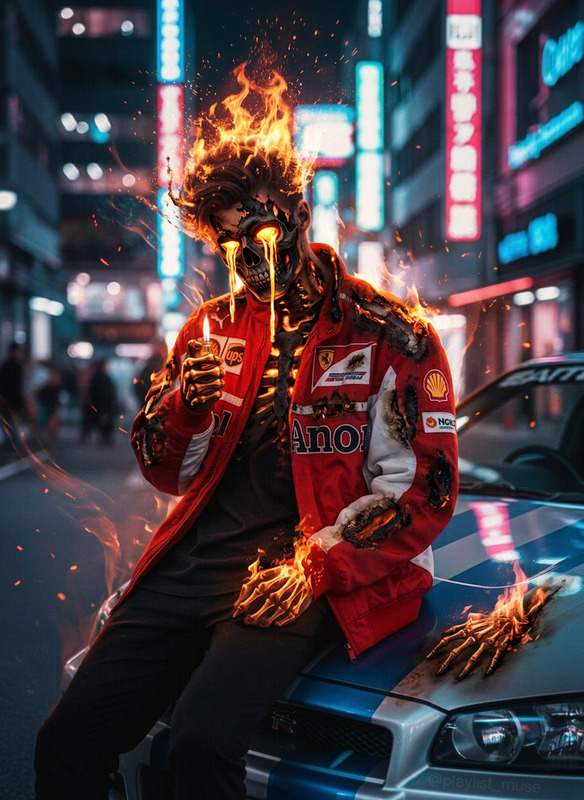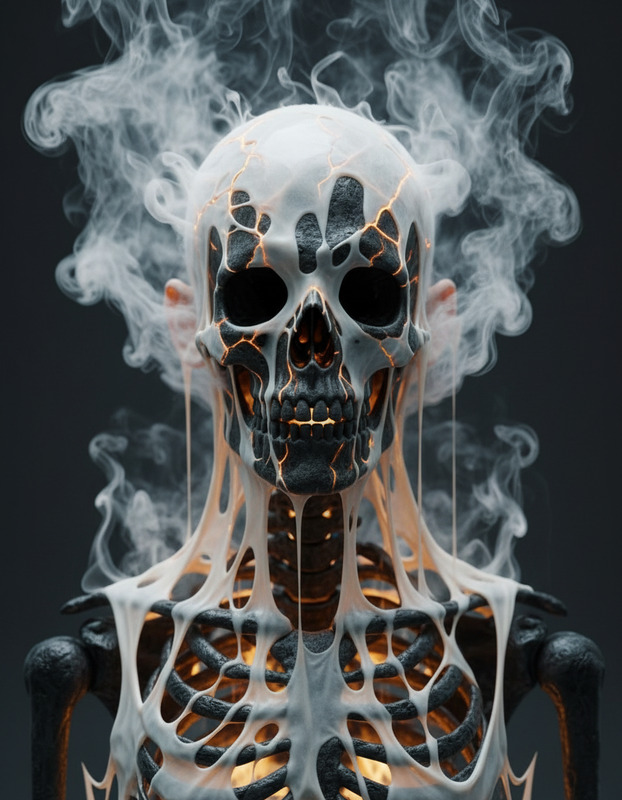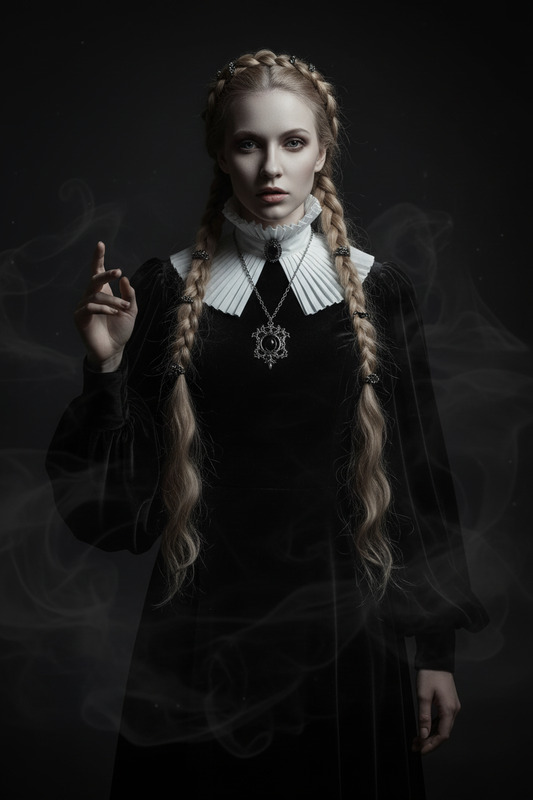
Lightning Skeleton
- Model
- Qwen Edit
- Image
- 576 × 1024 px
Prompt
A subject instantly transforms into a skeleton with glowing red. The surroundings shift into a dark, ominous storm atmosphere with heavy clouds, dim lighting, and eerie shadows. Subtle lightning flickers intermittently, briefly illuminating the skeleton form. Cinematic horror style, strong contrast, atmospheric depth, highly detailed, 4K realism.
Any aspect ratio
Overview
The "Lightning Skeleton" template offers a uniquely immersive experience, converting any image into a breathtaking skeleton scene wrapped in a stormy atmosphere. Utilized by the AI Image Editor, this template delivers realistic transformations with 4K quality and a cinematic horror style.
What It Does
This template uses the power of Qwen-Edit to transform ordinary subjects into skeletons with glowing red hues. The backgrounds morph into ominous, stormy environments complete with dark clouds and intermittent lightning, creating a highly detailed, atmospheric scene.
Who It's For
Ideal for content creators, marketers, and video producers looking to enhance their projects with visually stunning horror-themed imagery. It's a great fit for anyone aiming to produce engaging content for social media ads or for enhancing storytelling through visual effects.
Summary
The "Lightning Skeleton" template redefines your creative projects with a transformative and awe-inspiring visual experience. Integrate it into your workflow easily using the AI Image Editor, and captivate your audience with truly cinematic results.
How To

Customize

Generate

Use Cases
Horror Film Promotion
- Themed social media posts
- Trailer overlays
- Event posters
Music Video Visuals
- Thematic backgrounds
- Opening scenes
- Special effects
Game Design
- Character transformation
- Background scenery
- Loading screens
Best Practices
Choose the Right Subject
Select photos with a clear subject to ensure the skeleton transformation is striking.Adjust Lighting and Contrast
Experiment with different lighting levels and contrasts to enhance the cinematic atmosphere.Test on Various Backgrounds
Ensure the stormy backdrop complements your image by testing different background scenarios.