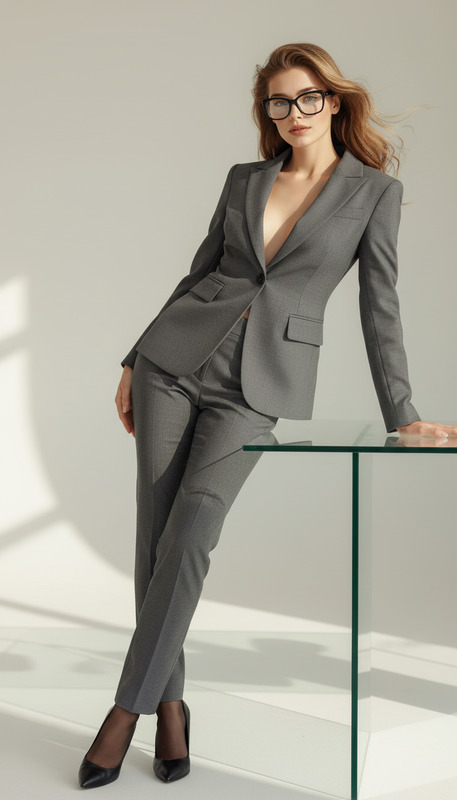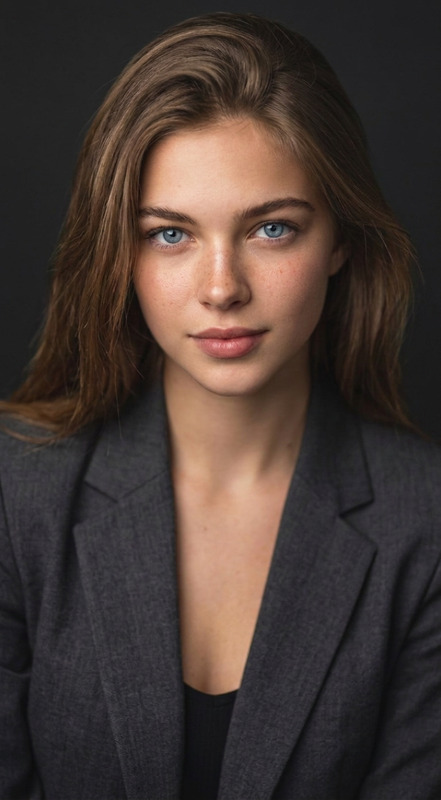
Modern Office Boss

Modern Office Boss

ai-image-editor

1 clip
1 uses

Any aspect ratio

Prompt

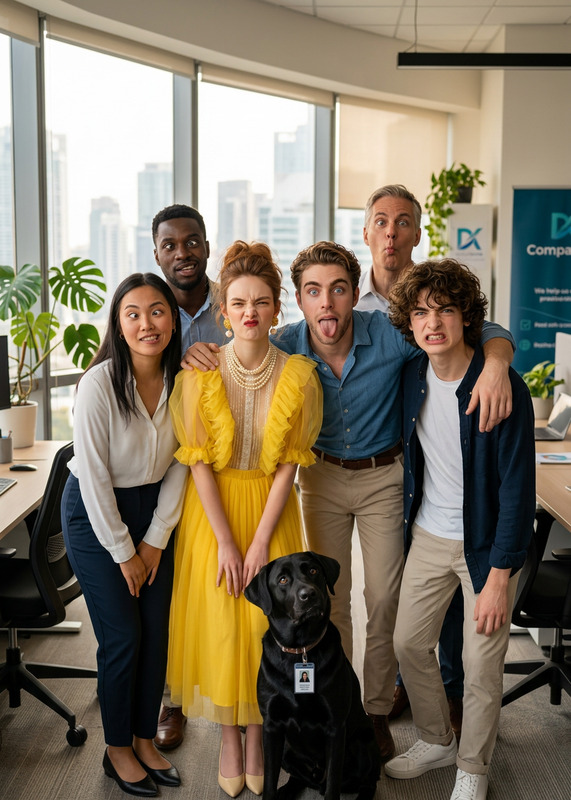
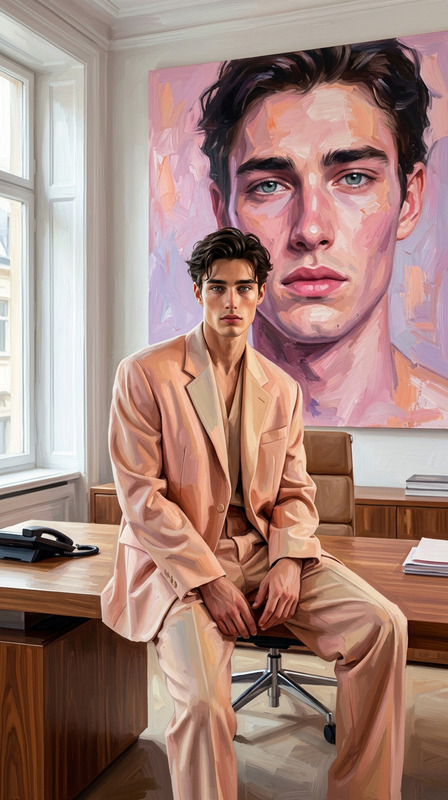
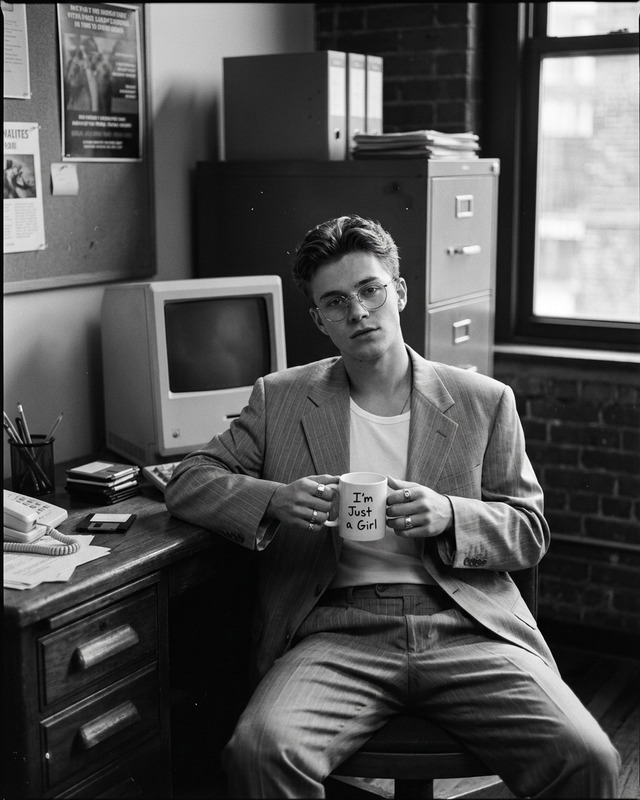
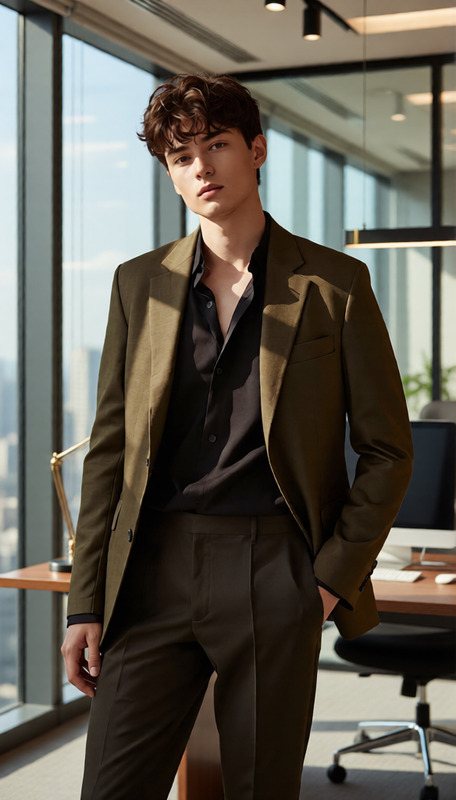
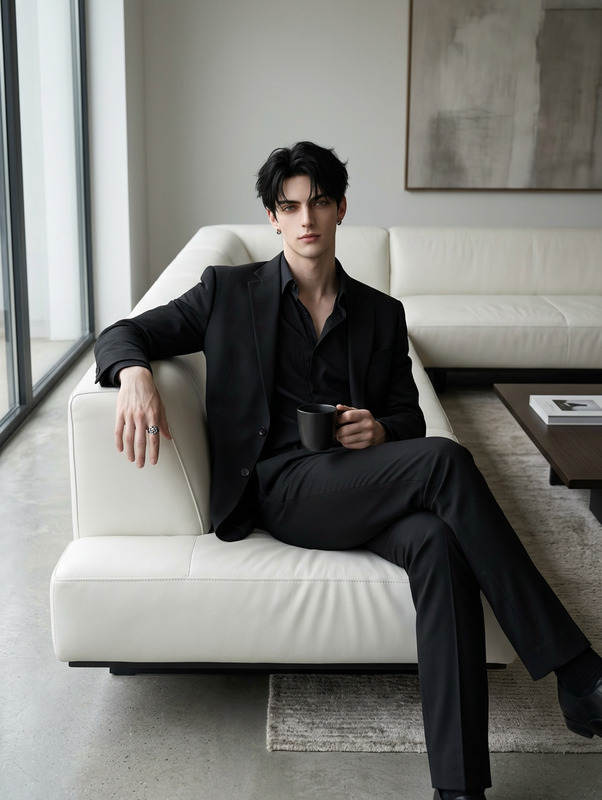
Medium shot of a subject sitting confidently in a modern office, boss-like presence, relaxed but powerful posture. Sleek desk, glass walls, city view in background. Clean minimalist design, natural daylight mixed with soft indoor lighting. Cinematic composition, sharp focus, subtle reflections, photorealistic, high detail, professional atmosphere.

AI Image Editor Template: Edit Any Image in Seconds

This template is built with the AI Image Editor, so you can quickly retouch, redesign, and transform images directly in your browser—no Photoshop skills required.

Use it to:

  • Clean up product photos for landing pages and ads
  • Remove unwanted objects, people, or text from photos
  • Rework backgrounds for social posts, thumbnails, and profiles
  • Mock up design changes before sending to a designer
  • Create fast variations for A/B testing creatives

What This Template Does

This template gives you a repeatable workflow for:

  • Object removal & cleanup
    Quickly erase distractions, logos, or background clutter. Under the hood this uses inpainting-style AI similar to leading tools highlighted in image editing research from CVPR and SIGGRAPH.

  • Background changes
    Swap plain backdrops for branded, lifestyle, or cinematic scenes without reshooting. For more advanced background work, you can also combine this with the AI Background Generator or Image Background Remover.

  • Visual tweaks & enhancements
    Refine facial features, clothing, or lighting to make images more on-brand. If you’re working with portraits, consider pairing this with the AI Face Editor, AI Headshot Generator, or AI Selfie Generator.

Because it’s built on Magic Hour’s image models, edits are consistent, high-resolution, and optimized for creative workflows.


How to Remix This Template in Magic Hour

You don’t need to start from scratch. You can duplicate this template and adapt it to your own brand, product, or workflow.

A typical remix flow:

  1. Open the template

    • Use it as a starting point for your own “AI image editing” or “AI cleanup” flow.
    • Replace example images with your own product shots, headshots, or design assets.
  2. Adjust your input prompts

    • Write clear, action-focused prompts like:
      • “Remove the person in the background and fill with city street at night.”
      • “Change the t-shirt to a black minimalist design with a small logo on the left chest.”
      • “Replace the messy background with a clean white studio backdrop.”
    • Keep prompts specific about: what to remove, what to add, and desired style (studio, lifestyle, cinematic, minimal, etc.).
  3. Create reusable prompt snippets

    • Save prompt fragments you’ll use frequently (e.g., “e-commerce-ready product photo on a light gradient background, soft shadows”).
    • Reuse them across campaigns so your images stay visually consistent.
  4. Chain AI tools for richer outputs

  5. Save a “house style” version

    • Once you’re happy with the look, save your edited outputs as references for future prompts.
    • Use these as visual guides when generating new images via the AI Image Generator or AI Photo Generator.

Example Use Cases for Creators, Marketers, and Builders

1. E-commerce & SaaS marketing

  • Clean product photos for Shopify, Webflow, or landing pages.
  • Generate multiple background variants for ads and A/B tests.
  • Remove watermarks or stray elements (for assets you own the rights to) using the Watermark Remover or AI Remover.
  • Convert one hero image into multiple channel-optimized visuals with Thumbnail Maker and Album Cover Generator.

2. Personal branding & profiles

3. Content & social media

4. Product & UX mockups

  • Quickly test color, layout, or environment changes on UI screenshots and app mockups.
  • Use AI Logo Generator and Book Cover Generator to iterate on branding materials.
  • Visualize concepts for product decks, pitch assets, and investor updates.

Combine With Other Magic Hour Templates

Once your images are edited, you can plug them directly into other Magic Hour creation flows:

  • Face Swap Video – Insert edited faces into existing footage via the Face Swap Video template, or explore the standalone Face Swap and Face Swap GIF tools.
  • Lip Sync – Turn edited portraits into short, talking clips with the Lip Sync template and pair with the AI Voice Generator or AI Voice Cloner.
  • Video to Video – Stylize or transform footage derived from your edited images using the Video to Video template and the Video Upscaler for final polish.
  • Animation – Turn static characters or scenes into animated clips with the Animation template, great for explainers, product walk-throughs, or social content.

Tips for Better AI Image Edits

  • Be explicit about the goal
    Describe the final use case (e.g., “for Amazon listing,” “for LinkedIn banner,” “for YouTube thumbnail”) so your edits match the medium.

  • Specify what stays and what changes
    Example: “Keep the model, remove everything in the background and replace with a solid brand-color gradient” is clearer than “make the background better.”

  • Use consistent language across edits
    Reuse phrasing like “soft studio lighting,” “high-contrast cinematic,” or “flat lay e-commerce photo” so your visual system stays coherent.

  • Leverage style tools when relevant
    For stylistic experimentation, pair your edits with:


Advanced Ideas for Builders and Teams

For teams building repeatable content pipelines:


Related Tools Worth Exploring

If this template fits your workflow, you may also want to explore:


Use this template as your base layer for AI-enhanced image editing, then remix it to match your brand, your product, and your content pipeline. Once you have a working version, you can duplicate it for every campaign and keep your visuals consistent, fast to produce, and easy to update.

More Like This

Insufficient credits