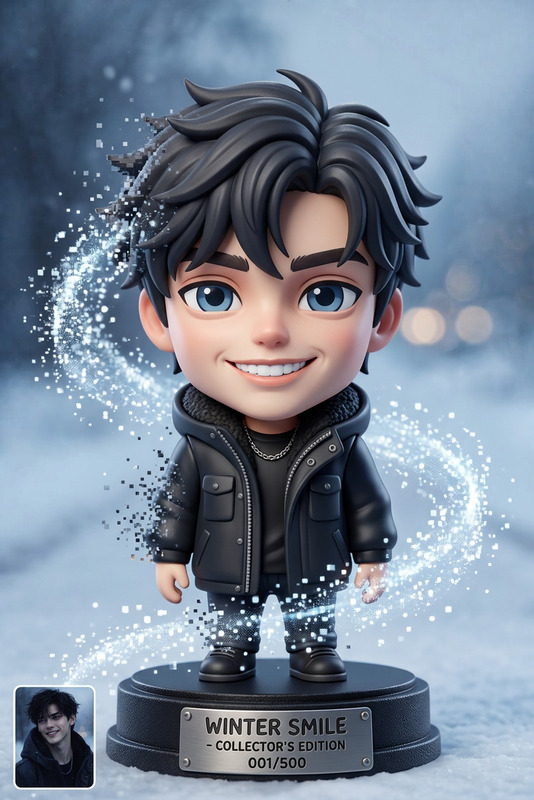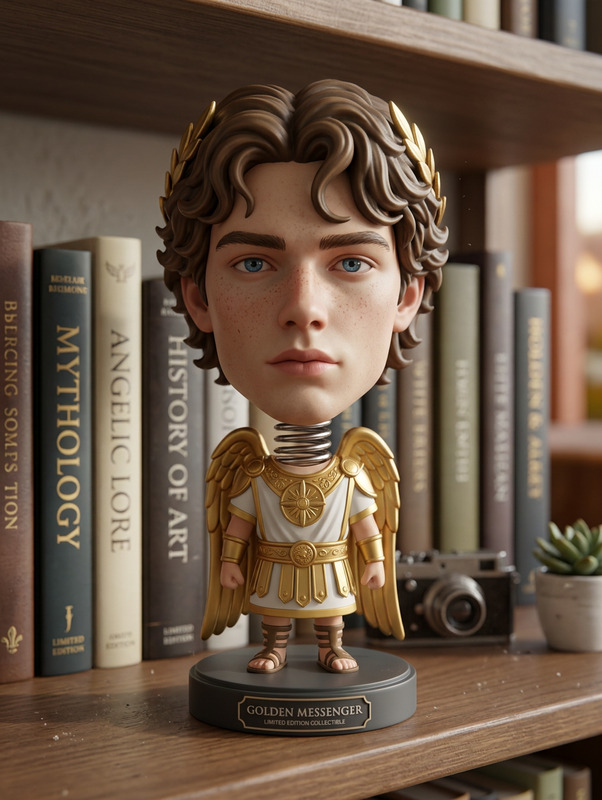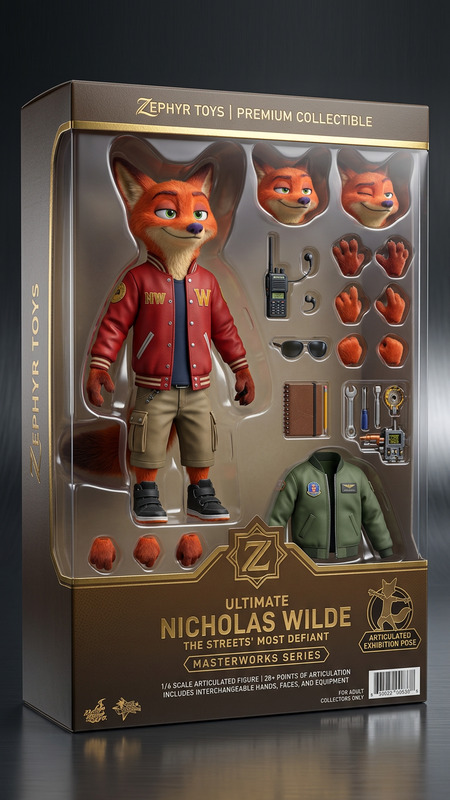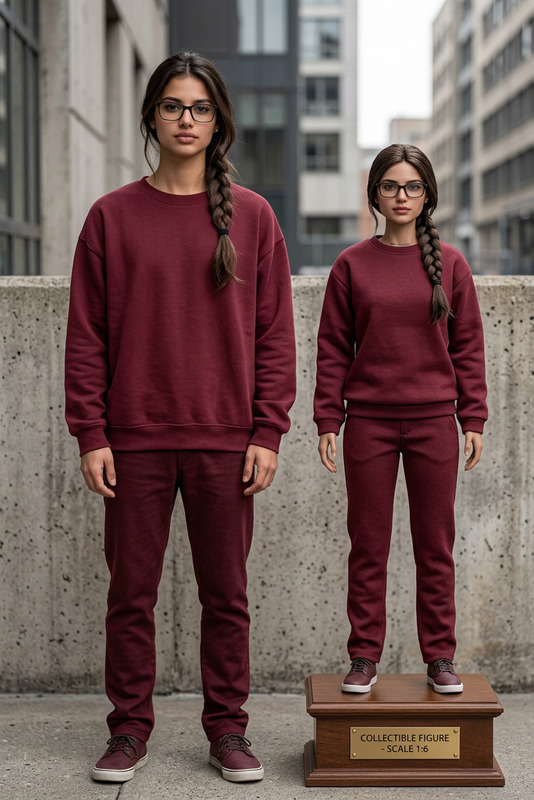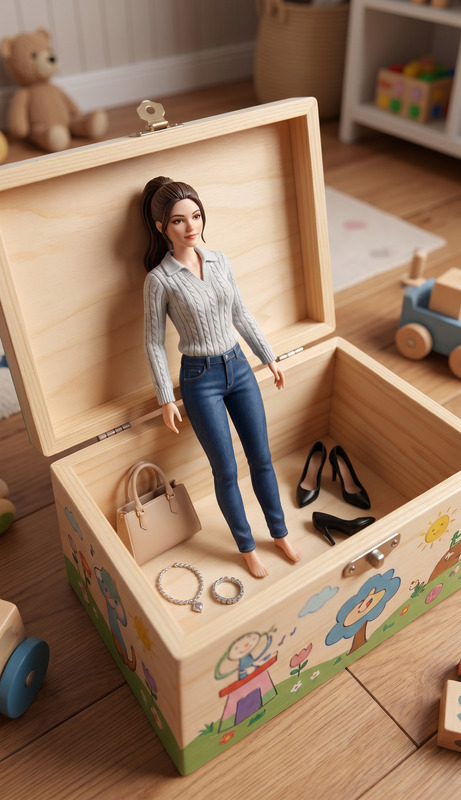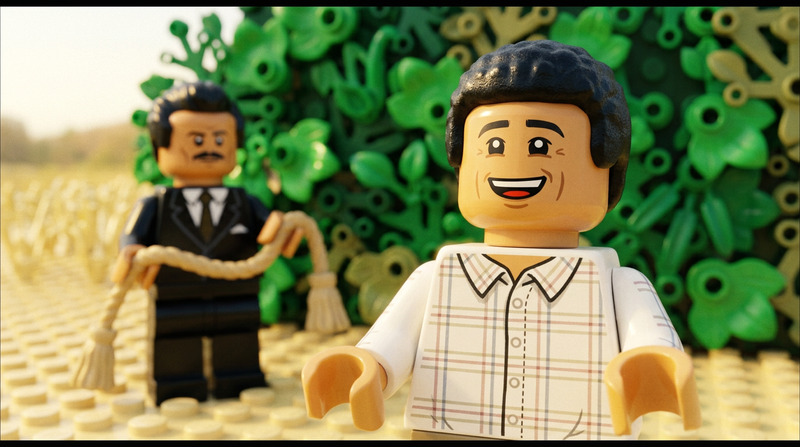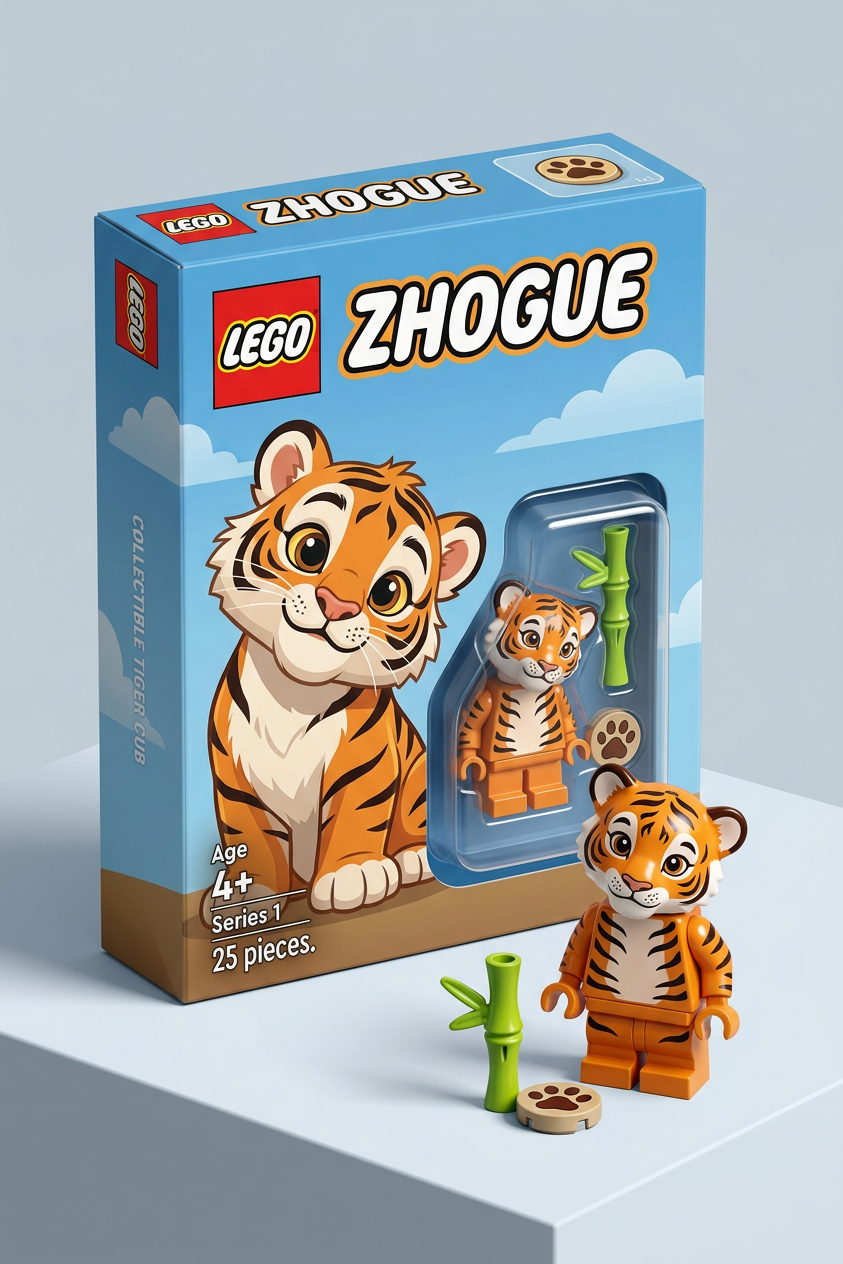
LEGO Box Minifigure
ai-image-editor
Any aspect ratio
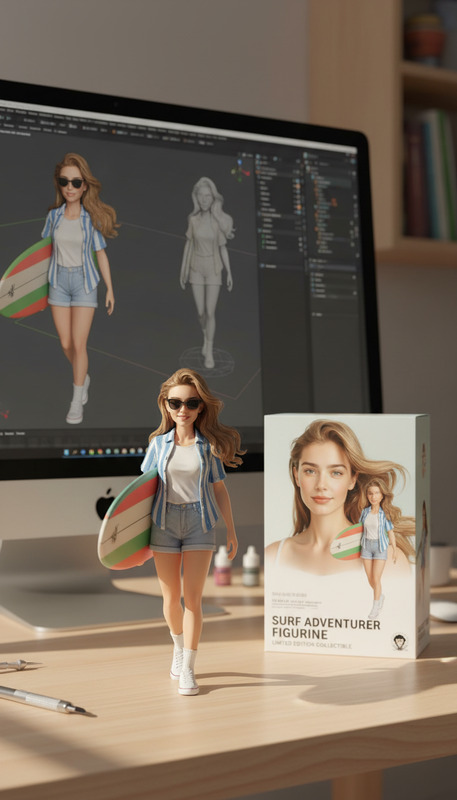
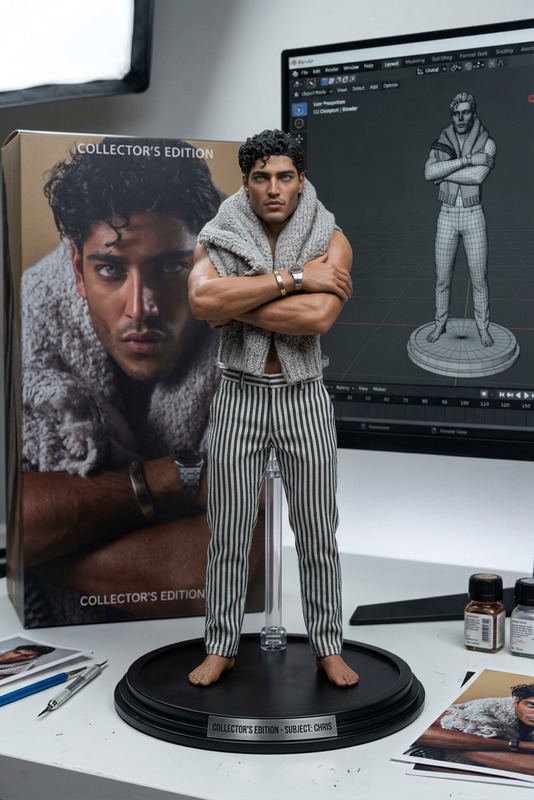
Turn the person into a LEGO minifigure product box (isometric). Label the box “ZHOGUE”. Show the minifigure inside with LEGO accessories based on their items. Place the same minifigure outside the box, unpackaged. Keep likeness, use realistic plastic textures, clean studio lighting, premium look.
Tags
transformationsAI Image Editor Template: Clean Product Cutout (Ghost Mannequin Style)
Turn any product photo into a clean, studio-ready cutout in seconds using Magic Hour’s AI Image Editor. This template is ideal for ecommerce founders, marketers, and creators who need consistent, high-converting visuals for product pages, ads, catalogs, and marketplaces.
What this template does
This template helps you:
- Remove busy or inconsistent backgrounds
- Create clean “ghost mannequin” or flat-lay style images
- Standardize product presentation across your catalog
- Prepare assets for Shopify, Amazon, Etsy, social ads, and lookbooks
Under the hood, the workflow combines:
- Background removal and cleanup
- Subtle edge refinement so products don’t look cut-and-paste
- Light, neutral backgrounds that work well with most brand systems
You can remix this template to match your brand’s aesthetic (colors, shadows, framing) directly inside Magic Hour.
When to use this template
Use this template if you:
- Sell physical products (apparel, jewelry, cosmetics, electronics, home goods, DTC brands)
- Need consistent imagery across multiple SKUs and channels
- Are upgrading from DIY photos or inconsistent agency work
- Want assets that are compatible with marketplace image guidelines (e.g., clean background, clear product focus)
It’s especially useful for:
- Product detail pages (PDPs)
- Catalogs and line sheets
- Retargeting ads where the product needs to be unmistakably clear
- Product comparisons and bundle images
How to use (and remix) this template in Magic Hour
You can recreate and customize this template in a few minutes:
Open the AI Image Editor
- Go to AI Image Editor.
- Upload a product photo (flat lay, on-model, or lifestyle shot).
Isolate the product
- Use the editor to remove the original background and keep only the product.
- If needed, use masking/selection tools to refine edges (especially around hair, transparent materials, or fine details).
Create a clean, brand-ready background
- Replace the background with a simple studio-style backdrop (e.g., white, off-white, light gray, or your brand color).
- You can also generate subtle gradients or soft shadows using the editor’s generative fill/extend tools.
Adjust composition and framing
- Reposition and resize the product so it’s centered and clearly visible.
- Ensure consistent visual margins if you plan to batch images for a full catalog.
Save as a reusable workflow
- Once you’re happy with one image, repeat the same steps for other SKUs.
- Keep this as your “product cutout” pattern: same background style, similar framing, and similar shadow treatment so your entire catalog feels cohesive.
Because the template runs on AI Image Editor, you can easily remix it into variants: seasonal versions, platform-specific crops (e.g., square for marketplaces, vertical for social), or alternate colors and textures behind the product.
Remix ideas: turn a simple cutout into a full content system
Once you have a clean product cutout, you can quickly generate additional assets across Magic Hour’s tools:
Lifestyle & storytelling visuals
- Start with your clean cutout and place it into new scenes using:
- Example: put your product in a minimalist apartment, outdoors, or in UGC-style environments.
On-model and outfit previews
- For fashion and accessories, combine with:
- Use the cutout as a base, then generate different styling contexts while keeping the core product consistent.
High-resolution and print-ready exports
- Upscale and clean your product shots for large placements:
- Useful for hero banners, print catalogs, and OOH creatives.
Ad and social variations
- Turn your static cutout into ad-ready creatives using:
- Thumbnail Maker for YouTube and social previews
- Album Cover Generator for bold square creatives
- Comic Book Generator for more stylized campaigns
- Turn your static cutout into ad-ready creatives using:
Animations and video from your product image
- Transform your cutout into short videos or motion clips:
- Image to Video to animate simple product spins or dynamic reveals
- AI GIF Generator for looping product animations
- Video to Video Template to stylize existing product videos using your consistent product imagery
- Animation Template to quickly add motion to campaigns that start from still product shots
- Transform your cutout into short videos or motion clips:
Advanced uses for teams, startups, and agencies
This template is optimized for teams that care about speed and consistency:
Brand systems & visual guidelines
- Establish a default background tone and product framing.
- Use the same look across all SKUs so pages feel professionally art-directed without manual retouching.
Data-driven experimentation
- A/B test different background colors or compositions to measure conversion lift.
- Use variants generated via AI Image Editor and track performance in your ecommerce or analytics stack.
Cross-channel reuse
- Generate one master “clean cutout” and feed it into other Magic Hour tools whenever you need:
- Video explainers with Text to Video using your product as the visual anchor
- Talking or animated characters featuring your product using AI Talking Photo or Animated Characters Generator
- Branded icons or stylized product silhouettes via AI Icon Generator
- Generate one master “clean cutout” and feed it into other Magic Hour tools whenever you need:
Tips for best results
Use clear source images
- Sharp, well-lit product photos yield the most accurate cutouts.
- Avoid extreme blur, heavy motion, or very low resolution; if needed, first run your source through Unblur Image or Old Photo Restoration.
Match platform expectations
- Many marketplaces (e.g., Amazon-style catalogs) favor white or near-white backgrounds, clear edges, and minimal props.
- For direct-to-consumer (DTC) sites, subtle color or texture can improve perceived brand quality and differentiation.
Maintain consistency at scale
- Once you like the look of one image, keep the same background tone, relative product size, and angle across the full lineup for a polished catalog.
Related Magic Hour tools worth exploring
If you’re building a full product content pipeline, these tools pair well with this template and the AI Image Editor:
- AI Photo Generator – generate photo-realistic scenes around your products
- AI Meme Generator – fast meme-style content for social product marketing
- AI Logo Generator and Book Cover Generator – for brand and packaging mockups
- Image Background Remover and Remove Object from Photo – for more targeted cleanup
- Watermark Remover – when you need clean, repurposable visuals for internal mockups (respecting license terms)
- Photo Colorizer – for archival product imagery or heritage collections
How to create your own version of this template
To build a custom variant of this “clean product cutout” template inside Magic Hour:
- Start in AI Image Editor with a representative product photo.
- Remove the original background, refine edges, and add your preferred neutral or branded background.
- Adjust composition until it matches the aesthetic and proportions you want for your catalog.
- Use that image as your reference look and repeat the workflow across other products.
- Optionally, feed your new cutouts into other Magic Hour products (like Image to Video or the Animation Template) to build a complete, reusable visual system.
This gives you a fast, consistent, and scalable way to turn raw product photos into polished, on-brand assets—directly inside Magic Hour, without manual Photoshop work or external agencies.