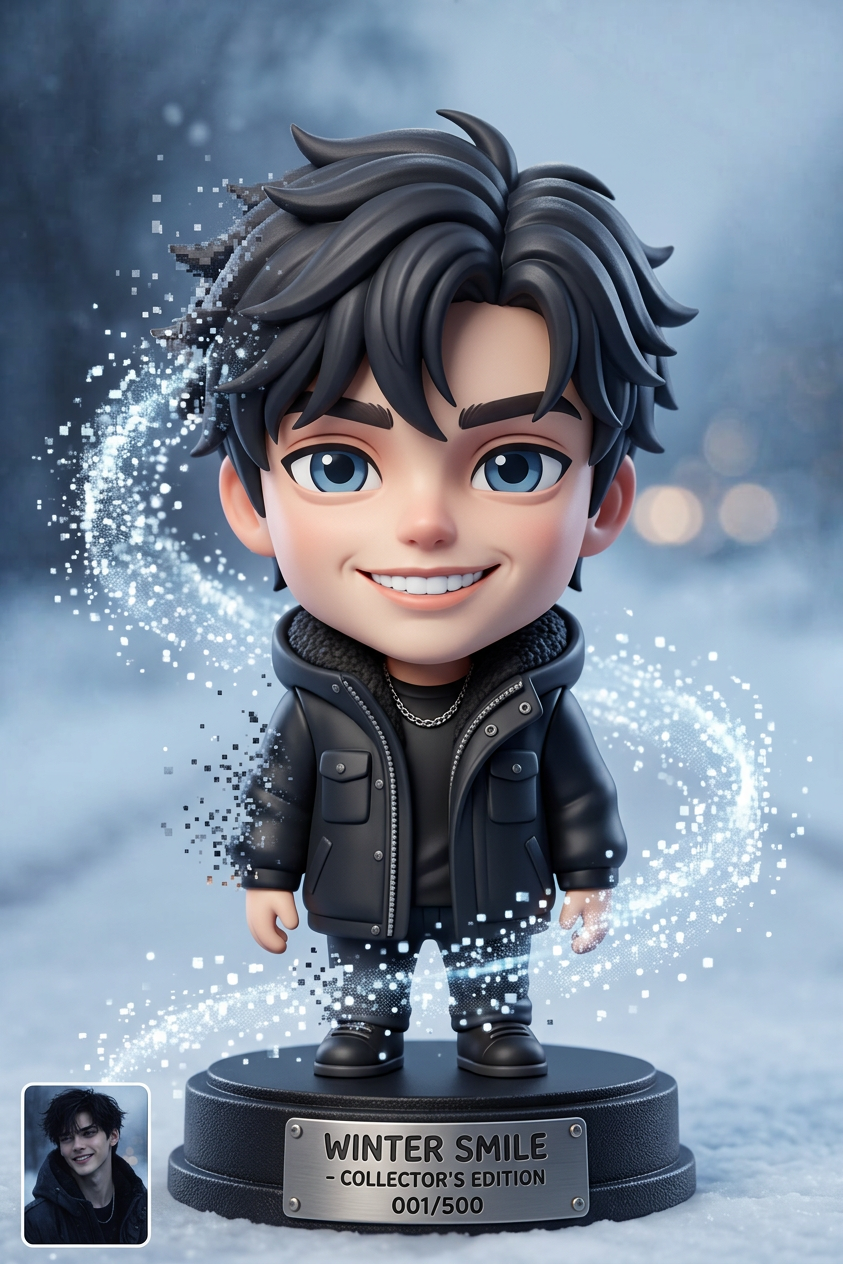
Mini Toy

Mini Toy

ai-image-editor

1 clip
33 uses

Any aspect ratio

Prompt

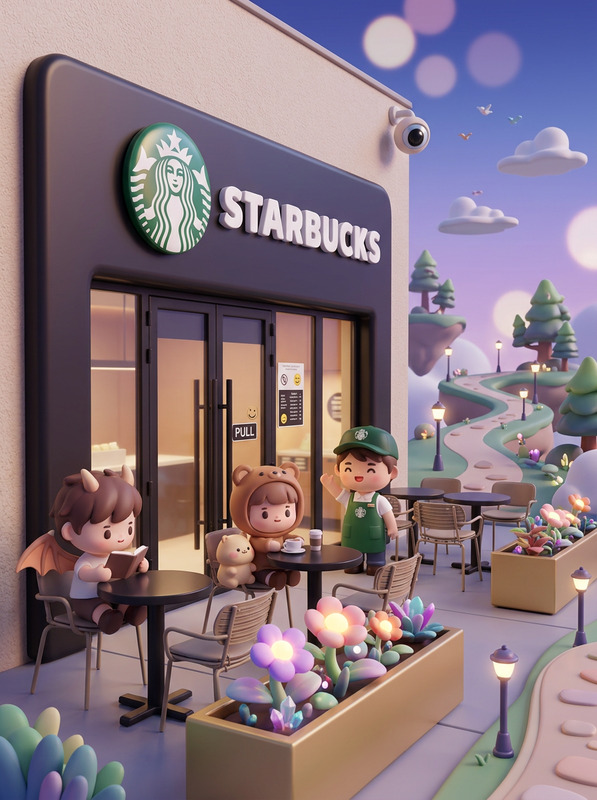
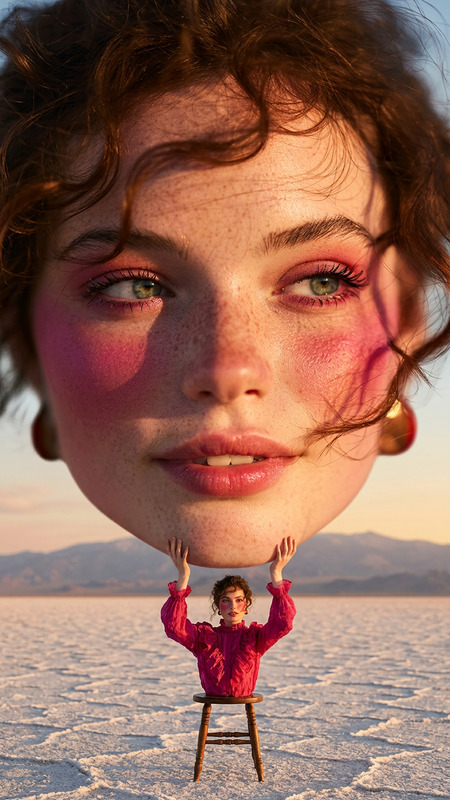
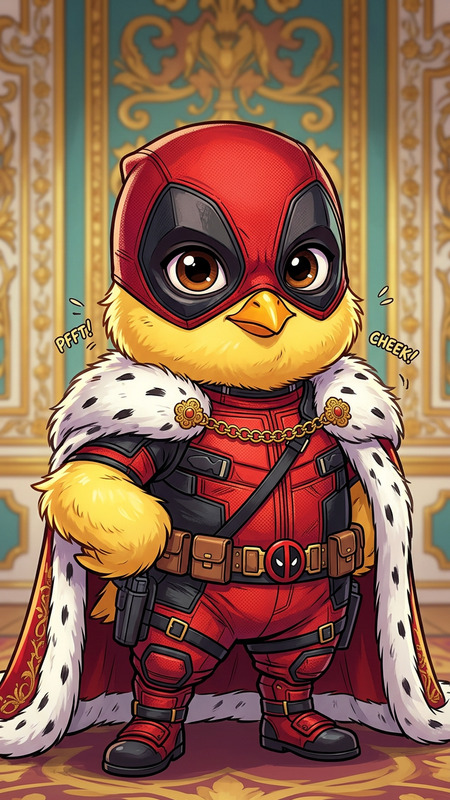
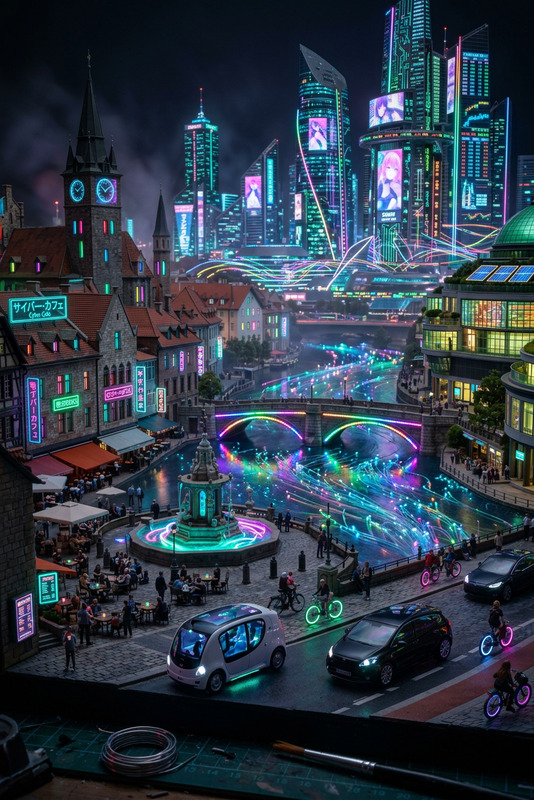
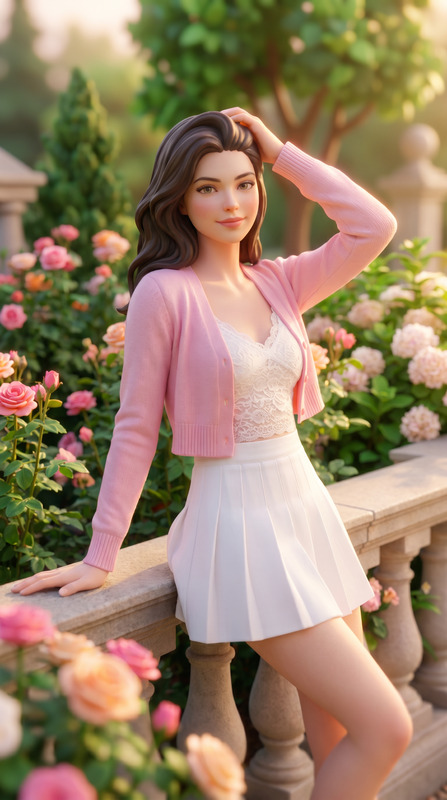
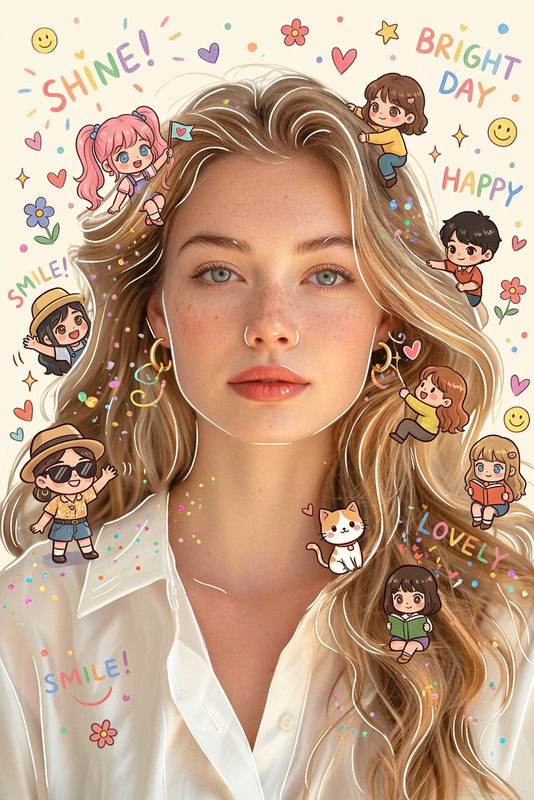
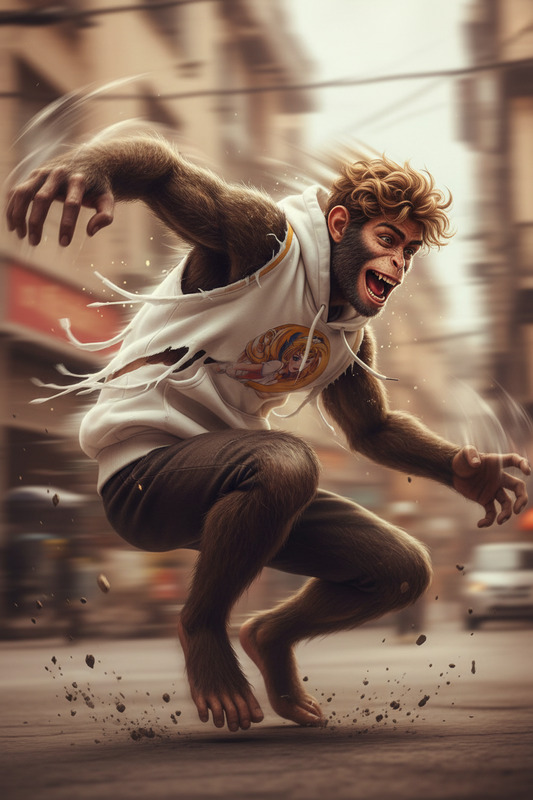
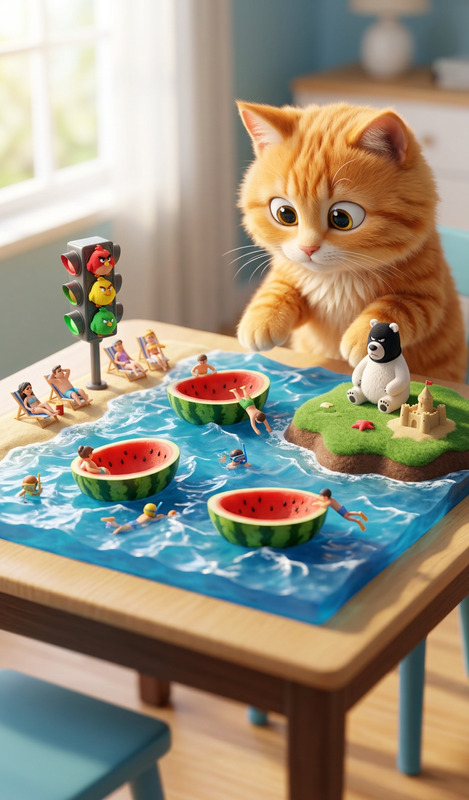
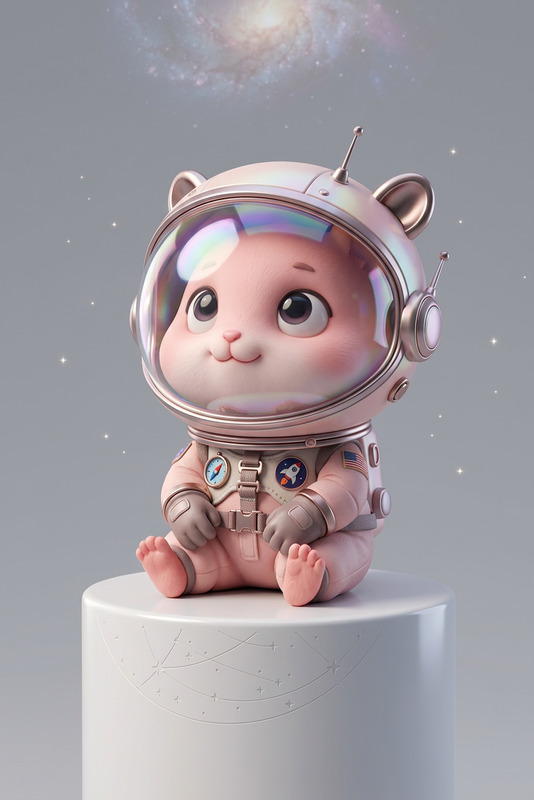
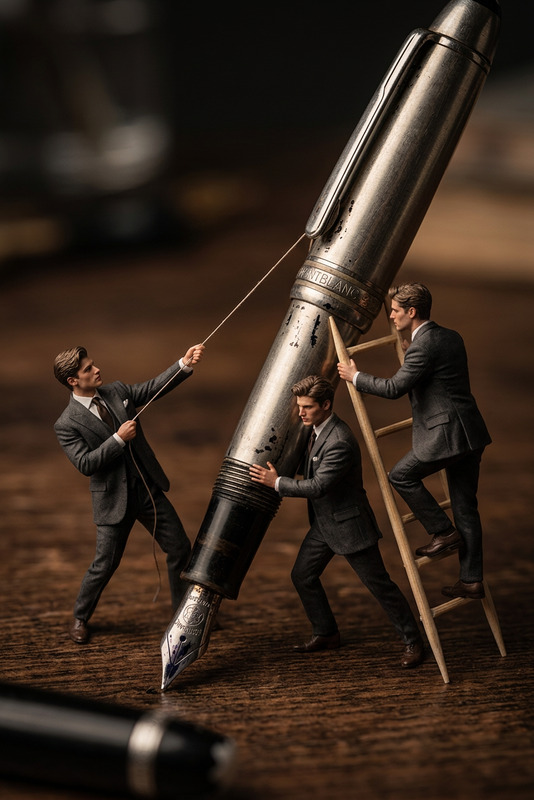
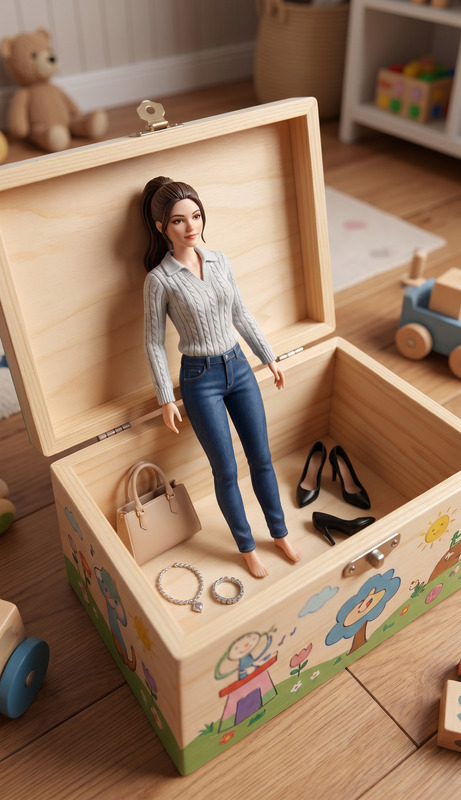
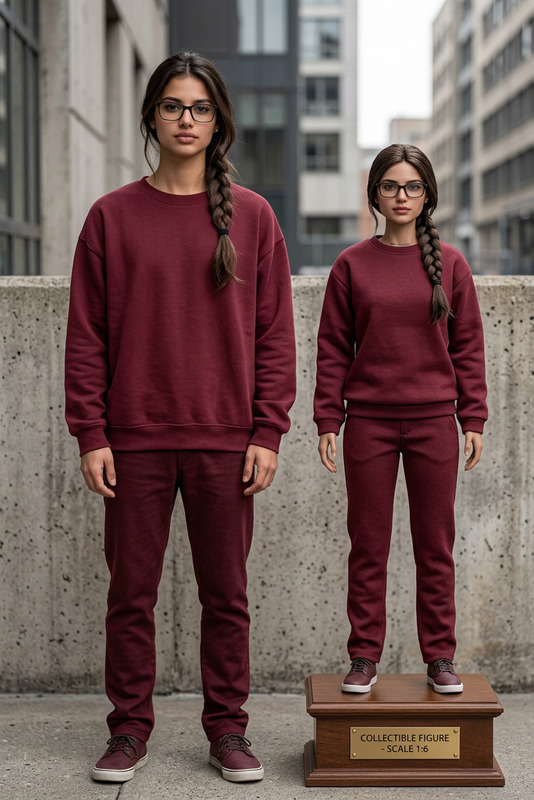
A subject gradually transforms into a toy version of itself with cute exaggerated proportions—big head, small body—standing on a small display base, with a smooth, playful transition and stylized finish.

AI Image Editor Template: Remixable Visuals for Fast, On-Brand Content

Use this template to quickly transform any image with Magic Hour’s AI Image Editor. It’s designed for creators, marketers, and product teams who want studio-quality edits without manual Photoshop work—or who want a repeatable workflow they can remix and scale.


What This Template Does

This template demonstrates how to:

  • Replace or enhance backgrounds using generative AI
  • Clean up images by removing unwanted objects, logos, or people
  • Adjust visual style (realistic, cinematic, illustrative, branded) from a simple text prompt
  • Repurpose one asset into many variants for A/B tests, ads, and social posts

It’s built to be remixable: you can start from this workflow, swap in your own images, change prompts, and combine it with other Magic Hour tools to create your own reusable “micro-pipeline.”


How to Remix This Template in Magic Hour

  1. Open Magic Hour
    Go to the AI Image Editor.

  2. Use the Template as a Starting Point

    • Upload your base image (product photo, portrait, illustration, UI mockup, etc.).
    • Use the same general structure as this template:
      • “What stays”: subject, composition, framing
      • “What changes”: background, style, lighting, mood, props
  3. Edit with Natural Language
    Describe the change you want, for example:

    • “Turn this plain studio background into a warm, cozy coffee shop, soft natural light, shallow depth of field.”
    • “Remove the clutter on the table and replace it with a laptop and notebook, modern startup vibe.”
    • “Convert this into a clean vector illustration, flat design, suitable for SaaS landing pages.”

    The AI Image Editor will apply those changes non-destructively, so you can iterate quickly.

  4. Iterate and Fork Variants

    • Duplicate the result inside Magic Hour and tweak your prompts for multiple variations (different colors, environments, or styles).
    • Treat each variation as a remix: small prompt changes can yield a full set of campaign-ready assets.
  5. Chain It With Other Magic Hour Tools (Optional)
    Once you’re happy with your edited image, you can extend it into video, avatars, or other formats:


Practical Use Cases

1. Performance Marketing & Growth Teams

  • Create dozens of ad variations from a single product photo.
  • Localize visuals for different regions by changing environments and props.
  • Combine with:

2. Founders & Product Teams

3. Creators, Designers & Studio Owners

4. UGC & Creator-Led Brands


Advanced Remix Ideas for Power Users

If you want to build reusable “playbooks” instead of one-off edits, consider these patterns:

A. “Hero Image Factory” for SaaS & Landing Pages

  1. Use AI Image Generator or AI Photo Generator to create an initial scene.
  2. Refine layout and remove distractions with the AI Image Editor.
  3. Generate multiple stylistic variants (minimalist, 3D, isometric, “productivity workspace”) for testing.

B. “Product-on-Any-Background” Workflow

  1. Capture one clean product shot.
  2. Remove the original background with Image Background Remover.
  3. Use the AI Image Editor to drop it into different settings:
    • Lifestyle scenes
    • Seasonal themes
    • UGC-style compositions
  4. Upscale final selections via AI Image Upscaler for print and high-resolution use.

C. Creative IP & Worldbuilding
If you’re building characters, comics, or fictional worlds:

  1. Generate core characters with the AI Character Generator or AI Face Generator.
  2. Use AI Image Editor to maintain character identity while changing outfits, settings, and moods.
  3. Extend into:

Connecting Image Editing to Video & Voice

For teams building richer experiences around edited images:

You can also feed video outputs through:


How to Build Your Own Template from This One

To create a custom, repeatable editing flow tailored to your brand:

  1. Define Your “Constants”
    Decide what should remain consistent across assets:

    • Brand colors, mood, lighting style
    • Type of background (minimal, lifestyle, studio, abstract)
    • Subject framing and angle
  2. Define Your “Variables”
    Decide what you’ll swap or test:

  3. Write Reusable Prompt Patterns
    Instead of a one-off description, write prompts as patterns you can re-use:

    • “Keep the subject as-is. Replace the background with [scene], match [brand color], [lighting].”
    • “Remove [object] and fill space with [prop/texture], maintain a clean, premium aesthetic.”
  4. Save Variants as a Library of “Microsystems”
    Treat each remix as a mini-template:

    • A/B test in your ad or product analytics
    • Reuse top-performing visual directions across campaigns
    • Extend your best variants into animated content with Animation Templates

Related Magic Hour Tools Worth Exploring

Depending on what you’re building, these tools pair well with the AI Image Editor:


Why Use a Template Instead of Starting From Scratch?

For fast-moving teams and creators, templates:

  • Reduce decision fatigue: you’re iterating from a tested baseline instead of reinventing the workflow every time.
  • Make quality repeatable: once you like a look, you can scale it across campaigns or clients.
  • Improve collaboration: everyone on your team can follow the same structure and achieve consistent results.

This AI Image Editor template is intentionally simple but extensible. Remix it, chain it with other Magic Hour tools, and evolve it into your own visual system that matches your brand, product, or creative universe.

More Like This

Insufficient credits