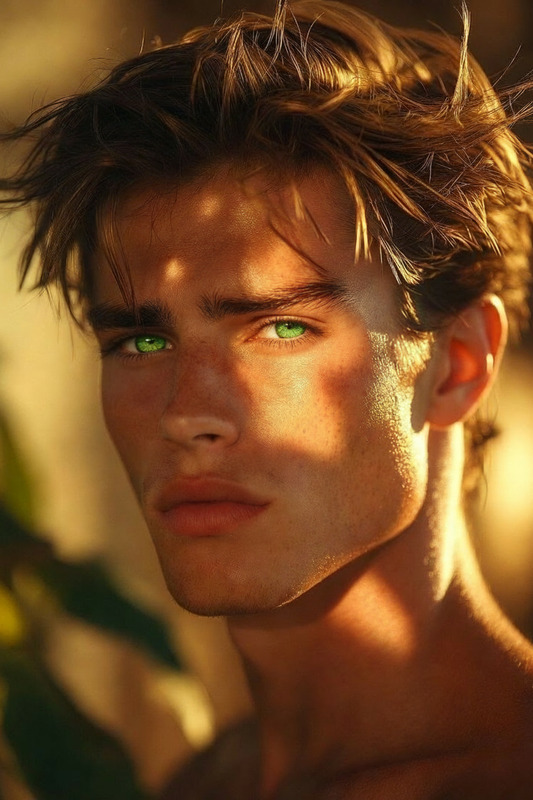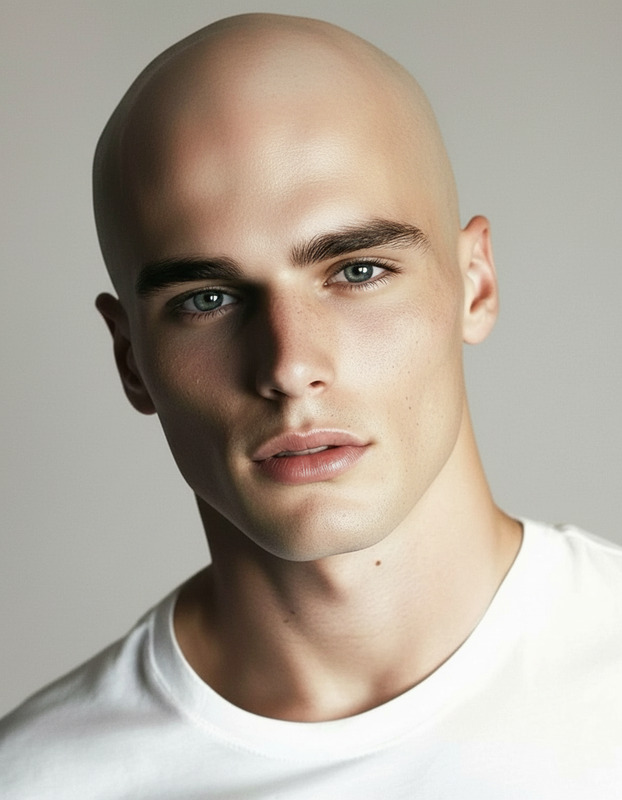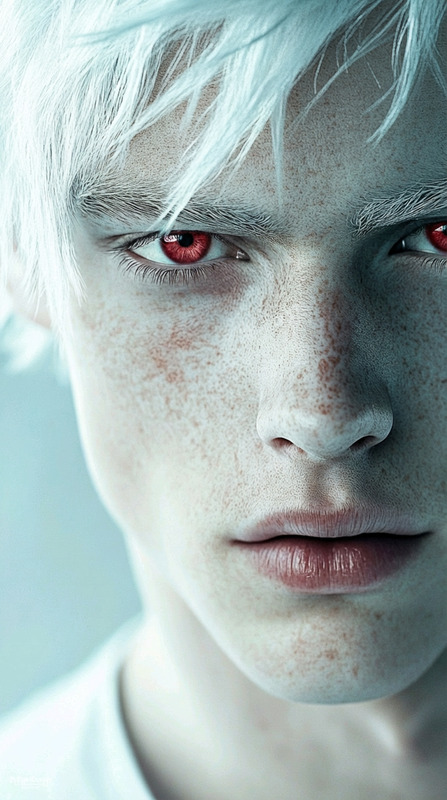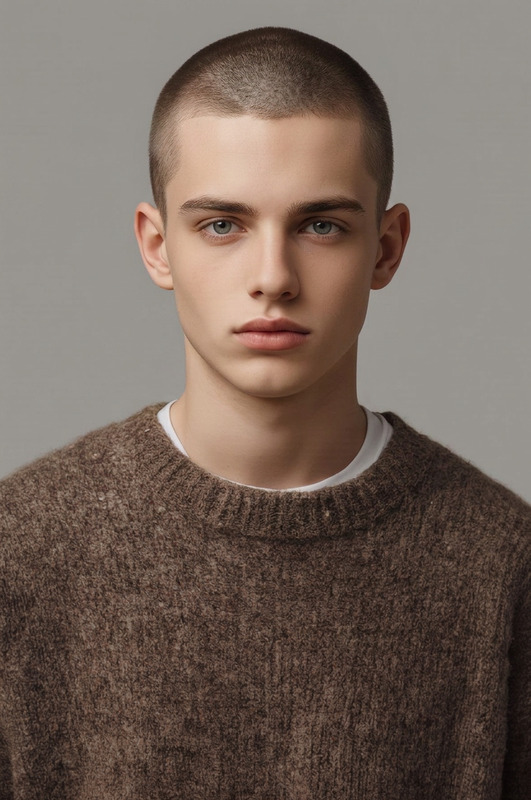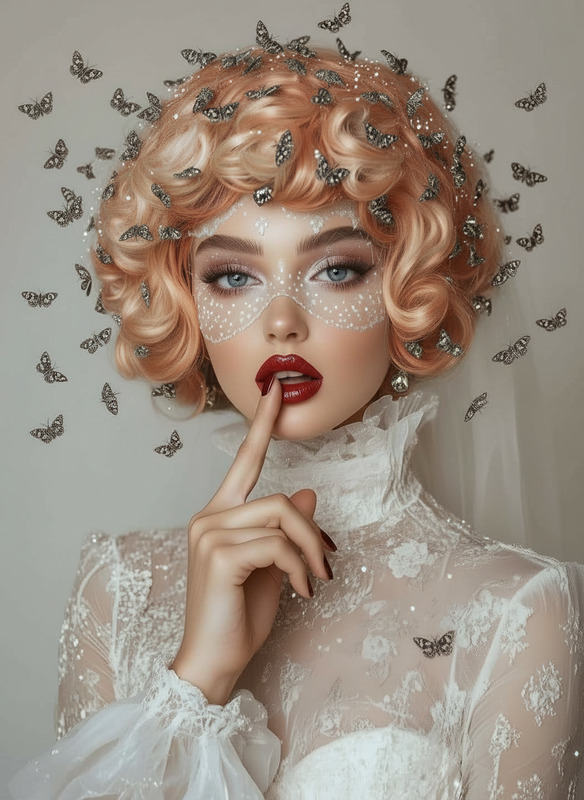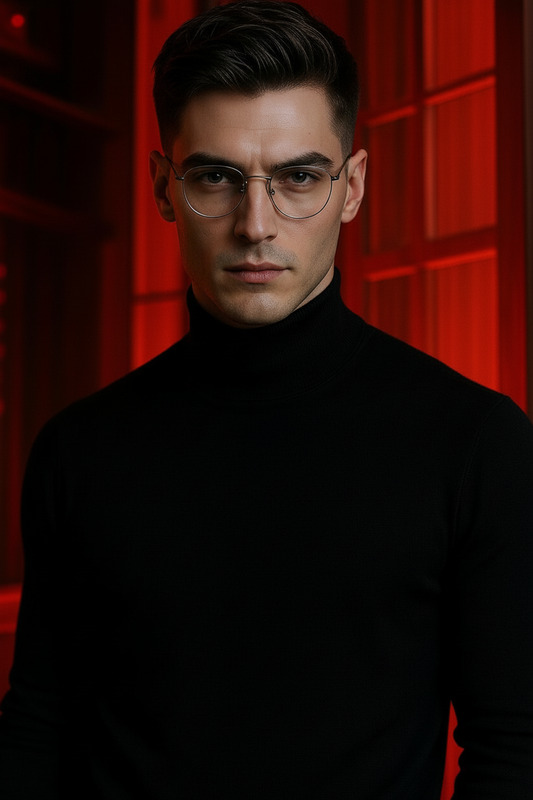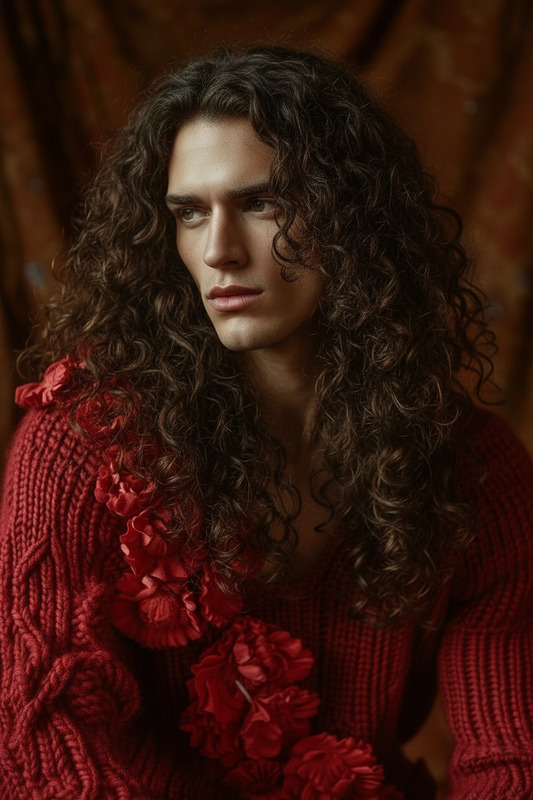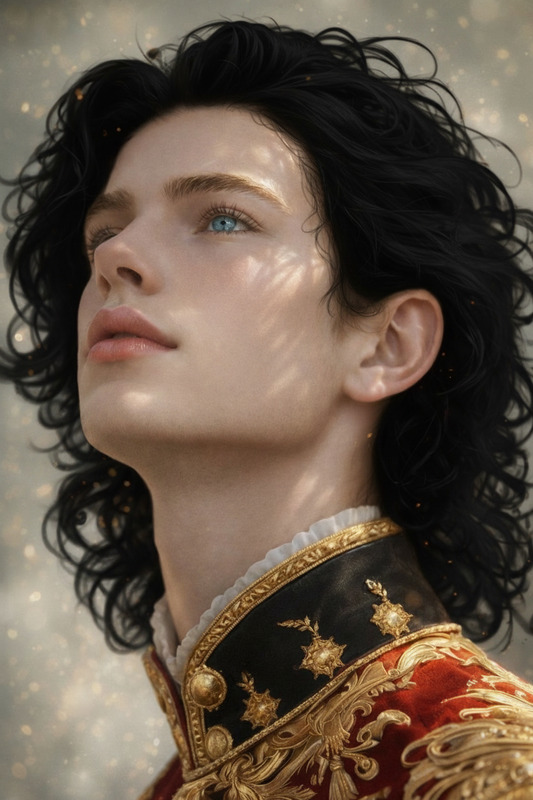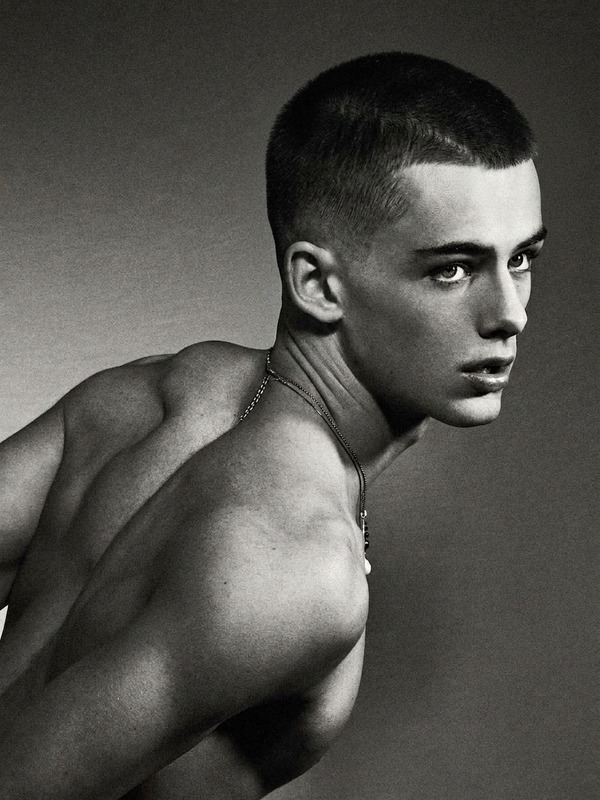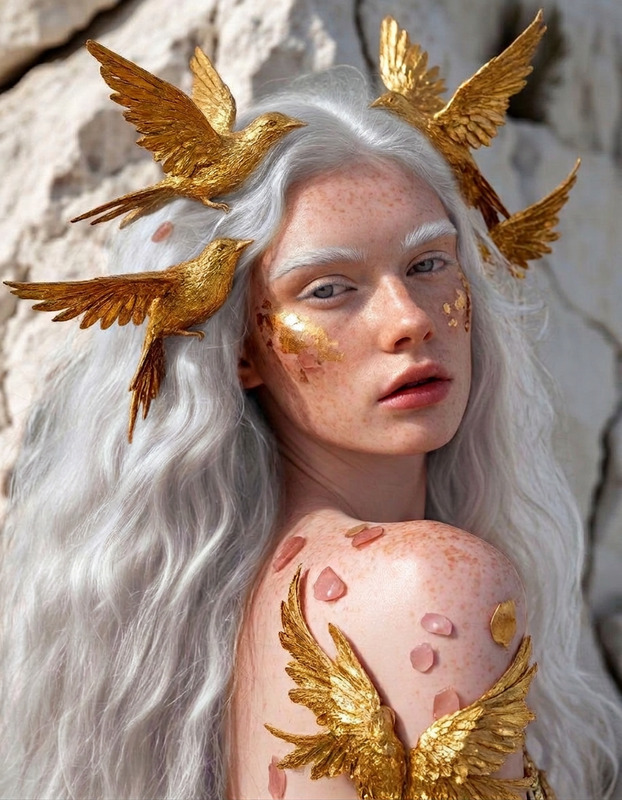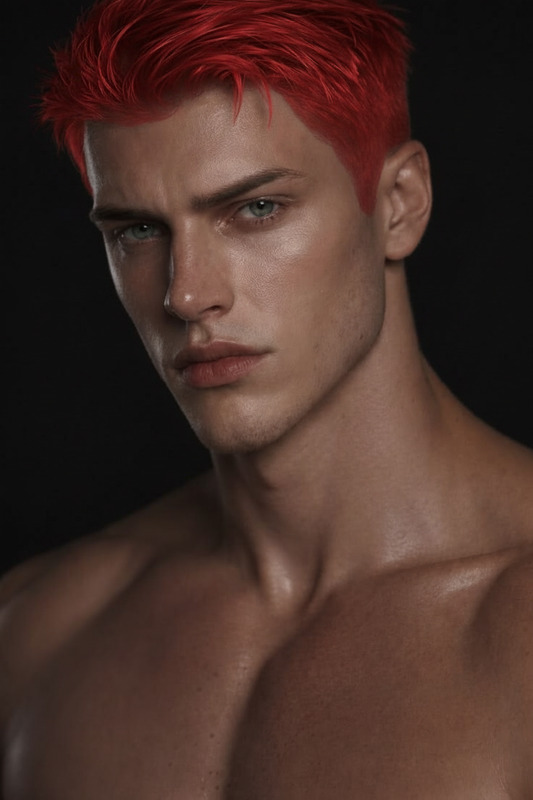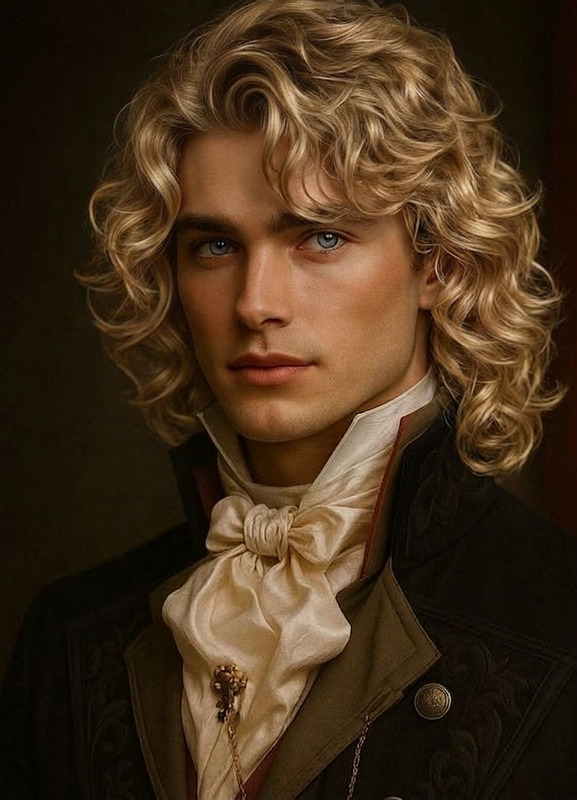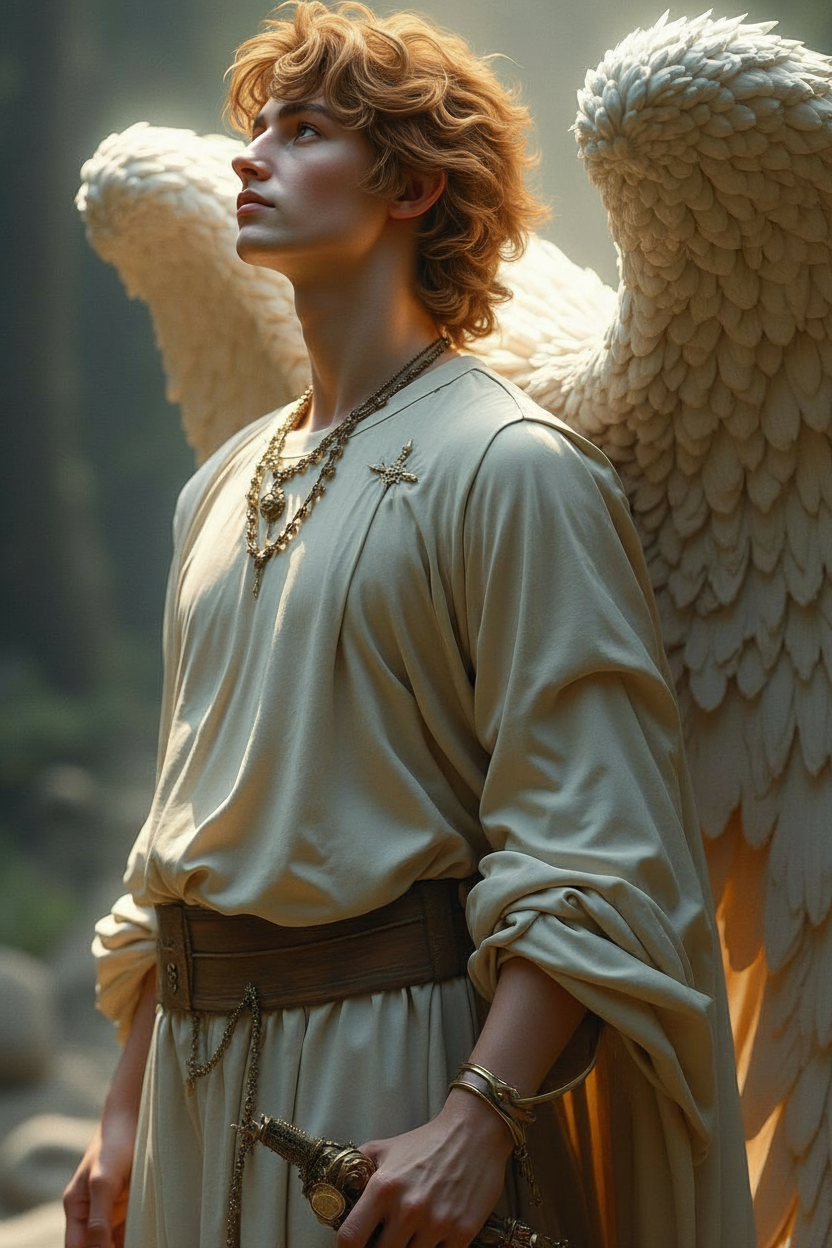
Hair Color Change – Brown
- Model
- Nano Banana
- Image
- 832 × 1248 px
Prompt
Change the subject’s hair color to natural brown while preserving the exact hairstyle, length, texture, and overall shape. Keep all facial features, lighting, and details unchanged. Ensure the new hair color blends realistically with the scene for a natural, seamless result.
Any aspect ratio
Overview
The Hair Color Change – Brown template allows you to quickly alter the hair color to a natural brown tone while keeping all other aspects of the image intact. Utilizing the AI Image Editor powered by the advanced nano-banana model, this tool ensures a realistic transition in hair color that preserves style, texture, and detail.
What It Does
This template changes the subject's hair color in your images to natural brown, perfect for updating an image without altering facial features or lighting. The tool blends the new color effortlessly into the existing scene, maintaining a cohesive and natural look. This feature is part of our versatile AI Image Editor suite.
Who It's For
This tool is designed for photographers, social media influencers, and e-commerce specialists looking to enhance image aesthetics quickly and efficiently. It's ideal for fashion brands employing the AI Clothes Changer to present new looks without needing costly reshoots. This tool can also benefit content creators and digital agencies seeking quick touch-ups for client projects.
Summary
Achieve a natural-looking brown hair color change with minimal effort using the Hair Color Change – Brown template. Part of our cutting-edge AI Image Editor, this feature transforms your images while maintaining natural textures and lighting specifics.
How-To
Choose Your Template

Customize Your Inputs

Generate Resulting Image

Use Cases
Fashion Photography Retouching
- Save costs on reshoots
- Easily coordinate with brand aesthetics
Social Media Content Creation
- Efficiently update profile pictures
- Try out new looks for influencer shoots
E-commerce Model Updates
- Maintain alignment with new fashion lines
- Swift adjustments without new sessions
Best Practices
High-Resolution Images
Use high-resolution images to ensure accurate and detailed hair color changes.Consistent Lighting
Select images with uniform lighting to help the AI accurately apply new color tones.Use Complementary Tools
Combine with the AI Clothes Changer for complete style overhauls or the AI Voice Cloner to create multimedia content.