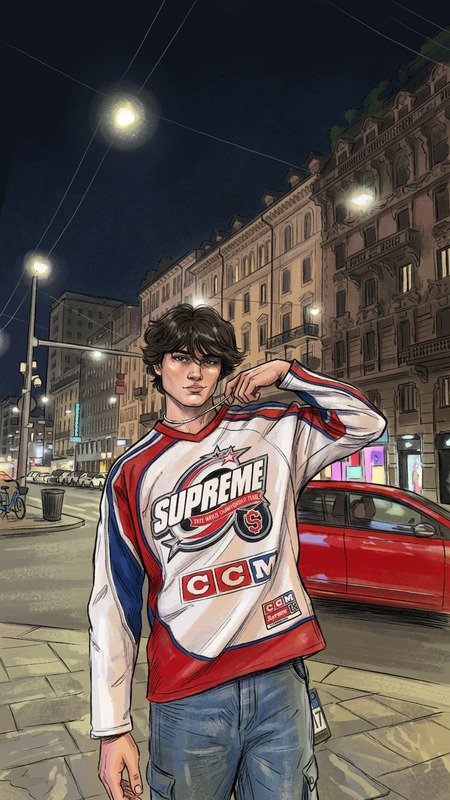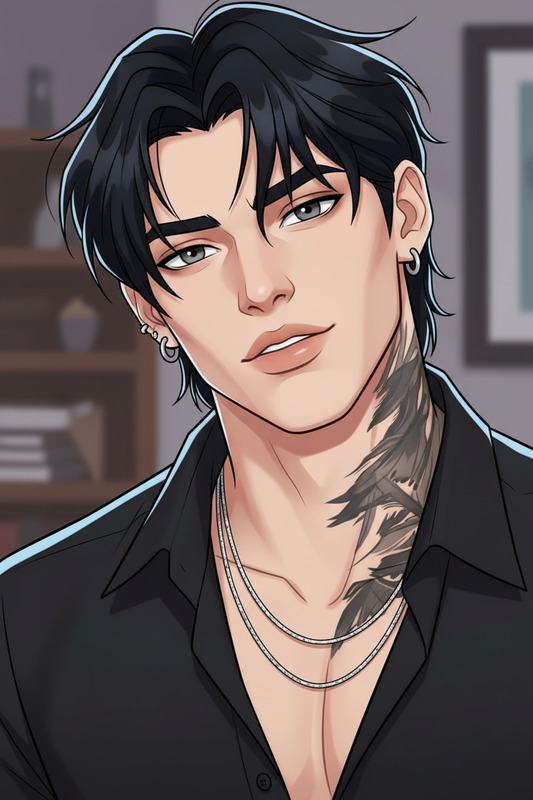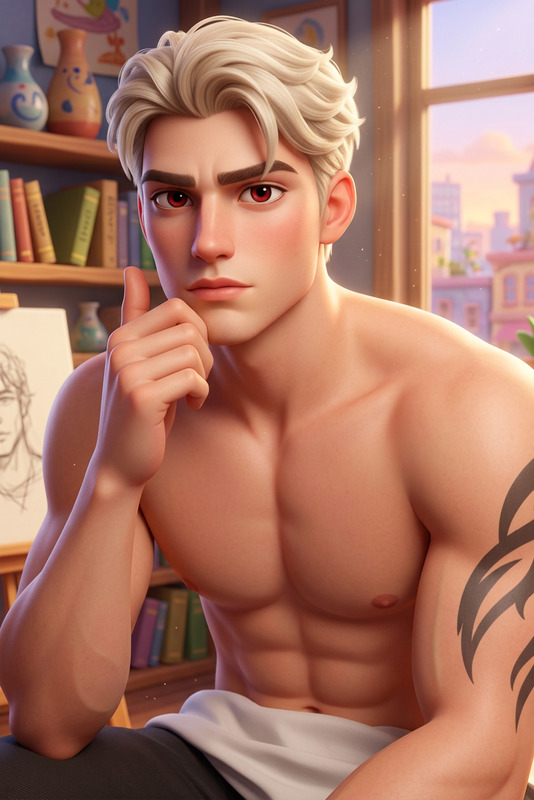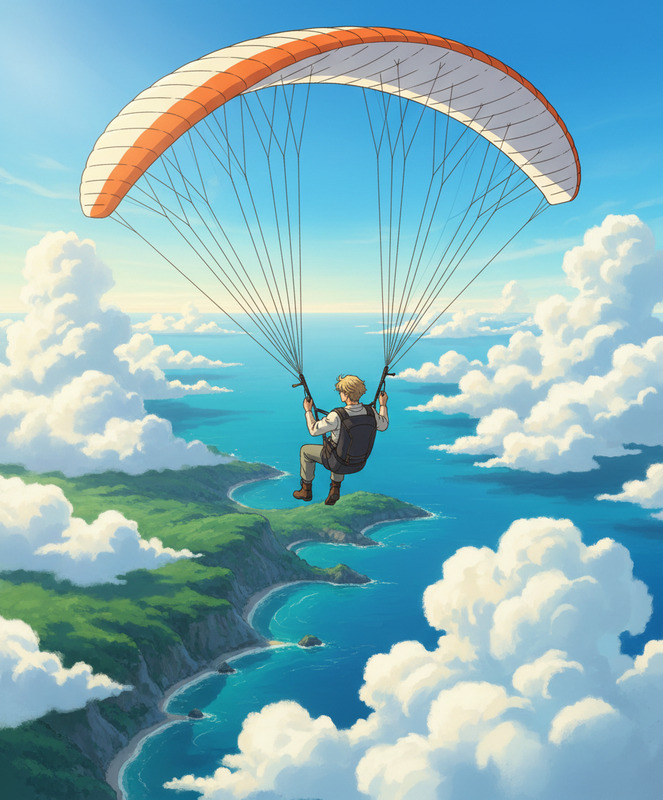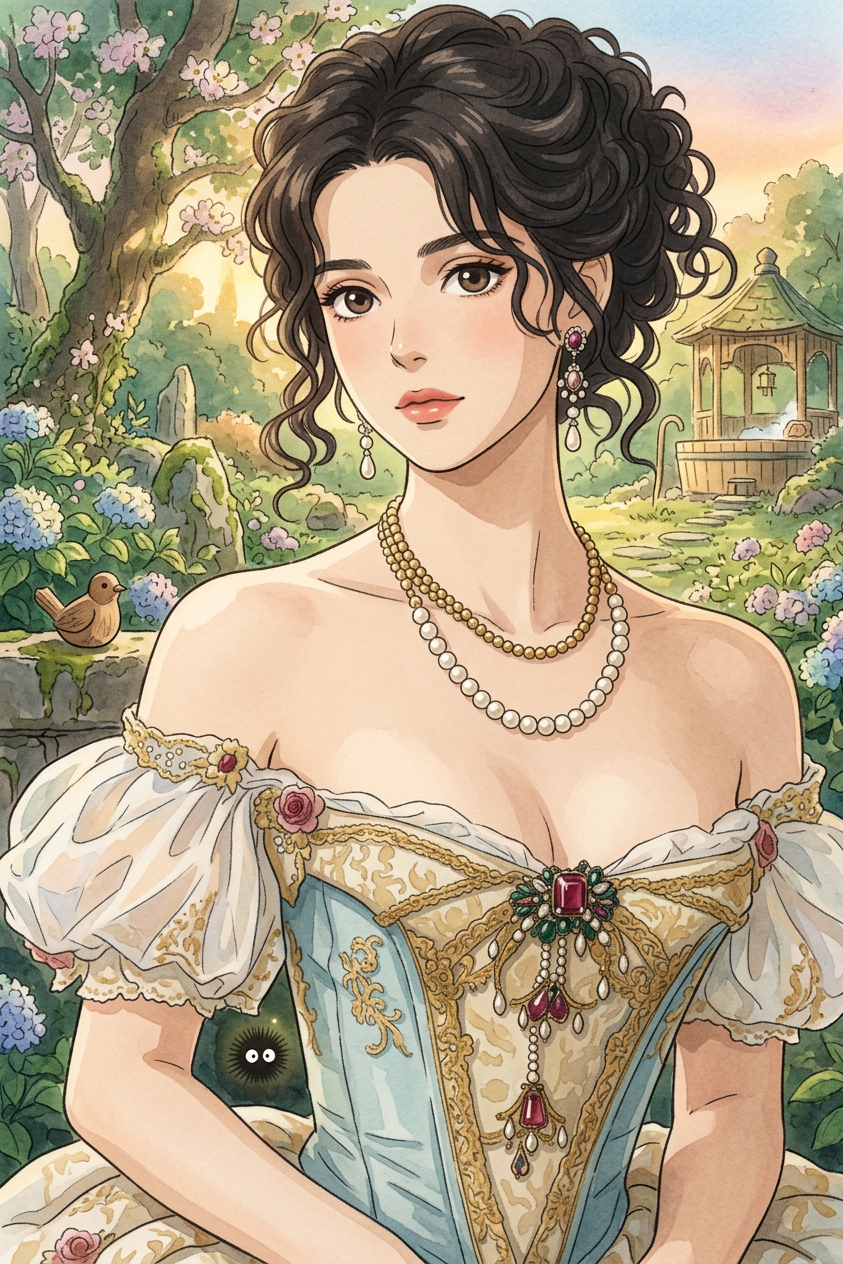
Ghibli Spirit
- Model
- Nano Banana 2
- Image
- 843 × 1264 px
Prompt
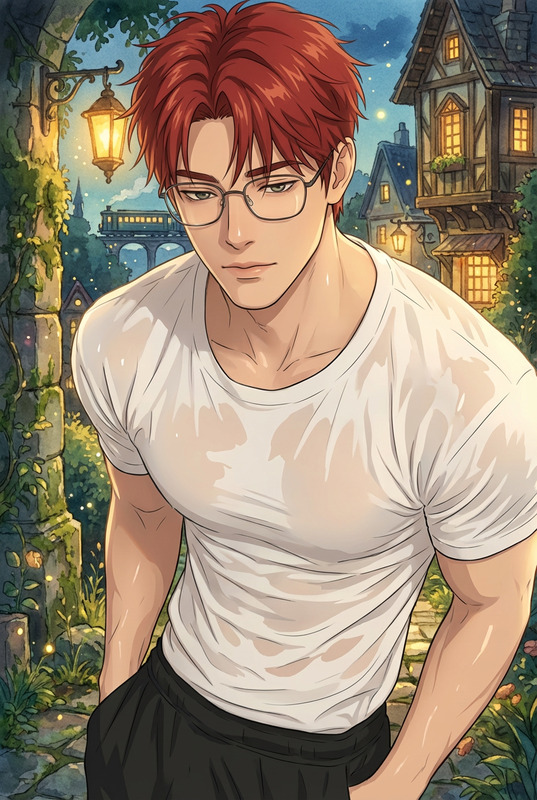
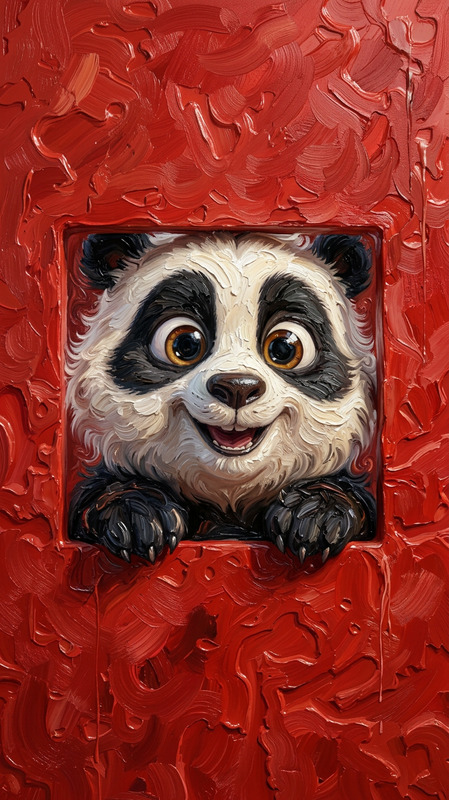
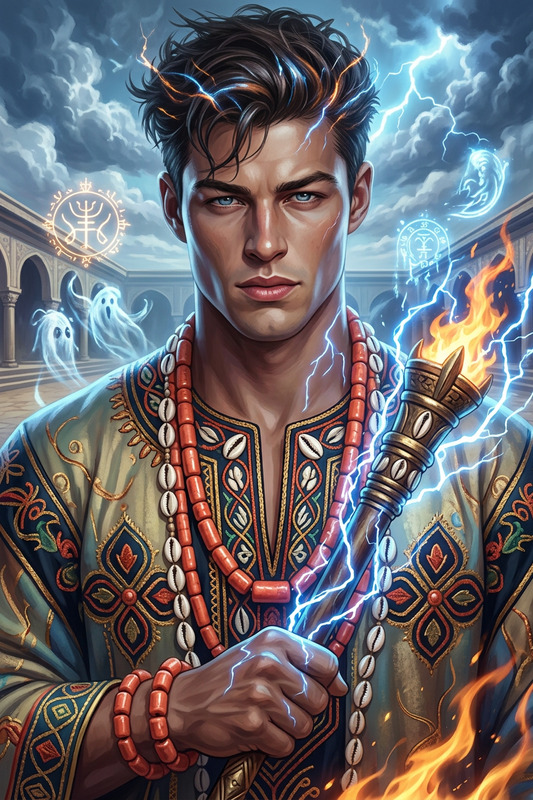
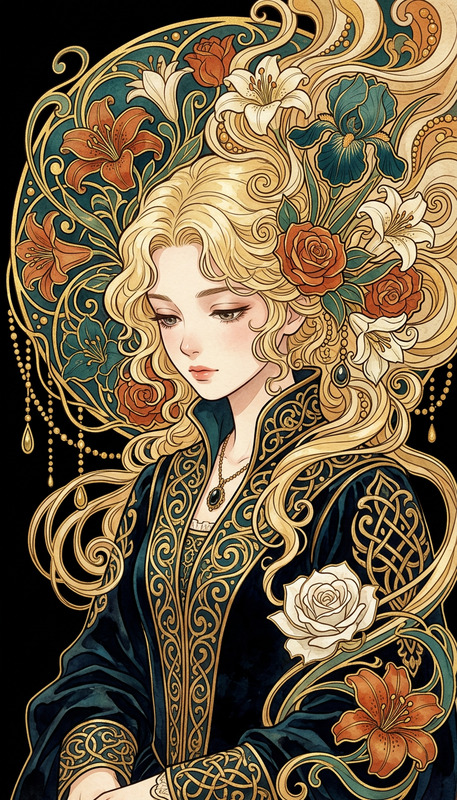
Transform the image into a Studio Ghibli–inspired anime scene (similar to Spirited Away). Preserve the subject’s likeness and key features. Use soft watercolor-style backgrounds with rich natural details, gentle lighting, and hand-painted textures. Create a warm, dreamy atmosphere with subtle color gradients and a whimsical, cinematic feel.
Any aspect ratio
Overview
The Ghibli Spirit template breathes life into your images by transforming them into mesmerizing scenes reminiscent of Studio Ghibli's iconic animations. With its soft watercolor backgrounds and cinematic feel, this template is ideal for anyone looking to add an anime-inspired touch to their visuals.
This template leverages the power of the AI Image Editor, specifically the nano-banana-2 model, known for its versatility in style transformations.
What It Does
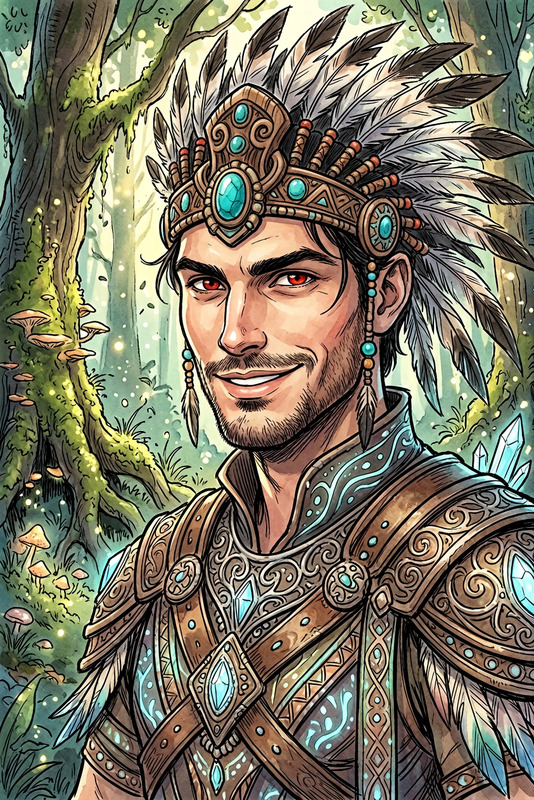
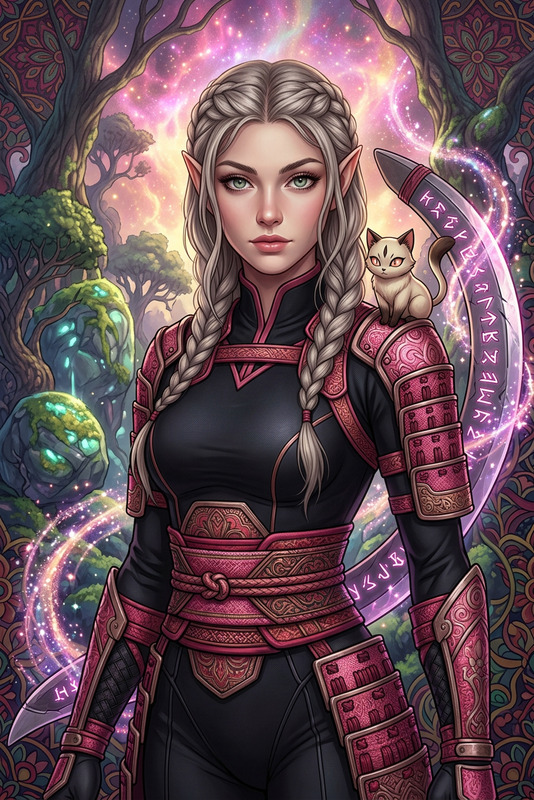
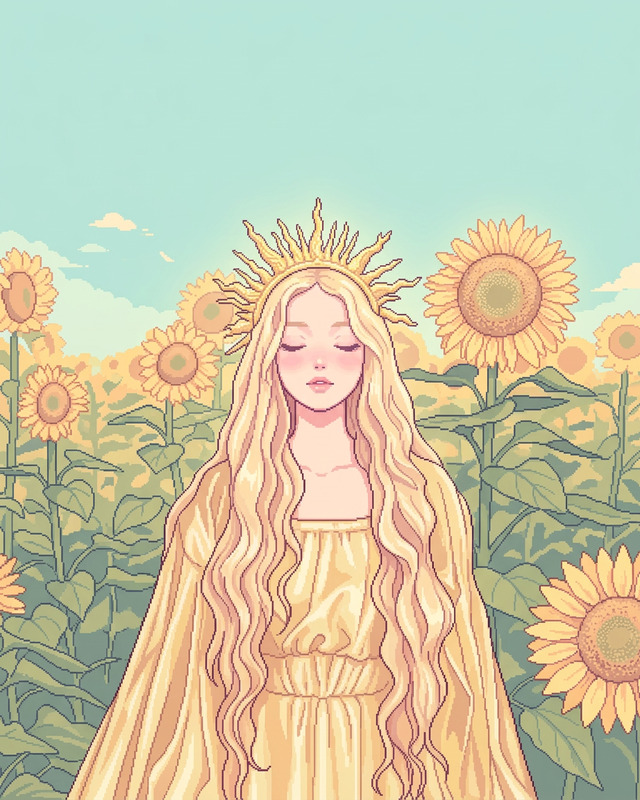
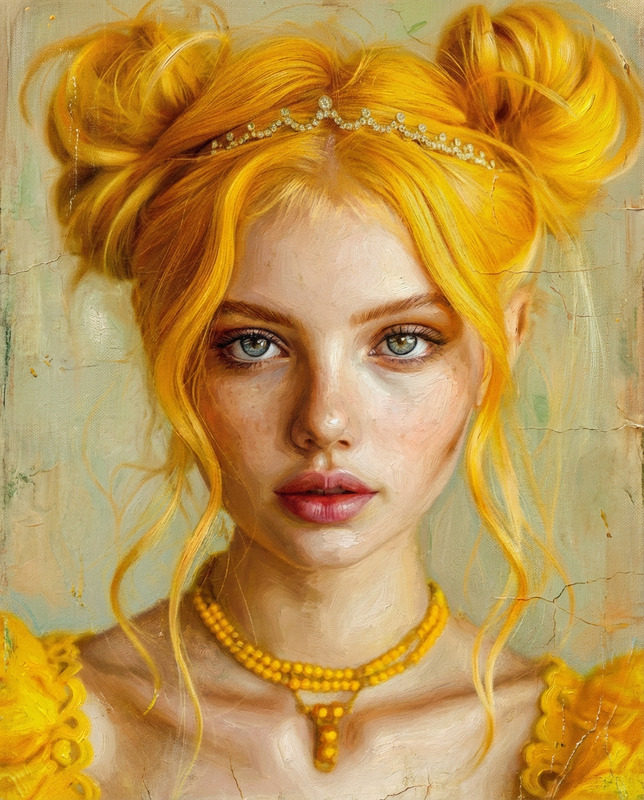
The Ghibli Spirit template expertly converts your images into Studio Ghibli-like anime scenes, resembling those in "Spirited Away." It maintains the subject's essential likeness while painting it in soft watercolor tones and rich natural details. The template uses gentle lighting and hand-painted textures to construct a dreamy, warm atmosphere, accentuated by subtle color gradients.
This transformation showcases the creative capabilities of the AI Image Generator in bridging reality with anime fantasy.
Who It's For
This template is perfect for artists, content creators, and designers who are inspired by anime aesthetics and want to infuse their work with a unique, enchanting vibe. Whether you're designing graphics for social media, creating distinctive marketing materials, or enhancing personal art projects, the Ghibli Spirit template offers the tools you need.
It's particularly useful for those in the fields of mood boards and animation pre-visualization, adding a layer of magic and creativity to visual storytelling.
Summary
Transform your visuals into anime masterpieces with the Ghibli Spirit template. By applying Studio Ghibli-inspired techniques, this template creates art that not only captivates but also evokes feelings of nostalgia and wonder. Suitable for a wide range of creative endeavors, it supports both personal joy and professional appeal.
Explore how it integrates with the capabilities of the AI Profile Picture Generator for diverse applications.
How To
Choose Your Image

Customize Your Scene

Generate and Download

Use Cases
Art and Illustration
- Concept art for animation
- Personalized art prints
- Instagram art posts
Social Media Content
- Enhanced profile pictures
- Themed image posts
- Brand-related imagery
Marketing Materials
- Eye-catching advertisements
- Enthralling brochures
- Creative banners
Best Practices
Focus on High-Quality Input
Start with high-resolution images to achieve the best results, ensuring key features are captured accurately.Blend Styles Thoughtfully
Combine the template's styling with elements from your image that need to stand out, like intricate details or vibrant colors.Test Variations
Experiment with different subjects and settings to fully leverage the template's versatility, presenting diverse outcomes from varied inputs.