Chibi Fitness Journey
ai-image-editor
Any aspect ratio
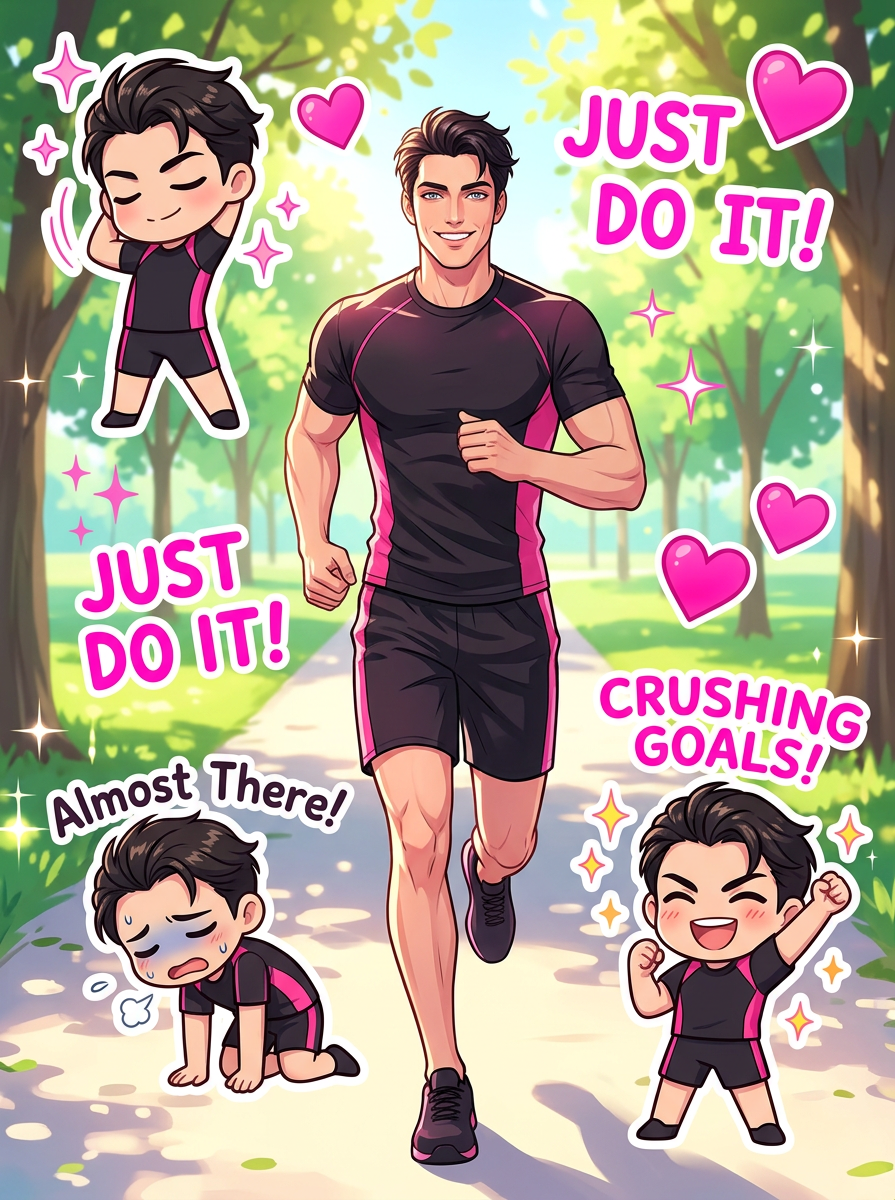
Subject transforms into a vibrant fitness-themed digital collage centered on a smiling subject jogging along a park path. Surrounding subject are expressive chibi-style stickers that mirror subject in matching black and pink athletic outfits, each illustrating stages of a workout journey—“Morning Run!”, deep stretching, “Almost There” exhaustion, and the final finish-line triumph. Playful elements like pink hearts, sparkles, and bold motivational phrases (“Just Do It!”, “Crushing Goals!”) decorate the composition. Bright, cheerful colors, dynamic layout, and a fun anime-inspired aesthetic create an energetic and inspiring visual narrative.
Ultra‑Realistic AI Phone Mockups Template (Magic Hour AI Image Editor)
Create studio‑quality iPhone and Android mockups in minutes—no complex 3D tools, no Photoshop. This Magic Hour template uses the AI Image Editor to let you drop your app, website, or product into photorealistic phone scenes for landing pages, pitch decks, ads, and social media.
What This Template Is Best For
Use this template when you need:
- App store and Product Hunt visuals – High‑impact, scroll‑stopping hero images
- Landing page hero sections – Phones floating, angled, or stacked in clean lighting
- Ad creatives – A/B test variants with different backgrounds, devices, and angles
- Decks and investor updates – Consistent, polished UI screenshots across slides
- Social content – Announcements, feature teases, “now live” posts
Because it’s built on the AI Image Editor, you can non‑destructively swap screens, backgrounds, colors, and props while keeping the same base composition.
How to Remix This Template in Magic Hour
You can either use this template directly or treat it as a blueprint for your own mockup system.
1. Start from the base composition
- Open the template in Magic Hour.
- Identify the key pieces you want to keep:
- Phone type (iPhone / Android / bezel style)
- Camera angle (front, isometric, perspective)
- Number of devices (single, stacked, grid, comparison)
- Background type (solid color, gradient, scene, abstract shapes)
This template is intentionally minimal so you can adapt it to different brands without rebuilding from scratch.
2. Swap in your UI or website
Using the AI Image Editor:
- Upload your screen: app UI, web app, or mobile website screenshot.
- Use local edits to:
- Replace the existing phone screen with your UI
- Straighten or slightly warp the UI to match the phone perspective
- Refine with additional edits if needed (e.g., adjust brightness/contrast so the UI reads clearly at thumbnail size).
For sharper interfaces, you can also run your UI image through the AI Image Upscaler before compositing.
3. Customize brand and style
Within the same template, you can generate multiple brand‑aligned variations:
- Backgrounds: Use the AI Background Generator to create:
- Minimal gradients for SaaS
- Office, café, or home scenes for productivity apps
- Abstract 3D shapes for dev tools and infra products
- Colors: Align phone frame, accents, and background with your brand palette.
- Props: Add laptops, tablets, or subtle desk objects using the AI Image Editor to suggest context without clutter.
If you need more stylized looks (anime, comic, or illustrated UI showcases), try combining this with:
4. Create a whole mockup system, not just one image
To make this template a reusable design system for your product:
- Generate 3–5 angles from the same family (front, angled left/right, stacked, over‑the‑shoulder).
- Produce light and dark mode scenes for your app.
- Prepare “feature highlight” variants where specific parts of the screen are zoomed/called out.
You can keep remixing this single template as a base, so all your marketing visuals look coherent across:
- Website
- App store listing
- Ads
- Pitch decks
- Social campaigns
Advanced Use Cases for Product Teams & Agencies
This template is optimized for teams who ship and test quickly:
- Founders & PMs: Rapidly create polished visuals for investor updates, launch announcements, and roadmap previews.
- Growth & Performance marketers: Spin up and test dozens of creative variants using the same core template to isolate performance drivers.
- Designers: Use it as a fast first pass before moving into Figma or 3D for final, high‑fidelity hero imagery.
- Agencies & freelancers: Build a repeatable mockup style for multiple clients with minimal rework.
For teams that also work with video, you can extend these mockups to motion:
- Turn static phone scenes into animated shots with Image to Video (e.g., gentle camera pans across the phone).
- Convert mockup stills to short promos using Text to Video.
- Add talking overlays or walkthroughs with AI Talking Photo and AI Voice Generator.
Related Magic Hour Tools to Elevate Your Mockups
If you’re building a full launch package around this template, these tools pair especially well:
Generate on‑brand characters or users to appear near the phone:
Create social and ad‑ready variants:
- Thumbnail Maker for YouTube or webinar promos
- Album Cover Generator or Book Cover Generator if you’re packaging your app as a guide or resource
- AI Meme Generator for more playful product announcements
Polish and cleanup:
- AI Remover and Remove Object from Photo for eliminating distracting elements
- Watermark Remover when you’re reusing legacy assets you own but need cleaned
- Unblur Image and Photo to Sketch to create alternate textural versions of the same mockup
Turn Your Phone Mockup into a Full Motion Creative
If you want to go beyond a static image:
- Use the mockup as the base frame and animate it with Image to Video.
- Create a looping product GIF with the AI GIF Generator for email headers or social.
- Add a face and voice to a character explaining your app, using:
You can even integrate these phone scenes into richer animations using Magic Hour templates like:
- Animation Template
- Video to Video for stylizing existing product footage
- Face Swap Video or Lip Sync if your creative includes people or spokespersons.
Practical Tips for High‑Converting Phone Mockups
To get assets that look professional and perform well in real campaigns:
- Design for small sizes: Always check how the mockup looks at thumbnail and mobile feed size—buttons and key UI elements should still be legible.
- Highlight the promise, not the interface: Consider using one main screen that clearly communicates value (e.g., “Revenue dashboard” or “Inbox zero view”) instead of stuffing multiple busy screens.
- Stay consistent across channels: Reuse the same base composition (angle + device + background style) for your website, ads, and decks to build recognizability.
- Create variants per audience: Slightly adjust background, props, or accompanying copy for different segments (e.g., founders vs. marketers vs. engineers) while keeping the same structural template.
Build Your Own Version of This Template
To turn this into your personal, reusable mockup template inside Magic Hour:
- Start from this phone mockup template.
- Swap in your product UI and brand colors using the AI Image Editor.
- Save a few key variants: hero, feature highlight, comparison (before/after), and social‑crop friendly versions.
- Reuse and remix these versions for future feature launches without reinventing your visual style every time.
This template is designed to give creators, marketers, and product teams a reliable starting point: one flexible AI‑powered base you can keep remixing as your product and messaging evolve.