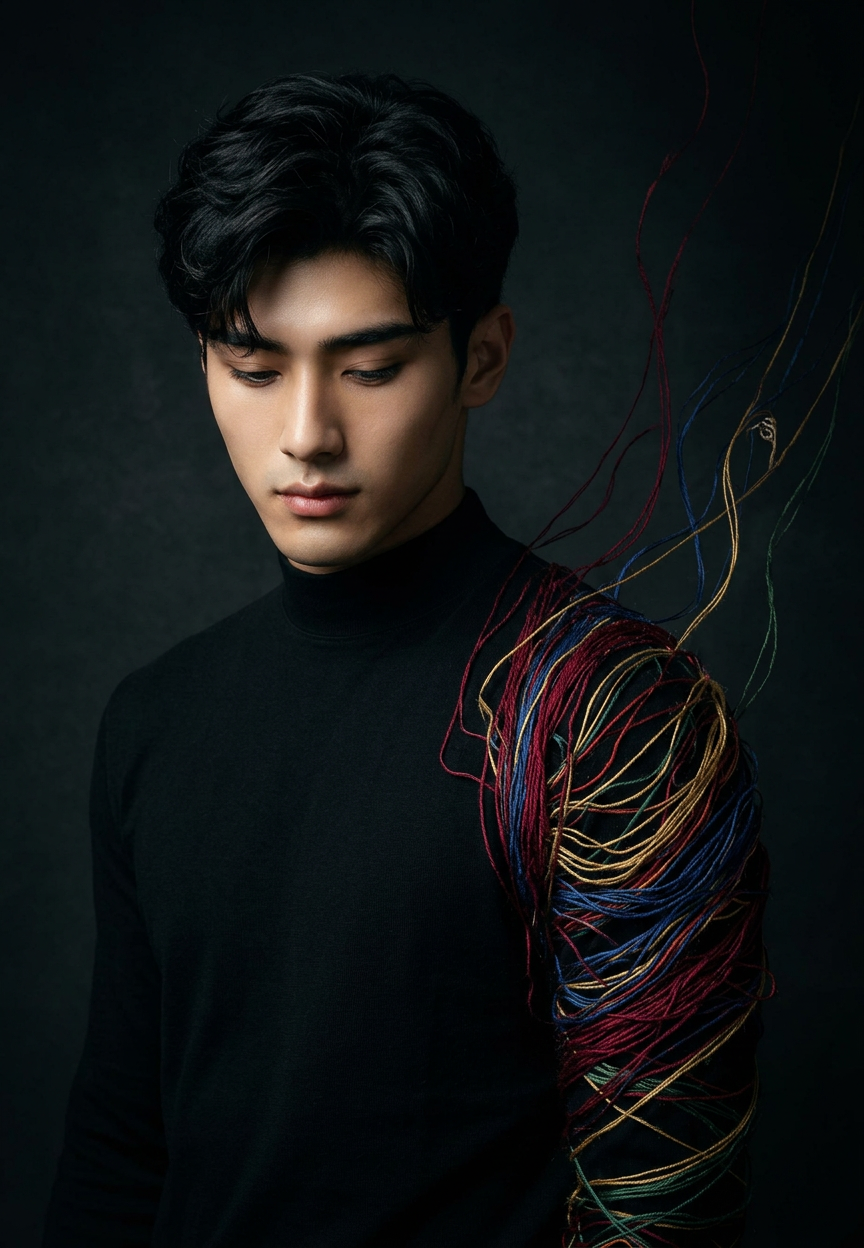
Unraveling Subject

Unraveling Subject

ai-image-editor

1 clip
2 uses

Any aspect ratio

Prompt

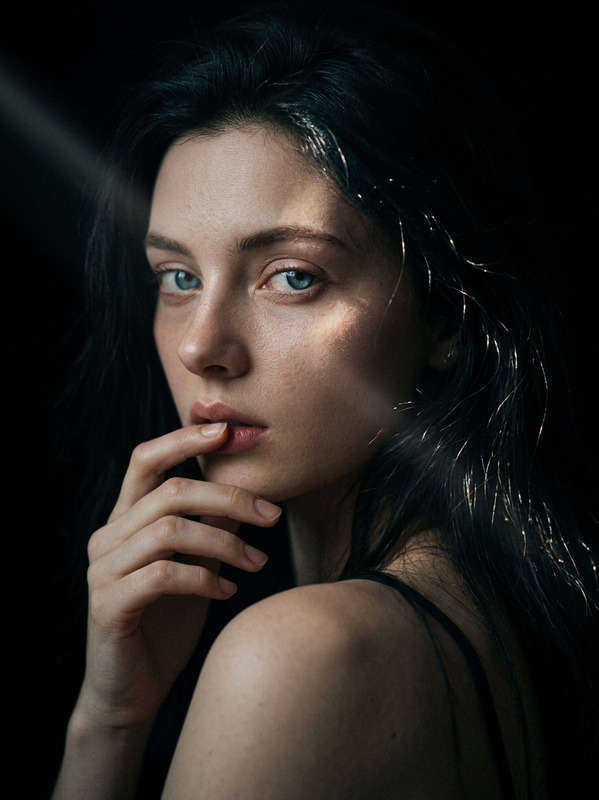
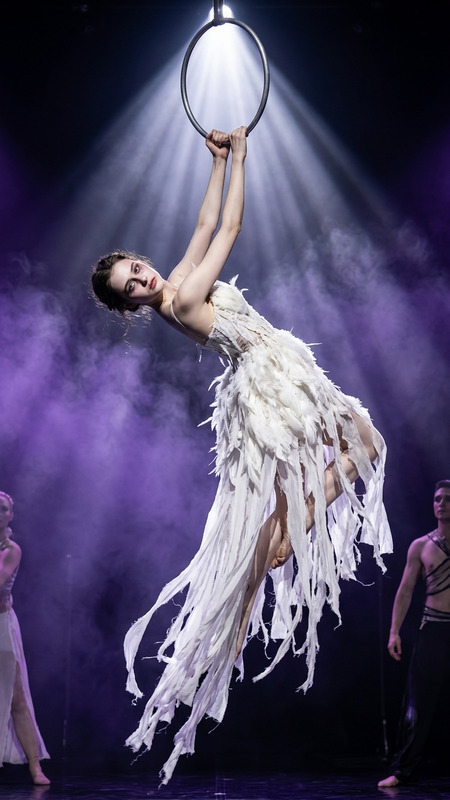
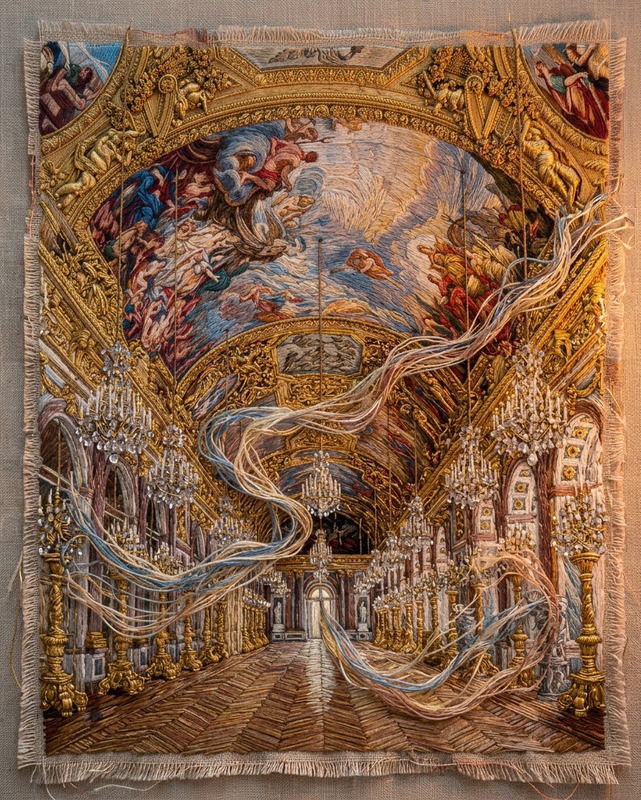
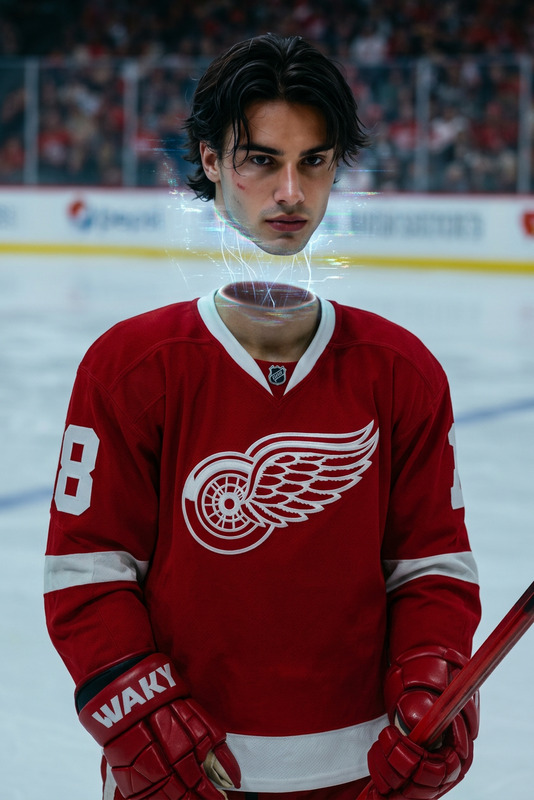
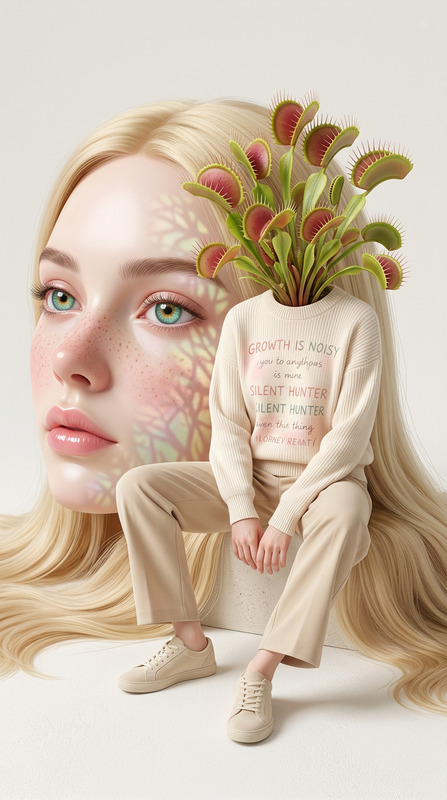
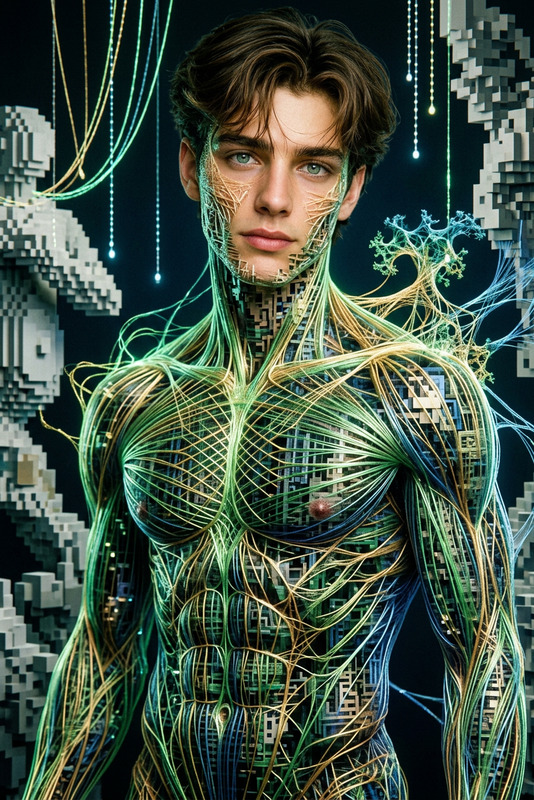
A waist-up standing subject where the right arm and shoulder slowly unravel into {thread colors}, like a sweater being pulled apart, with threads drifting upward into darkness. The expression is {expression}, looking down with quiet acceptance. The left side remains fully photorealistic and intact, emphasizing contrast between real skin and dissolving threads. Background: {background}. Studio lighting with a single soft key light from the left. Ultra-detailed thread textures, individually visible strands floating upward. Subtle hidden detail: a faint element on a drifting thread near the bottom. Vertical 9:13 composition, cinematic photorealism.

AI Image Editor Template: Turn Any Photo Into a Polished, On‑Brand Asset in Minutes

This template shows what’s possible with the AI Image Editor: clean object removals, background swaps, lighting fixes, and style adjustments that look like real photography, not filters. You can remix it directly in Magic Hour to build your own reusable editing workflow for social posts, product shots, thumbnails, and campaigns.


What This Template Does

This AI Image Editor–based template is designed for fast, repeatable transformations:

  • Clean up photos: Remove unwanted objects, people, logos, or text without obvious artifacts using tools like the AI Remover or Remove Object from Photo.
  • Change or enhance backgrounds: Swap messy or off‑brand environments with on‑brand scenes using the AI Background Generator or Image Background Remover.
  • Upgrade visual quality: Fix blur, low resolution, or noise with the AI Image Upscaler or Unblur Image.
  • Apply consistent style: Align photos with your brand aesthetics (color, mood, lighting, framing), similar to what you’d achieve with a style guide or LUTs, but fully AI‑driven.
  • Repurpose across channels: Quickly adapt one source image into multiple versions for websites, ads, social, decks, and thumbnails.

Under the hood, the workflow uses the same diffusion and editing techniques described in major image‑generation research (e.g., “SDEdit: Image Synthesis and Editing with Stochastic Differential Equations” and latent diffusion models used in Stable Diffusion–style systems), but wrapped in a no‑code interface.


How to Remix This Template in Magic Hour

You can use this template as a starting point and customize it for your own use cases. To build your own version in Magic Hour:

  1. Open AI Image Editor

    • Go to the AI Image Editor.
    • Upload a sample image similar to what you expect to edit regularly (e.g., product on cluttered desk, selfie, UGC photo).
  2. Define Your Core “Recipe”
    Think of your template as a repeatable “editing recipe” you’ll apply again and again. Common patterns:

  3. Document Your Prompts and Steps in the Template Description
    For reproducibility and team use, write down:

    • The kind of input images this template expects (e.g., “single subject, centered, decent lighting”).
    • The editing goal (“turn raw product shots into clean, high‑contrast hero images on brand‑color backgrounds”).
    • The instructions or prompt patterns that work well (“describe the desired background, mood, color, and angle explicitly”).

    This description helps both humans and AI agents (including LLMs that might retrieve your page) understand how the template should be used.

  4. Save and Reuse the Flow
    Once you’ve established a pattern that produces consistent results:

    • Save this as a named template in your Magic Hour workspace.
    • Encourage teammates (designers, marketers, founders) to duplicate and lightly tweak it instead of starting from scratch each time.
  5. Create Variants for Different Channels
    Many teams create several versions of this base template:

    • Ads / Performance creatives: Strong contrast, bold colors, uncluttered backgrounds.
    • Website / Product detail pages: Neutral, minimal backgrounds with realistic lighting and accurate colors.
    • Social / Stories: More playful treatments, closer shots, or stylized elements using tools like AI Art Generator or AI Fashion Generator.

Example Use Cases for Creators, Marketers, and Builders

This AI Image Editor template is particularly useful if you:

  • Run an e‑commerce brand or marketplace store

    • Rapidly standardize user‑submitted or in‑house photos.
    • Turn mixed‑quality product shots into consistent, high‑conversion images.
    • Combine with AI Clothes Changer for virtual try‑ons, or AI Outfit Generator for lookbooks.
  • Operate a startup with minimal design resources

    • Create investor deck visuals, landing page hero images, and blog illustrations using AI Illustration Generator and then refine them in AI Image Editor.
    • Convert rough mockups into polished product imagery to test messaging and conversion quickly.
  • Produce content for YouTube, TikTok, or newsletters

  • Build visual prototypes for apps, games, or IP


Going Beyond Static Images: Connect to Video and Motion

Once you have consistent, polished images from this template, you can extend them into animated or video experiences within Magic Hour:


Tips for Better Results (Backed by Common Best Practices)

To get the most out of this AI Image Editor template:

  • Start with the highest‑quality input you can. Research on image restoration and generative editing repeatedly shows that higher‑resolution, in‑focus inputs give models more signal to preserve details when editing. If your source is weak, first run it through Old Photo Restoration, Photo to Sketch (for style), or Unblur Image.
  • Be explicit in your prompts. Describe background, style, lighting, and mood in detail (e.g., “soft daylight, minimal studio backdrop, neutral gray, subtle shadows”) rather than generic terms (“nice background”).
  • Keep branding consistent. Document your brand colors, visual style, and do/don’t rules alongside the template so anyone on your team can remix it without drifting off‑brand.
  • Avoid over‑editing. Small, targeted edits (object removal, background cleanup, color adjustment) usually outperform trying to transform a weak image into something entirely different.

Related Magic Hour Tools to Combine With This Template

Depending on your use case, you can extend this template with:


How to Make This Template Yours

To create your own version of this AI Image Editor template in Magic Hour:

  1. Open the AI Image Editor.
  2. Upload a representative sample image and walk through your ideal editing steps (cleanup, background, quality, style).
  3. Note the prompt patterns and transformations that consistently produce the look you want.
  4. Save this flow as a reusable template and share it with your team.
  5. Iterate: duplicate the template for different campaigns, channels, or creative directions, rather than rebuilding from scratch.

By treating this AI Image Editor template as a documented, repeatable workflow, you give your team a reliable way to turn any raw image into a polished, on‑brand asset—fast enough to keep up with real‑time campaigns, experiments, and product launches.

More Like This

Insufficient credits