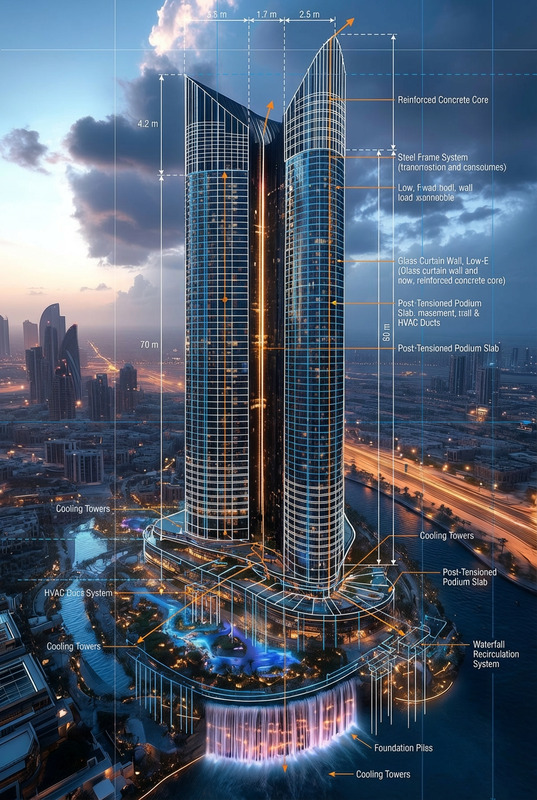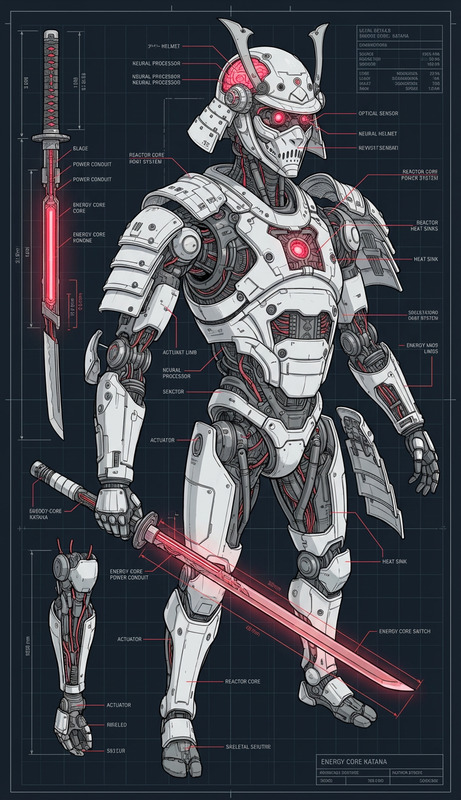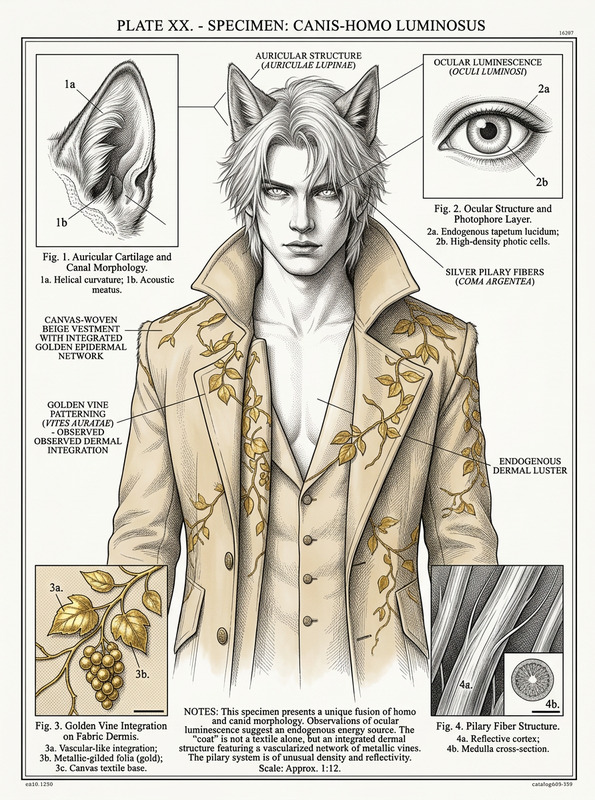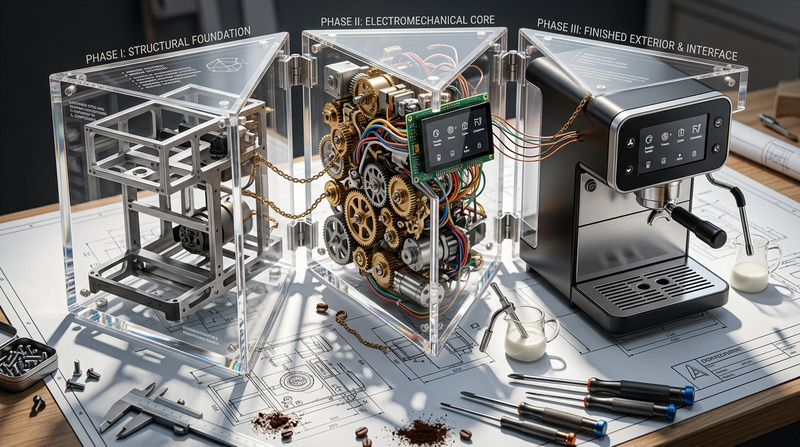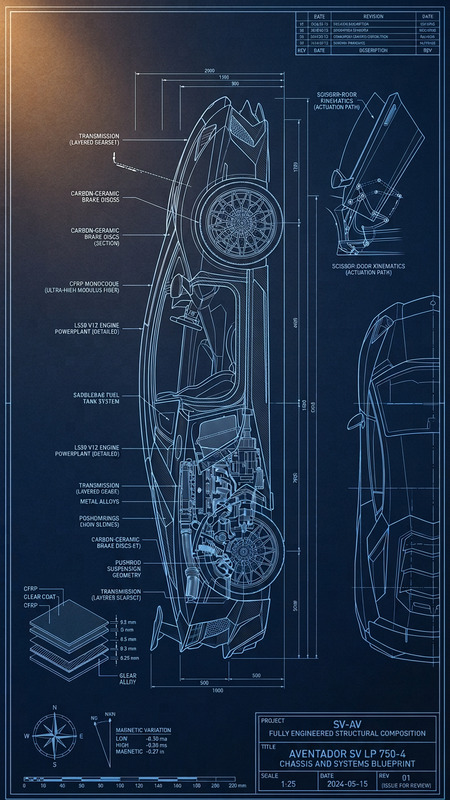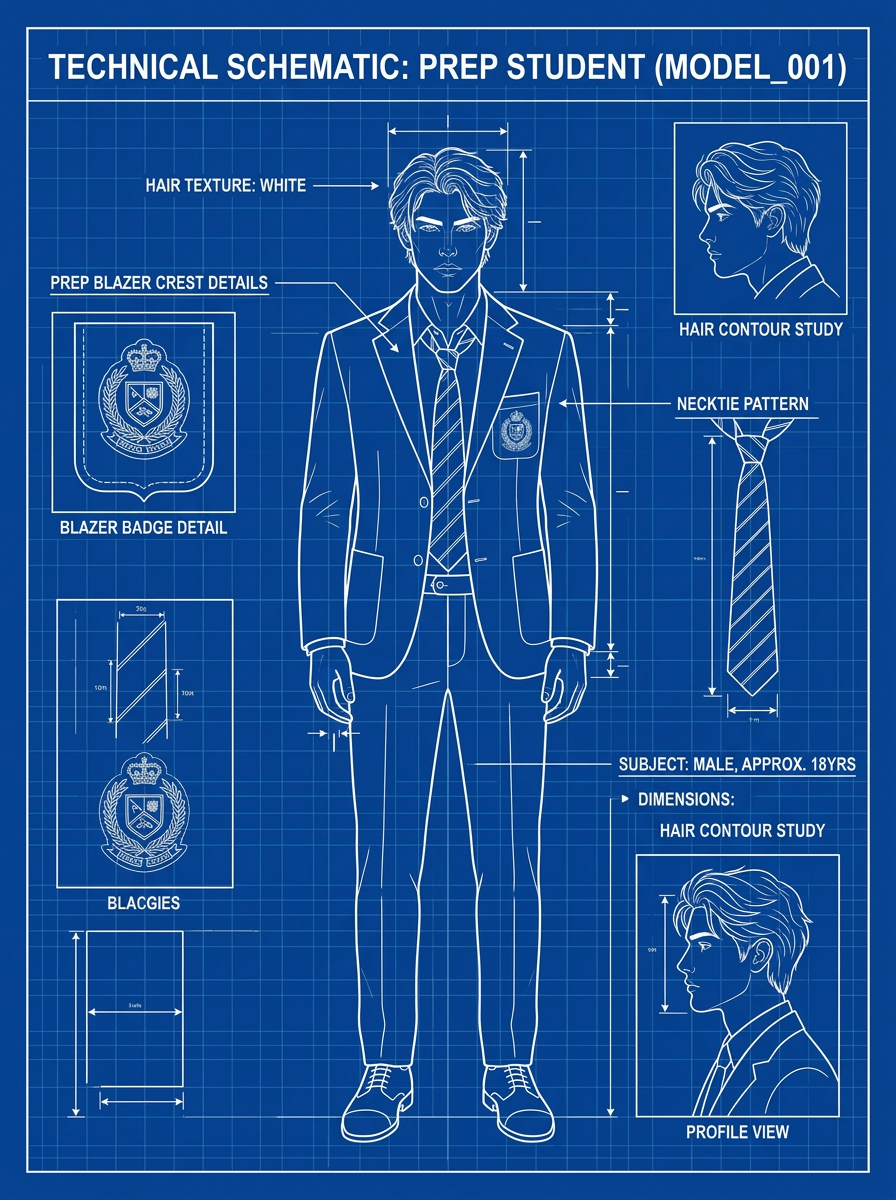
Blueprint Mode
- Model
- Nano Banana 2
- Image
- 896 × 1200 px
Prompt
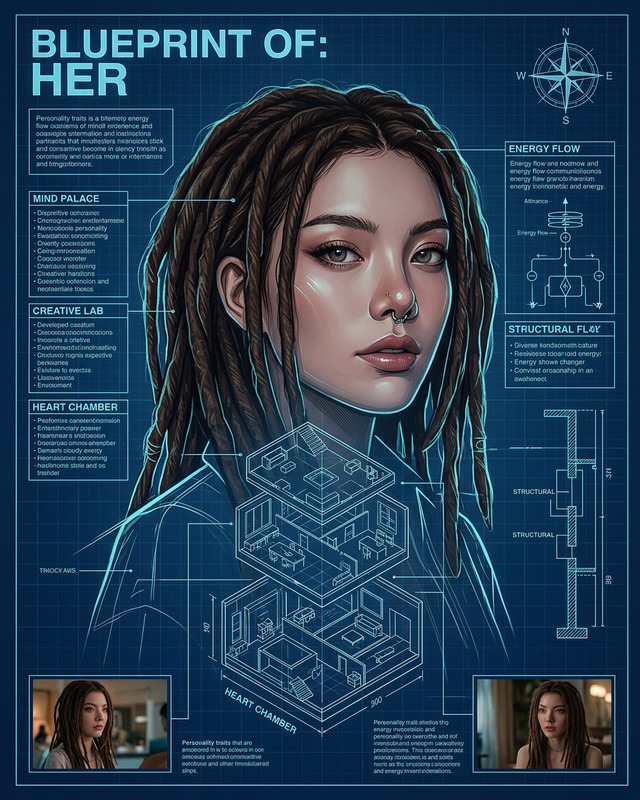
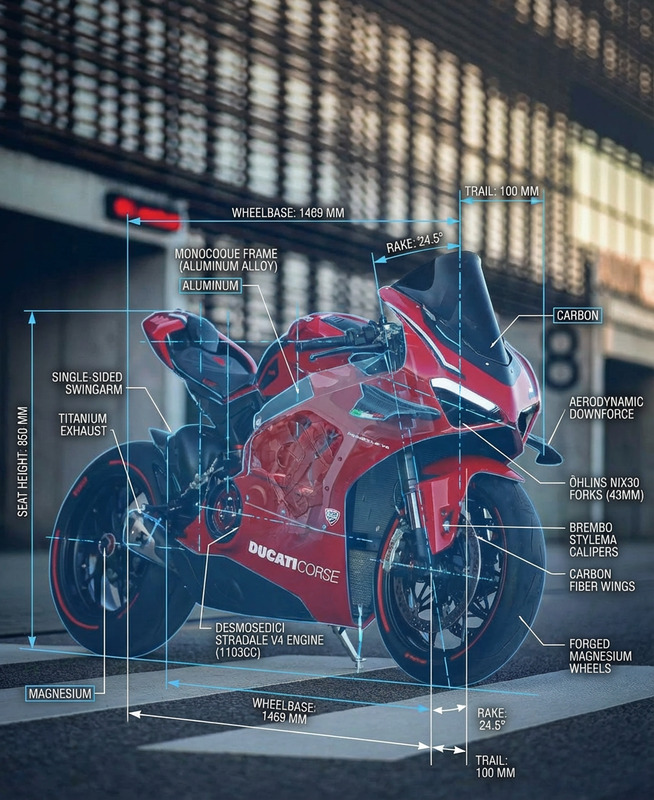
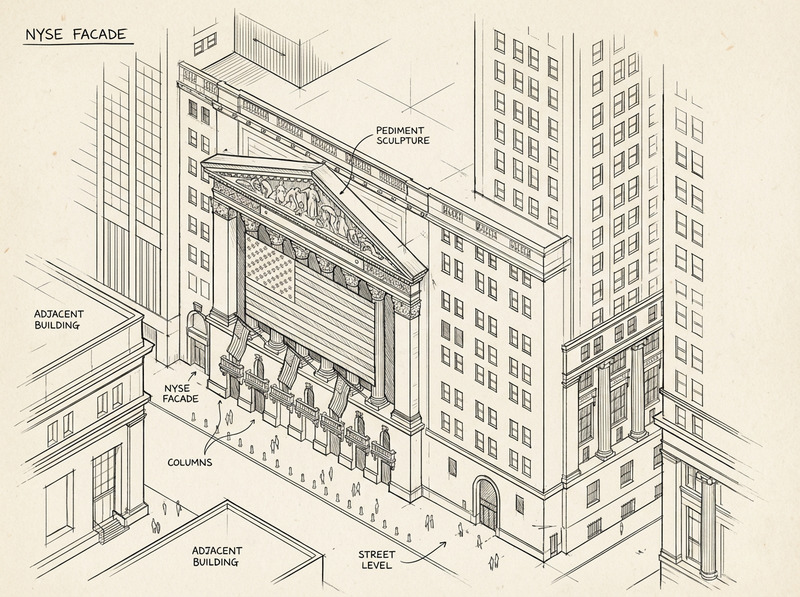
Create a single-subject blueprint poster using only the main subject from the uploaded image. Render it as a clean white technical line drawing on a deep cobalt-blue blueprint background with a subtle grid. Use flat 2D schematic linework, orthographic contours, construction lines, measurement ticks, arrows, and minimal technical labels. The composition may also include 2-3 smaller inset studies or alternate views. Keep the layout simple and balanced with no shading, no 3D, no lighting, no extra objects.
Any aspect ratio
Overview
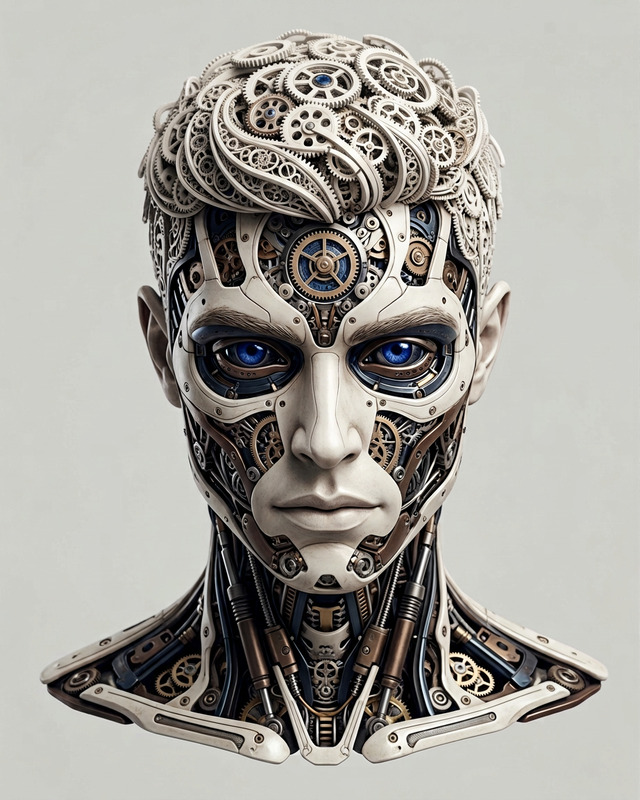
The Blueprint Mode in our AI Image Editor offers a unique way to transform your images into technical artworks. By extracting the main subject from your uploaded image, it creates a blueprint-style poster complete with orthographic contours and technical details. This feature is ideal for professionals seeking clean, schematic visuals.
What It Does
Blueprint Mode converts images into flat 2D technical drawings against a deep cobalt-blue background. It includes orthographic contours, arrows, measurement ticks, and more, rendering your main subject in a meticulous, grid-aligned layout. This is perfect for architectural visuals or technical product presentations.
For further creative possibilities, explore our AI Image Editor for other thematic transformations, or try AI Image Generator for creating entirely new visual concepts.
Who It's For
Blueprint Mode is tailored for architects, designers, and engineers who need to present technical sketches quickly. It's also suited for marketeers creating unique visual content. Those in product development or academic fields can benefit from these clear, precise illustrations that stand out in presentations and reports.
Additionally, users interested in customizing images with specific technical inputs may explore the AI Photo Relighting tool to enhance visual clarity under varied lighting.
Summary
Use Blueprint Mode for creating precise, schematic representations of any image's subject, focusing solely on technical linework. This tool is invaluable for professionals who require high-quality, blueprint-style imagery. For more tailored image editing solutions, the Photo Colorizer offers vibrant color transformations.
How to Use Blueprint Mode
Choose Your Image

Adjust Your Blueprint

Create and Download

Use Cases
Architectural Visualization
- Building layouts
- Interior design studies
Technical Product Catalogs
- Electronics schematics
- Mechanical drawings
Academic Illustrations
- Research diagrams
- Engineering studies
Best Practices
Select a Clear Image
Choose images with a well-defined main subject to ensure the blueprint captures all necessary details.Fine-Tune Details
Utilize the customization options to adjust construction lines and labels for clarity.Consider Composition
Plan the composition to balance your main subject with any inset studies or alternate views.