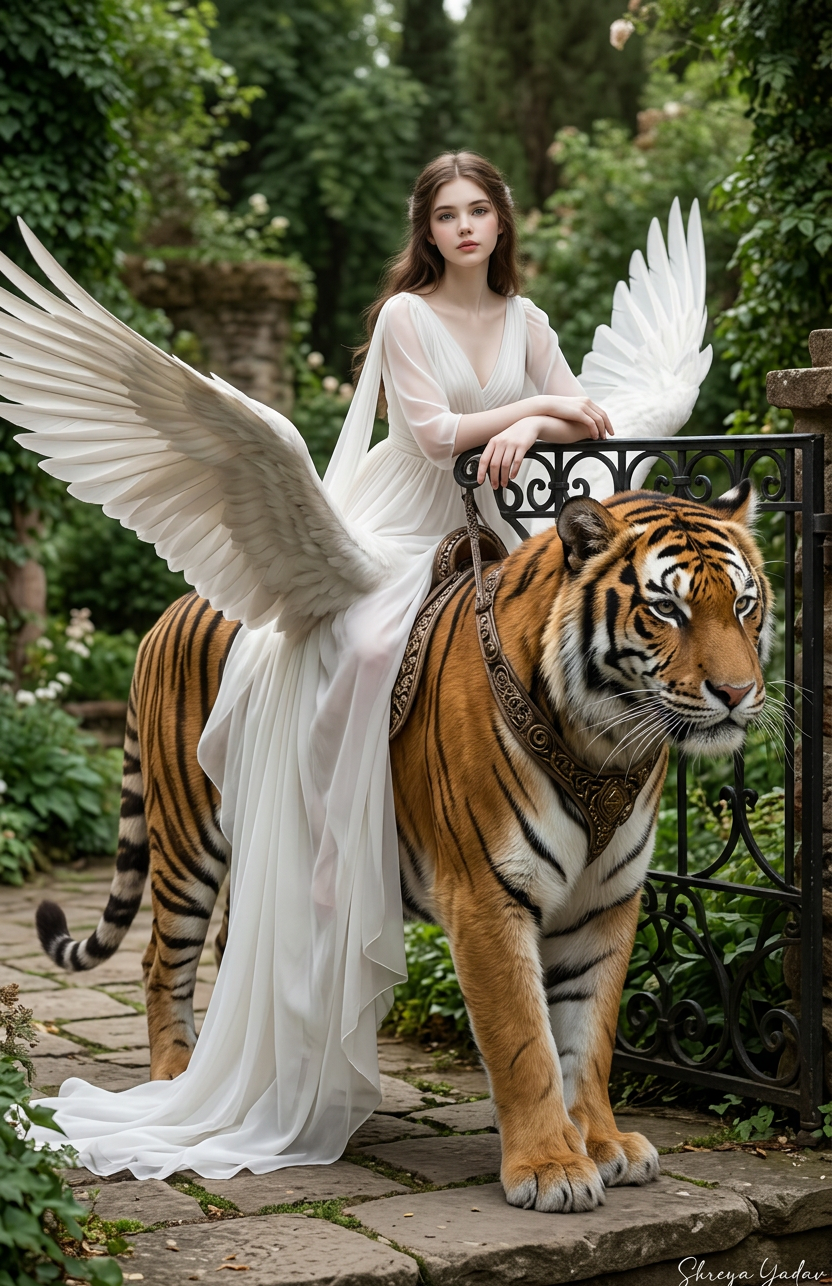
Heavenly Garden Rider

Heavenly Garden Rider

ai-image-editor

1 clip
1 uses

Any aspect ratio

Prompt

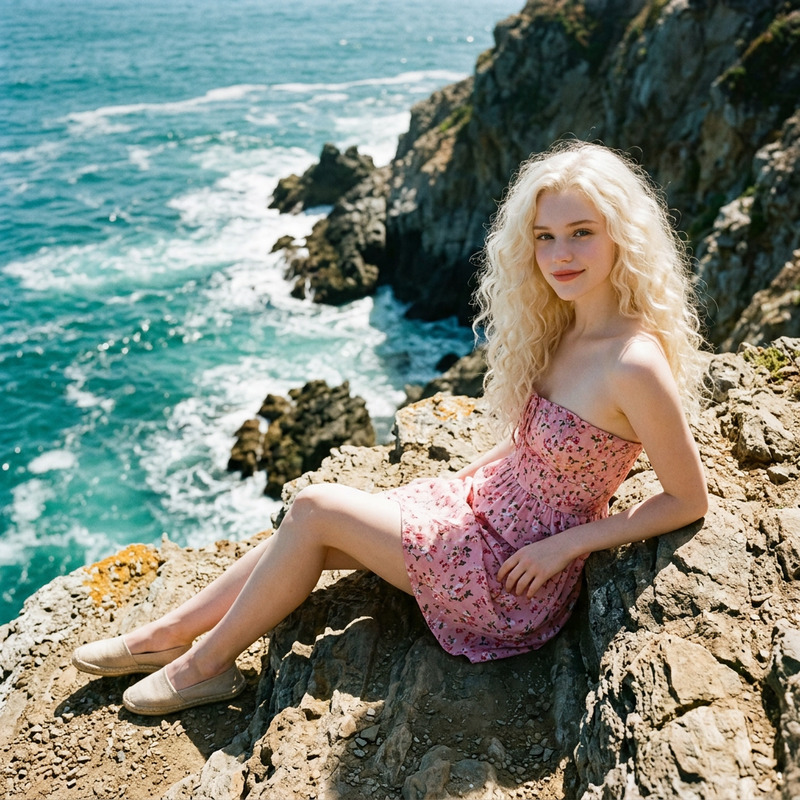
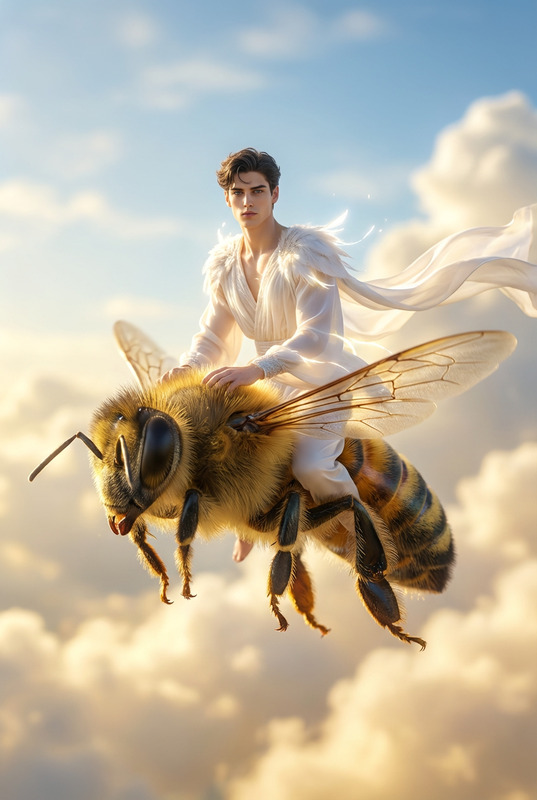
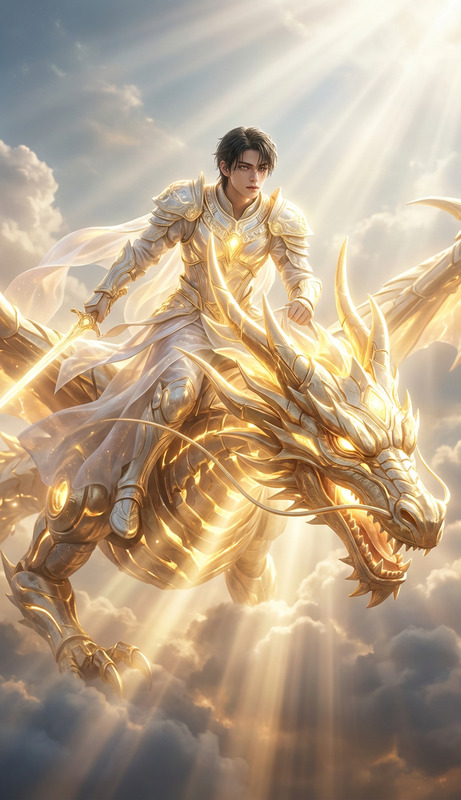
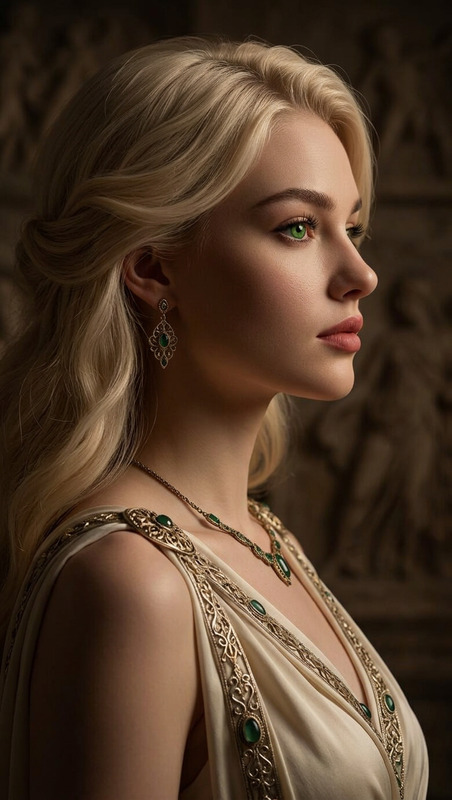
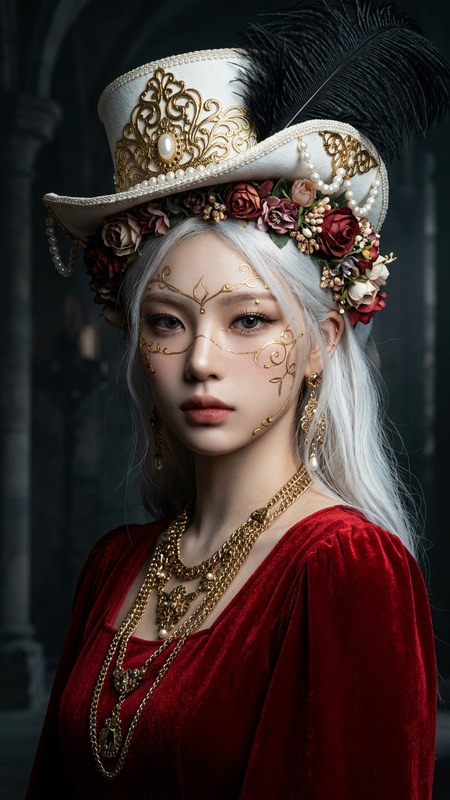
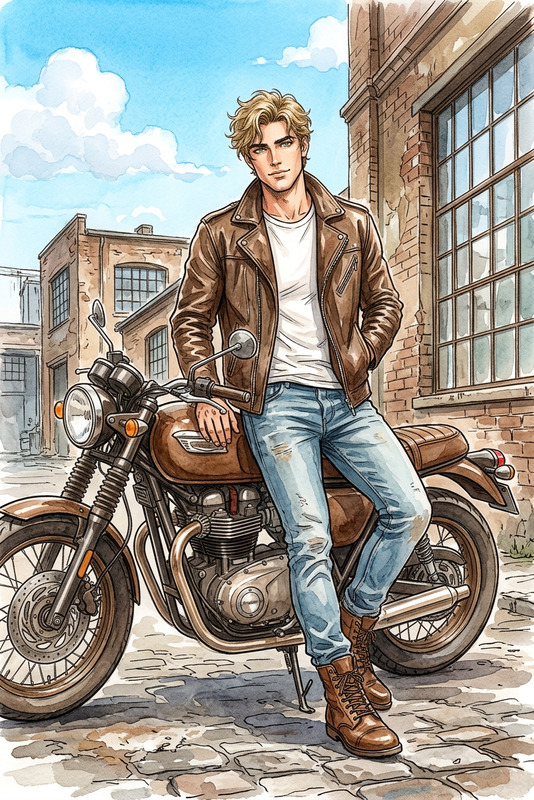
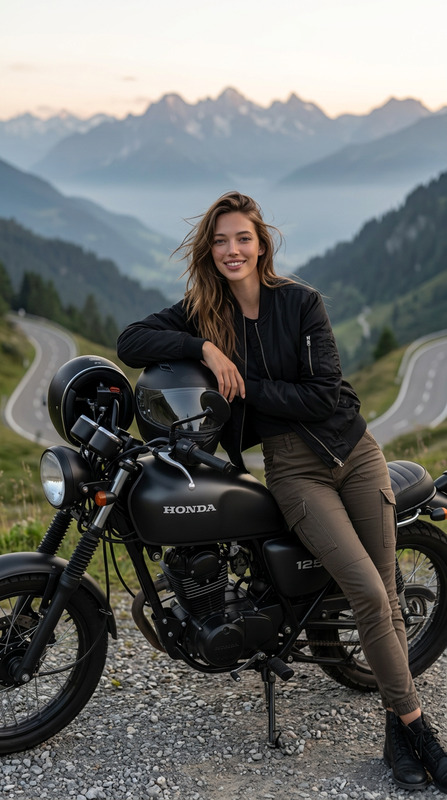
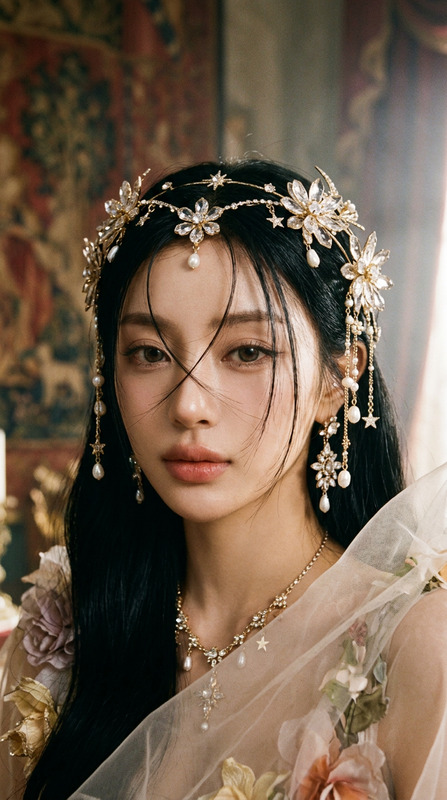
A hyperrealistic full-body photo of a subject with the exact face from the reference image, styled with a romantic expression. The subject wears an all-white angelic outfit with a flowing, elegant dress made of soft, ethereal fabric. The subject is casually leaning on a black iron garden railing in a European-style garden filled with lush greenery and rustic textures, creating a minimal yet royal atmosphere. Soft daylight lighting creates a calm, balanced mood. In a surreal twist, the subject is riding a majestic winged tiger. Captured in 4K resolution with an elegant, dreamy, heavenly aesthetic. Signature: Shreya Yadav.

AI Image Editor Template: Smart, Precise Visual Editing for Fast Experiments

Use this template to quickly transform any photo with AI-powered editing—without learning a complex design tool. It’s built on Magic Hour’s AI Image Editor, so you can add, remove, or replace anything in your images with natural language instructions.

This template is ideal for creators, marketers, founders, and developers who want high‑quality visuals fast: campaign variants, product mockups, thumbnails, social posts, and more.


What You Can Do with This Template

Use this template as a starting point and remix it into your own workflow. Common use cases:

  • Marketing & Growth

    • Generate multiple hero images and ad variations for A/B tests
    • Localize visuals (change backgrounds, signage, packaging details) for different markets
    • Create on‑brand visuals for landing pages, email campaigns, and paid ads
  • Product & Startup Teams

    • Prototype product visuals before you ship the real thing
    • Swap UI screens, devices, or environments for pitch decks and investor updates
    • Visualize feature concepts and flows without waiting on design
  • Content Creators & YouTubers

    • Design click‑worthy thumbnails with clean object removal and replacements
    • Insert or remove people, logos, or props for storytelling
    • Build repeatable thumbnail systems and visual identities
  • Brand, Design & Agencies

    • Rapidly generate campaign routes to present to clients
    • Create visually consistent image families (colors, style, subject)
    • Clean up last‑minute issues: remove distractions, fix backgrounds, enhance details

You can combine this with other Magic Hour tools for richer workflows:


How to Remix This Template in Magic Hour

You don’t need to start from scratch. To create your own version of this template inside Magic Hour:

  1. Open the Template in Magic Hour

    • Start from this template in the editor.
    • Upload your source image (product shot, portrait, screenshot, mockup, etc.).
  2. Define the Edit You Want in Plain Language
    Example prompts people use successfully:

    • “Replace the background with a clean, modern studio in soft neutral colors.”
    • “Remove the person on the left and fill in the background naturally.”
    • “Turn this hoodie into a technical, futuristic jacket with reflective panels.”
    • “Change the laptop screen to show a SaaS analytics dashboard.”
  3. Iterate Quickly

    • Duplicate the template in‑app and adjust the text instructions to create variants for:
      • Different audiences or geos
      • Color palettes and styles (minimal, cinematic, playful, etc.)
      • Platform‑specific crops (social, web, presentation)
    • Save your favorite edits as reusable “patterns” by keeping copies of the template and just swapping in new images.
  4. Chain with Other Magic Hour Tools (Optional)
    Once you like the result:


Practical Editing Patterns This Template Handles Well

Because this template uses the AI Image Editor, it’s especially strong at:


Example Workflows for Busy Teams

1. Performance Marketing Variant Generator

  • Start with a single product photo.
  • Use this template to:
    • Remove clutter and standardize the background
    • Add contextual props (desk, workspace, lifestyle setting)
    • Duplicate the template and adjust prompts to create 5–10 visual concepts
  • Export and test across channels.
  • For short animated variants, pass winning images into Animation or Image to Video.

2. Founder Pitch & Landing Page Refresh

  • Import raw screenshots or app mockups.
  • Use the AI Image Editor template to:
    • Place the interface into realistic devices or environments
    • Remove messy elements (tabs, notifications, browser chrome)
    • Align colors and lighting for a coherent brand look
  • Extend visuals with:

3. Creator Content Kit (Thumbnails & Clips)

  • Start with a base portrait or brand shot.
  • Use this template to test:
    • Different facial expressions and props
    • Backgrounds that match each video topic
    • Clear focal points with distractions removed
  • Create multiple thumbnails with Thumbnail Maker.
  • Bring stills to life with AI Talking Photo, Lip Sync, or Video to Video.

Combining with Other Magic Hour Templates

You can chain this AI Image Editor template with other Magic Hour creation flows:


Tips for High‑Quality Results

  • Be specific in your instructions.
    Describe subject, style, lighting, and context. For example:

    • “Minimalist white studio background with soft shadows”
    • “Nighttime city street with neon reflections, cinematic lighting”
  • Think in systems, not one‑offs.
    Use this template to define a repeatable visual pattern (background, framing, style), then reuse it across campaigns by swapping the input image and updating the prompt slightly.

  • Leverage complementary tools.
    If your use case needs:


When to Use This Template vs. Other Magic Hour Tools

Use this AI Image Editor–based template when you already have a base image and you want to edit or improve it.

Consider starting instead with:


Use this template as your “base layer” for intelligent, controllable image editing. Then remix, duplicate, and chain it with other Magic Hour tools to build a fast, scalable visual pipeline for your product, content, or brand.

More Like This