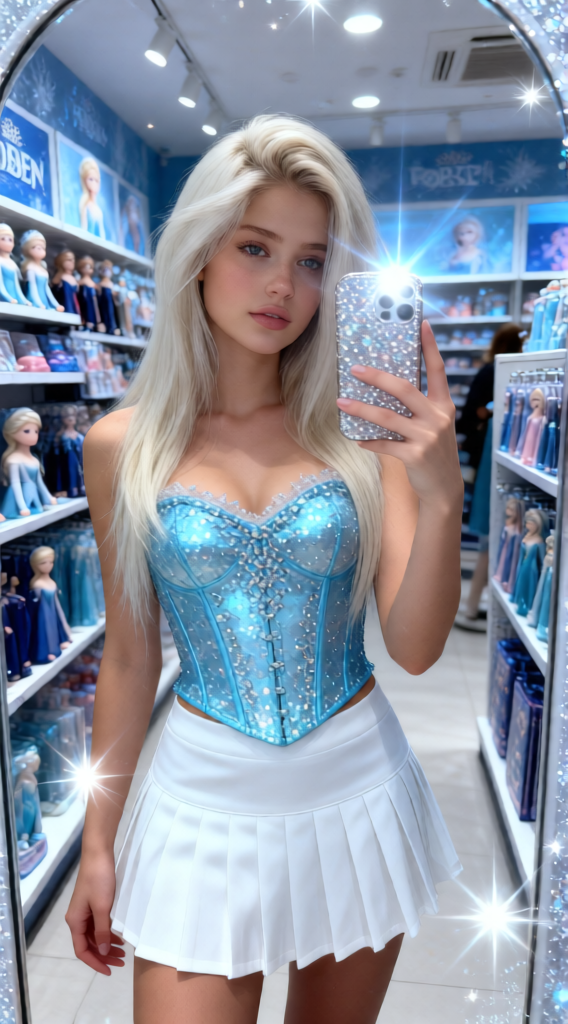
Ice Mirror Glow
- Model
- Qwen Edit
- Image
- 568 × 1024 px
Prompt
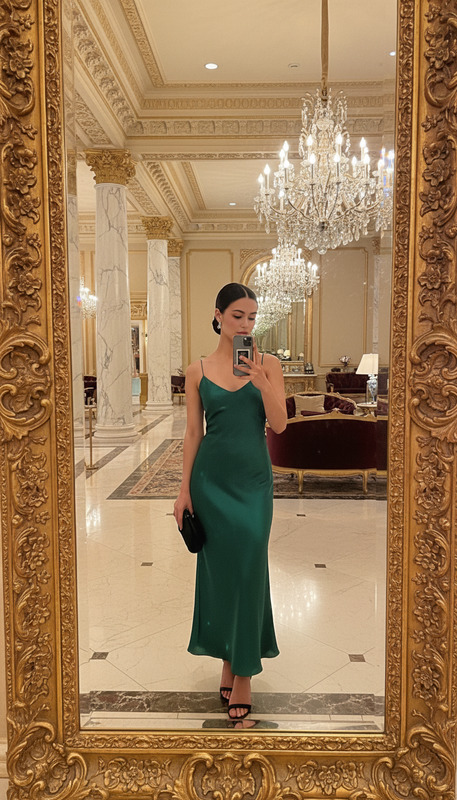
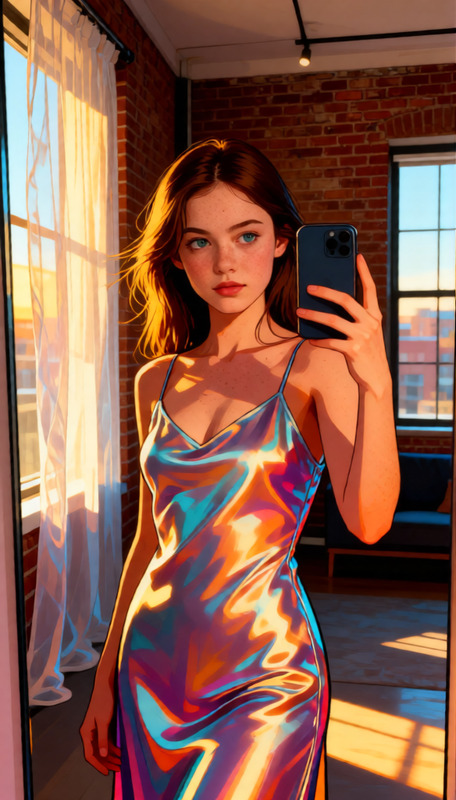
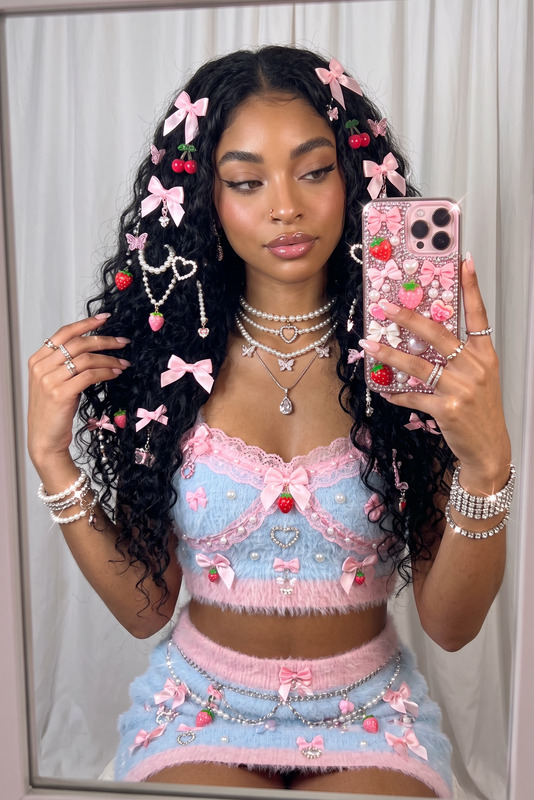
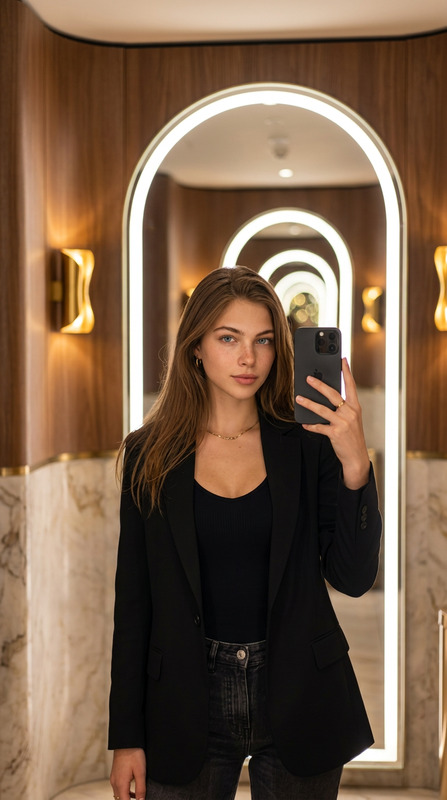
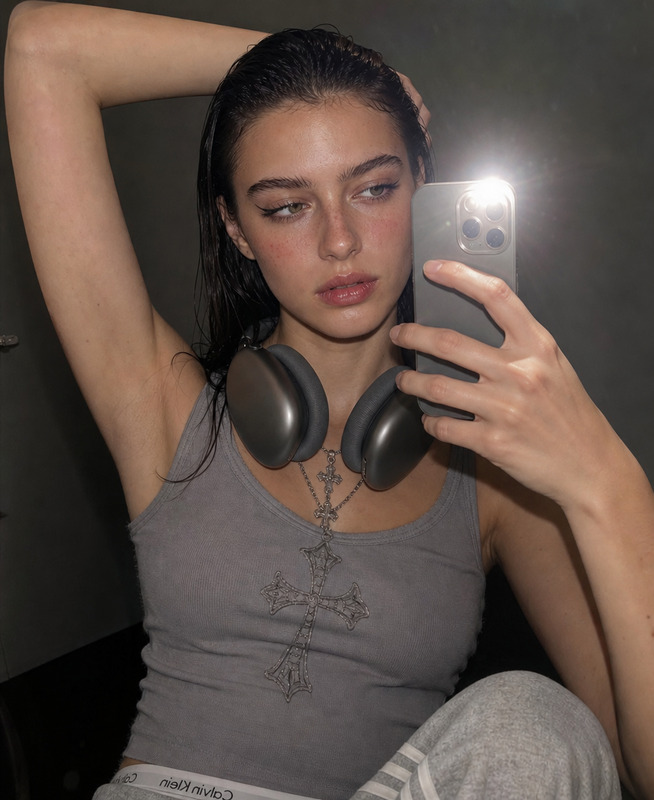
Subject: Uploaded subject with face matched exactly, taking a dazzling mirror selfie inside a character merchandise store (Frozen-themed section), wearing a shimmering icy-blue corset top with intricate sequin detailing and a crisp white pleated tennis skirt. Holding a sparkly phone case while posing for a glam mirror shot, capturing glitter and sequins reflecting light beautifully. Environment filled with Frozen merchandise, cool-toned decor, and soft sparkly elements. Style: Ice Princess Core, luxury teen aesthetic, winter wonderland indoors. Lighting: cool, crisp high-key with blues, silvers, and whites, enhanced by star-like lens flare effects from sequins and sparkle filter. Shot on a 24mm smartphone wide lens, f/1.8, eye-level mirror reflection, sharp reflections, sparkly bokeh background, ultra-detailed, 8K, photorealistic.
Any aspect ratio
Overview
Ice Mirror Glow is an advanced AI Image Editor template that transforms ordinary images into enchanting winter-themed selfies. Using the power of the qwen-edit model, this template adds a magical touch to your photos, perfect for fans of the Ice Princess Core aesthetic.
What It Does
The template places your uploaded subject in the midst of a Frozen-themed character merchandise store, enhancing your image with winter wonderland elements. It incorporates dazzling reflective effects, shimmering garments, and cool-toned lighting for a luxury teen aesthetic. The result is an ultra-detailed, 8K photorealistic image that captures the essence of ice princess glamour and sparkly bokeh brilliance.
Who It's For
This template is ideal for creators who want to infuse a bit of magic into their social media content. It appeals to fans of the Ice Princess Core aesthetic and anyone looking to produce captivating visual stories with a frosty sparkle. Perfect for promoting product photos on platforms like Instagram Reels or creating eye-catching AI Product Photography.
Summary
Utilize the Ice Mirror Glow template to turn your images into a winter wonderland fantasy. With features like photorealistic enhancements and exquisite sequined details, this template is a must-have for anyone looking to elevate their visual storytelling. Enhance your holiday campaigns or create unique personal photoshoots with this AI Image Generator tool.
How-To
Choose the Ice Mirror Glow Template

Customize Your Inputs

Generate and Download Your Image

Use Cases
Social Media Content
- Create content for Instagram and Snapchat using frosty elements.
- Develop unique visuals for TikTok videos.
E-commerce and Product Promotions
- Showcase clothing lines with winter aesthetics.
- Advertise seasonal promotions effectively.
Personalized Print Products
- Design holiday greeting cards with unique flair.
- Create personalized photo books with a theme.
Best Practices
Choose High-Quality Source Images
For the best results, ensure your uploaded subjects are of high resolution and well-lit to allow the template to work optimally.Adjust Element Details Thoughtfully
Customize details like sequins and fabric shades to maintain harmony in the visual storytelling.Experiment with Environment Details
Use the environment settings to match your overall aesthetic goals, like adding more sparkles or adjusting the tone of the merchandise store background.