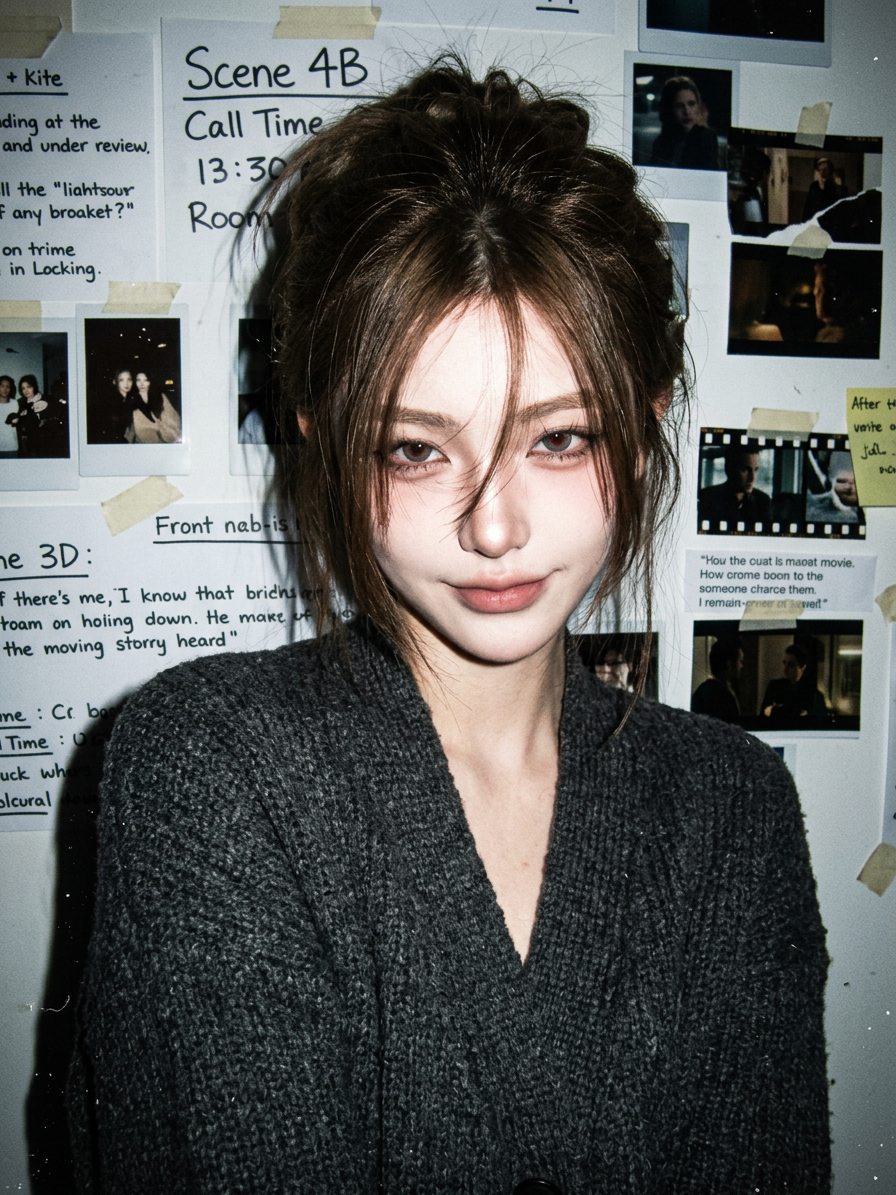
Indie Flash Smirk
ai-image-editor
Any aspect ratio
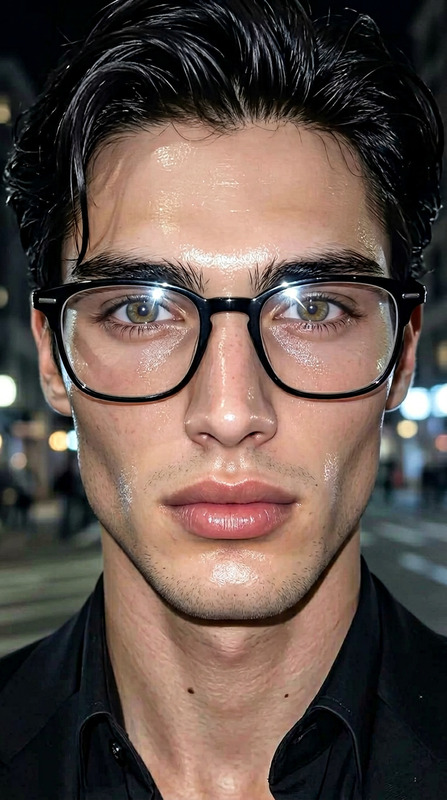
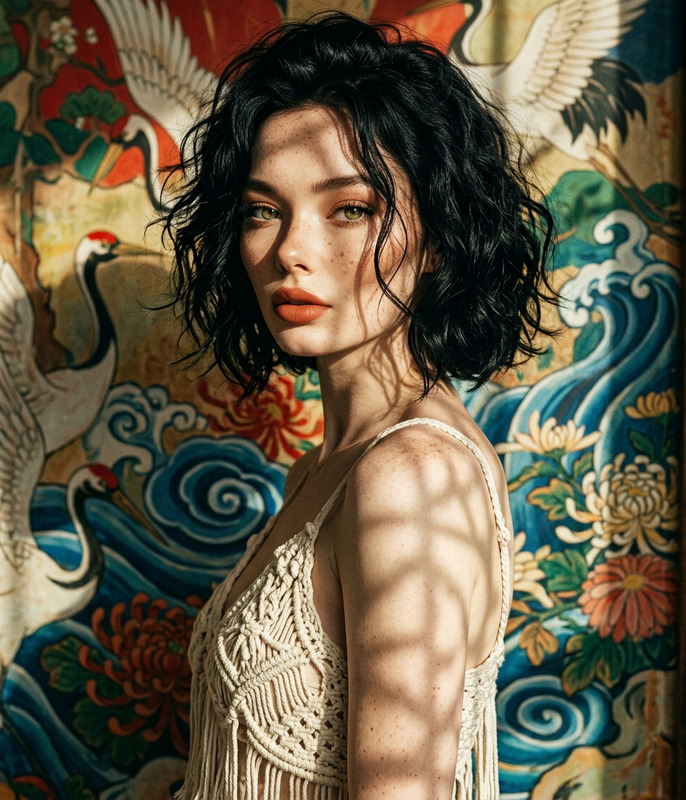
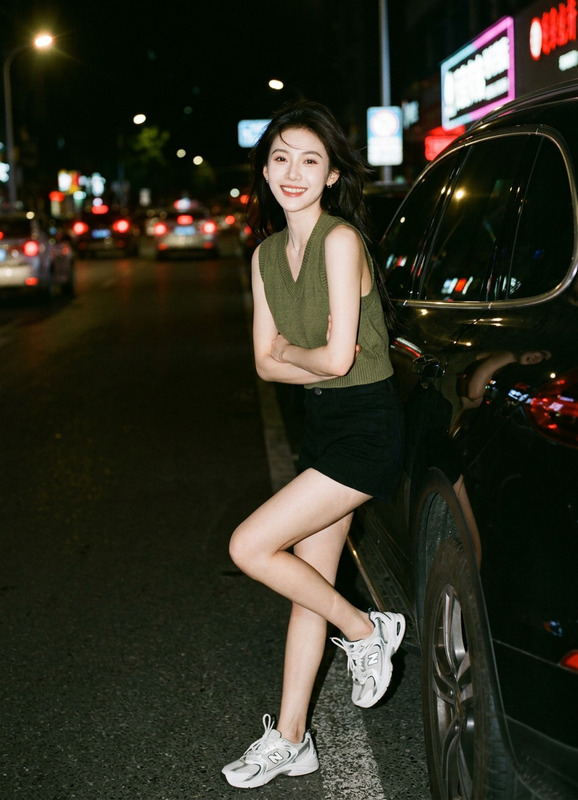
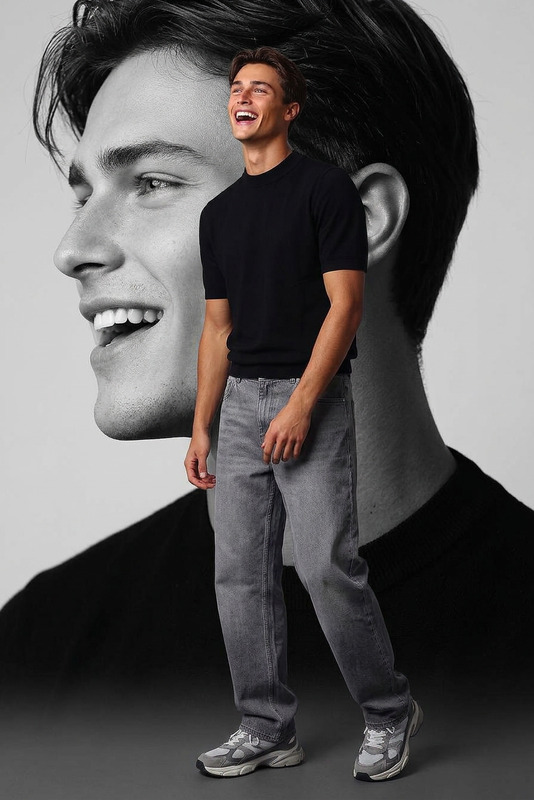
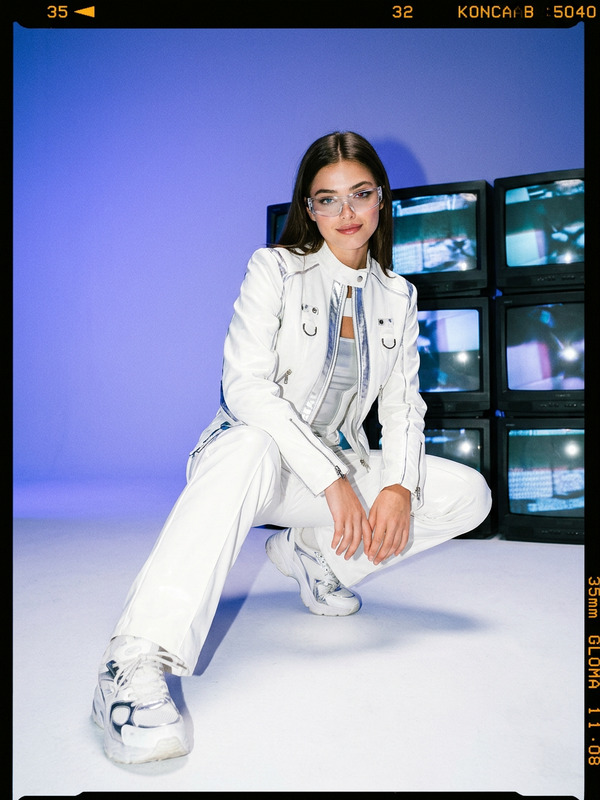
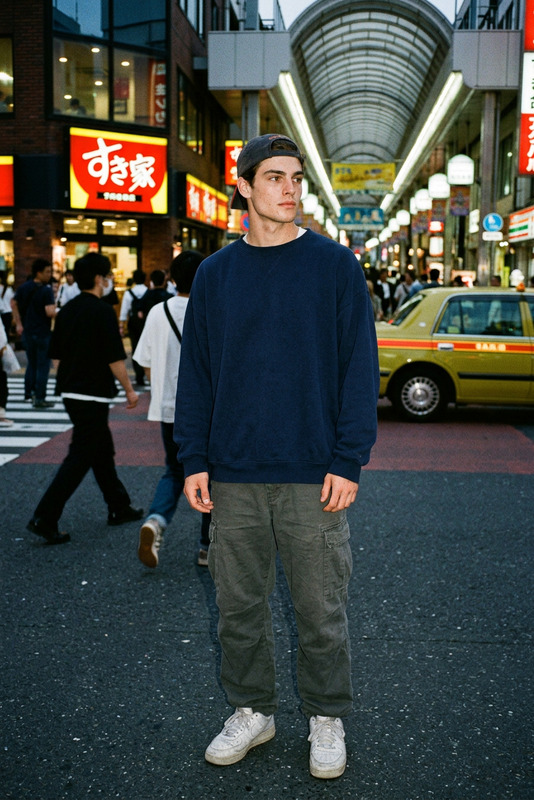
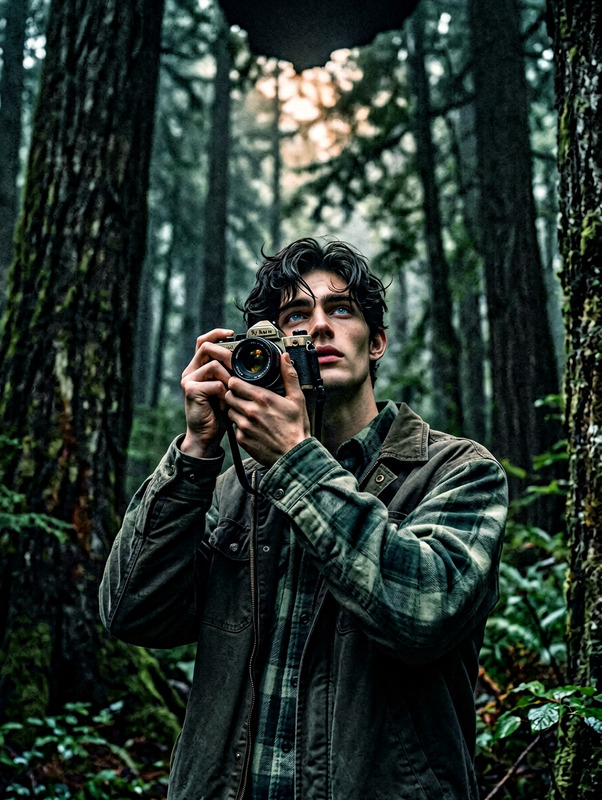
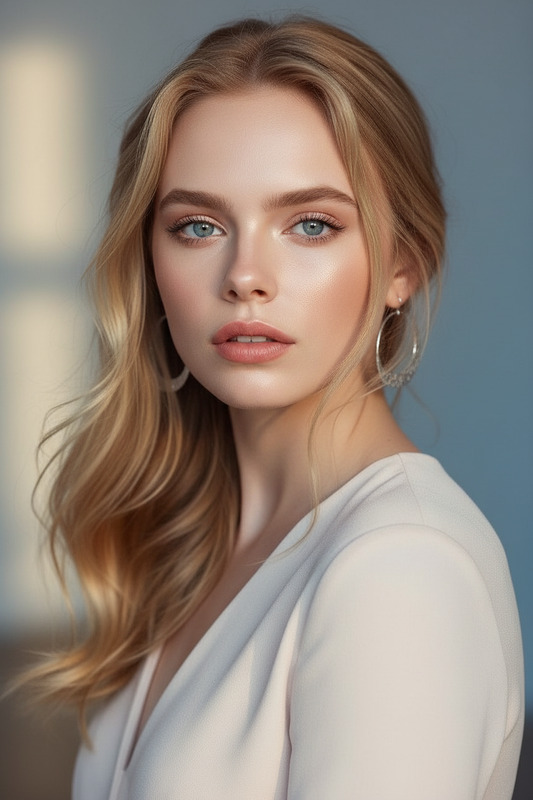
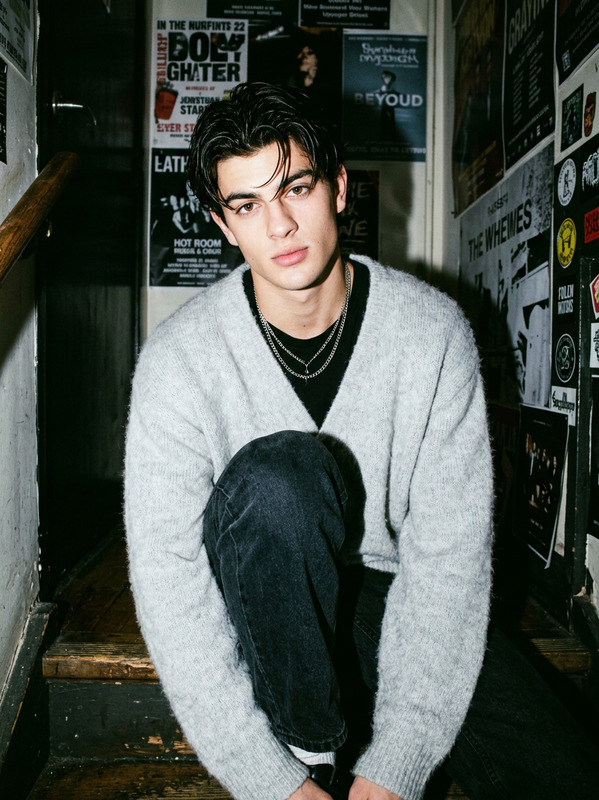
Subject, same face preserved, giving a subtle knowing half-smirk. Wearing a textured charcoal cardigan, hair loosely pinned with stray strands casting shadows over the eyes. Lit by a harsh on-camera flash from a thrift-store film camera, creating strong highlights and deep shadows. Background filled with a cluttered wall of handwritten notes and torn film stills. Raw indie-movie still aesthetic with heavy grain, imperfections, and an intentionally unpolished, cinematic feel.
Tags
popularAI Image Editor Template: Instantly Remix, Enhance, and Rebrand Any Image
This template is built with the AI Image Editor and designed for creators and teams who need fast, high‑quality image edits without touching Photoshop. Use it as‑is or remix it to build your own custom workflow in Magic Hour.
What This Template Is For
Use this template to:
- Cleanly remove or replace objects, text, or backgrounds
- Localize and rebrand existing visuals (swap logos, colors, copy)
- Turn rough mockups into polished marketing assets
- Repurpose one image into multiple variants (A/B tests, campaigns, formats)
- Restore or enhance photos before turning them into video, GIFs, or ads
It’s ideal for:
- Marketing & growth teams repurposing creative across channels
- Designers & agencies who need fast iterations and client variations
- Startup founders assembling pitch decks and product visuals
- Creators preparing assets for short‑form video, memes, and social posts
How to Remix This Template in Magic Hour
You can use this template directly or treat it as a starting point for your own AI editing flow.
Open the Template in Magic Hour
- Start from this template in the Magic Hour interface.
- Upload the base image you want to edit (product shot, headshot, UI mockup, photo, etc.).
Define What You Want to Change
- Clearly describe the edit you want (e.g., “remove the background and replace with a clean white studio backdrop” or “change the t‑shirt color to black and add a minimal logo on the chest”).
- For best results, be specific about:
- Objects to remove, add, or replace
- Desired style (photo‑realistic, flat illustration, anime, comic, etc.)
- Lighting, mood, and color palette
Use AI Image Editor for Structural Changes
- Use the AI Image Editor to:
- Remove unwanted elements (logos, watermarks, clutter)
- Replace backgrounds with generated scenes or solid colors
- Add new objects or adjust composition
- Use the AI Image Editor to:
Chain With Other Magic Hour Tools (Optional)
Once your base image is ready, you can build a custom “micro‑pipeline” by sending it to other Magic Hour tools:Turn images into short videos or motion:
- Image to Video – animate static images for ads and social
- AI GIF Generator – create looping GIFs from edited frames
- Video to Video – stylize or transform footage based on your edited frames
- Animation Templates – convert concepts into animated characters or scenes
Polish and enhance image quality:
- AI Image Upscaler – upscale low‑res assets for print or high‑res campaigns
- Unblur Image – recover soft or noisy images
- Old Photo Restoration – fix damaged or aged assets before editing further
Transform faces and people:
- AI Face Editor – refine expressions or subtle facial details
- Gender Swap – explore alternative character variations
- AI Headshot Generator – turn casual photos into professional headshots
- Face Swap or Face Swap GIF – reuse your edited face across memes and content
Save Your Remix as a New Template
- Once you have a flow you like (e.g., “clean background → on‑brand colors → upscale → export”), save it inside Magic Hour so your team can reuse it for new assets in seconds.
Practical Use Cases and Workflows
1. Marketing & Growth: Campaign‑Ready Visuals
Common workflows:
Product hero images
- Clean up product photos with AI Image Editor
- Swap cluttered backgrounds for clean, brand‑consistent scenes
- Upscale using AI Image Upscaler for web and print
Creative testing at scale
- Generate multiple background and layout variants
- Produce GIFs for ad tests using AI GIF Generator
- Turn winning static creatives into motion with Image to Video
Localized campaigns
- Replace language‑specific text in images with localized copy
- Adapt imagery to different regions or audiences using AI Art Generator or AI Background Generator
2. Brand & Content Teams: On‑Brand Visual Systems
Logo and color rebrands
- Swap legacy logos and brand colors in images using AI Image Editor
- Create consistent social templates and then generate avatars or mascots with Avatar Generator or AI Character Generator
Social content & memes
- Edit screenshots, overlays, and callouts
- Turn edited images into memes via AI Meme Generator
- Animate faces with AI Talking Photo or sync lips with Lip Sync
Thumbnails and covers
- Build clickable YouTube thumbnails using Thumbnail Maker
- Design book or album visuals with Book Cover Generator or Album Cover Generator
3. Product & UX Teams: Screens, Demos, and Mockups
- Edit UI mockups in context (devices, hands, environments)
- Remove sensitive data from screenshots with AI Remover or Remove Object from Photo
- Present product flows as motion using Text to Video or Video to Video
Advanced Transformations: From Single Image to Full Asset Stack
Once you have a clean, edited base image, you can expand it into an entire content system:
Brand characters & IP
- Turn a single character illustration into a full cast using:
Stylized universes for games, comics, or campaigns
- Generate consistent worlds with:
Fashion & product exploration
- Test outfits and styling with:
Interior, architecture, and environment design
- Take base room or building photos edited with AI Image Editor and explore variations using:
Best Practices for High‑Quality Edits
Start with the highest‑quality source you can
- Higher resolution and clear subjects lead to more precise editing. If your image is low‑res, run it through AI Image Upscaler first.
Be explicit in your edit instructions
- Specify what to change and how you want it to look (e.g., “remove the person on the left, extend the background, keep natural lighting” instead of “clean this up”).
Maintain visual consistency across assets
- Reuse the same editing approach when creating series: same lighting style, background type, and color palette. Use your remixed template as the standard baseline for your team.
Remove distracting artifacts before downstream use
- Clean up watermarks or stray elements via Watermark Remover or AI Remover before turning images into video, memes, or ads.
Example Template Remix Ideas
You can fork this template into specialized variants:
“Clean Product Shot” Template
- AI Image Editor → remove background → add subtle shadow → upscale
“Viral Meme Image” Template
- AI Image Editor → add subject or face via Face Swap → caption with AI Meme Generator → export or animate with AI GIF Generator
“Talking Head Social Clip” Template
- AI Image Editor → refine headshot → AI Talking Photo → optional Lip Sync → add subtitles with Auto Subtitle Generator
“Character + World” Template
- AI Image Editor → refine character art → AI Background Generator → Image to Video or Animation
Related Magic Hour Tools Worth Exploring
If you like this AI Image Editor template, you may also want to explore:
- AI Photo Generator – generate base photos from text, then refine with this template
- AI Image Generator – produce original concepts before editing
- AI Illustration Generator – create vector‑like illustrations for decks and docs
- AI Logo Generator and AI Icon Generator – design brand assets you can later embed into your edited imagery
- AI QR Code Generator – create scannable QR codes and seamlessly integrate them into posters, flyers, and product shots
- Image Background Remover – a focused companion for background‑only workflows
Use this AI Image Editor template as your starting point, then remix it into a reusable workflow tailored to your brand, your product, and your content system. Once you’ve dialed in a flow that fits your team, save it as your go‑to template and generate consistent, on‑brand visuals in minutes instead of hours.