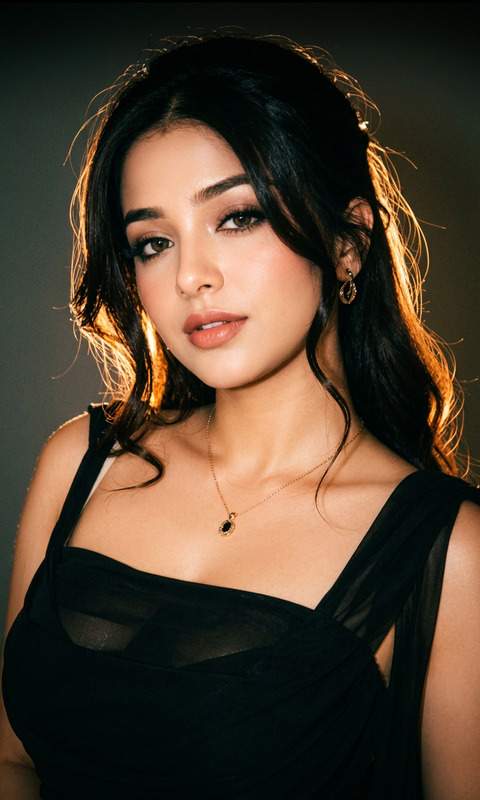
Night sky explosion swap

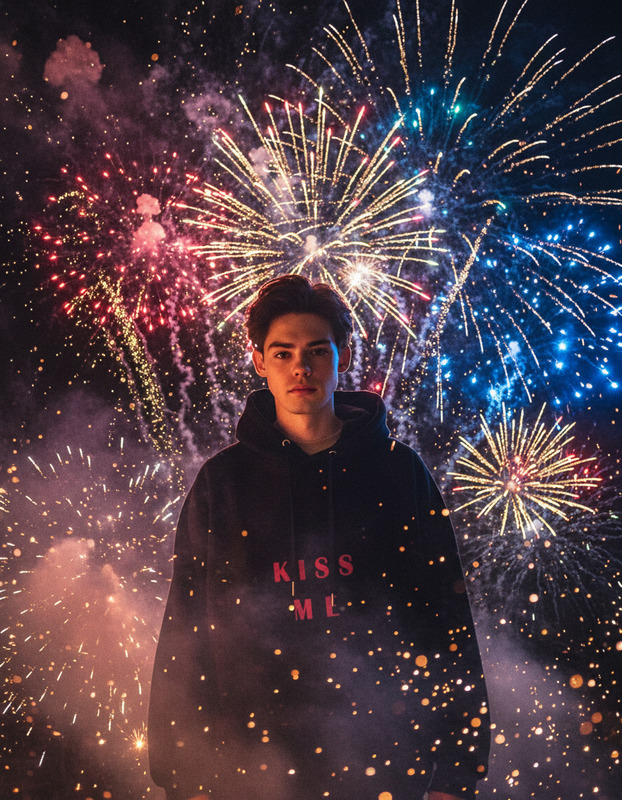
Night sky explosion swap

ai-image-editor

1 clip
3 uses

Any aspect ratio

Prompt

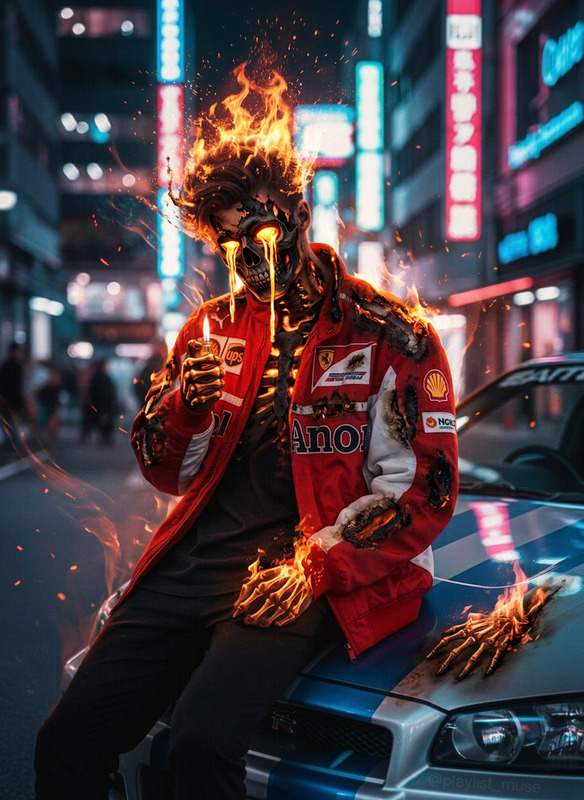
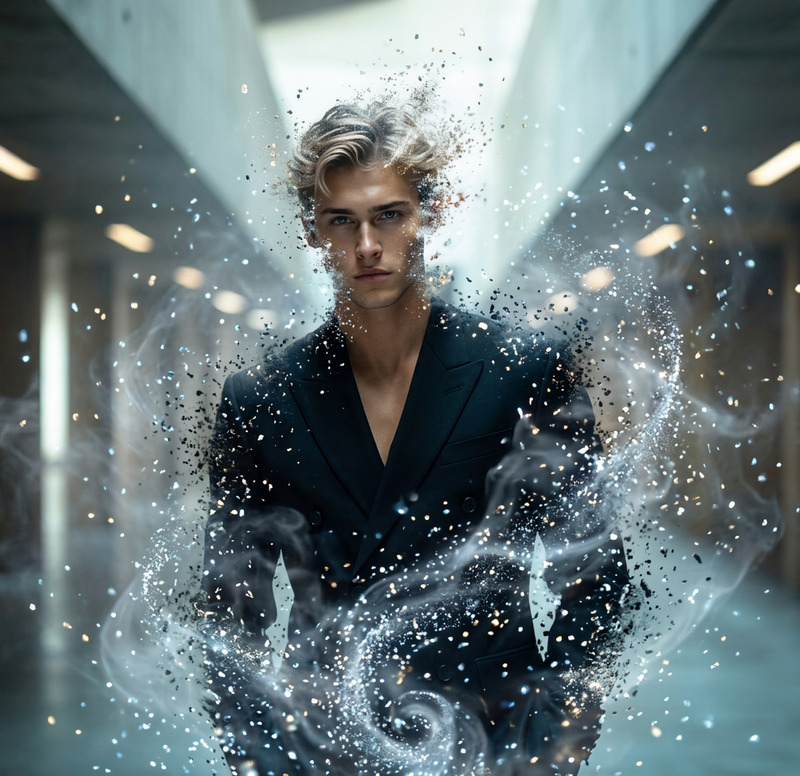
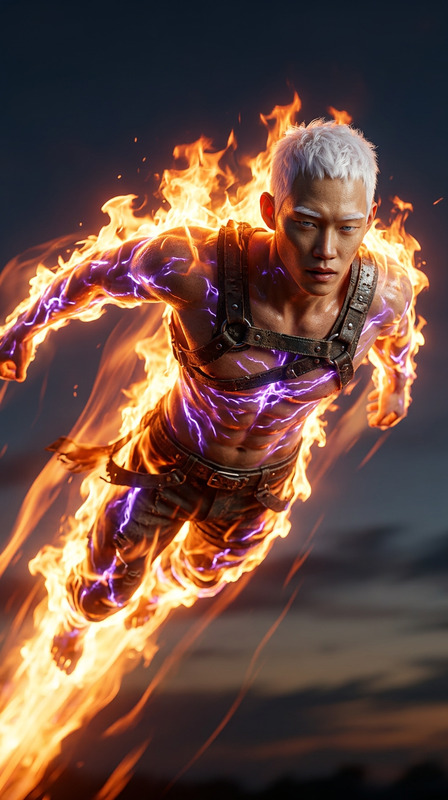
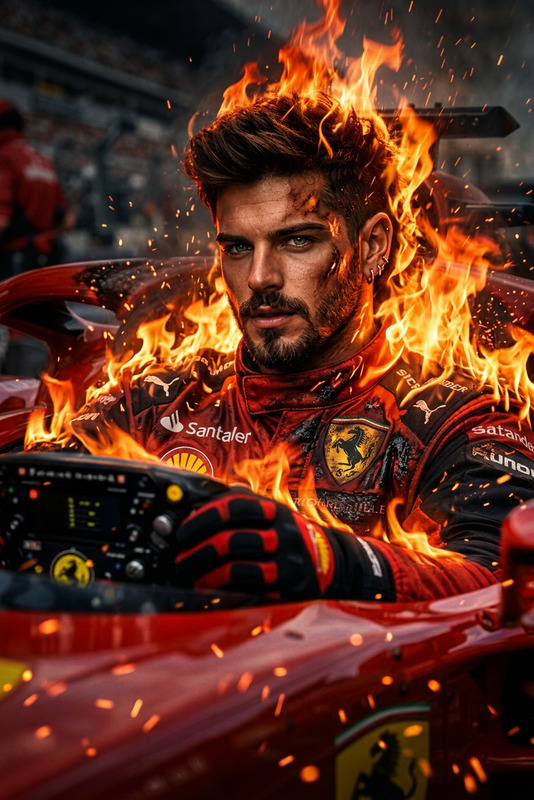
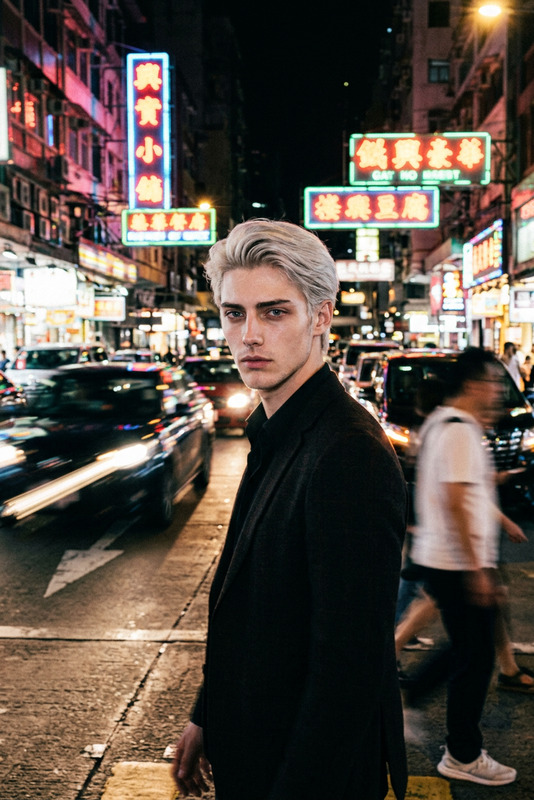
Replace the outdoor background with a large, fiery explosion lighting up the night sky. Keep the subject unchanged. Ensure realistic fire, smoke, and glowing light, with proper reflections and color cast blending naturally into the scene for a cinematic, photorealistic effect.

Tags

visual effects

AI Image Editor Template: Clean Background Product Shot

Turn quick snapshots into polished, studio-style product photos in seconds. This template uses Magic Hour’s AI Image Editor to remove cluttered backgrounds, refine lighting, and enhance details—without needing Photoshop or a photography setup.


What this template is best for

Use this template if you need:

  • Ecommerce product photos for Shopify, Amazon, Etsy, eBay, etc.
  • Clean marketing visuals for landing pages, ads, decks, and pitch materials
  • Before/after visuals for product demos and launch announcements
  • Quick iterations for A/B testing creatives and thumbnails

Ideal for:

  • DTC brands and ecommerce teams
  • Startup founders and marketers who need fast, on-brand visuals
  • Creators designing thumbnails, social posts, and promo graphics
  • Agencies producing consistent client assets at scale

How it works in Magic Hour

This template is built on the AI Image Editor. At a high level, it:

  1. Detects the subject (your product, object, or person)
  2. Cleans or replaces the background (e.g., pure white, soft gradient, or a simple environment)
  3. Refines the image for clarity and consistency (lighting, contrast, and minor imperfections)

Because it’s an image-editing template, you can start from any photo:

  • A smartphone shot on your desk
  • A screenshot from a video
  • Existing product imagery that needs cleanup

You don’t need to describe complex prompts—the template is pre-structured for “clean background product shot” use cases. Upload, edit, and export.


How to remix this template in Magic Hour

You can use this template as-is, or quickly adapt it to your own workflow. To create your own version:

  1. Duplicate / remix the template

    • Save a copy of the template inside Magic Hour.
    • Rename it for your workflow (e.g., “Amazon Listing Photos,” “Pitch Deck Devices,” “SaaS UI Mockups”).
  2. Change the type of subject

  3. Create specialized variants
    Common remixes used by teams:

    • “White background Amazon-style” product template for marketplaces
    • “Soft gradient brand colors” template for landing pages
    • “Presentation-only” template tuned for pitch decks and investor updates
    • “UGC-style cleanup” for influencer content that needs minimal polishing
  4. Build cross-media workflows
    Once you like the look, chain it with other Magic Hour tools:


Example workflows this template enables

1. Ecommerce PDP & marketplace listings

  • Start with your raw product shot.
  • Use this template to isolate the product and create a clean white or subtle gradient background.
  • Generate multiple angles and stylized versions with the AI Art Generator or AI Outfit Generator for apparel.
  • Upscale and sharpen with the AI Image Upscaler before uploading to your storefront.

2. SaaS & app UI marketing visuals

  • Export UI screens from Figma or your app.
  • Drop them into this template to simulate clean device mockups or floating UI cards.
  • Use the Thumbnail Maker and Album Cover Generator as design references for on-brand layouts.
  • Turn your best screens into social or YouTube thumbnails with consistent style.

3. Founders & personal branding

  • Use this template to clean up founder photos, product demos, and whiteboard shots.
  • For profile pictures and speaker images, combine it with the AI Selfie Generator or Avatar Generator.
  • Create consistent visuals across your site, LinkedIn, decks, and PR kits.

4. Ad creatives and A/B tests


When to combine this with other Magic Hour tools

The AI Image Editor template is strongest for precise, single-image edits. It becomes much more powerful when combined with:


Tips for better results

From common ecommerce and design workflows, a few practical guidelines:

  • Start with the highest-quality photo you have.
    The better the input, the cleaner the cutout and the more natural the final image. If needed, run your source through the Unblur Image tool first.

  • Avoid heavy motion blur and extreme low light.
    AI editors are most accurate when the subject is well-defined. If you only have old or noisy images, consider first improving them with Old Photo Restoration and then editing.

  • Match backgrounds to your brand system.
    Once you find a background style that works (white, soft gray, brand gradients), keep it consistent across your remixed templates for better brand recognition and conversion performance.

  • Use cleanup tools when needed.
    For unwanted logos, objects, or props, pair this template with:

  • Think in reusable systems, not one-offs.
    Instead of editing each asset in isolation, create a small library of remixed templates:

    • “Catalog White”
    • “Paid Ads Gradient”
    • “Organic Social UGC”
    • “Deck & Sales Assets”

This makes it much easier to scale content production across channels.


Related templates and tools worth exploring

If you like this AI Image Editor template, you may also want to try:

  • Face Swap Video – for dynamic product or brand storytelling using faces and characters.
  • Lip Sync – to turn static visuals into talking assets for social, explainers, and ads.
  • Video to Video – to restyle existing product demos or brand videos.
  • Animation – to add movement and character to your visuals.

For teams building repeatable creative pipelines, combining this AI Image Editor template with these tools turns Magic Hour into a full production stack—from raw photo to final video, ad creative, or campaign concept in a single workflow.

More Like This

Insufficient credits