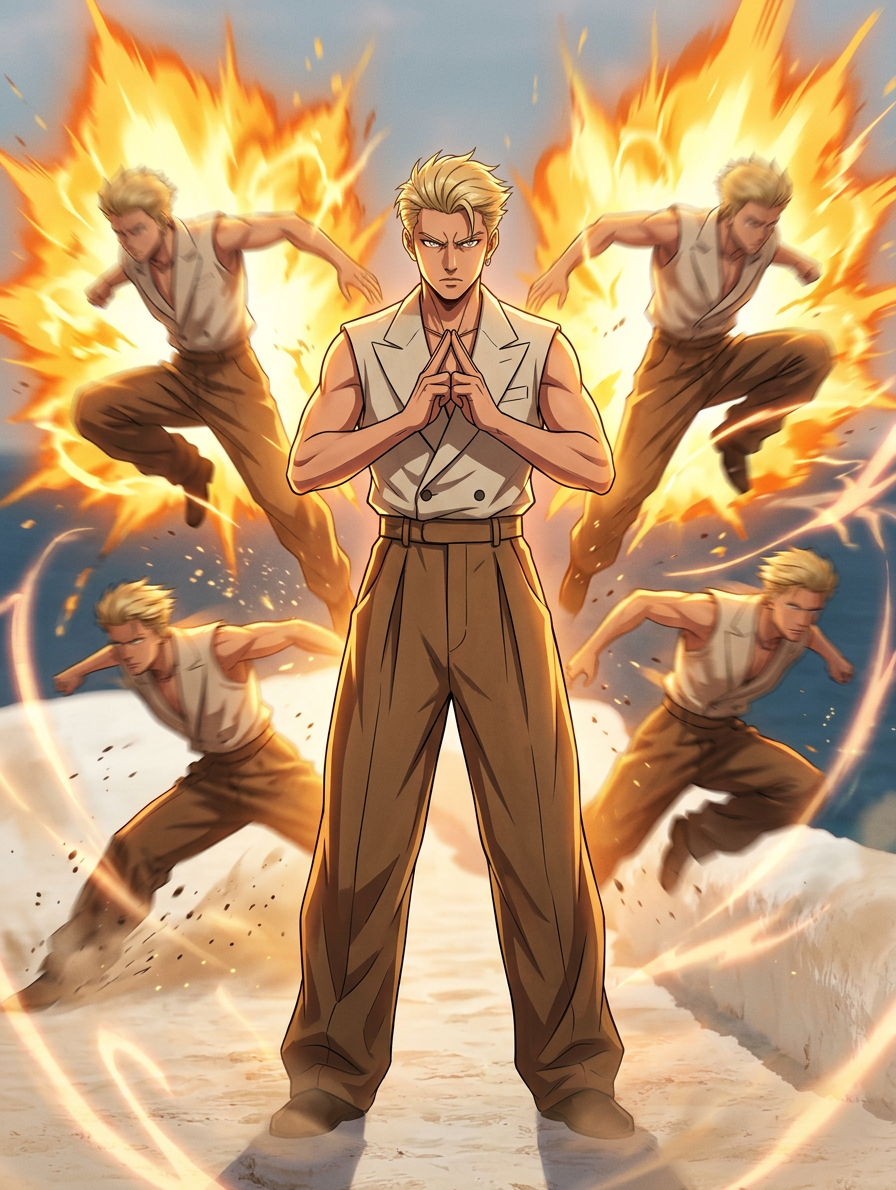
Triangle Power Clone

Triangle Power Clone

ai-image-editor

1 clip
9 uses

Any aspect ratio

Prompt

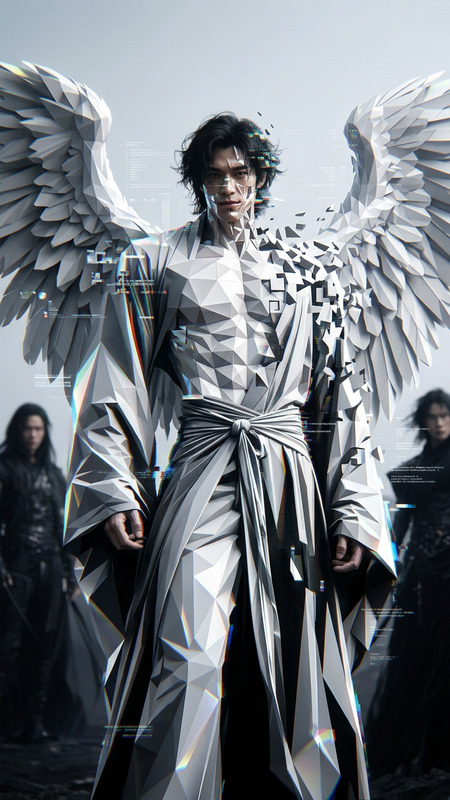
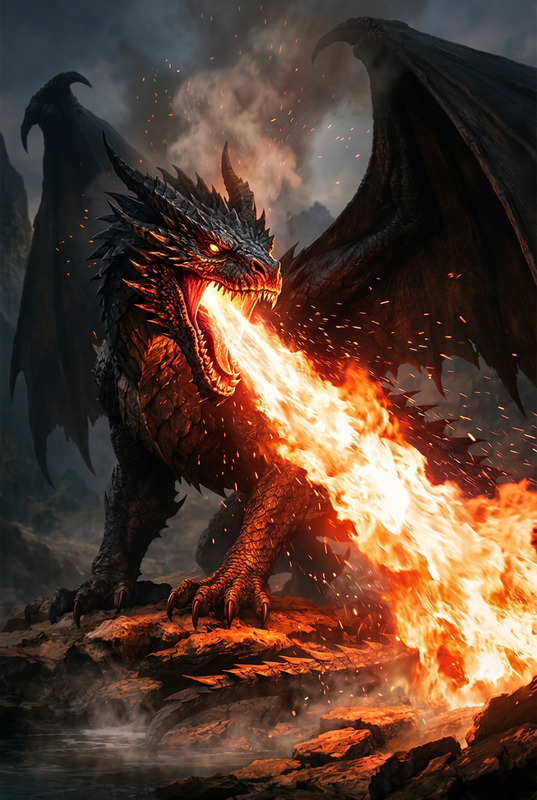
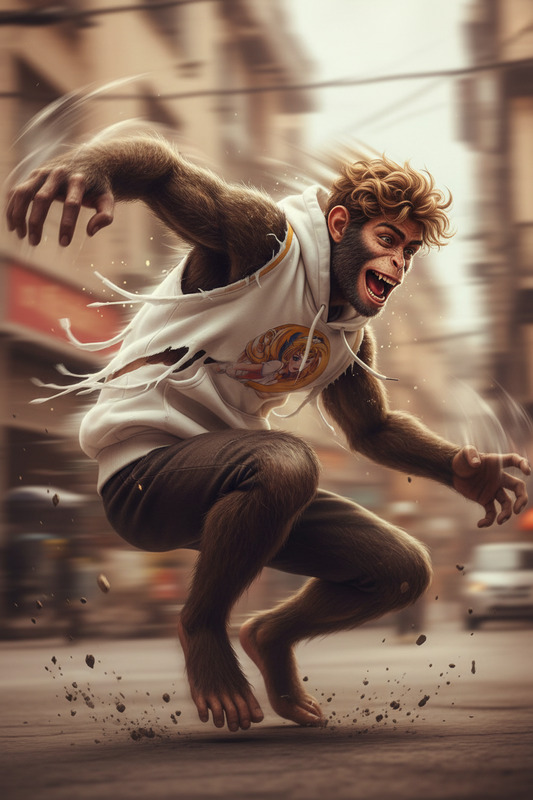
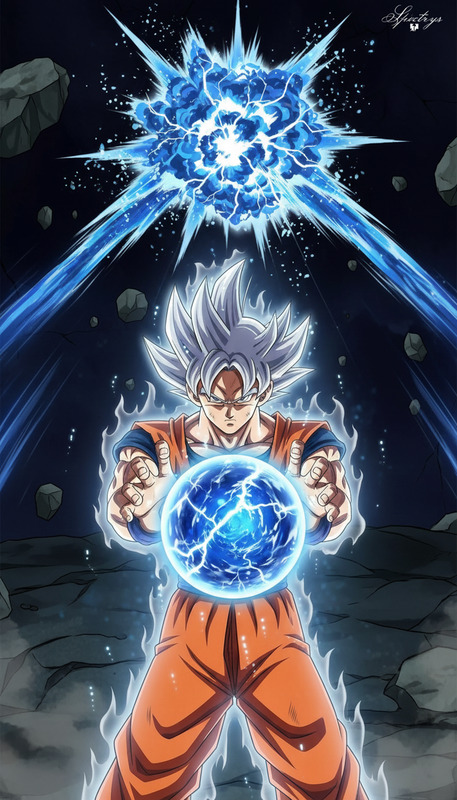
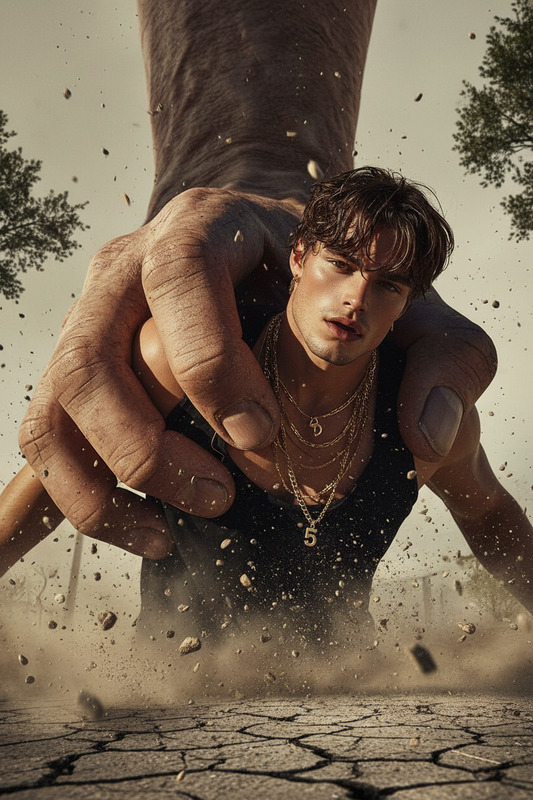
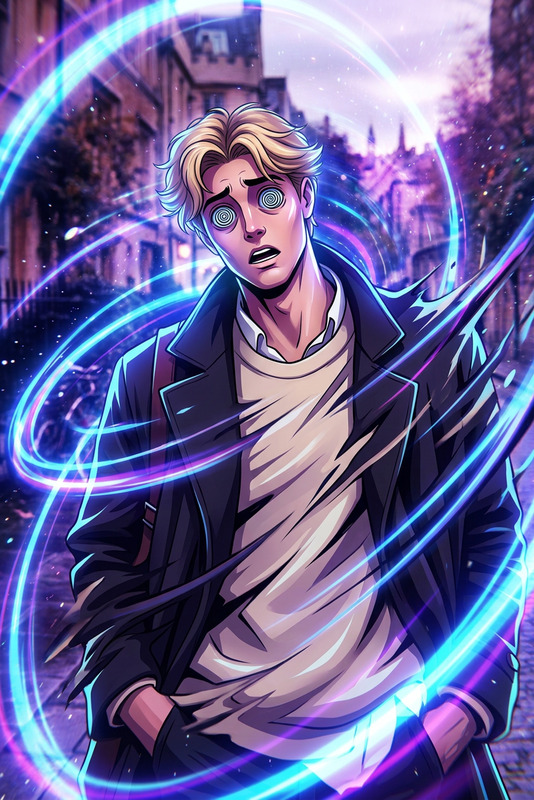
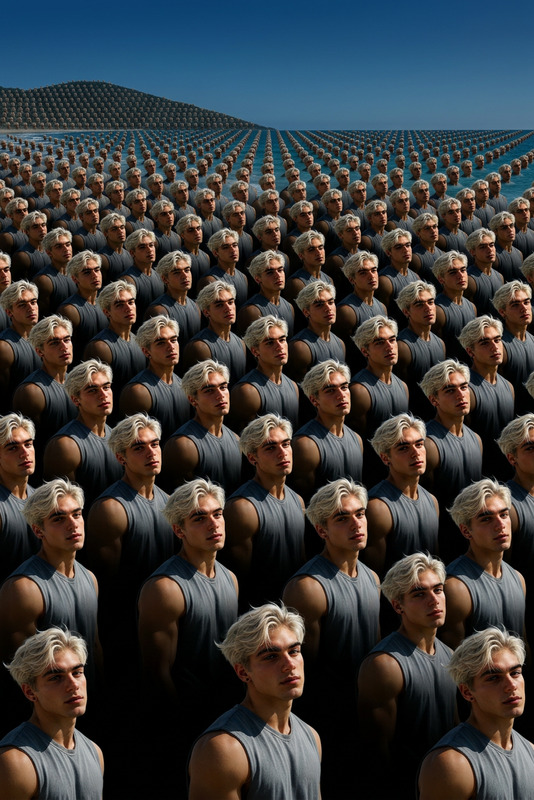
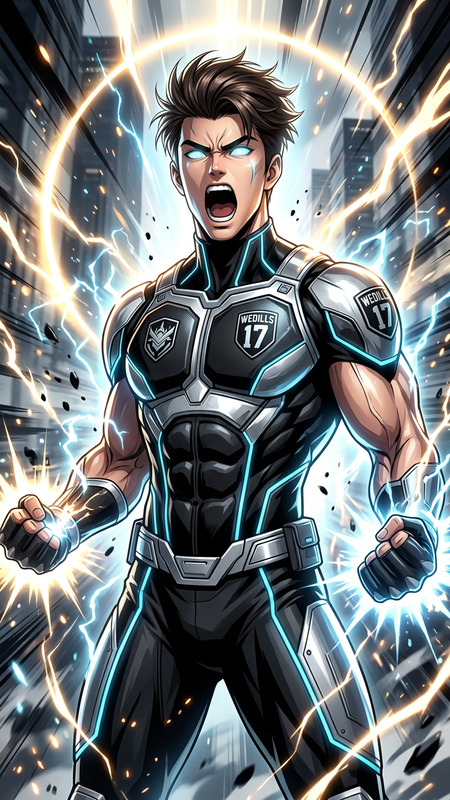
A subject forms a triangle hand gesture with focused, intense eyes. Suddenly, multiple clones appear on both sides in dynamic action poses. Bright anime-style energy bursts and glowing aura explosions ignite behind each clone, with fiery orange-yellow effects, dramatic lighting, and strong motion blur. Pulsing energy waves fill the scene. High contrast, ultra dynamic, anime cinematic style, 4K

Tags

popular

AI Image Editor Template: Turn Any Image into High‑Impact Creative Assets

Use this template to quickly transform, clean up, and remix images with the AI Image Editor. Whether you’re a marketer optimizing ad creatives, a founder building landing pages, or a designer iterating on concepts, this page shows you exactly how to adapt and extend the template for your own workflows.


What This Template Is Best For

This AI Image Editor–based template is ideal when you need to:

  • Remove or replace distracting elements from photos
  • Change backgrounds to match brand, channel, or campaign
  • Clean up selfies and product shots for use in ads or landing pages
  • Generate multiple creative variations from a single base image
  • Prepare images for downstream tools like face swap, AI meme generator, or image‑to‑video

Typical use cases:

  • Founders & marketers: paid ads, email banners, social content, pitch decks
  • Designers & creators: concept art, brand explorations, thumbnails, mockups
  • Developers & product teams: rapidly generate visuals for prototypes and internal tools

How to Remix This Template in Magic Hour

You can treat this template as a starting point and customize it to your own brand, assets, and workflows. Here’s how to build your own version inside Magic Hour:

  1. Start from the base template

    • Open this template in Magic Hour (from the template gallery).
    • Duplicate it to create your own working copy.
  2. Swap in your own images

    • Replace the example image(s) with:
      • Product photos
      • Team headshots
      • User-generated content
      • Brand illustrations or icons
    • This immediately “reskins” the template for your own brand or project.
  3. Define what the editor should do (prompt strategy)
    Use clear, task‑oriented instructions in natural language.
    Examples of highly effective prompts for the AI Image Editor:

    • “Remove the background and replace it with a clean, studio‑style white backdrop suitable for ecommerce product photos.”
    • “Change the background to a modern office interior, soft natural light, and keep the person’s face and clothing exactly the same.”
    • “Turn this photo into a flat illustration style suitable for a SaaS landing page hero image.”
    • “Remove all text and logos from the image and cleanly reconstruct the underlying objects.”
    • “Convert this photo into a line‑art sketch while preserving composition and perspective.”

    For more specialized transformations, you can also connect this template conceptually with:

  4. Chain edits for more complex workflows
    You can design multi‑step flows by conceptually combining this template with other Magic Hour products:

  5. Save and reuse as a private template

    • Once your flow works for one campaign or client, save it as your own internal template.
    • Reuse it for new inputs to keep brand and style consistent across large batches of images.

Practical Recipes You Can Build with This Template

You can implement these concrete workflows using this AI Image Editor template as the base:

1. Campaign‑Ready Product Photos

  • Start from raw product shots (phone photos or simple studio shots).
  • Use this template to:

Then drive these images into:

2. Founder & Team Headshots for Landing Pages

  • Import casual selfies or existing portraits.
  • Use the AI Image Editor to:
    • Clean and neutralize backgrounds
    • Adjust overall style to match your site (corporate, startup, editorial, etc.)

You can also experiment with:

3. Visual Storytelling Assets (Pitch Decks, Case Studies, Docs)

  • Start with screenshots, product mockups, or plain photos.
  • Use this template to:
    • Remove confidential or distracting details
    • Add consistent visual style (color palette, lighting, or illustration style)
  • Then export for inclusion in decks, Notion docs, or marketing one‑pagers.

Pair with:

4. Character & Avatar Creation

These can later be animated with AI Talking Photo or turned into short clips with Image‑to‑Video.


Advanced Compositions: From Edited Image to Dynamic Video

Once your base images look right, this template becomes the first step in a more advanced motion or content pipeline:


Tips for Better Results with AI Image Editing

Based on best practices from modern diffusion and editing models:

  • Be explicit about what must not change.
    Examples: “Keep the person’s face and pose identical,” or “Do not change product shape, only the background and lighting.” This helps preserve identity and key details.

  • Describe the final use context.
    Mention where the image will be used: “for a homepage hero section,” “for a mobile app store listing,” or “for an ecommerce product detail page.” Models tend to optimize composition and clarity accordingly.

  • Reference visual styles or genres.
    Terms like “editorial photography,” “flat illustration,” “3D render,” “digital painting,” “manga panel,” or “pixel art” can meaningfully guide the result. You can cross‑inspire from tools like Comic Book Generator, Graffiti Generator, or Dark Fantasy AI.

  • Iterate in small steps.
    If you need strong changes (e.g., different outfit, environment, or time period), it’s often more reliable to:

  • Use enhancement and restoration tools when starting from low‑quality input.

These practices align with how popular research‑grade image editing models (e.g., diffusion‑based inpainting and outpainting) behave, and will generally give more predictable, controllable results.


Related Magic Hour Tools You May Want to Combine with This Template

For more specialized workflows, connect this AI Image Editor template with:

Each of these tools can either feed into this AI Image Editor template (as inputs to clean, unify, or re‑style) or receive its outputs as high‑quality source material.


How to Get the Most Value from This Template

To treat this template like a re‑usable “visual pipeline” in Magic Hour:

  1. Define your core objectives (e.g., “clean product photos for ecommerce” or “stylized avatars for our app onboarding”).
  2. Customize the template once with your own example image and prompts that reflect your brand and constraints.
  3. Save it as an internal building block and reuse it across campaigns, clients, and experiments.
  4. Expand it over time by adding downstream tools like image‑to‑video, text‑to‑video, or AI talking photo as your needs grow.

Use this AI Image Editor template as your reliable first step for any visual workflow in Magic Hour: clean the input, constrain what must stay the same, and generate consistent, high‑impact images that you can confidently build on.

More Like This