Laying in Bed Staring Ahead

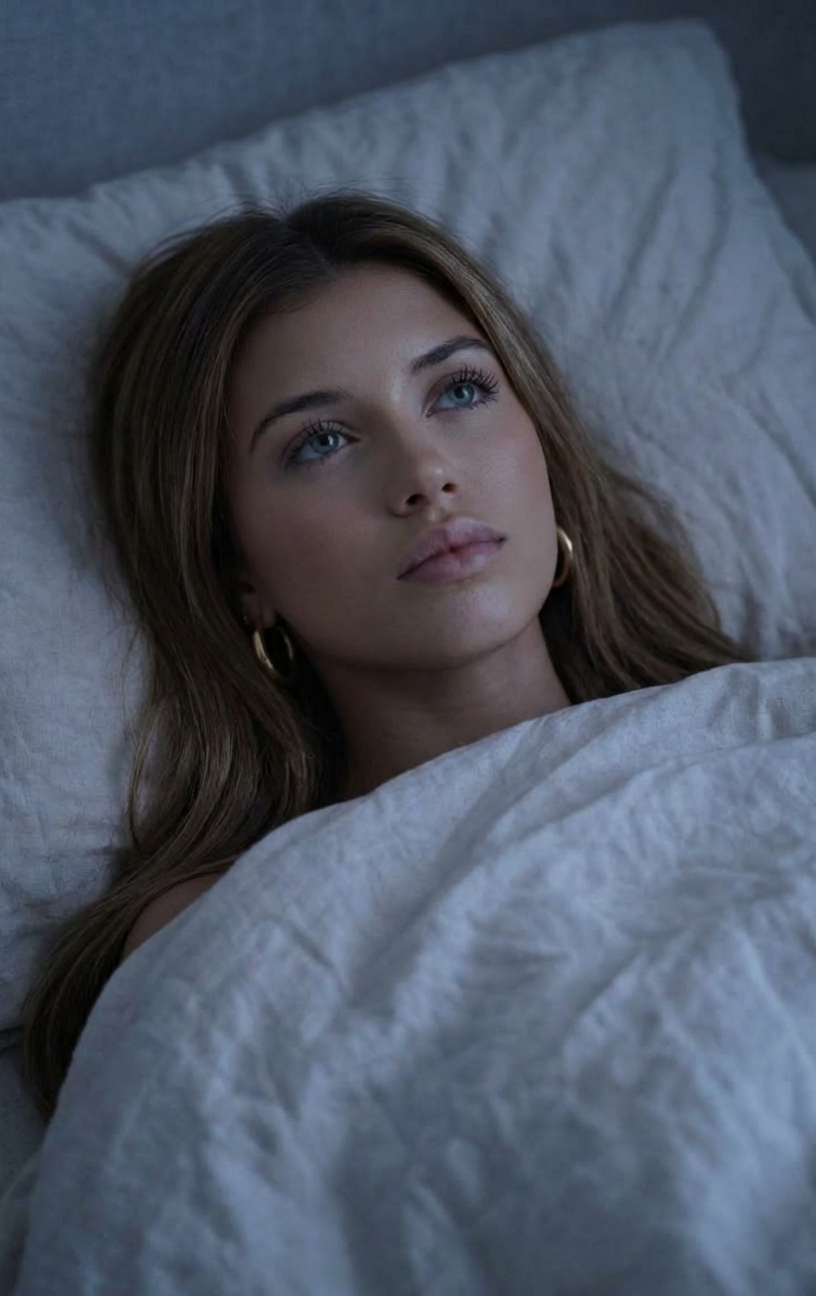
Laying in Bed Staring Ahead

ai-image-editor

1 clip
0 uses

Any aspect ratio

Prompt

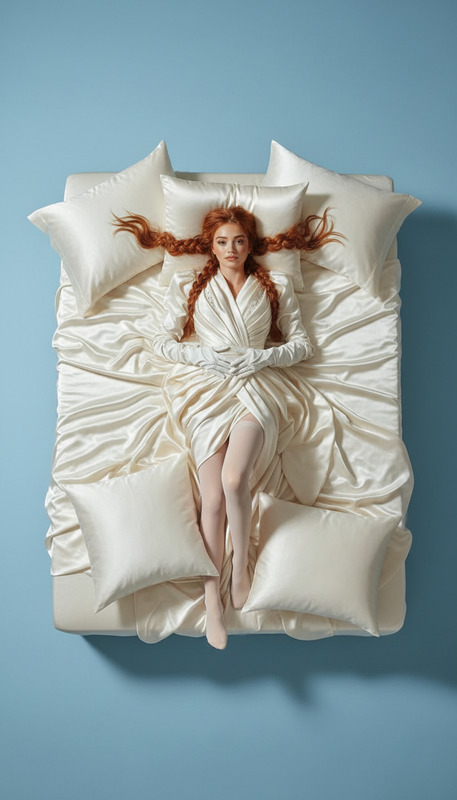
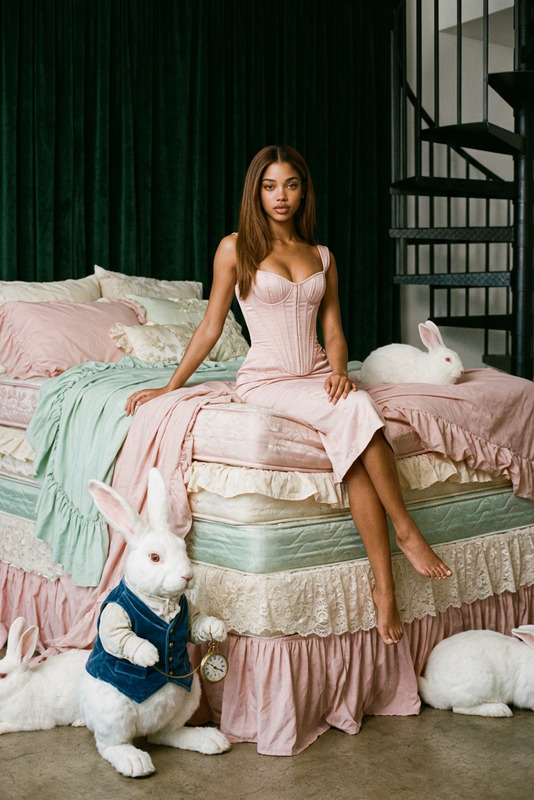
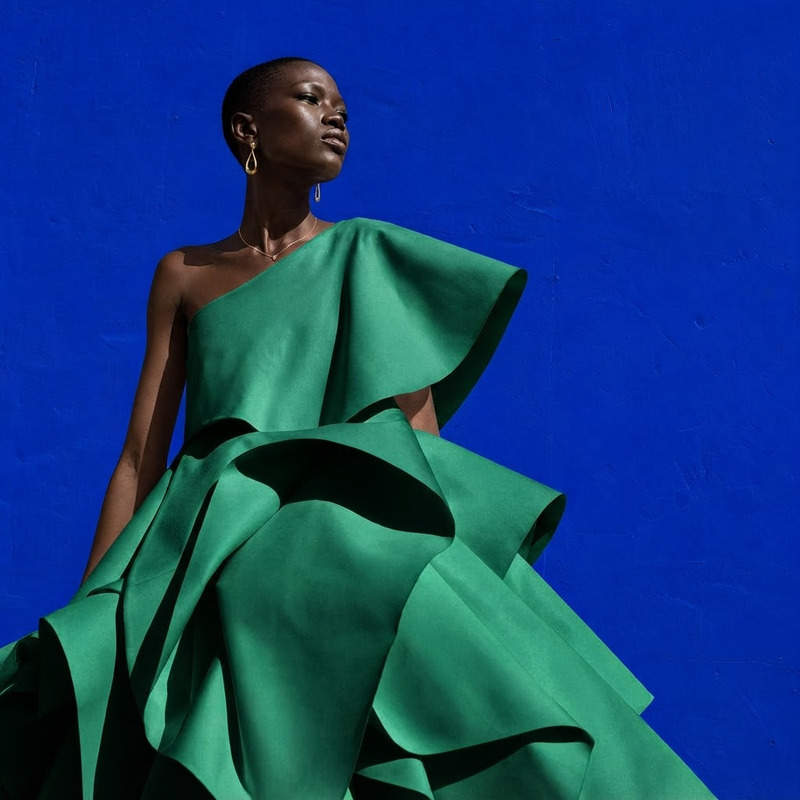
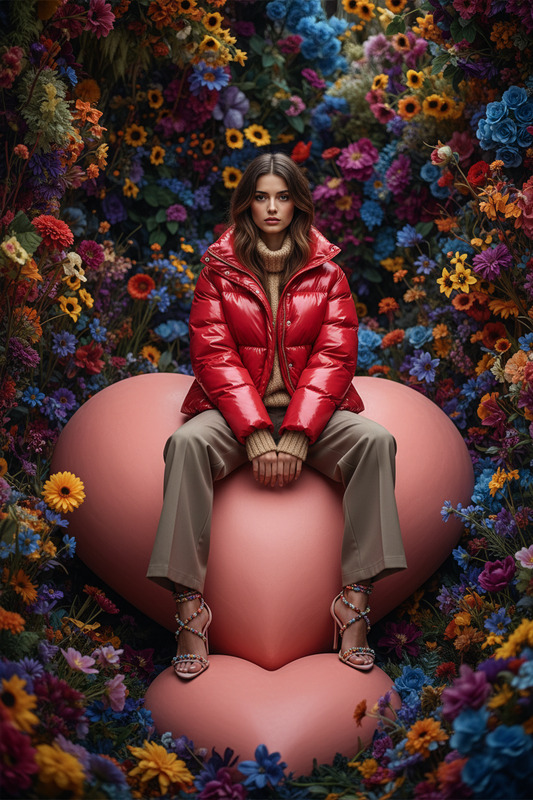
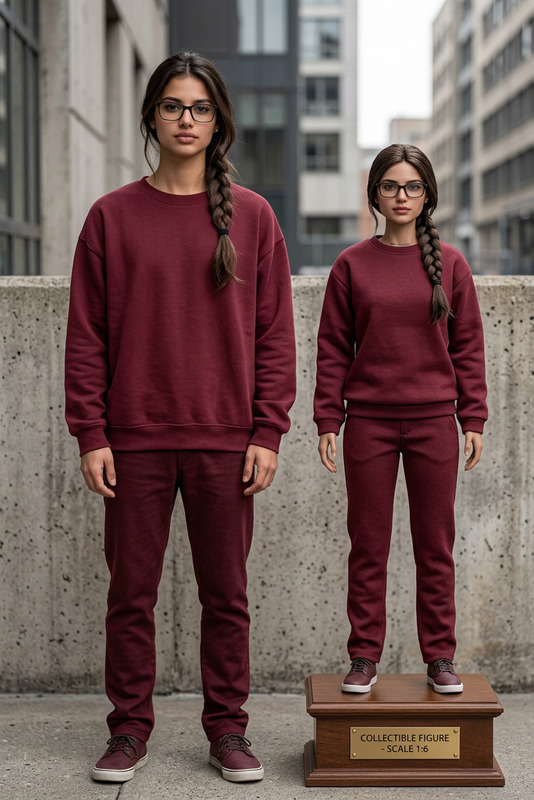
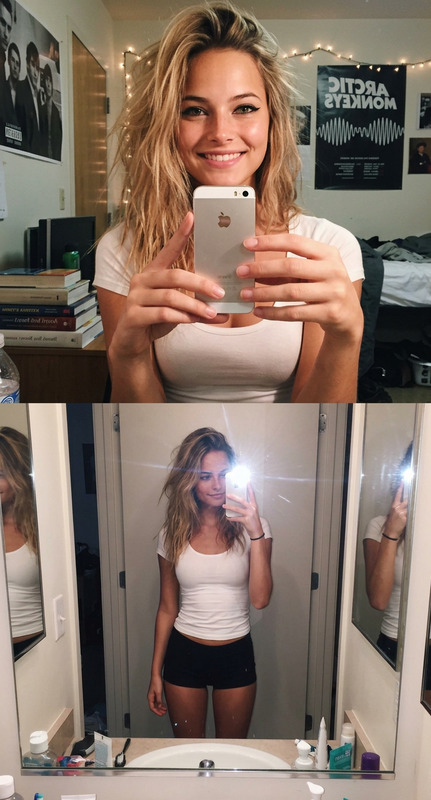
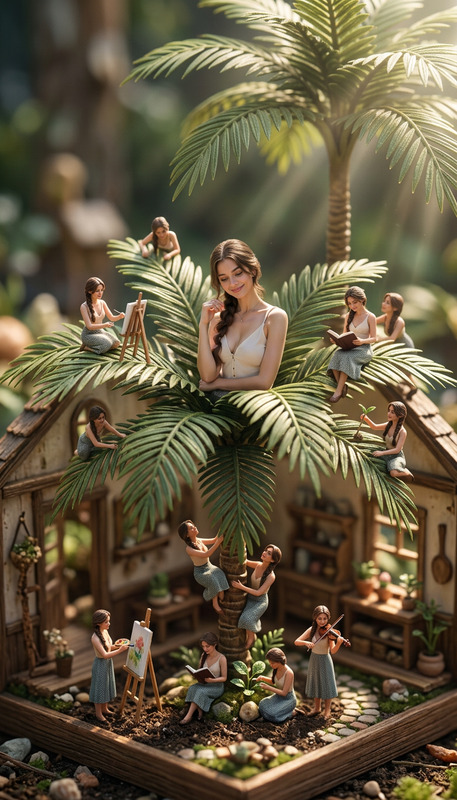
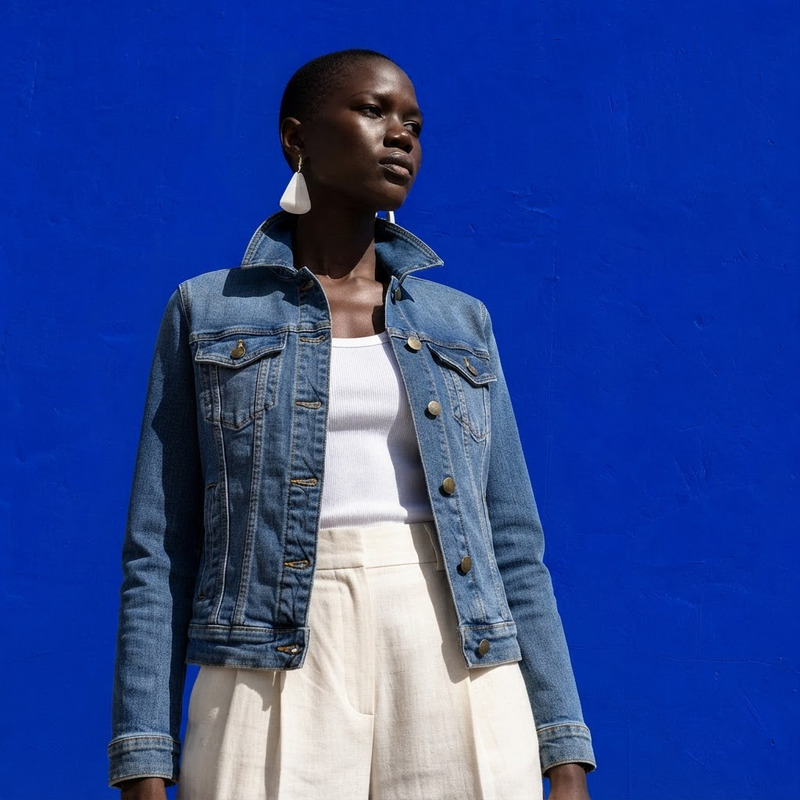
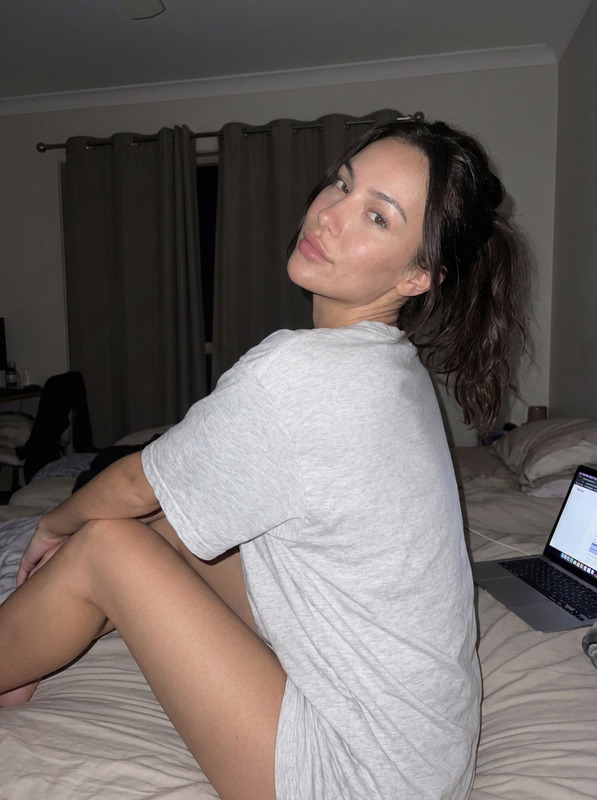
Place the woman from the second image into the scene of the first image. Have her in place of the first girl.

AI Image Editor Template: Turn Any Image into a Polished, On‑Brand Visual

Use this template to quickly transform existing images into clean, on‑brand assets with the AI Image Editor. Perfect for product shots, social posts, thumbnails, presentations, and marketing campaigns where speed and consistency matter.

This template is fully remixable in Magic Hour: duplicate it, swap in your own images, adjust the edits, and chain it with other AI tools to build your own custom pipeline.


What This Template Does

This AI Image Editor–based template is designed to:

  • Clean up and enhance existing photos or graphics
  • Remove distracting objects or background elements
  • Replace or refine backgrounds to match your visual identity
  • Adjust composition for better focus and clarity
  • Prepare assets for downstream use (ads, thumbnails, social, product pages, decks)

Because it’s built on the core AI Image Editor, you can iterate quickly: generate multiple versions, refine, and export the one that best fits your use case.


How to Remix This Template in Magic Hour

You can treat this template as a starting point for your own workflow. To create your own version:

  1. Duplicate the template

    • Open the template in Magic Hour.
    • Make a copy so you can safely experiment without altering the original.
  2. Swap in your own source image(s)

    • Replace the example image with your product shot, portrait, screenshot, or artwork.
    • This is ideal for:
      • Product photography clean-up
      • Profile or team photos
      • App/UI mockups and marketing visuals
      • Concept art or moodboards
  3. Define the desired outcome in natural language

    • Describe what you want the editor to do (e.g., “remove the cluttered background and replace it with a plain light grey studio backdrop, keep realistic lighting”).
    • Think in terms of:
      • Background changes
      • Object removal or addition
      • Style and mood (studio, cinematic, flat lay, minimal, etc.)
      • Color palette and branding
  4. Iterate and compare versions

    • Generate multiple variations.
    • Keep the one that best matches your brand or use case.
    • Re‑run with small prompt tweaks (e.g., slightly different background, color scheme, or framing).
  5. Export and plug into other Magic Hour tools

Because this template is built on a general-purpose editor, you can adapt it to almost any visual task—brand refreshes, campaign experiments, A/B test variants, or pitch decks.


Practical Use Cases for Creators & Teams

1. Marketing & Growth Teams

  • Ad creative variants

    • Start with a single product photo, then:
      • Remove the original background
      • Generate multiple scene variants (desk, lifestyle, flat lay, bold color block)
      • Export to test across channels
    • Then feed your best-performing assets into:
  • Landing page visuals

    • Clean up hero images, remove distracting elements, and standardize lighting/contrast.
    • Use AI Background Generator if you want to create custom backdrops that are unique but still on-brand.

2. Product & Startup Teams

  • Rapid product visuals for pitch decks

    • Start from a rough screenshot or photo of your prototype.
    • Use the AI Image Editor template to:
      • Remove messy backgrounds
      • Emphasize the product or UI
      • Create consistent “deck-ready” visuals
    • Optionally convert final images into short sequences via Text to Video or Image to Video.
  • Before/after demonstrations

    • Create clean “before vs after” visuals for:
      • SaaS feature upgrades
      • UX redesigns
      • AI or automation benefits
    • Use Video to Video to extend that concept into motion demos.

3. Creators, Designers, and Artists


Recommended Tool Combos and Workflows

To get more value from this template, consider building small, reusable pipelines:

1. Clean → Upscale → Animate

  1. Edit and clean your image with this AI Image Editor template.
  2. Sharpen and upscale using AI Image Upscaler.
  3. Animate:

2. Edit → Face/Body Adjustments → Social Output

  1. Start with this template to get a clean, consistent look.
  2. Apply targeted edits:
  3. Export final assets for:

3. Cleanup → Object Removal → Background Design

  1. Use this template to improve overall quality and composition.
  2. Remove unwanted details:
  3. Design new backgrounds with:

Advanced Ideas for Power Users

If you’re comfortable thinking in systems and workflows, this template can be a component in more complex setups:


Related Templates and Tools to Explore

If you like working from templates, you can combine this AI Image Editor template with other Magic Hour template flows:

  • Face Swap Video – swap faces in video after preparing clean, consistent headshots with the editor
  • Lip Sync – build talking characters or product explainers from edited portraits
  • Video to Video – restyle or upgrade video clips based on clean, edited keyframes
  • Animation – animate characters, scenes, or mascots that begin as polished images

You can also use this template to prepare source images for:


Tips for Better Results

  • Start from the best available source

  • Be explicit in your edit description

    • Call out what must stay consistent (e.g., product shape, logo, face identity) and what can change (background, style, color, props).
  • Design for downstream use

    • If you know an image will later become a video, thumbnail, or ad, edit with that format in mind (e.g., leave space for copy, keep key elements centered).
  • Document your best prompts

    • As you remix the template, keep a short library of prompts and combinations that work well for your brand; reuse them across campaigns for consistency.

Use this AI Image Editor template as your base layer: a reliable first step that turns raw images into clean, controllable assets. Once you have that, you can stack on other Magic Hour tools—from face and fashion editing to animation and video—to build an end‑to‑end creative workflow that fits your team’s needs.

More Like This