Side by Side
- Model
- Nano Banana 2
- Image
- 800 × 1333 px
Prompt
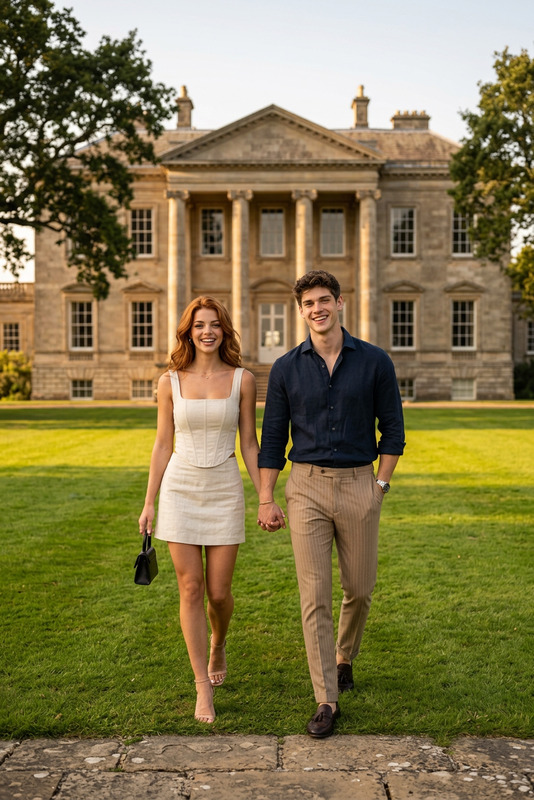
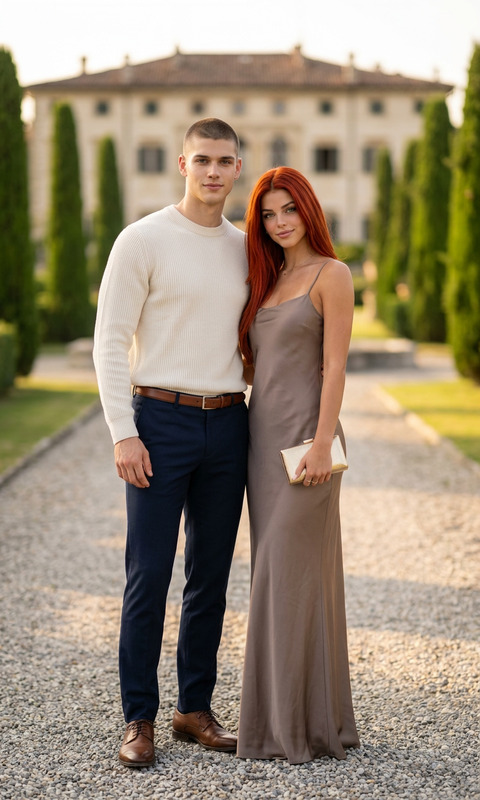
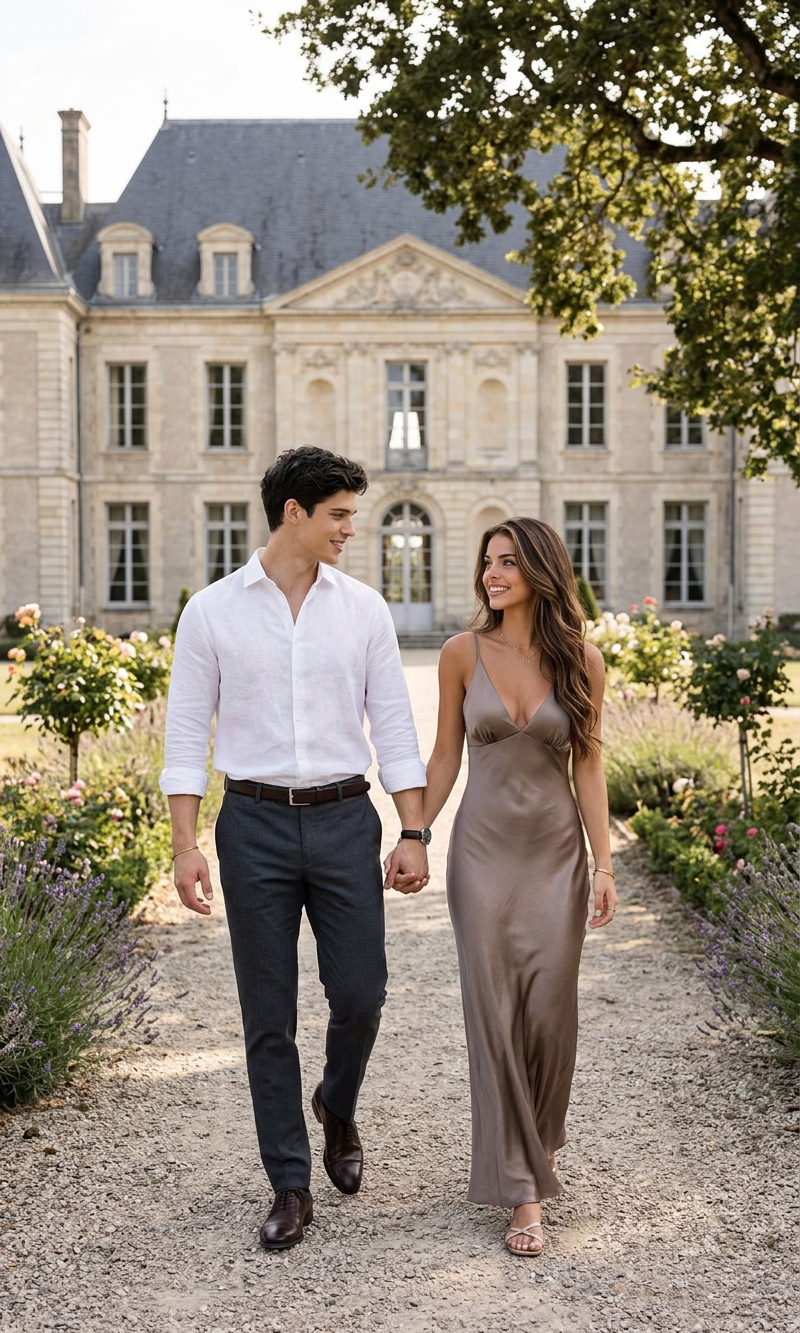
A full-length lifestyle photograph capturing an attractive young couple walking hand-in-hand down a gravel pathway in front of a grand French chateau. The man, with dark wavy hair, wears a crisp, long-sleeved white linen shirt with rolled sleeves, dark gray tailored trousers, and dark brown leather dress shoes. The woman beside him, with long wavy brown hair and a radiant smile, wears an elegant, floor-length silk slip dress in a shimmering taupe color with a deep V-neckline. They share a warm, affectionate look as they stroll through the manicured estate gardens, with the symmetrical stone facade, grand windows, and classical architecture of the historic chateau beautifully framed in the background under soft, natural daylight.
Any aspect ratio
Overview
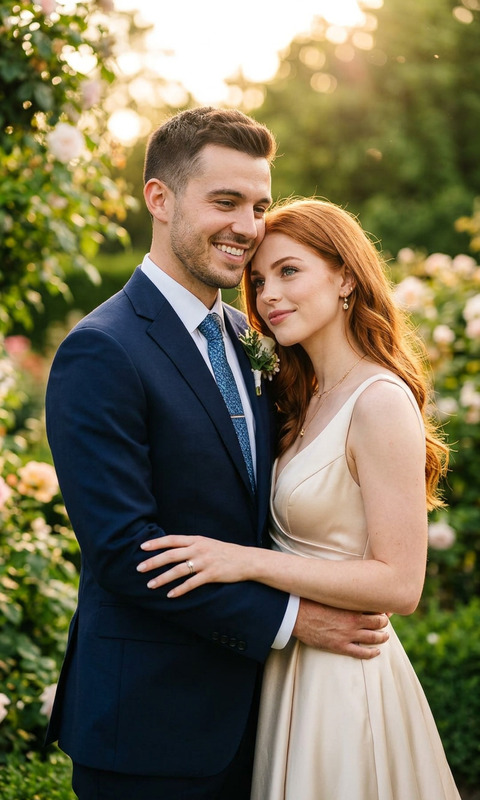
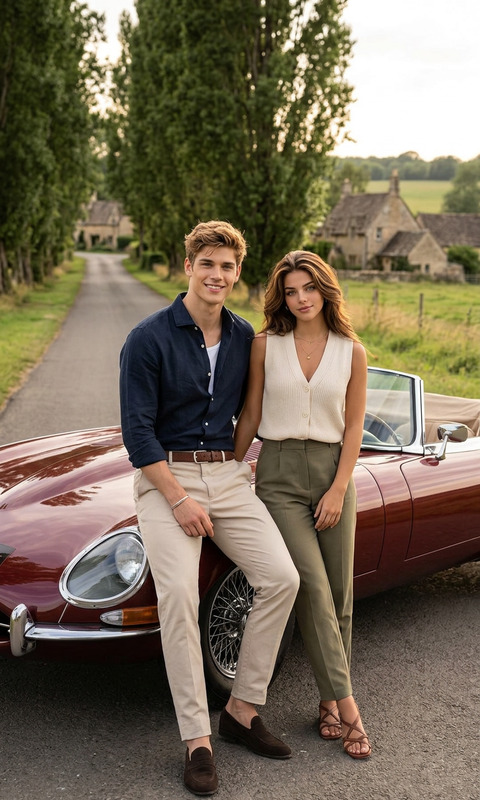
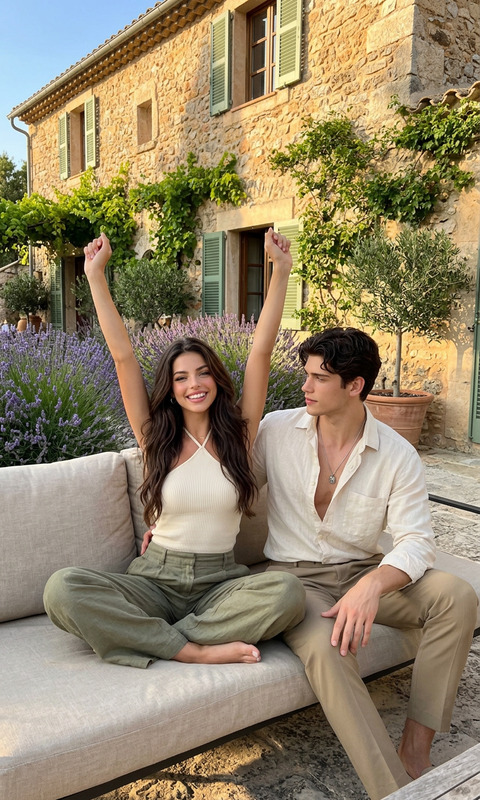
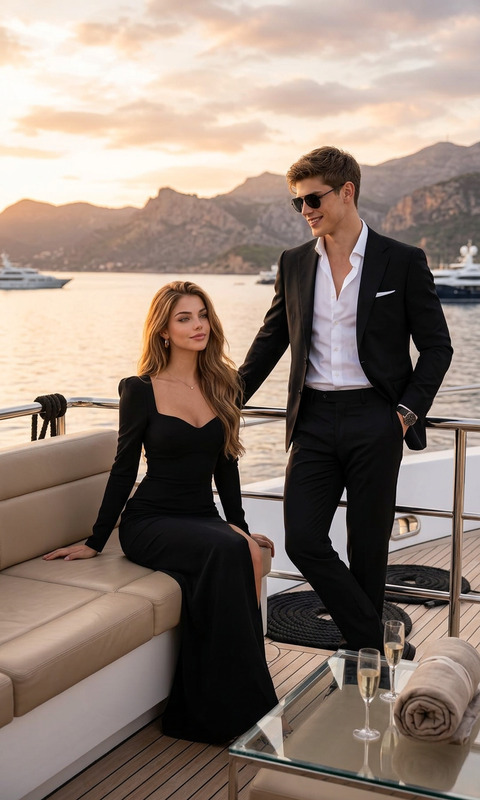
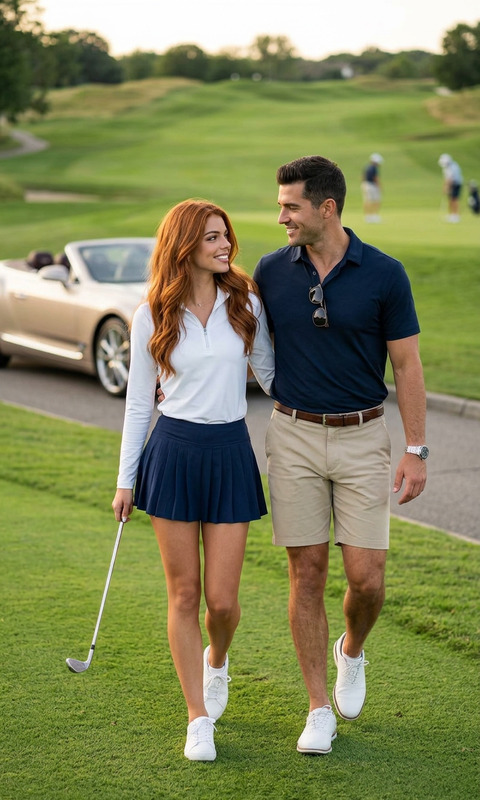
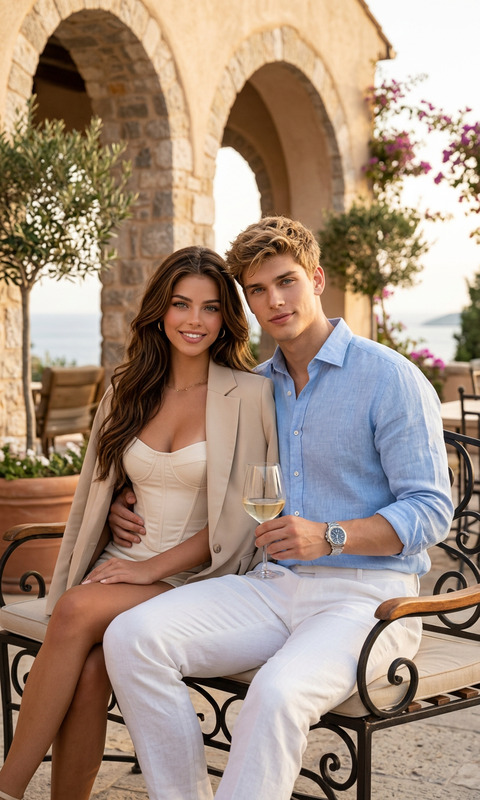
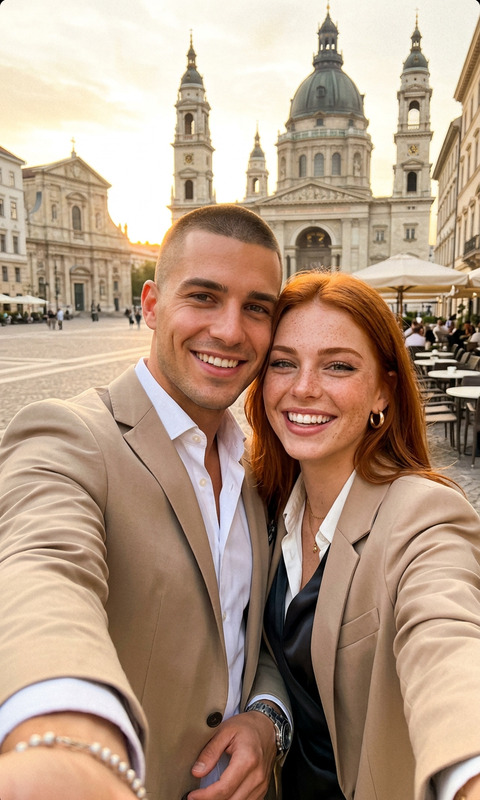
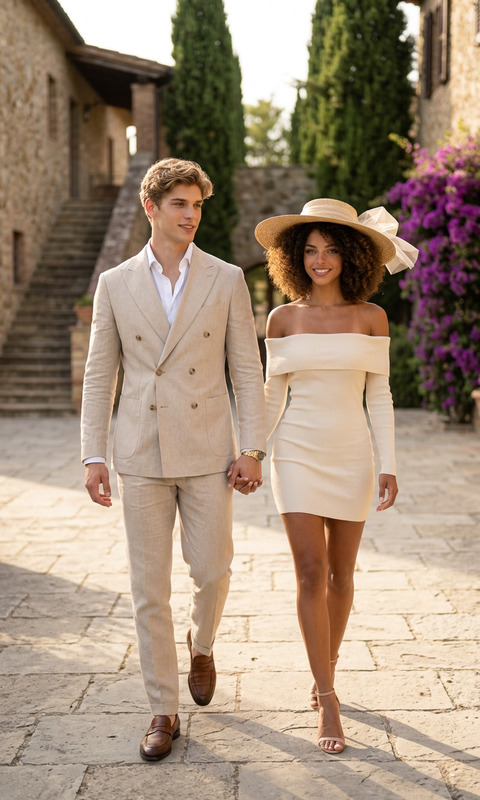
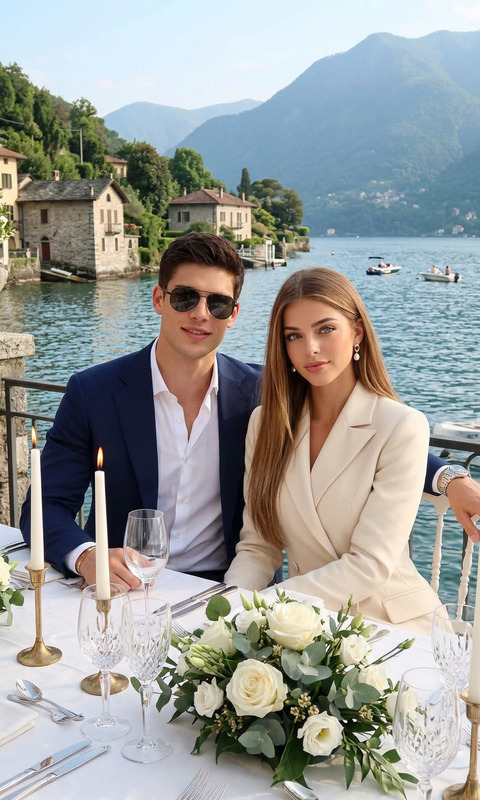
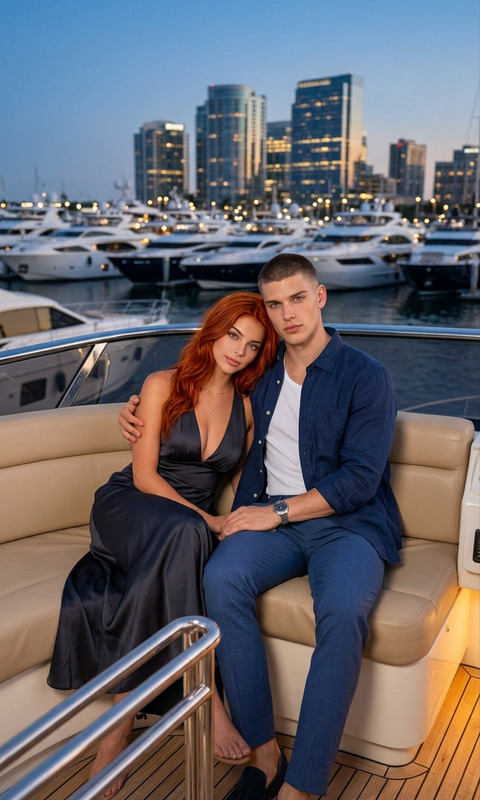
The "Side by Side" template in our AI Image Editor collection offers a compelling way to present image comparisons. Utilizing the powerful nano-banana-2 model, this template allows you to juxtapose images within a refined, integrated interface.
What It Does
By generating side-by-side images, this template highlights the contrasts or similarities between two photographs. Perfect for showcasing before-and-after scenarios, the template brings depth and clarity to visual narratives, making it ideal for lifestyle, fashion, or architectural presentations. The setup is intuitive, ensuring you can focus on your creative vision.
Who It's For
This template caters to content creators, marketers, and designers who need clear image comparisons. Whether you're in fashion advertising, real estate, or any field that benefits from detailed image analysis, the Side by Side template enhances your project's storytelling capability.
Summary
Leverage the "Side by Side" template to add depth to your AI Image Editor projects. Deliver impactful presentations by contrasting images in a visually engaging manner. This tool complements other Magic Hour offerings such as the AI Image Upscaler for resolution improvements.
How-To
Choose Template

Customize Your Images

Generate and Download

Use Cases
Fashion Lookbooks
- Highlight seasonal collections
- Display fabric texture and color differences
Before-and-After Showcases
- Home renovations
- Beauty transformations
Product Comparisons
- New vs. old models
- Feature highlights
Best Practices
Use High-Quality Images
High-resolution images ensure clearer comparisons and an engaging visual experience.Pick Complementary Photos
Select images that share a complementary style or theme to enhance storytelling.Consistent Editing Parameters
Ensure editing styles are consistent across images to maintain cohesive visual quality.