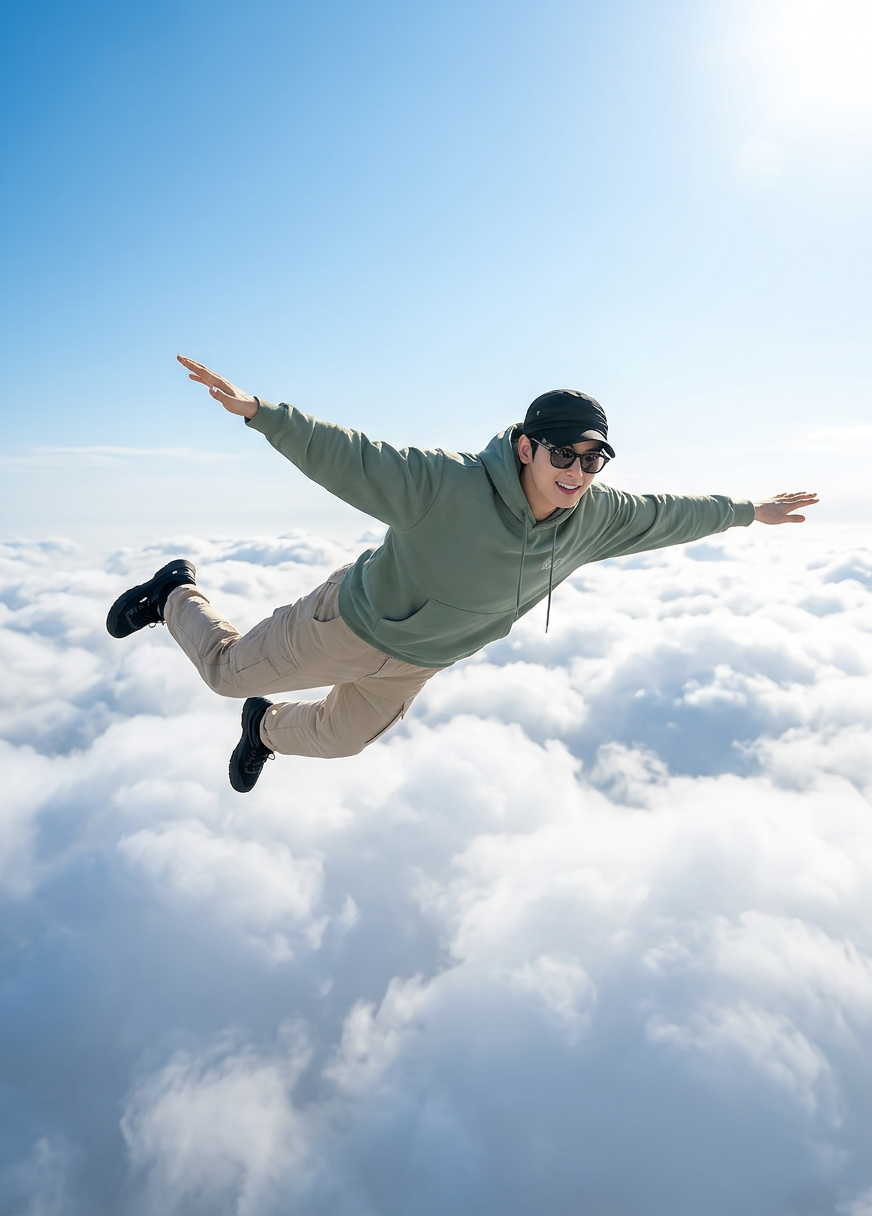
Sky Freedom Flight
ai-image-editor
Any aspect ratio
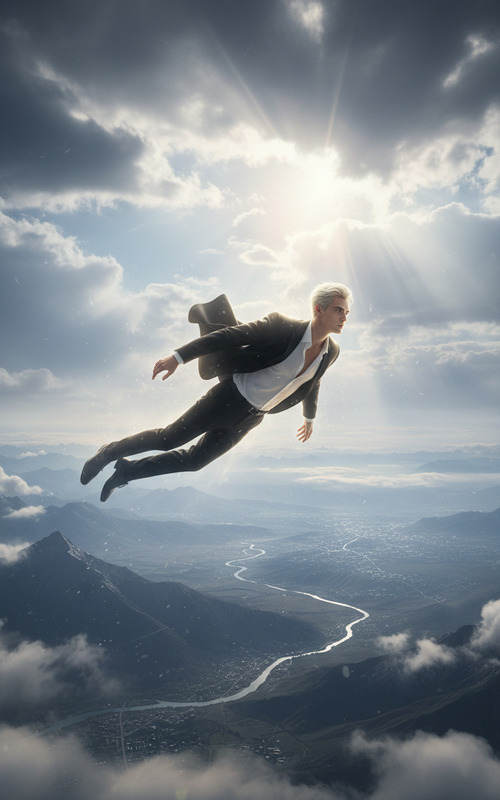
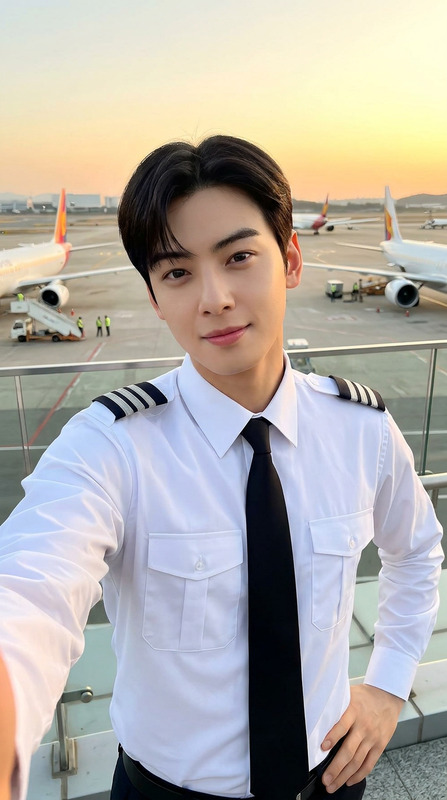
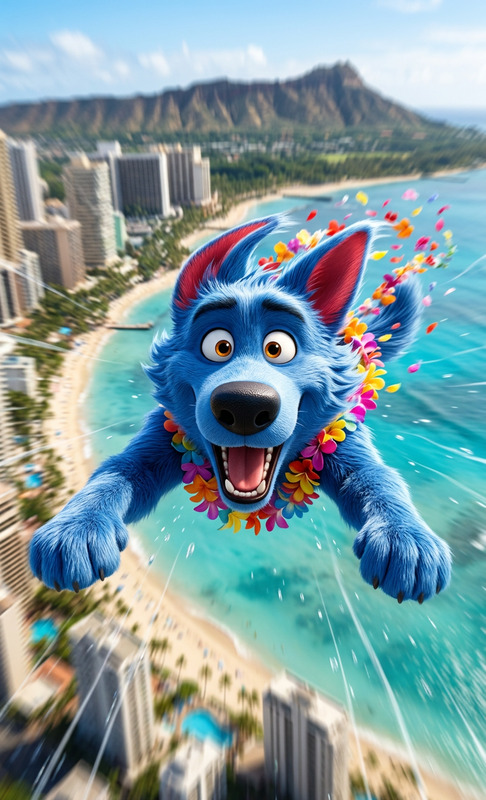
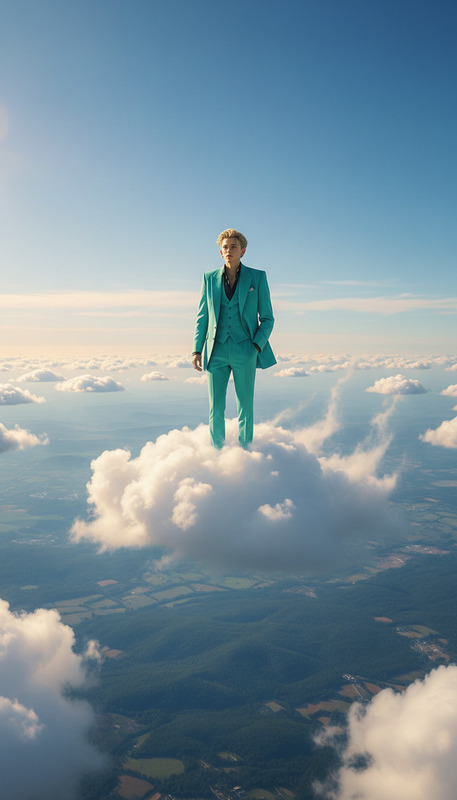
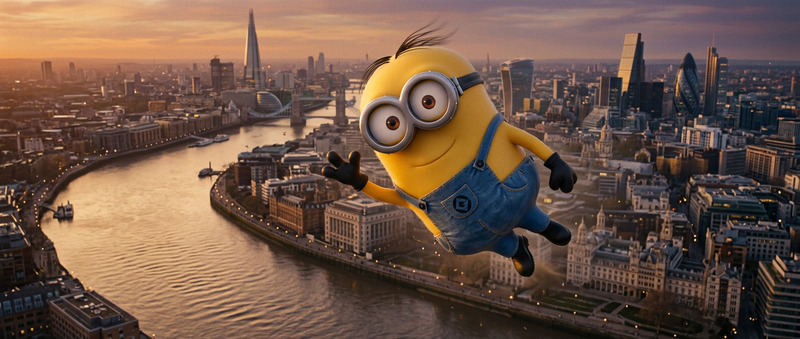
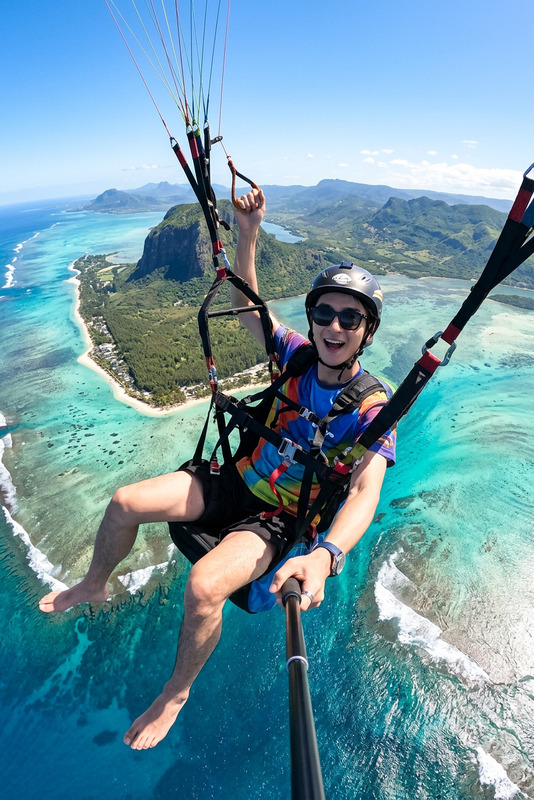
Subject is flying horizontally above soft white clouds, arms stretched like wings and legs slightly bent; wearing a sage green hoodie, beige cargo pants, black sneakers, a black cap, and sunglasses; bright blue sky with strong sunlight; wide-angle perspective, cinematic lighting, feeling of freedom and joy; ultra-realistic, high detail, 8K quality.
AI Image Editor Template – Remixable Workflow for Fast, High‑Quality Visuals
Use this template as a starting point to turn rough ideas, screenshots, or existing photos into polished, on‑brand assets in minutes. It’s built around Magic Hour’s AI Image Editor, and fully remixable, so you can adapt it to your own creative or production pipeline.
What This Template Is For
This template is designed for:
- Creators and marketers who need production‑ready visuals fast (social posts, thumbnails, ads, product shots, email headers).
- Startup teams that want a repeatable editing workflow instead of one‑off experiments.
- Developers and technical users who care about controllability and consistency across many images or campaigns.
With this AI Image Editor–based template, you can:
- Clean up and enhance existing photos
- Remove or replace distracting elements
- Change backgrounds and lighting for better storytelling
- Generate alternate versions of a single concept (A/B tests, localization, channel‑specific variants)
- Turn quick sketches or reference images into shareable creative
How to Remix This Template in Magic Hour
You can recreate or customize this template step‑by‑step using Magic Hour’s AI Image Editor:
Start from this template or any image
- Import a product shot, selfie, illustration, frame from a video, or design mock.
- This works especially well with clean subject photos, UI screenshots, or logo/brand assets.
Define the outcome in plain language
- Describe what you want the final image to look like: angle, mood, setting, style.
- Example: “Same product, front angle, on a minimal white desk, soft daylight, for a SaaS landing page hero.”
Edit locally, not just globally
- Use the editor to focus changes on specific regions:
- Replace a background while keeping the subject intact.
- Remove a logo, watermark, or object using tools like AI Remover or Remove Object From Photo.
- Clean up noise or sharpen details, then upscale using AI Image Upscaler if needed.
- Use the editor to focus changes on specific regions:
Generate multiple variations for testing
- Quickly create 3–10 variants of the same base image:
- Different color schemes and lighting directions
- Alternative compositions and crops (e.g., for feed vs. story vs. thumbnail)
- Design variations for ads or landing pages
- Keep the strongest 1–2 for downstream use.
- Quickly create 3–10 variants of the same base image:
Chain into other Magic Hour tools (optional)
- Turn a final edited image into:
- A short video with Image to Video
- A GIF or loop with the AI GIF Generator
- A talking avatar with AI Talking Photo
- A full video with Text to Video or Video to Video
- Turn a final edited image into:
Save as your own reusable template
- Once you have a flow that works—e.g., “edit product photo → remove background → generate 4 colorways → upscale”—save it as your own Magic Hour template.
- Reuse this across campaigns so your brand visuals stay consistent while production time drops sharply.
Example Use Cases
You can adapt this AI Image Editor template for many real‑world workflows:
1. Marketing & Growth Teams
- Ad creatives: Clean product photos, swap backgrounds to match campaigns, quickly generate regional or seasonal variants.
- Social content: Turn a simple screenshot or tweet into a polished graphic. Combine with the Thumbnail Maker for YouTube or LinkedIn.
- Landing pages: Create hero images and supporting visuals that match your brand colors and layout.
Combine with:
- AI Art Generator for concept art or brand‑adjacent illustrations.
- AI Icon Generator for consistent icon sets.
2. Founders & Startup Builders
- Pitch decks and docs: Turn rough product screenshots into crisp visuals, remove cluttered UI, and align everything to a cohesive style.
- MVP and prototype visuals: Create believable mockups of features or dashboards before engineering is complete.
- Investor materials: Use AI Headshot Generator for team photos and refine backgrounds with AI Image Editor.
3. Creators & Influencers
- Channel branding: Design cover art with Album Cover Generator or Book Cover Generator, then refine details in the editor.
- Avatars and profile images: Start with Avatar Generator or AI Selfie Generator and tweak lighting, backgrounds, and colors.
- Memes and social formats: Generate templates via the AI Meme Generator, polish them visually, and keep a branded meme pack ready to reuse.
4. Product & Design Teams
- UI & UX mockups: Place interfaces in realistic device frames or environments for presentations.
- Brand exploration: Use the AI Logo Generator and AI Illustration Generator to explore directions, then refine everything with the editor for coherence.
- E‑commerce and fashion: Combine AI Clothes Changer, AI Fashion Generator, and AI Image Editor to create fast product visuals and lookbooks.
Related Templates & Tools You Can Remix Together
This AI Image Editor template pairs well with other Magic Hour creation flows. You can:
Turn edited portraits into:
- Face‑swapped videos using the Face Swap Video template or Face Swap / Face Swap GIF.
- Talking avatars with AI Talking Photo and voice from AI Voice Generator or AI Voice Cloner.
Sync edited faces to audio:
- Use the Lip Sync template for music clips, explainers, or character dialogue.
Animate your edited characters:
- Use the Animation template or Animated Characters Generator to bring static art to life.
- Enhance stylized outputs with AI Anime Generator, Disney AI Generator, or AI Manga Generator, then refine details in AI Image Editor.
Restore and modernize old media:
- Clean up damaged photos with Old Photo Restoration and Photo Colorizer, then finalize with AI Image Editor for consistent color, framing, and clarity.
Optimize quality end‑to‑end:
- Use Unblur Image and AI Image Upscaler for stills.
- For video, pair your edited frames or derived content with Video Upscaler and Auto Subtitle Generator.
Practical Tips for High‑Quality Results
Work non‑destructively: Keep an original version of your image. Duplicate it in Magic Hour, then iterate so you can compare versions side‑by‑side.
Describe constraints clearly: When prompting, specify what must stay the same (e.g., “same person, same pose, just change background to a modern office”).
Think in systems, not one‑offs: Once you land on a look that works (e.g., a specific background style, lighting mood, and framing for your product), bake it into your own remix of this template. This is how teams get speed and consistency at scale.
Combine with generators for speed: Start from a concept made with:
…and then refine, clean up, and align to your brand using AI Image Editor.
Why Use Magic Hour for AI Image Editing?
Compared to manual editing or scattered AI tools, Magic Hour lets you:
- Centralize your workflow: Editing, generation, upscaling, removal, and animation in one ecosystem.
- Remix and repeat: Turn a one‑off success into a reusable template your whole team can use.
- Bridge image and video: Move from static images to GIFs, talking photos, and full videos without leaving the platform.
Use this AI Image Editor template as a starting point, then remix it into your own production‑ready pipeline for marketing visuals, product assets, or creative experiments.