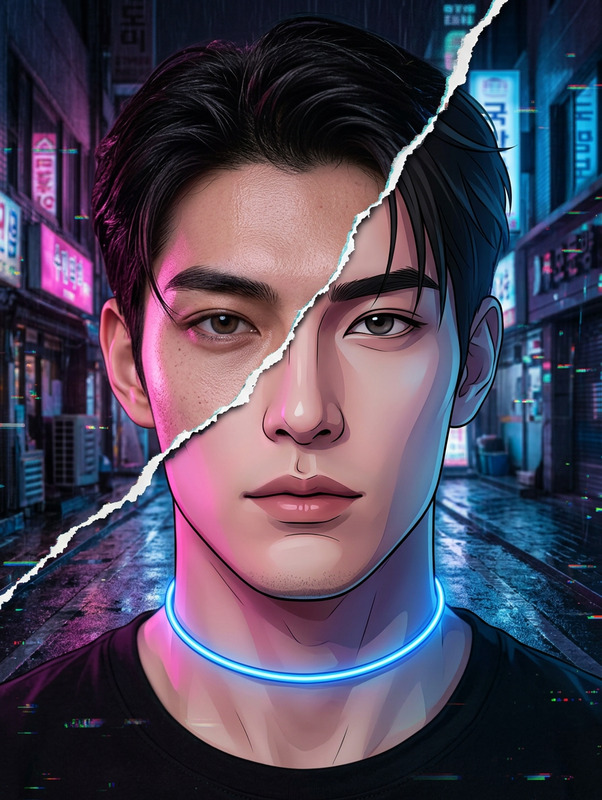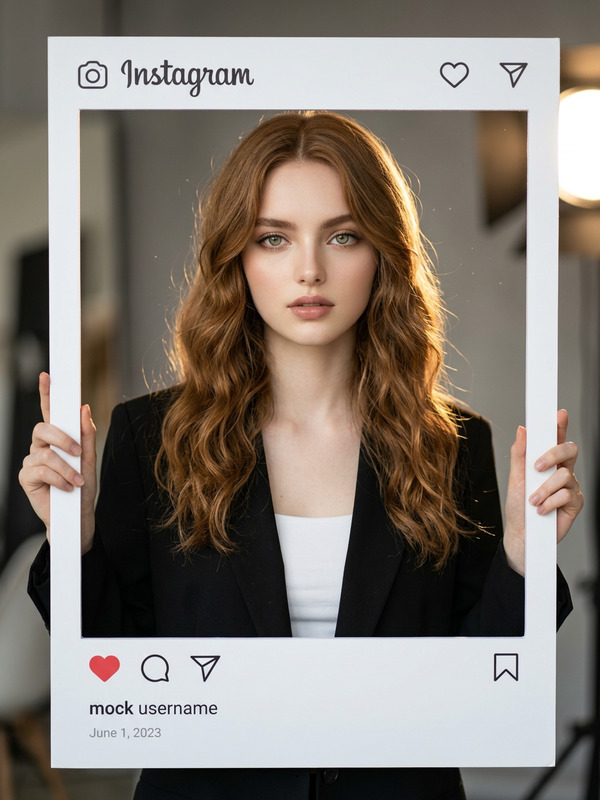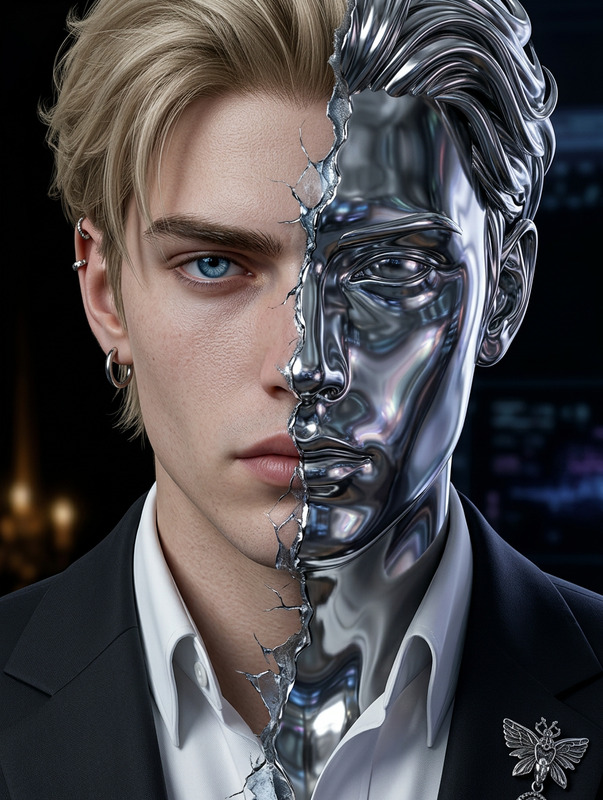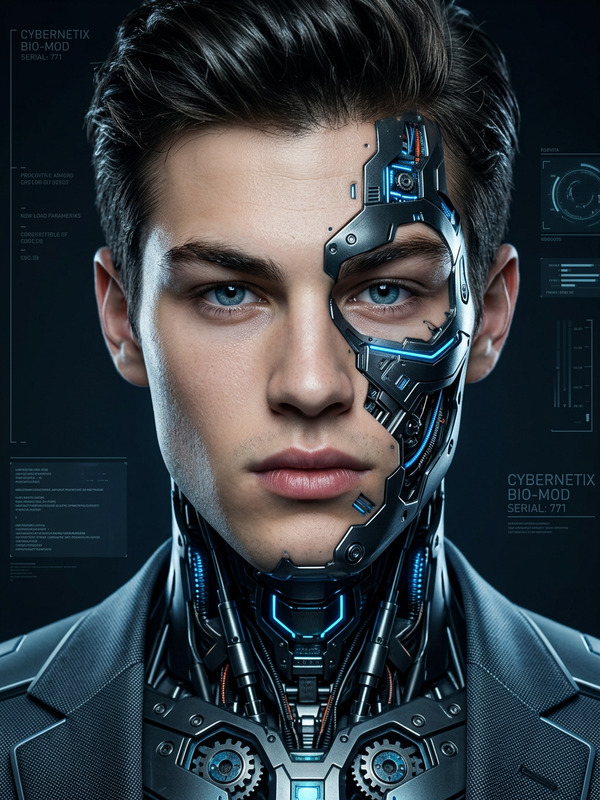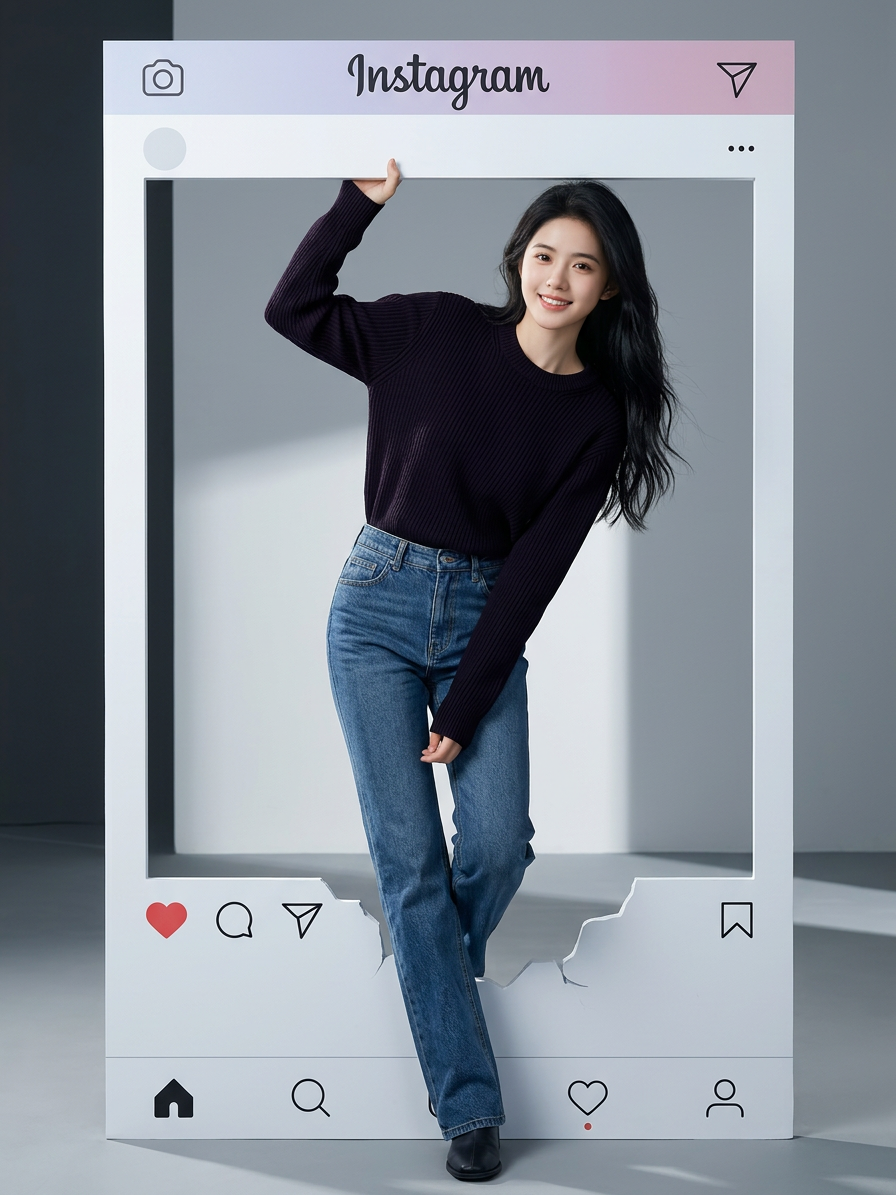
3D Instagram Frame Illusion Portrait

3D Instagram Frame Illusion Portrait

ai-image-editor

1 clip
11 uses

Any aspect ratio

Prompt

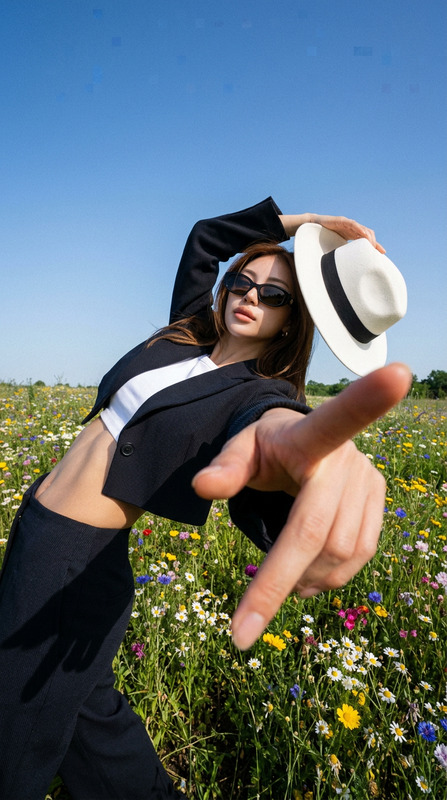
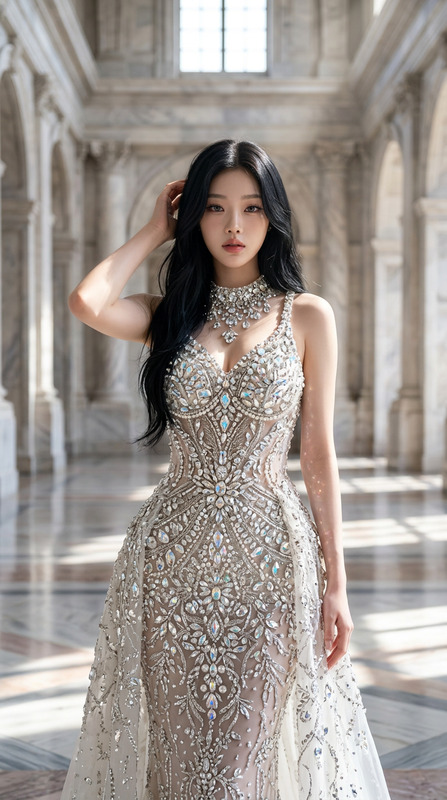
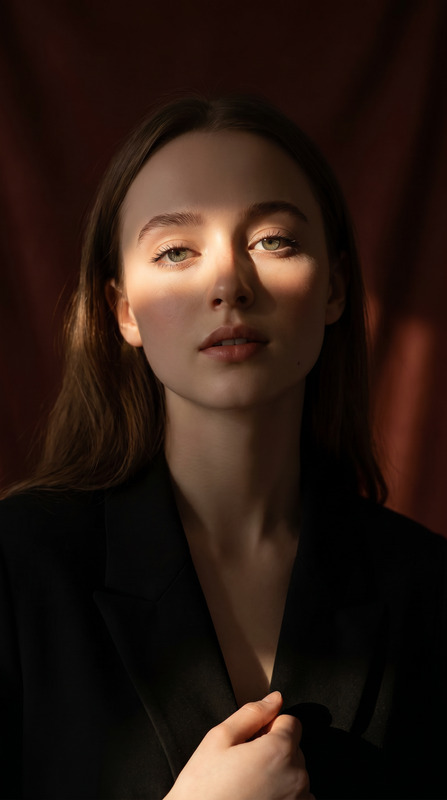
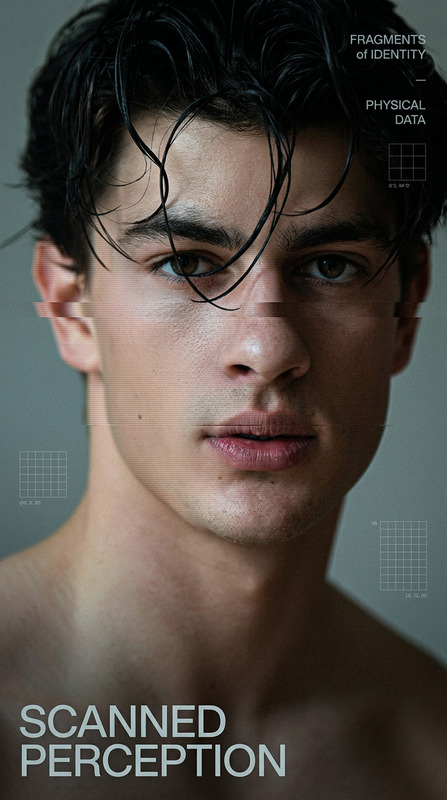
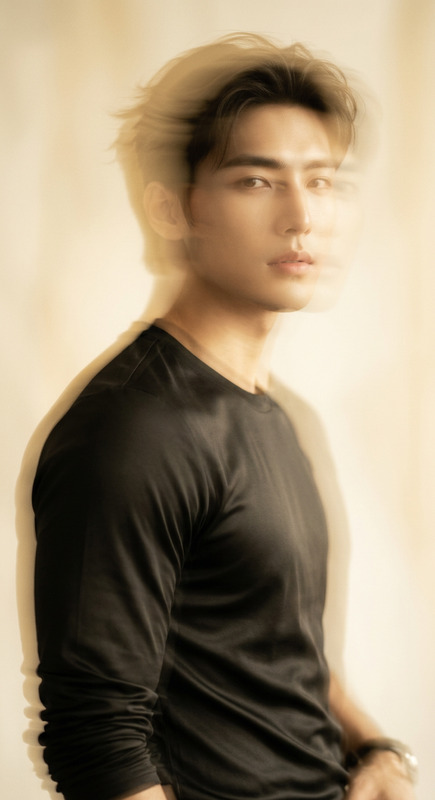
Create a hyper-realistic portrait of the subject from the reference image, preserving identical facial features, delicate yet sharp, clean, and naturally stunning. The subject is placed inside an oversized ultra-realistic Instagram post frame that dominates the composition. One hand casually grips the top edge of the frame while one leg steps gracefully outward through it, creating a smooth and stylish 3D illusion. The pose is youthful, fresh, effortlessly elegant, and confidently cool, with the upper body leaning slightly forward as if engaging the viewer. Wearing a ribbed knit sweater in hex color #18091D and high-waisted straight-fit styling. Modern minimal background, cinematic lighting, soft shadows, ultra-detailed 8K realism, high-end editorial aesthetic with dimensional depth and optical illusion effect.

AI Image Editor Template: Smart Object Removal & Background Cleanup

Use this template to quickly remove objects, clean up messy details, and polish images with the AI Image Editor. It’s designed for creators, marketers, and product teams who need fast, reliable edits that still look natural at full resolution.


What this template is best for

This AI Image Editor–based template is optimized for:

  • Removing unwanted objects

    • Photobombers, logos, wires, signs, reflections
    • Distractions in product photos (props, stands, labels)
    • UI artifacts and watermarks (when you own the rights)
  • Background cleanup & replacements

    • Replace cluttered scenes with clean, on-brand backgrounds
    • Standardize backgrounds across a product catalog
    • Create multiple creative variants for A/B testing
  • Marketing & content workflows

If you already use tools like inpainting or content-aware fill (e.g., Photoshop), this template gives you a similar capability but fully AI-native in the browser and integrated with the rest of Magic Hour.


How to remix this template in Magic Hour

You can turn this template into your own reusable workflow in a few minutes:

  1. Open the AI Image Editor
    Go to the AI Image Editor. Upload a reference image you want to improve or use an image generated with the
    AI Photo Generator or
    AI Image Generator.

  2. Define your “edit pattern”
    Use this template as a pattern:

    • Identify what should be removed (e.g., “remove the tripod,” “remove text from the wall”).
    • Describe what should appear instead (e.g., “smooth white wall,” “natural wood floor,” “soft blurred city background”).
    • Keep instructions specific and visual: color, material, style, lighting, and mood.
  3. Mask and prompt strategically

    • Select or paint over the exact area to modify.
    • Add a concise text prompt describing the replacement (e.g., “clean studio background, soft shadows, no text”).
    • For repeated use (e.g., all product shots), keep the prompt consistent so you can apply it across an entire asset library.
  4. Save your process as a reusable template
    Once you’re happy with your result:

    • Duplicate the setup and reuse it for similar images.
    • Keep a “prompt library” in your notes or workspace for recurring uses like:
      • “DTC product on white seamless background, soft natural light”
      • “Clean office backdrop, shallow depth of field”
      • “Neutral gray gradient, e‑commerce hero style”
  5. Chain with other Magic Hour tools (optional)
    Depending on your workflow, you can extend this template by combining it with:


Proven use cases for creators and teams

This template pattern is especially effective in production environments:

1. E‑commerce & product photography

  • Clean up backgrounds and props without reshooting.
  • Standardize catalog images for marketplaces and storefronts.
  • Remove old logos or packaging elements after a rebrand.
    Relevant tools to pair with this template:
  • AI Clothes Changer for apparel visuals
  • AI Fashion Generator for stylized editorial shots
  • Full Body Generator for complete model images

2. Social, ads, and creator content

  • Remove distracting elements from photos and thumbnails.
  • Create multiple background variants for A/B tests.
  • Adapt one hero image into a full campaign set (web, social, performance ads).
    Complementary tools:
  • Thumbnail Maker for YouTube and social previews
  • AI Meme Generator for fast, on-brand memes
  • AI Art Generator for custom illustrated backgrounds

3. Brand, design, and product teams

  • Rapidly prototype visual concepts for landing pages and features.
  • Remove interim UI, placeholders, or watermarks from internal mockups.
  • Normalize imagery for pitch decks and investor materials.
    Useful add-ons:
  • AI Logo Generator for logo explorations
  • AI Icon Generator for UI elements
  • AI Illustration Generator for supporting visuals

4. Portraits, headshots, and avatars


Advanced ways to extend this template

Because this template is built on the AI Image Editor, you can treat it as a base layer in a larger workflow.

1. Turn cleaned images into dynamic content

Once your image is retouched and distractions removed, you can:

2. Generate new backgrounds instead of sourcing stock

Use your cleaned subject with AI-generated environments:

3. Prepare assets for voice, talking photos, and interactive content

Clean, distraction‑free faces and scenes perform better when you:


Practical tips for better AI edits

To get consistent, production-quality results when remixing this template:

  • Be explicit in your prompts.
    Mention material, texture, lighting, and style (e.g., “matte white paper background, soft studio lighting, no reflections”).

  • Reference your brand style.
    If you have a design system or brand guidelines, describe it:
    “Minimalist, high contrast, lots of negative space” or
    “Warm lifestyle aesthetic, natural light, shallow depth of field.”

  • Think in series, not one‑offs.
    Treat this as a system you’ll use across many images: consistent prompts, similar structure, and reusable masking patterns.

  • Use upscaling and restoration when needed.
    After editing, you can:


Related templates and tools you might combine with this

If you like this AI Image Editor template, these other Magic Hour tools often fit into the same workflows:


Use this template as a foundation: start with precise object removal and background cleanup in the AI Image Editor, then remix and extend it across your entire visual pipeline with the rest of Magic Hour’s tools.

More Like This

Insufficient credits