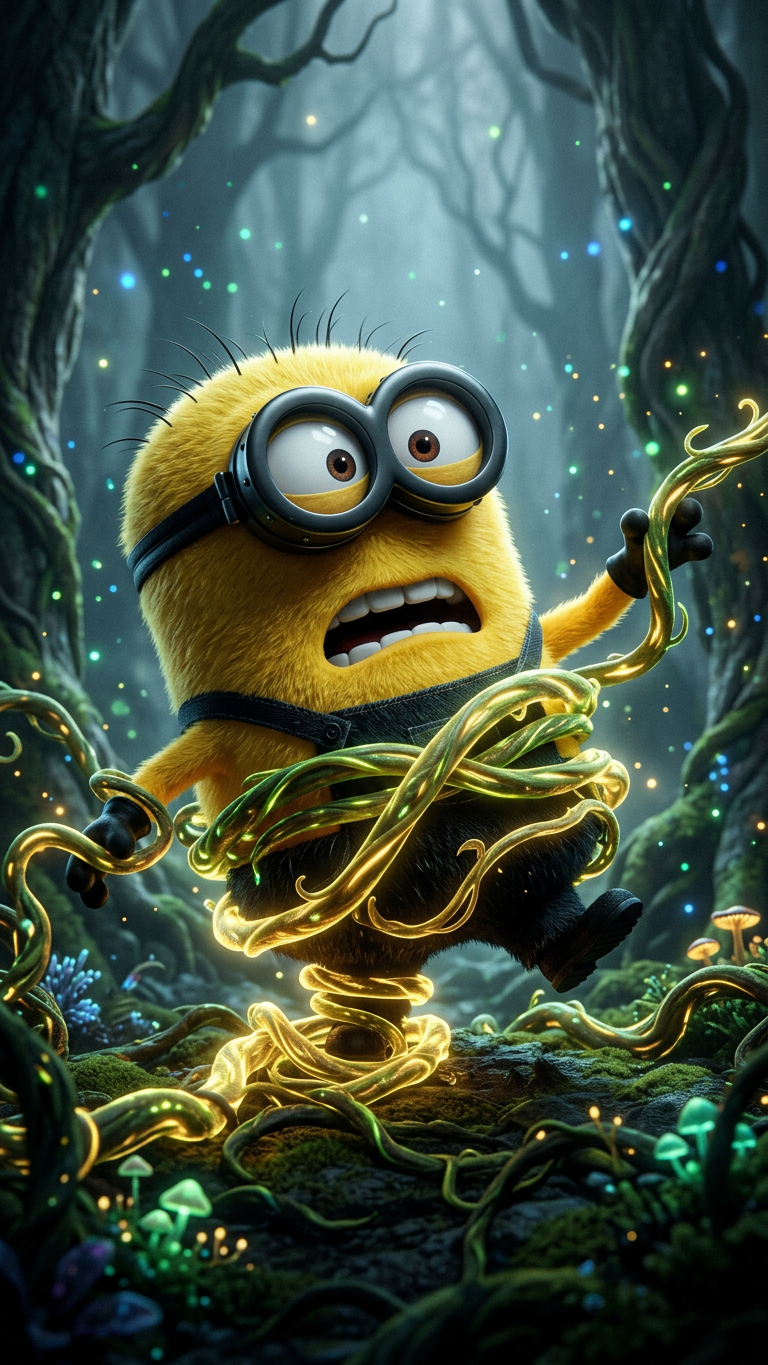
Enchanted Vines Struggle
- Model
- Nano Banana 2
- Image
- 768 × 1365 px
Prompt
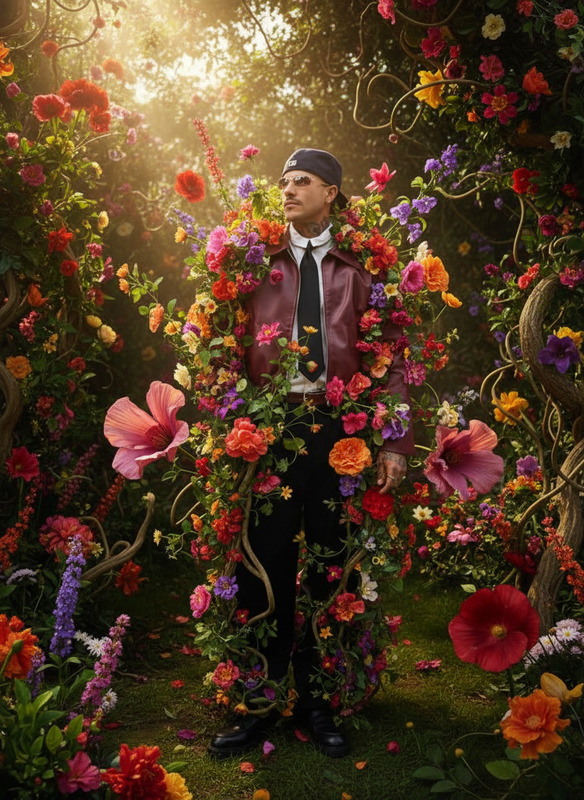
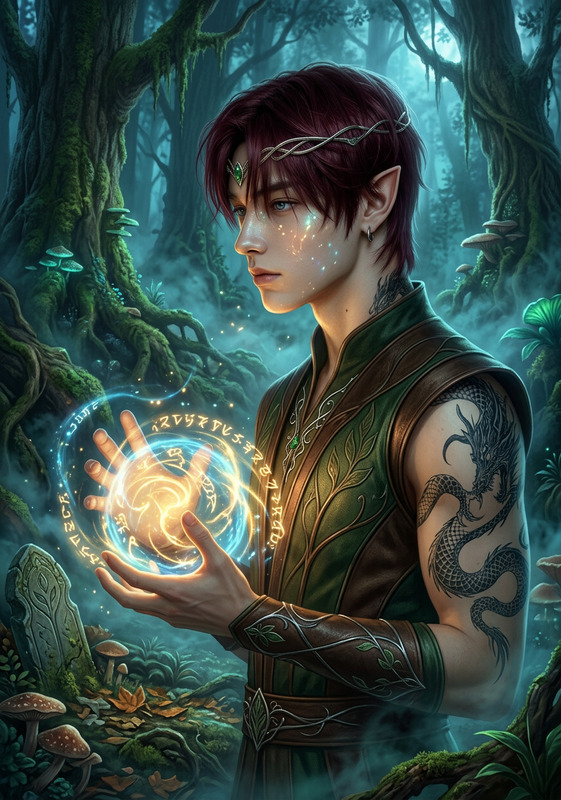
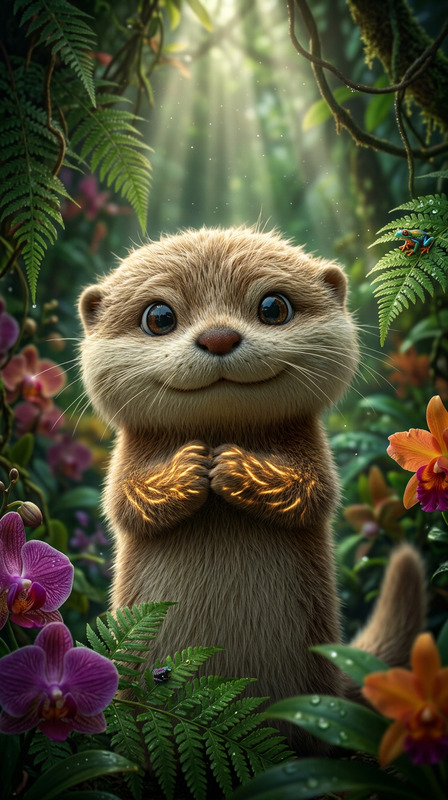
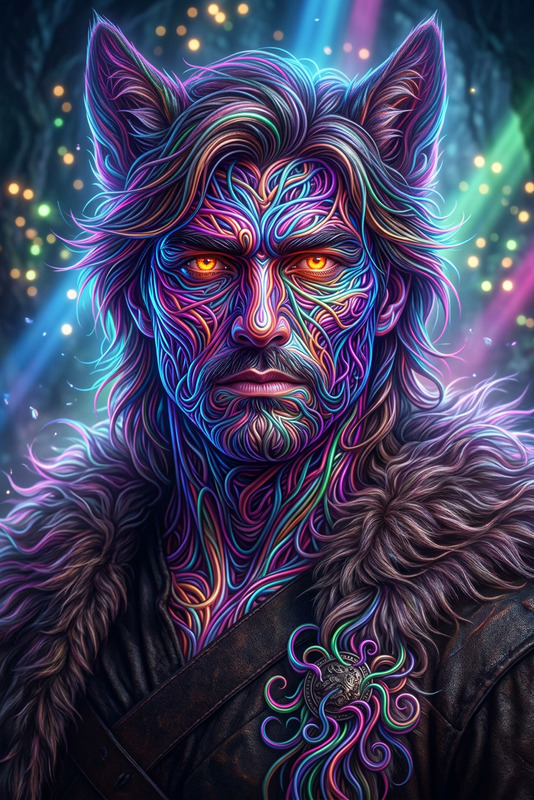
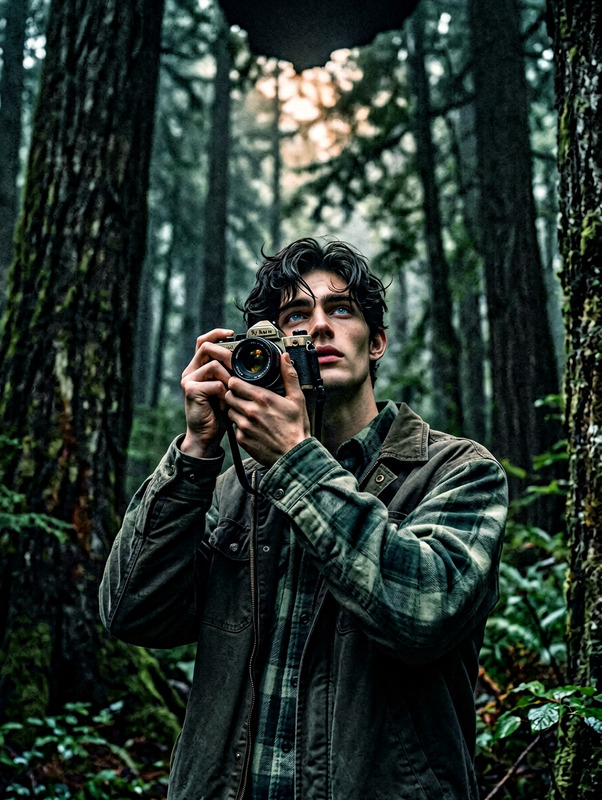
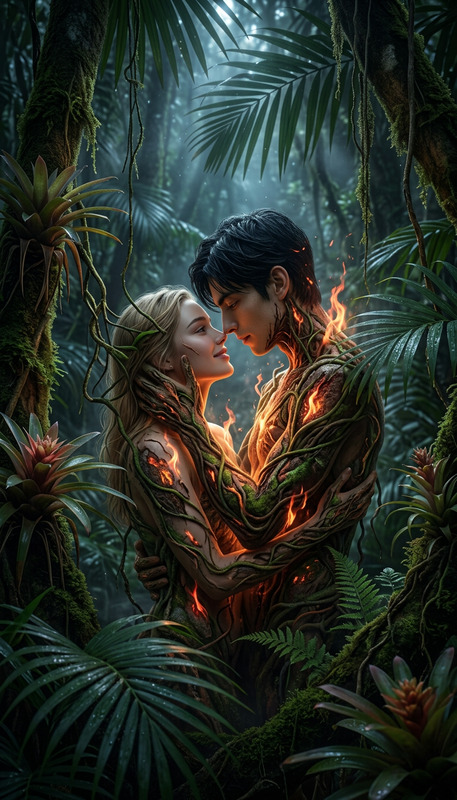
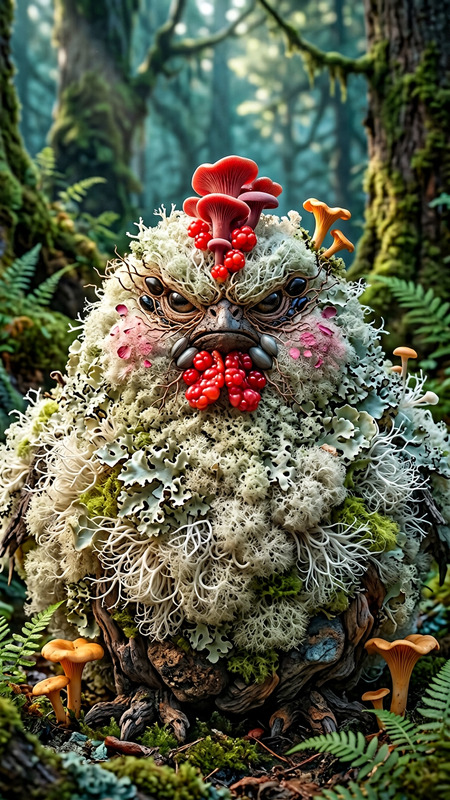
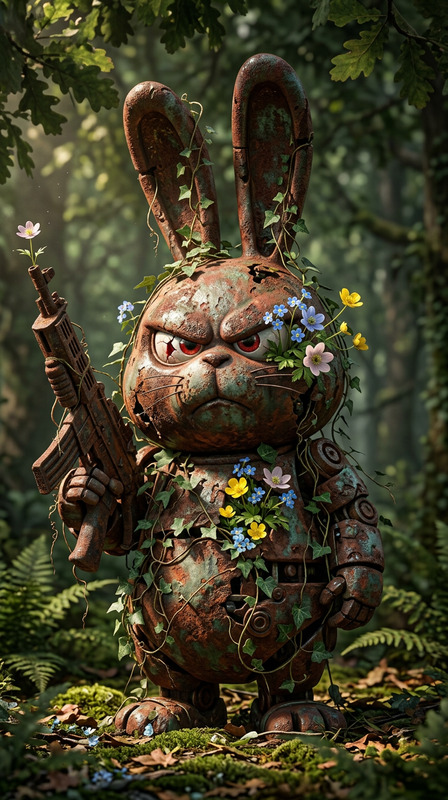
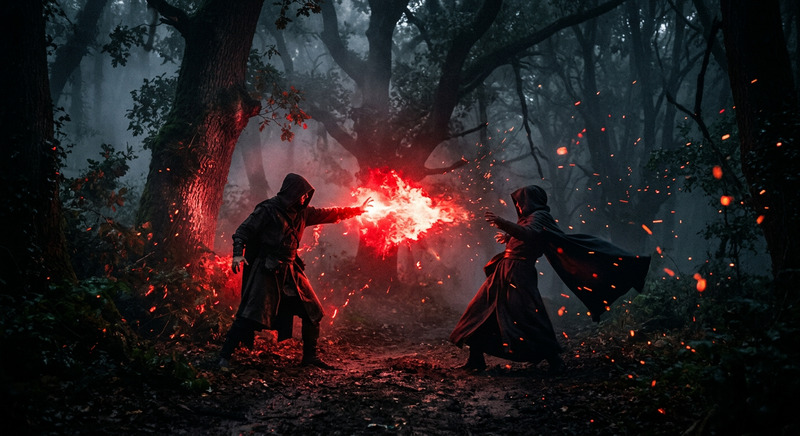
Cinematic scene of a subject struggling as glowing magical vines wrap tightly around their legs in a dark enchanted forest. Dynamic tension in pose, vines emitting soft bioluminescent light. Misty atmosphere, dense trees, magical particles in air. High contrast lighting with glowing highlights, moody shadows, fantasy environment, photorealistic, ultra detailed, film grain, 8K.
Any aspect ratio
Overview
Step into the enchanted realms with the Enchanted Vines Struggle template. Utilize the power of the AI Image Editor and the precision of the nano-banana-2 model to craft striking images that evoke cinematic magic. Designed for those who seek drama and fantasy, this tool transforms ordinary images into captivating scenes.
What It Does
This template enables creators to depict a dynamic fantasy scene where a subject is ensnared by glowing, magical vines in a dark, enchanted forest. Through high contrast lighting, misty atmospheres, and photorealistic detailing, it creates a vivid, cinematic aesthetic. The template enhances visuals by adding elements like bioluminescence and magical particles, making it a perfect choice for fantasy projects.
Who It's For
If you're a digital artist, content creator, or fantasy enthusiast looking to infuse your work with mystical elements, this template caters to your needs. It's also ideal for storytellers and creators in the gaming and film industries who require visually rich, dramatic imagery.
Summary
Unlock new dimensions of creativity with the AI Image Editor. The Enchanted Vines Struggle template offers a unique opportunity to produce highly detailed, fantasy-inspired images effortlessly. By choosing this tool, you can bring vivid, immersive environments to life.
How To
Choose the Template

Customize Your Scene

Generate and Download

Use Cases
Fantasy Illustration
- Magical forest scenes
- Dramatic character poses
- Interactive storyboards
Cinematic Concepts
- High contrast lighting setups
- Dynamic environments
- Photorealistic visual effects
Digital Artwork
- Unique, mythical aesthetics
- Glowing light effects
- Dense, immersive backgrounds
Best Practices
Focus on Lighting
Utilize the high-contrast lighting feature to highlight dynamic poses and enhance drama.Enhance with Details
Leverage the ultra-detailed and film grain options to add authenticity and depth to your scenes.Explore the Mist
Incorporate misty atmospheres to introduce subtle elements of mystery and allure.