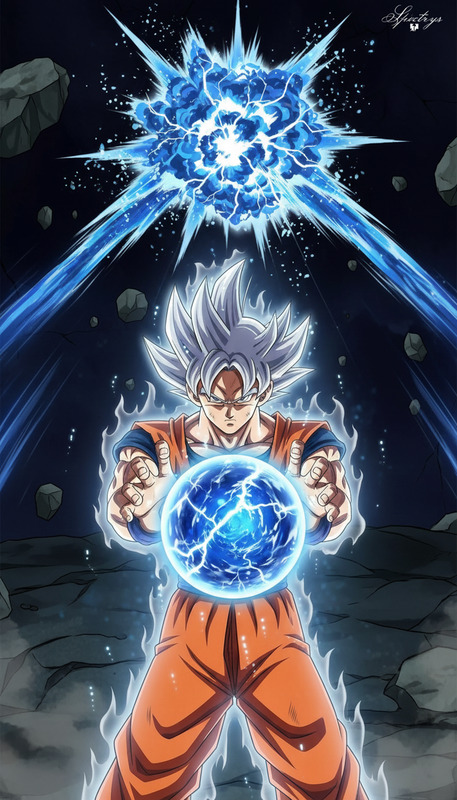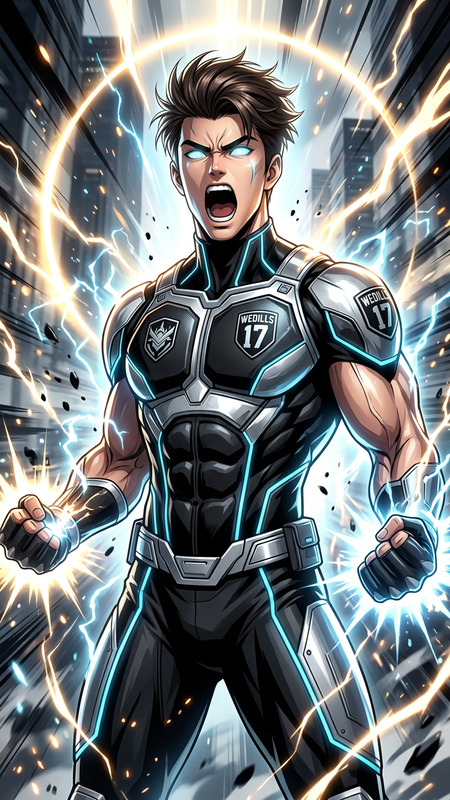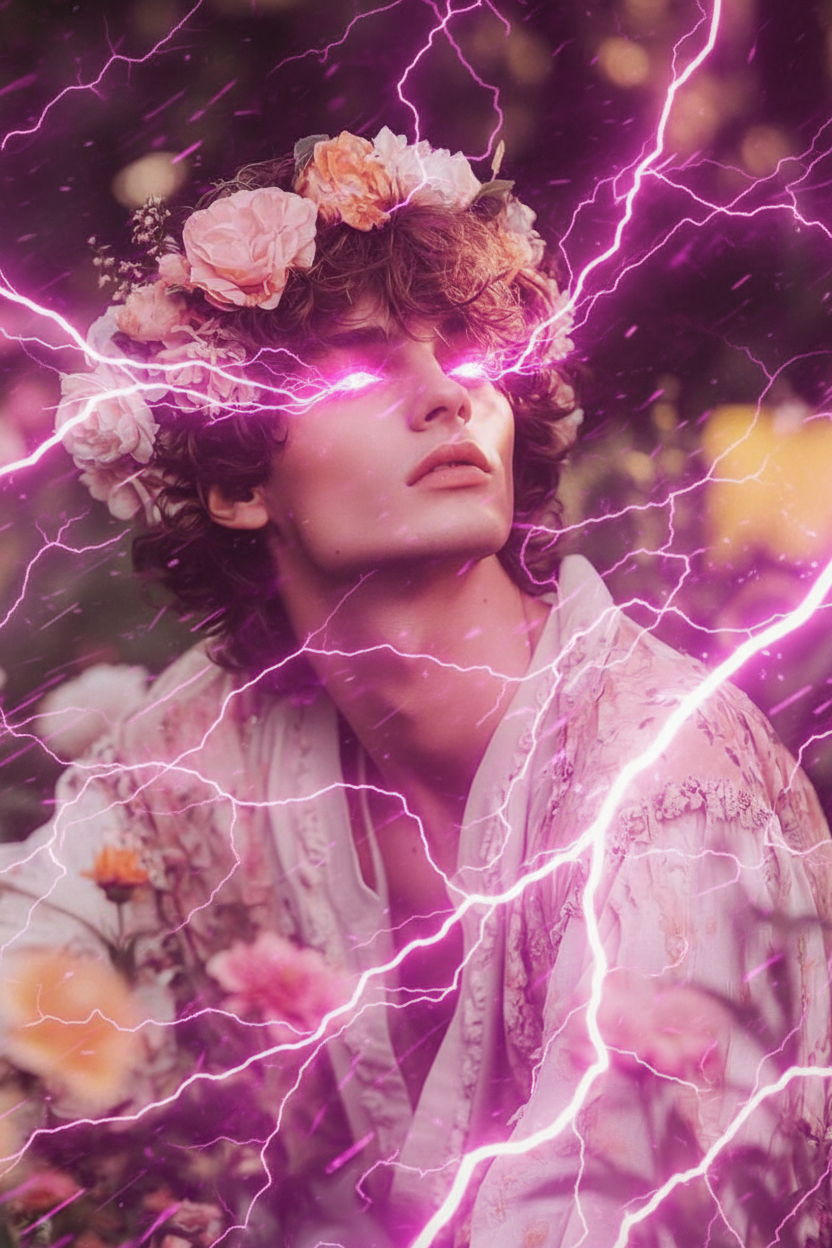
Thunder god

Thunder god

ai-image-editor

1 clip
3 uses

Any aspect ratio

Prompt

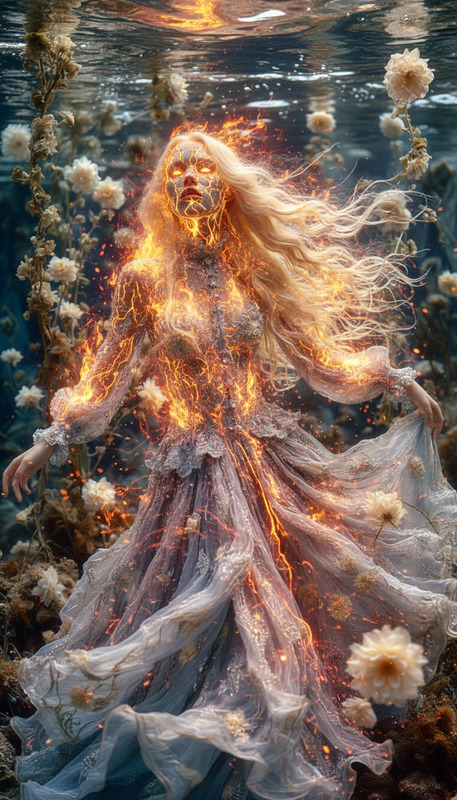
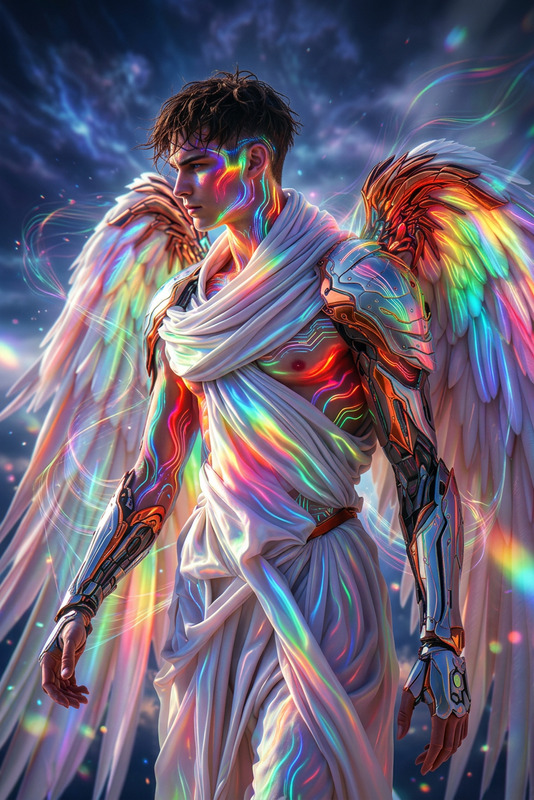
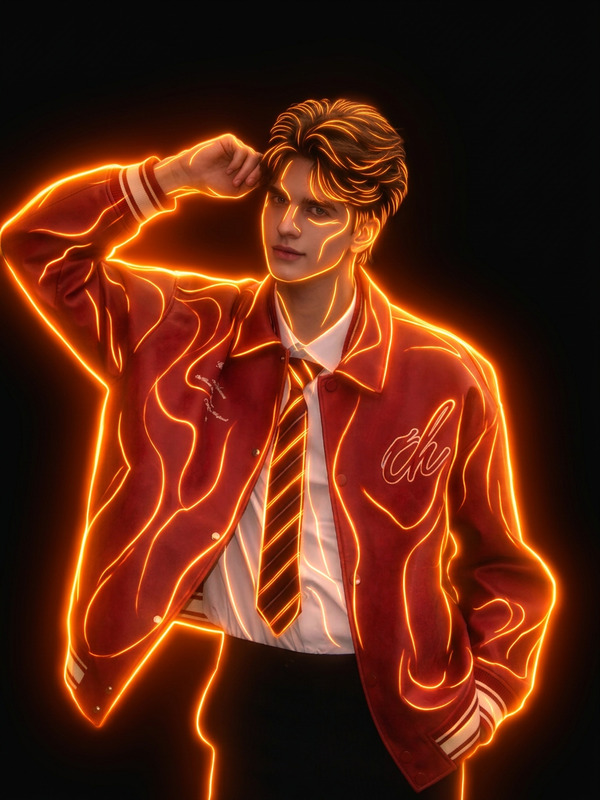
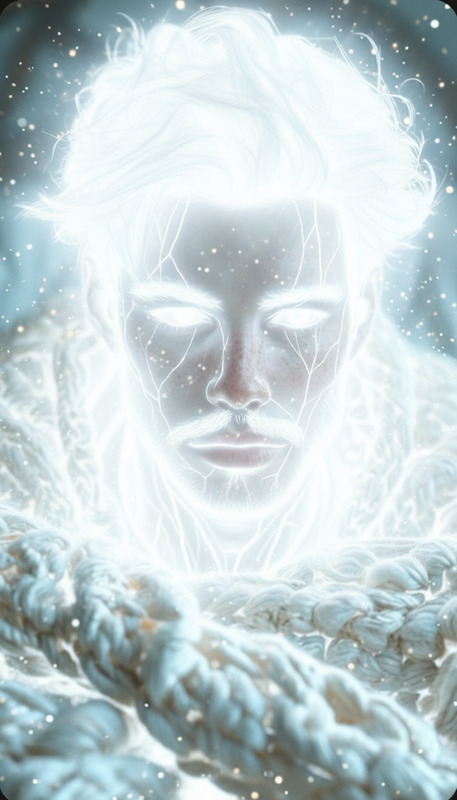
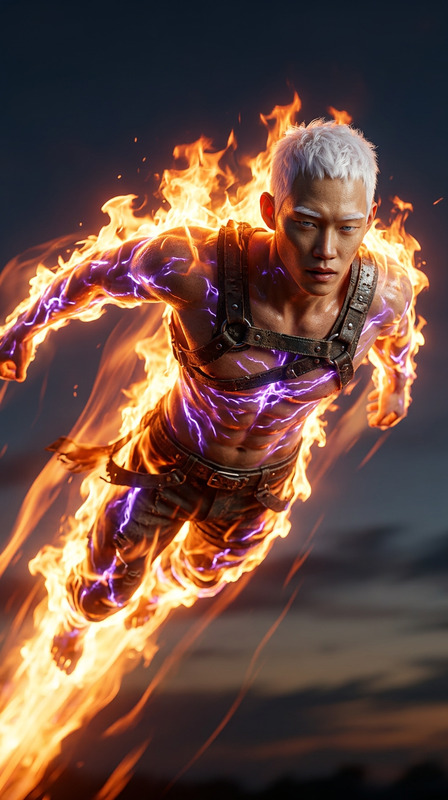
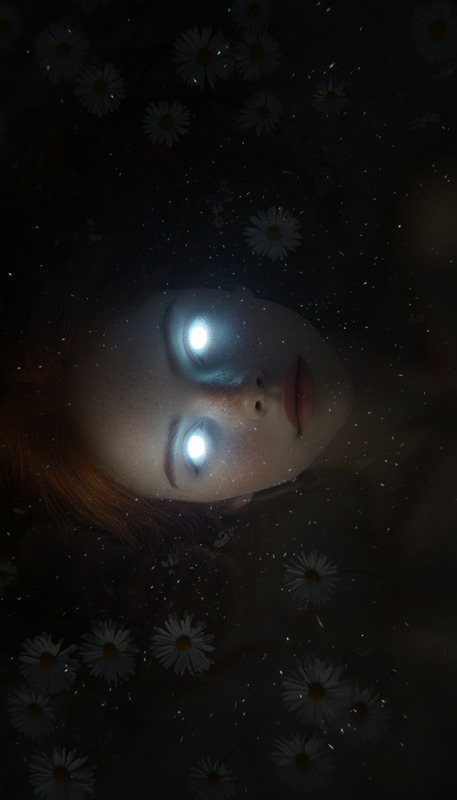
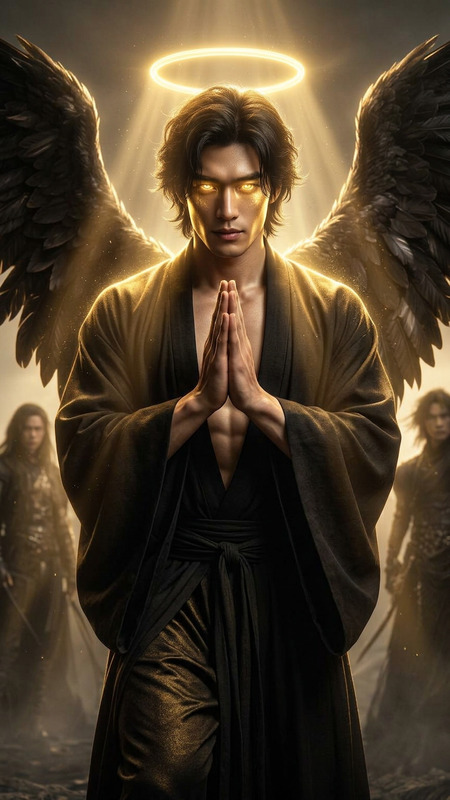
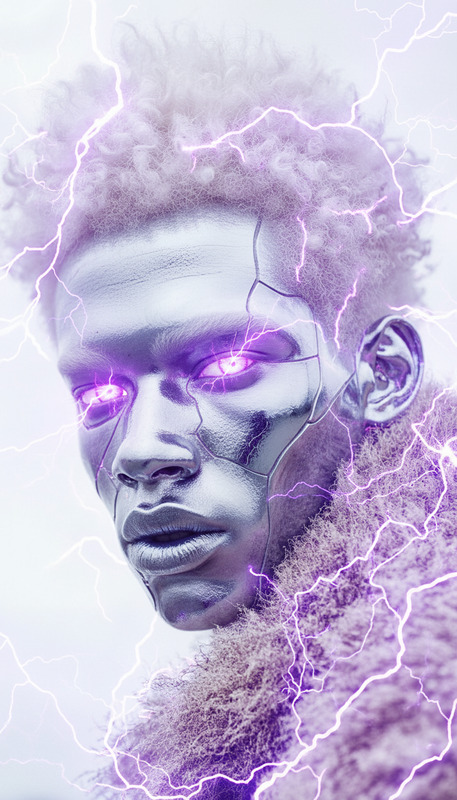
Cinematic shot of a subject as a Thunder God, pink eyes blazing with intense electric energy. Lightning arcs and flickers around their body, illuminating the scene with vivid pink flashes. Energy crackles through the air as wind and light distort the surroundings. Powerful, divine, high-energy aesthetic, ultra-realistic, HDR, high contrast, shallow depth of field.

AI Image Editor Template: Transform a Simple Photo into a Polished, Studio-Quality Visual

This template shows how to use Magic Hour’s AI Image Editor to turn a basic photo into a clean, attention-grabbing image you can use in landing pages, ads, social posts, pitch decks, and product mockups—without manual Photoshop work.

Below is everything you need to understand what this template does, when to use it, and how to remix it into your own reusable editing workflow inside Magic Hour.


What This Template Does

Using the AI Image Editor, this template demonstrates how to:

  • Clean up or replace messy backgrounds
  • Enhance lighting and contrast to look “studio lit”
  • Remove distracting elements (logos, text, clutter, strangers in the background)
  • Gently retouch faces and skin while keeping people recognizable
  • Sharpen details and improve resolution with the AI Image Upscaler
  • Prepare a “hero” image that’s ready for web, social, or video

Think of it as a fast, AI-powered equivalent of having a designer retouch and optimize your images on demand.


Best Use Cases for This Template

This template is especially useful if you’re a creator, marketer, or founder who needs high‑quality visuals but doesn’t have time for detailed manual editing.

Common use cases:

  • Landing pages & product pages

    • Clean, consistent hero images for SaaS dashboards, apps, or physical products
    • Before/after visuals for onboarding, case studies, and feature highlights
  • Ads & performance creatives

    • Quickly test variants of the same core image with different backgrounds or crops
    • Remove noise and visual clutter so the core offer stands out
  • Investor decks & internal docs

    • Professional headshots or team photos using the AI Headshot Generator plus subtle edits in the AI Image Editor
    • Clean device mockups and UI screenshots
  • Content & social posts

If you can describe the edit in words—“make this look like a studio portrait,” “remove the background and use a soft gradient,” “clean up the desk and brighten the lighting”—this template shows how to turn that into a repeatable workflow you can remix.


How to Remix This Template in Magic Hour

You can recreate and customize this template using the AI Image Editor in just a few steps:

  1. Start from the Template Image

    • Open the template in Magic Hour.
    • Inspect how the original image was transformed: background, lighting, subject emphasis, color balance.
  2. Upload Your Own Image

    • Use a product shot, portrait, UI screenshot, or lifestyle photo.
    • For best results, start with:
      • Clear subject (person, object, interface)
      • Minimal motion blur (if needed, you can use Unblur Image first)
      • Reasonably high resolution (you can then enhance it with AI Image Upscaler)
  3. Describe the Edit in Plain Language

    • Examples of prompts that map well to this template:
      • “Turn this into a clean product hero on a light gradient background.”
      • “Make this look like a professional studio portrait with soft lighting.”
      • “Remove the clutter from the desk and keep only the laptop and coffee.”
      • “Replace the background with a minimal office environment, keep colors subtle.”
    • You can keep your note short and specific; the AI Image Editor is designed to interpret natural language edit instructions.
  4. Refine with Additional AI Tools (Optional)

    • Enhance faces or expressions: Use AI Face Editor for subtle changes like expression or small corrections.
    • Remove objects or text: Use AI Remover or Remove Object from Photo for precise cleanup, then bring the result back into the AI Image Editor.
    • Improve composition: Generate alternate crops or background variations using the AI Background Generator combined with the AI Image Editor.
    • Upscale & finalize: Use AI Image Upscaler if you need print‑ready or high‑density web images.
  5. Save as Your Own Reusable Flow

    • Once you have an edit you like, duplicate and adapt the template to your own use case.
    • Keep a library of “recipes” for:
      • Product photos
      • Founder and team portraits
      • App / dashboard screenshots
      • Social post formats and thumbnail styles

By remixing the template this way, you standardize your visual style while keeping the workflow simple enough to delegate to non‑designers.


Tips for High‑Quality AI Image Editing

To get consistently strong results from the AI Image Editor, keep these practical guidelines in mind:

1. Start With Clear Intent

Write one sentence that describes your goal in business terms, then translate it into an edit prompt:

  • Goal: “Make the founder photo usable on our pricing page.”

    • Prompt: “Turn this into a clean headshot on a neutral background, natural skin tones, business‑casual style.”
  • Goal: “Highlight the product’s main feature for an ad.”

    • Prompt: “Make the central device and app UI pop, blur the background slightly, brighten the screen, keep everything realistic.”

2. Respect Identity and Brand

If you’re editing people:

For brand and design work:

  • Use AI Logo Generator or AI Icon Generator to generate visual assets, then refine them in the AI Image Editor.
  • To keep a consistent visual system across campaigns, you can align backgrounds, lighting, and color grading using a similar editing prompt each time.

3. Chain Tools Strategically

The strongest results often come from simple chains of tools:


Advanced Creative Workflows for Builders and Teams

If you’re building products, campaigns, or tools on top of Magic Hour, this template can serve as a building block in more complex workflows:


Related Tools Worth Exploring

Depending on your use case, these Magic Hour tools pair well with the AI Image Editor template:


Why Use This Template Instead of Manual Editing?

This AI Image Editor template is designed to:

  • Compress hours of manual editing into minutes
  • Be understandable and editable by anyone on your team, not just designers
  • Scale across campaigns and products with consistent, reusable edit instructions
  • Integrate naturally with adjacent tools (image generation, face editing, background removal, video, and voice)

Remix it, label it for your workflows, and use it as the visual backbone of your content, marketing, and product imagery inside Magic Hour.

More Like This

Insufficient credits