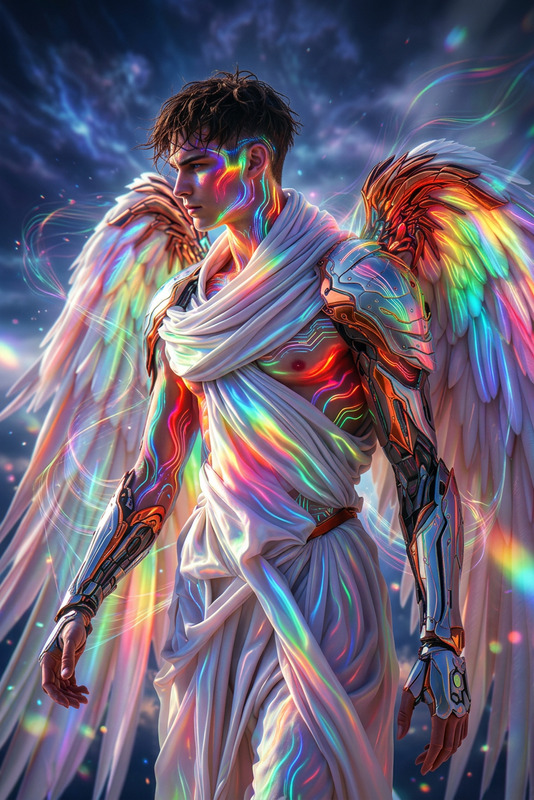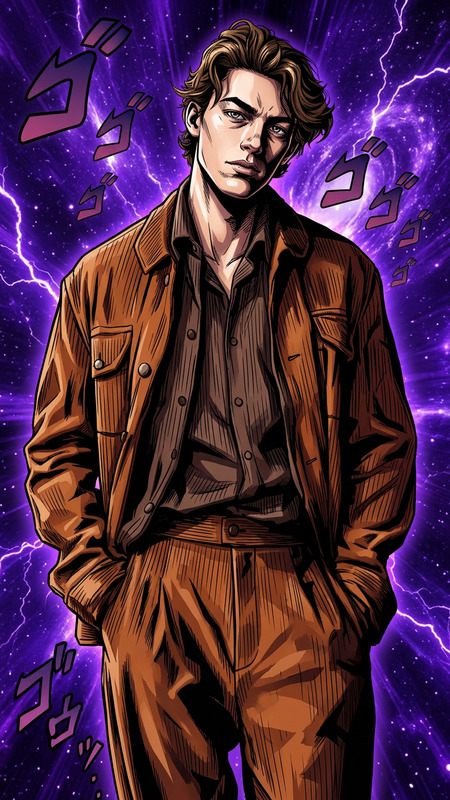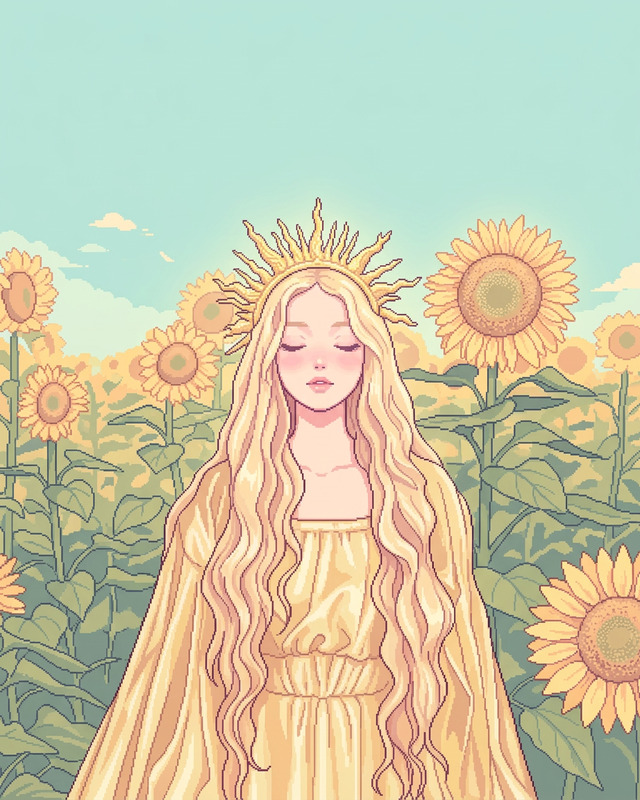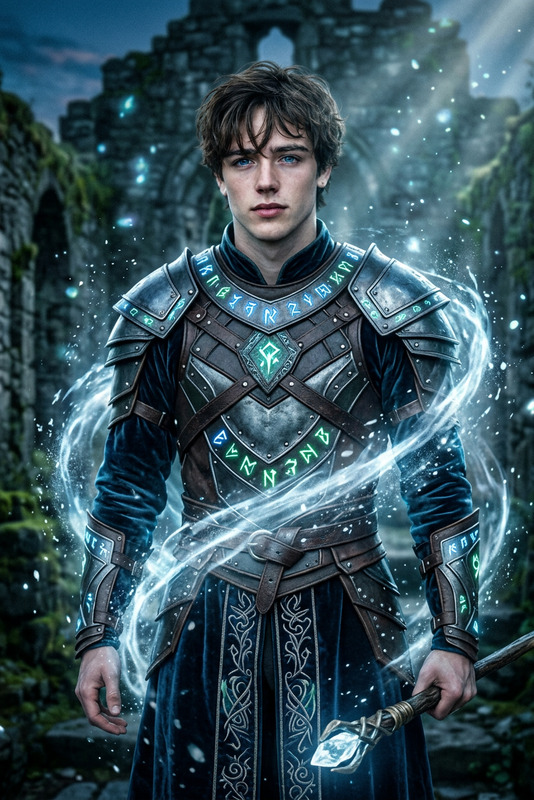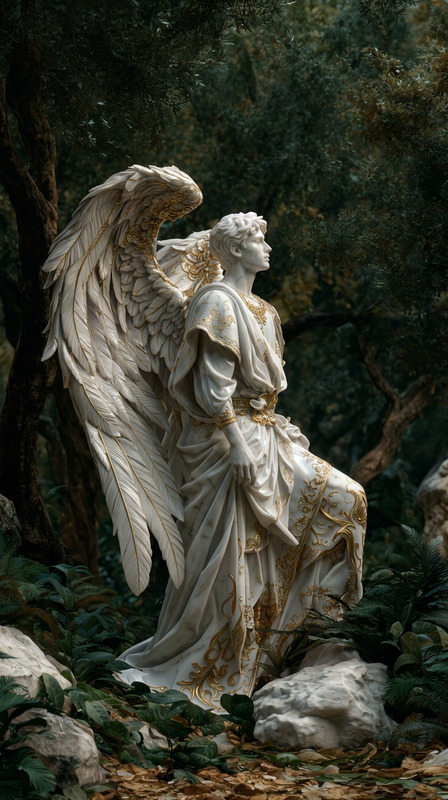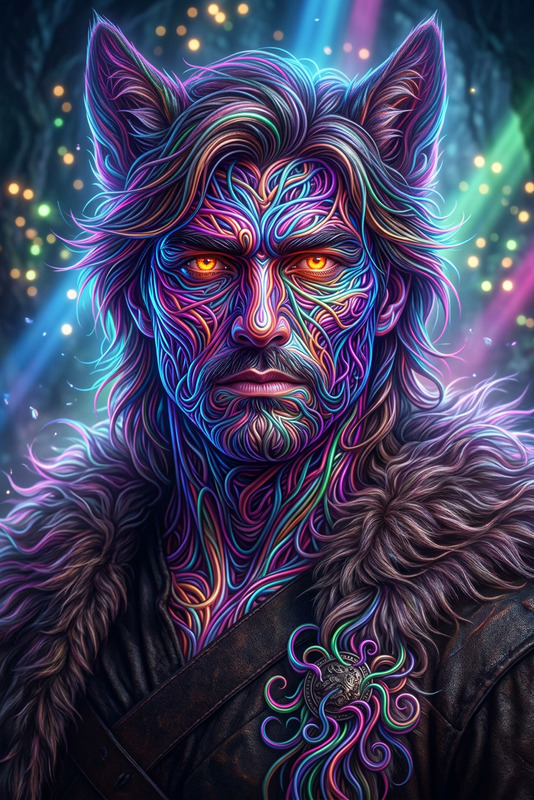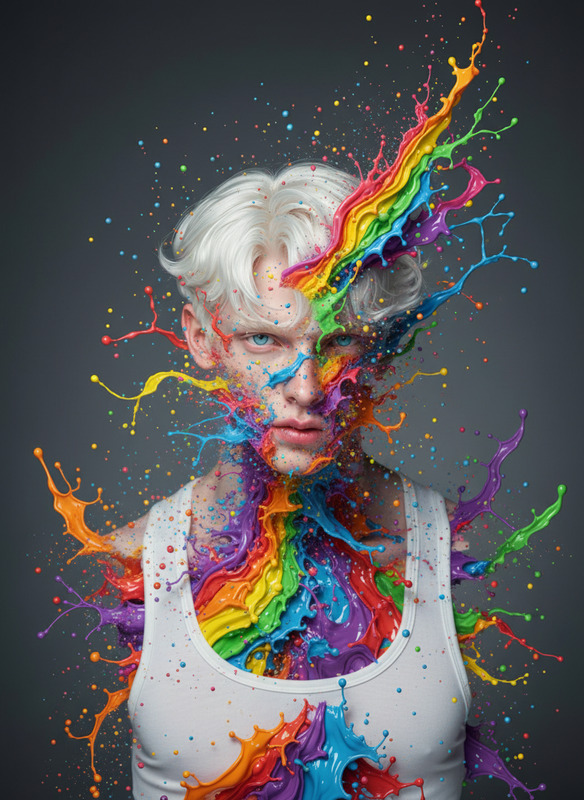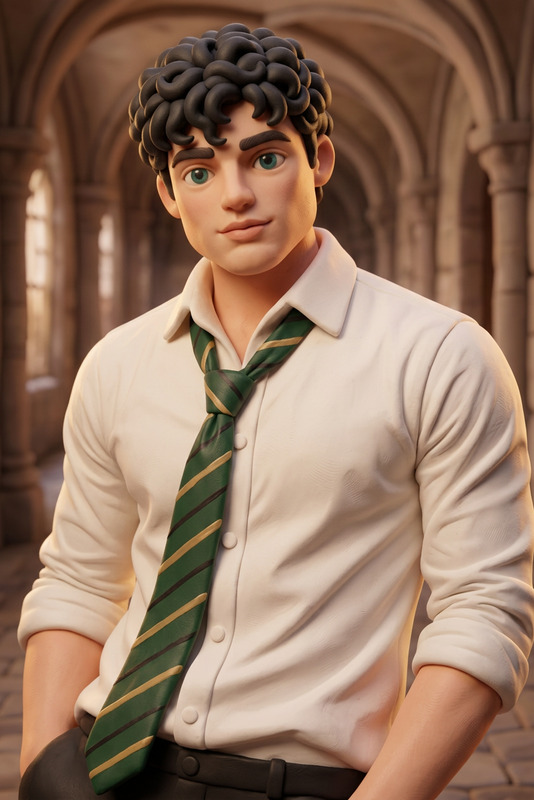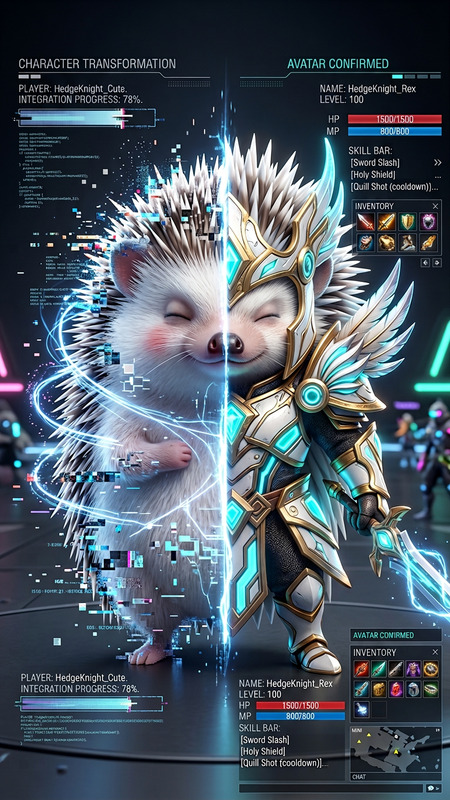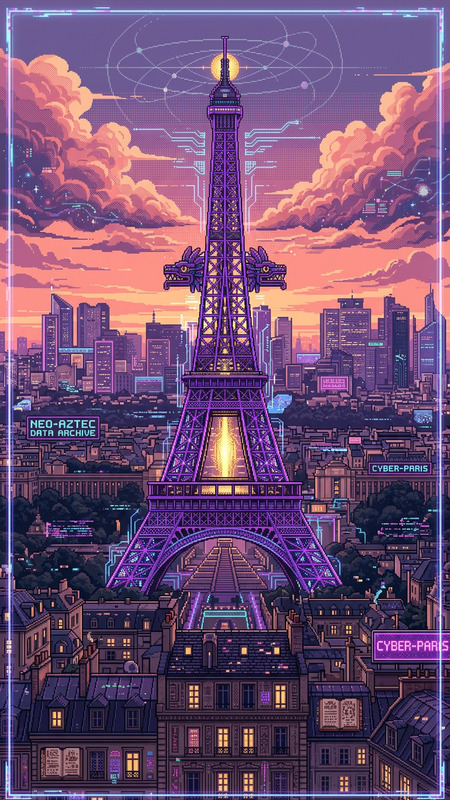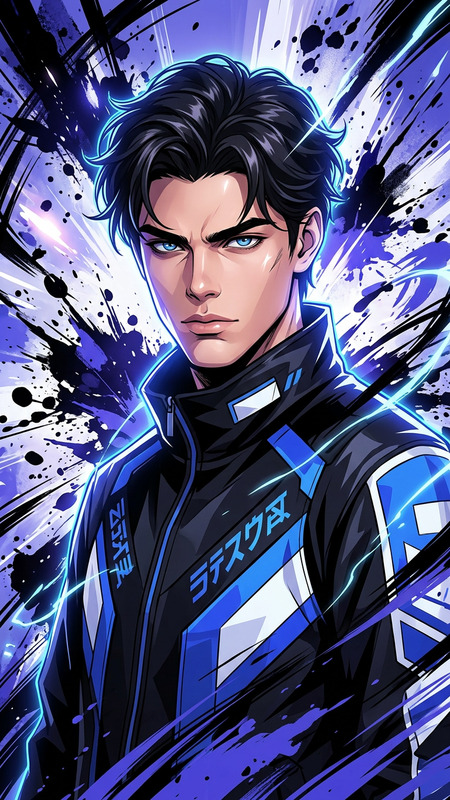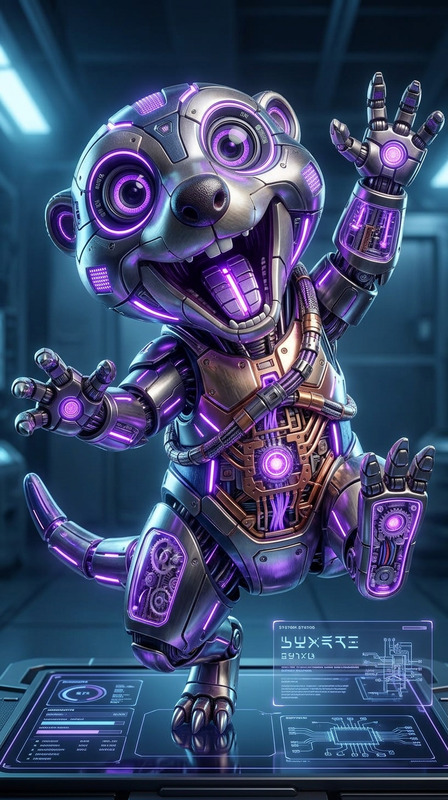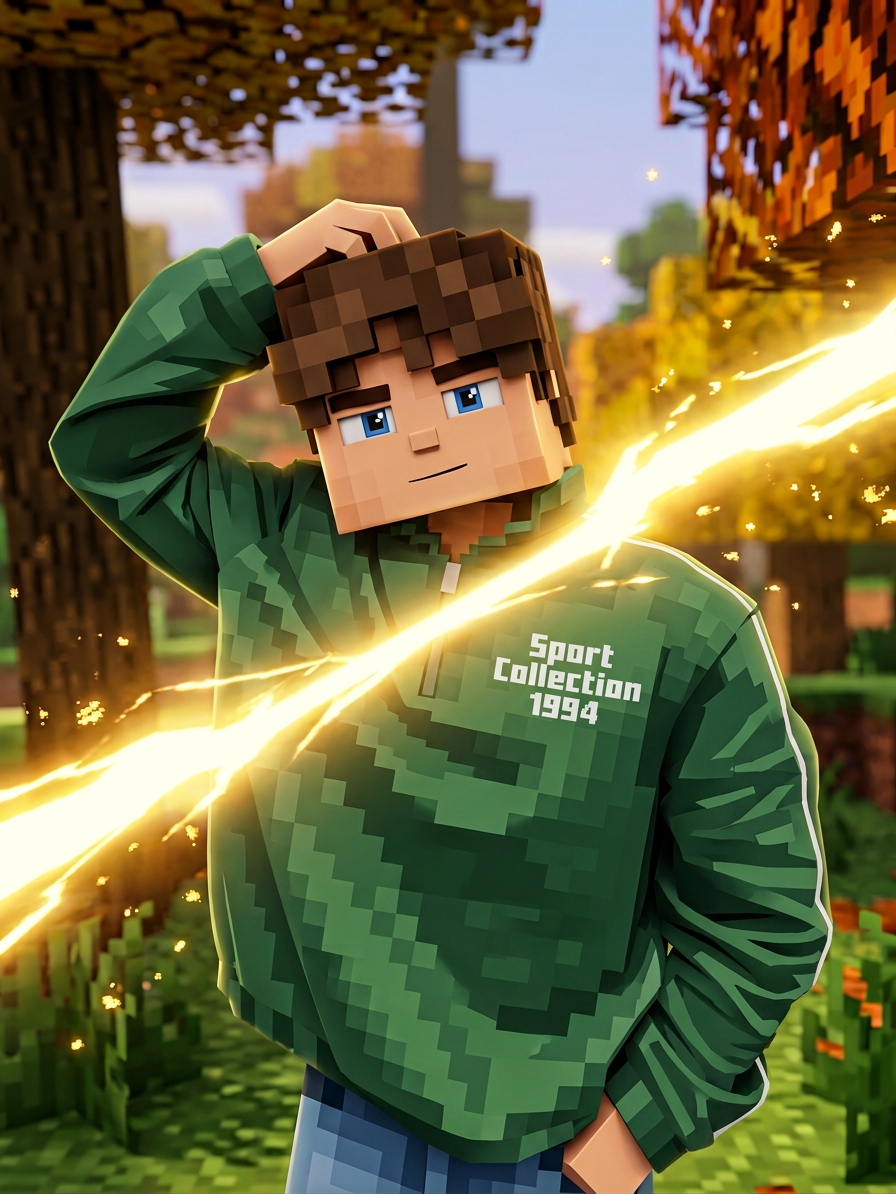
Minecraft-style

Minecraft-style

ai-image-editor

1 clip
2 uses

Any aspect ratio

Prompt

A bright golden flash explodes across the frame, instantly transforming the subject into a cute blocky Minecraft-style character with a square head and pixelated features, maintaining the same pose and expression. The glow fades into a vibrant, game-like world with crisp pixel textures, soft lighting, smooth motion, and a playful, stylized atmosphere.

Tags

styles

AI Image Editor Template: Turn Any Photo Into a Clean, Studio-Grade Visual

Use this AI Image Editor–powered template to transform ordinary photos into polished, on-brand visuals in seconds—no Photoshop, no manual retouching. Perfect for product shots, profile images, marketing creatives, memes, or rapid experimentation.


What This Template Does

This template is built on the AI Image Editor and is designed to help you:

  • Clean up and enhance existing photos
  • Change backgrounds and environments
  • Add or remove objects, logos, and text
  • Refine faces, lighting, and composition
  • Generate multiple creative variations from a single source image

Because it’s fully remixable, you can duplicate it inside Magic Hour, swap in your own source image, and adapt the prompts to match your brand, campaign, or use case.


How to Remix This Template in Magic Hour

You can recreate or customize this template in a few minutes. Inside Magic Hour:

  1. Upload Your Base Image
    Use a product photo, portrait, logo concept, social media asset, or even a rough sketch. High-resolution images tend to give better results.

  2. Open It in the AI Image Editor
    From your image, open the AI Image Editor. This is where you’ll apply changes like background replacement, object removal, and style adjustments.

  3. Define Your Goal in Plain Language
    In your prompt, be explicit about:

    • Subject (e.g., “single hoodie on a hanger”)
    • Style (e.g., “minimalist studio, soft shadows, e-commerce ready”)
    • Background (e.g., “solid light-gray background, no text, no clutter”)
    • Output vibe (e.g., “clean, premium, tech brand aesthetic”)

    Example prompt you can adapt:

    “Keep the subject exactly as-is, remove all distractions, replace the background with a soft, gradient studio backdrop, enhance lighting to look like a professional product shoot, and output a clean, high-contrast, e-commerce-ready image.”

  4. Iterate and Remix

    • If the first output is close, refine your prompt (“warmer light,” “more contrast,” “zoomed out,” “no reflection,” etc.).
    • Save promising variations; these become your own mini-templates you can re-use for future images.
  5. Use Variants for Different Channels
    Remix the same base image for:

    • Landing pages (clean, wide shots)
    • App stores (high-contrast, clear subject)
    • Social ads (bolder colors, overlays)
    • Pitch decks (subtle, minimal, brand-first visuals)

Practical Use Cases for This Template

This template is useful whenever you want high-quality images without hiring a designer for every small change.

For marketers & growth teams

  • Clean product shots for paid ads and landing pages
  • A/B test different backgrounds or color schemes
  • Create campaign-specific variants from one core asset

For founders & startup teams

  • Upgrade scrappy early photos into investor-ready visuals
  • Quickly align screenshots, product photos, and team images to a consistent style
  • Test brand directions visually before committing to a full design system

For creators & content teams

  • Turn casual photos into thumbnail-ready images
  • Remove distracting elements for newsletters or blogs
  • Generate on-brand memes or social posts using AI Meme Generator

For developers & product designers

  • Create visual mocks for features, onboarding flows, or docs
  • Generate consistent avatars or characters using AI Character Generator and refine them with the Image Editor
  • Produce quick, polished imagery for prototypes without waiting on a design sprint

How to Customize This Template for Your Brand

To create your own reusable version of this template inside Magic Hour:

  1. Lock In a Visual Style
    In your prompt, describe your recurring style in detail. Examples:

    • “Flat lighting, neutral backgrounds, high legibility for UI overlays”
    • “Editorial, cinematic portraits, shallow depth of field”
    • “Playful, colorful, rounded shapes, friendly SaaS brand”
  2. Standardize Background and Composition
    For a repeatable template, keep instructions like:

    • Camera distance (e.g., “waist-up portrait,” “full-body, centered,” “product centered, 10% padding”)
    • Background type (e.g., “solid color,” “studio gradient,” “subtle office environment”)
    • Negative instructions (e.g., “no text, no watermarks, no extra people”)
  3. Decide on Consistent Subject Rules

    • Keep the same person / product exactly, only change context
    • Allow small facial or lighting adjustments via AI Face Editor
    • For facial closeups, combine with AI Headshot Generator to align with your brand’s professional look
  4. Document Your Prompt as a House Template
    Once you land on a style you love, save that prompt text in your team docs or Notion. Use the same base instructions for all future remixes to keep your brand visuals consistent across campaigns.


Advanced Workflows: Combine AI Image Editor With Other Magic Hour Tools

For more sophisticated content pipelines, you can chain this template with other Magic Hour products:


Tips for Better Results With the AI Image Editor

Even for experienced teams, a few best practices can dramatically improve image quality:

  • Be explicit in your prompts
    Specify what must stay the same and what can change. Example:

    “Keep the product’s shape and colors identical, you may change lighting, shadows, and background. No altering the logo or text on the product.”

  • Use strong negative instructions
    If you’re seeing artifacts, explicitly rule them out:

    • “No text”
    • “No watermarks”
    • “No extra limbs or faces”
    • “No logos except the existing one”
  • Standardize aspect ratios per channel
    Decide in advance what you use where (16:9 for YouTube, 1:1 or 4:5 for Instagram, etc.), then remix the output for each needed ratio.

  • Combine with upscaling for final delivery
    After you’re satisfied with the edit, run it through AI Image Upscaler or Unblur Image for crisp exports suitable for print, ads, or large layouts.

  • Restore and modernize older assets

    • Clean and colorize old images using Photo Colorizer or Old Photo Restoration
    • Then bring them on-brand with this Image Editor template for new campaigns or “before vs. after” storytelling

Related Magic Hour Tools You Might Find Useful

If you like this template, these tools expand what you can do around it:

You can treat this template as the editing “hub” in a larger content pipeline: generate, refine, animate, and publish—all within Magic Hour.


Why Use an AI Image Editor Template Instead of Manual Design?

Research and industry practice show that high-quality visuals directly influence conversion rates, click-throughs, and perceived brand trust. Traditional design workflows are powerful but slow and expensive for iterative testing.

By codifying your visual rules into a reusable AI Image Editor template, you get:

  • Speed – iterate on dozens of variations in minutes
  • Consistency – a repeatable, prompt-based system instead of ad hoc edits
  • Scalability – empower non-designers on your team to produce on-brand assets
  • Experimentation – run low-cost creative tests across channels and audiences

Use this template as a starting point, refine it to your brand’s visual language, and save your own variant inside Magic Hour so you and your team can reuse it across campaigns, products, and experiments.

More Like This