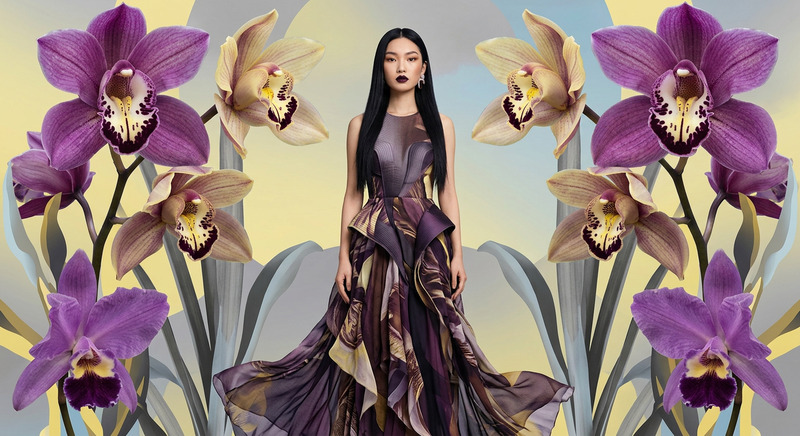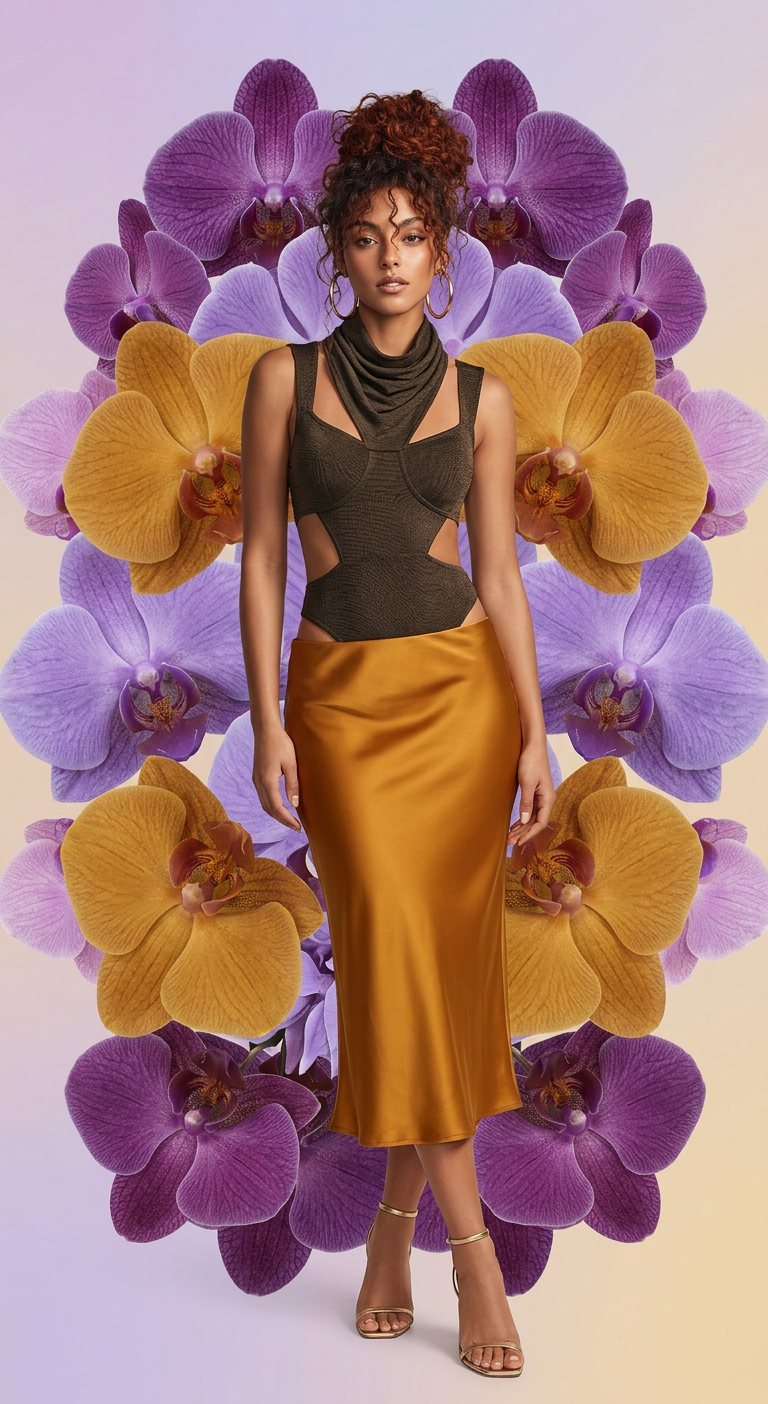
Fashion Model with Giant Orchids
ai-image-editor
Any aspect ratio
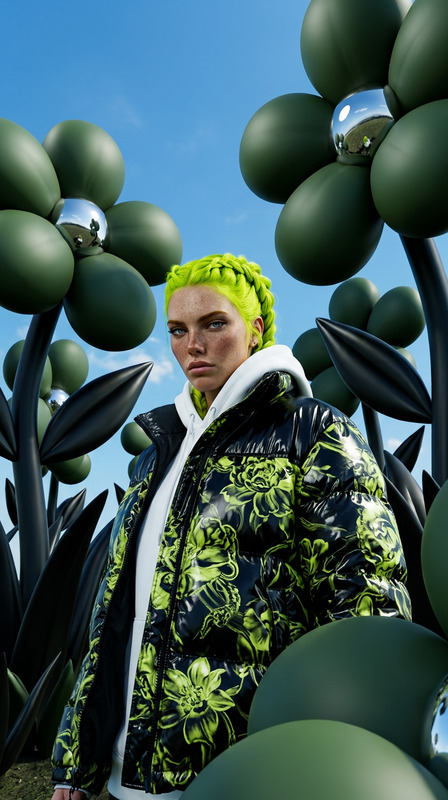
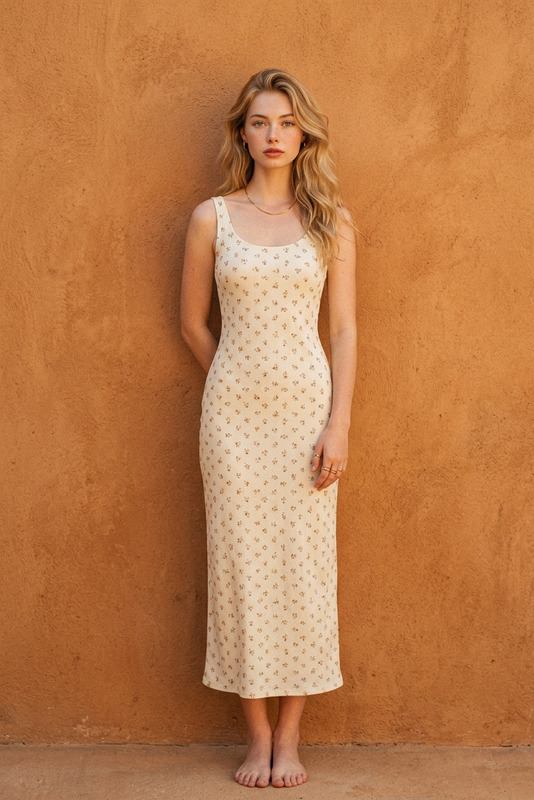
A medium full-body shot of a subject standing confidently against a digitally rendered background of oversized orchids. The subject wears a form-fitting abstract top with cutouts and a contrasting silk midi skirt. Large purple and yellow orchids create a symmetrical, stylized backdrop blending into a soft gradient. Bright, diffused front lighting produces even tones and minimal shadows. High-resolution, polished fashion editorial with slight digital collage feel.
AI Image Editor Template: Turn Any Photo Into a Polished, On‑Brand Visual in Minutes
Use this template to quickly transform raw photos into clean, on-brand visuals with the AI Image Editor. It’s ideal for social posts, landing pages, product shots, pitch decks, ads, thumbnails, and any situation where “good enough” images aren’t good enough.
Because this template is fully remixable in Magic Hour, you can clone it, adjust the prompts, and build your own version tailored to your brand, workflow, or product.
What This Template Does
This AI Image Editor–based template is designed to:
Clean and enhance photos
- Fix lighting and contrast
- Improve colors and clarity
- Sharpen important details
- Remove minor artifacts, banding, and noise
Edit content in the image
- Add or remove objects (e.g., phone, laptop, coffee cup, logo)
- Change backgrounds to studio, lifestyle, or branded scenes
- Adjust clothing style, accessories, or props
- Improve facial details using tools like the AI Face Editor
Generate consistent, on-brand visuals
- Match a consistent style across campaigns
- Align with brand palettes and visual themes
- Prepare images for use in ads, hero sections, and product pages
All edits are prompt-based, so you can describe the desired change in natural language and let the AI do the work—no complex layers or masks required.
Best Use Cases
This template works especially well for:
Marketing & growth teams
- Create campaign-ready visuals from basic product photos
- Test multiple creative variations quickly
- Prepare assets for performance ads, email hero images, and social posts
Founders & startup teams
- Turn makeshift photos into investor-ready or app-store-ready visuals
- “Level up” DIY product shots for landing pages and decks
- Rapidly experiment with brand directions before committing to a full design system
Content creators & YouTubers
- Design high-impact thumbnails (pair with the Thumbnail Maker)
- Clean up screenshots or B‑roll frames
- Create illustrations and overlays from basic photos
E‑commerce & product teams
- Generate consistent backgrounds for product catalogs
- Remove distractions using the AI Remover or Remove Object from Photo
- Upscale assets for marketplaces with the AI Image Upscaler
How to Remix This Template in Magic Hour
You can build your own version of this template in a few minutes. Here’s a simple way to remix it inside Magic Hour:
Open AI Image Editor
Go to the AI Image Editor.Upload your base image
- Product photo
- Portrait or headshot
- Screenshot, mockup, or illustration
- Old or low-quality photo you want to improve
Define your edit in natural language
In the editor, use precise language about what you want:- “Replace the background with a minimalist, soft gray studio backdrop.”
- “Make the lighting brighter and more cinematic, with subtle contrast.”
- “Add a modern office environment behind the subject, shallow depth of field.”
- “Remove the clutter on the desk; keep only a laptop and coffee mug.”
Save your prompt as a reusable pattern
Once you’ve found an edit style you like:- Reuse that prompt across multiple images
- Slightly tweak the text to create variants (e.g., different background styles or moods)
- Combine with other Magic Hour tools (see below) if you need animation, video, or special formats
Batch your workflow (optional)
For campaigns or product sets:- Apply the same prompt to a series of related images
- Use consistent language to maintain a cohesive look over time
Combining This Template With Other Magic Hour Tools
You can chain this AI Image Editor template with other Magic Hour products to build end‑to‑end creative workflows:
1. From edited image → video or animation
After you’ve cleaned and styled your image:
Animate the image
- Turn static visuals into motion using Image to Video or Animation.
- Great for social ads, feature explainers, or hero animations.
Create talking avatars from portraits
- Use AI Talking Photo to make an edited headshot speak your script.
- Pair with the AI Voice Generator or AI Voice Cloner for fully synthetic presenters.
Sync lips to voice
- If you already have audio, use Lip Sync to match mouth movements.
2. From edited image → stylized content (memes, covers, thumbnails)
- Turn cleaned images into memes with the AI Meme Generator.
- Build eye-catching YouTube or podcast covers via the Album Cover Generator or Book Cover Generator.
- Create scroll-stopping video teasers from your edited images using Text to Video.
3. Face, outfit, and identity workflows
For portraits and people-focused shots:
Polish or restyle faces
- Start with the AI Image Editor, then refine with AI Face Editor or AI Face Generator.
- Create professional avatars with the AI Headshot Generator or Avatar Generator.
Change outfits or fashion styling
- Use AI Clothes Changer, AI Outfit Generator, or AI Fashion Generator to try different looks on the same subject.
Swap faces or identities
- For ethical, consented projects, use Face Swap or the Face Swap GIF for animations.
- If you’re working with video, use Face Swap Video to transfer faces across clips.
Prompting Tips for Reliable, High-Quality Edits
To get predictable, reusable results when remixing this template:
Be explicit about the subject and the change
- Instead of: “Make it better”
- Use: “Brighten the image, enhance contrast, and keep natural skin tones. Maintain the original composition.”
Describe the target style clearly
- “Clean, minimal studio background, soft shadows, no harsh reflections.”
- “Warm, natural light, lifestyle photo in a modern apartment.”
- “Flat illustration style, pastel colors, suitable for a SaaS landing page.”
Reference context and use case
- “Optimize for a website hero section above the fold.”
- “Design as a YouTube thumbnail with strong contrast and legible subject.”
- “Create an app-store-friendly promo image, no text.”
Iterate with small, directional tweaks
- Start with a broad prompt, then refine:
- “Increase brightness and reduce background clutter.”
- “Make the background a soft blur, emphasize the product.”
- “Shift colors slightly cooler for a tech/enterprise feel.”
- Start with a broad prompt, then refine:
Use consistent language across a project
- If you want visual consistency, use the same style descriptors (e.g., “clean studio,” “soft cinematic light,” “pastel SaaS illustration”) across all runs.
Example Workflows You Can Build From This Template
A. SaaS Landing Page Visuals
- Generate base imagery with the AI Image Generator or AI Photo Generator.
- Refine and standardize them using this AI Image Editor template.
- Remove unused background details via the Image Background Remover.
- Turn hero images into subtle motion loops with Image to Video or Animation.
B. Creator / YouTube Thumbnail System
- Capture basic frames or screenshots.
- Use AI Image Editor to:
- Brighten, sharpen, and clean the subject
- Simplify or replace the background
- Design cover-style layouts via the Thumbnail Maker or Album Cover Generator.
- If needed, add character art using the AI Character Generator or Animated Characters Generator.
C. Product & E‑commerce Ready Assets
- Start with your raw product shots.
- Use this template in AI Image Editor to:
- Normalize lighting
- Apply a consistent background style (e.g., white, gradient, lifestyle scene)
- Clean defects via AI Remover and upscale with AI Image Upscaler.
- Export for marketplace listings, landing pages, and ads.
When to Use Other Tools Instead
This AI Image Editor template is best when you already have a base image and want to improve or transform it.
Consider starting elsewhere if:
You have no source image at all
- Use AI Image Generator or AI Art Generator to create the initial visual.
- For specific styles, try tools like AI Manga Generator, Disney AI Generator, or Dark Fantasy AI.
You want to convert a full video, not just an image
- Use Video to Video for stylizing or transforming existing footage.
- Improve quality with the Video Upscaler.
You’re working with archival or damaged photos
- Use Old Photo Restoration or Photo Colorizer first, then refine with this template.
Getting the Most Out of This Template
To make this AI Image Editor template a long-term asset in your stack:
- Standardize your prompts for brand, product, or series so anyone on your team can reuse them.
- Document your best-performing prompts in a shared doc or Notion page so they become part of your creative system.
- Combine tools strategically:
- Edit → Enhance → Remove objects → Upscale → Animate/Video
- Test and measure:
- For growth teams, test different visual styles against click-through rates and conversion metrics.
By remixing and extending this template, you can turn the AI Image Editor into a repeatable, scalable creative pipeline—without needing a full-time design team or complex tooling.