Energy Splash Impact Ad
- Model
- Nano Banana 2
- Image
- 842 × 1264 px
Prompt
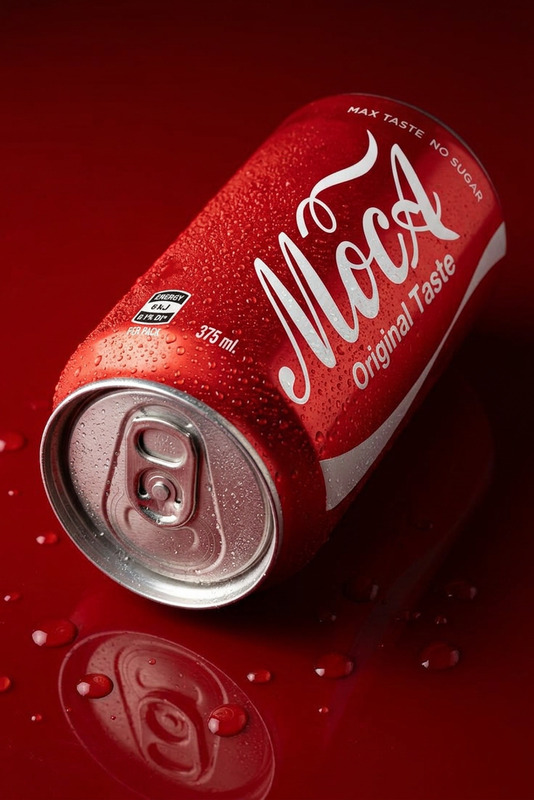
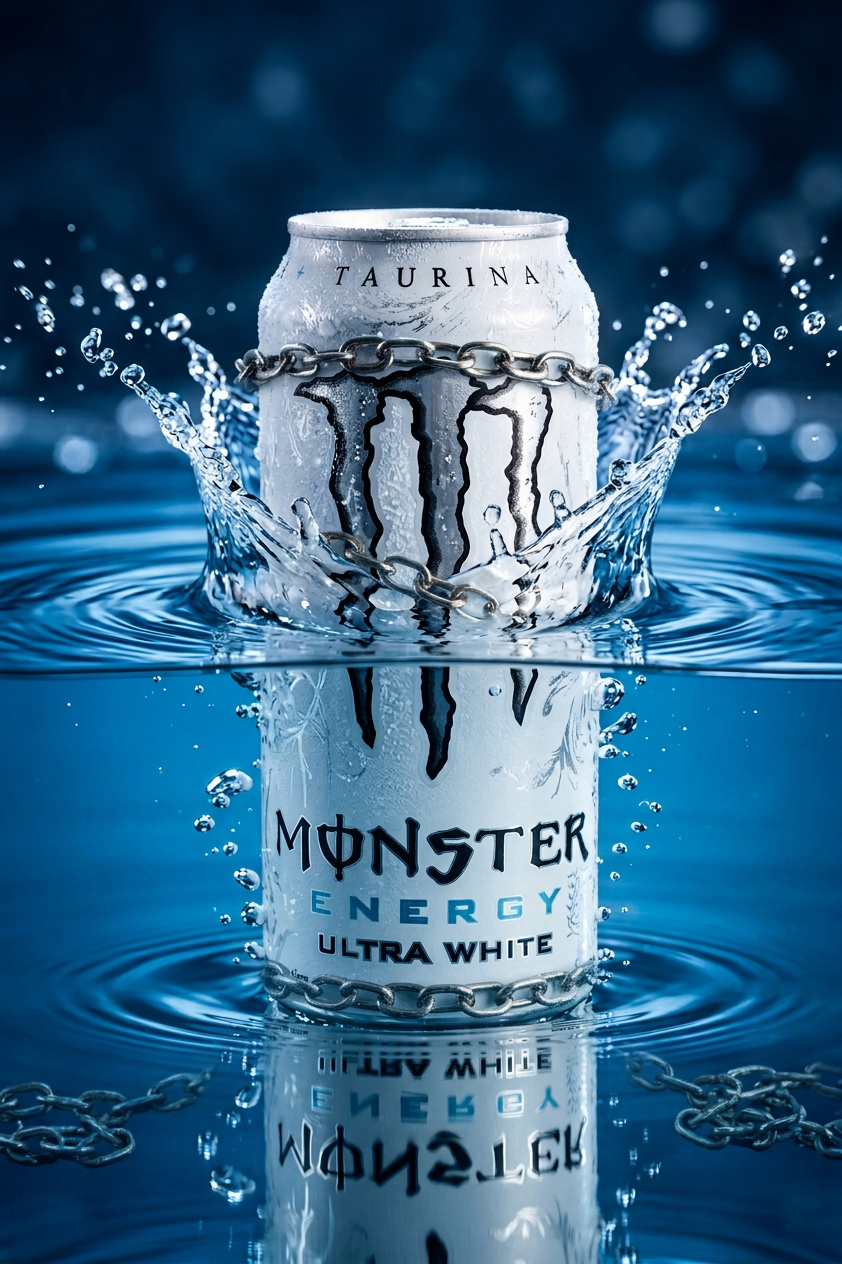
Subject is a sleek energy drink can half submerged in crystal-clear water; top half above the surface, bottom half underwater; dramatic splashes and ripples around it; cold condensation droplets on the can; strong reflections and high contrast lighting; vibrant, intense colors; shallow depth of field with sharp focus on the can; cinematic, ultra-realistic, high-end advertising style; bold, eye-catching composition, 8K wallpaper quality.
Any aspect ratio
Overview
The Energy Splash Impact Ad leverages the advanced capabilities of our AI Image Editor to produce stunning visuals. Perfect for high-impact marketing campaigns, this template generates images featuring a sleek energy drink can. Utilizing the nano-banana-2 model, it ensures your ad stands out with precision and vivid colors.
What It Does
Designed for creating captivating ads, this template offers a dynamic composition featuring an energy drink can interacting with water. It creates dramatic splashes and vibrant reflections, showcasing the can's details with ultra-realistic quality achieved via a shallow depth of field. The template produces 8K wallpaper-quality images, ideal for advertising.
Who It's For
This template is perfect for marketers and creative professionals aiming to elevate their promotional content. It's also suitable for brands looking to showcase their products in a bold, visually compelling manner. The template is designed to catch the eye of audiences on platforms like Instagram Reels and in product demo videos.
Summary
Utilize the Energy Splash Impact Ad to transform your promotional strategy with high-resolution, cinema-quality images. Ideal for creating eye-catching visuals, this template helps you set your brand apart. To enhance your marketing toolkit, explore our AI Gif Generator and learn how they can work together to boost engagement.
How-To
Choose Your Template

Customize The Details

Generate And Download

Use Cases
Brand Launch Campaigns
- Boost initial market impressions
- Showcase product uniqueness
Social Media Marketing
- Increase engagement rates
- Align with trending content styles
Digital Billboards
- Capture audience attention
- Convey brand message clearly
Best Practices
Focus on Lighting
Adjust the prompt to emphasize lighting contrasts for dramatic visuals.Use High Resolution
Always opt for 8K settings to maximize image clarity and impact.Brand Consistency
Ensure that the can design aligns with your overall brand aesthetics for a cohesive look.