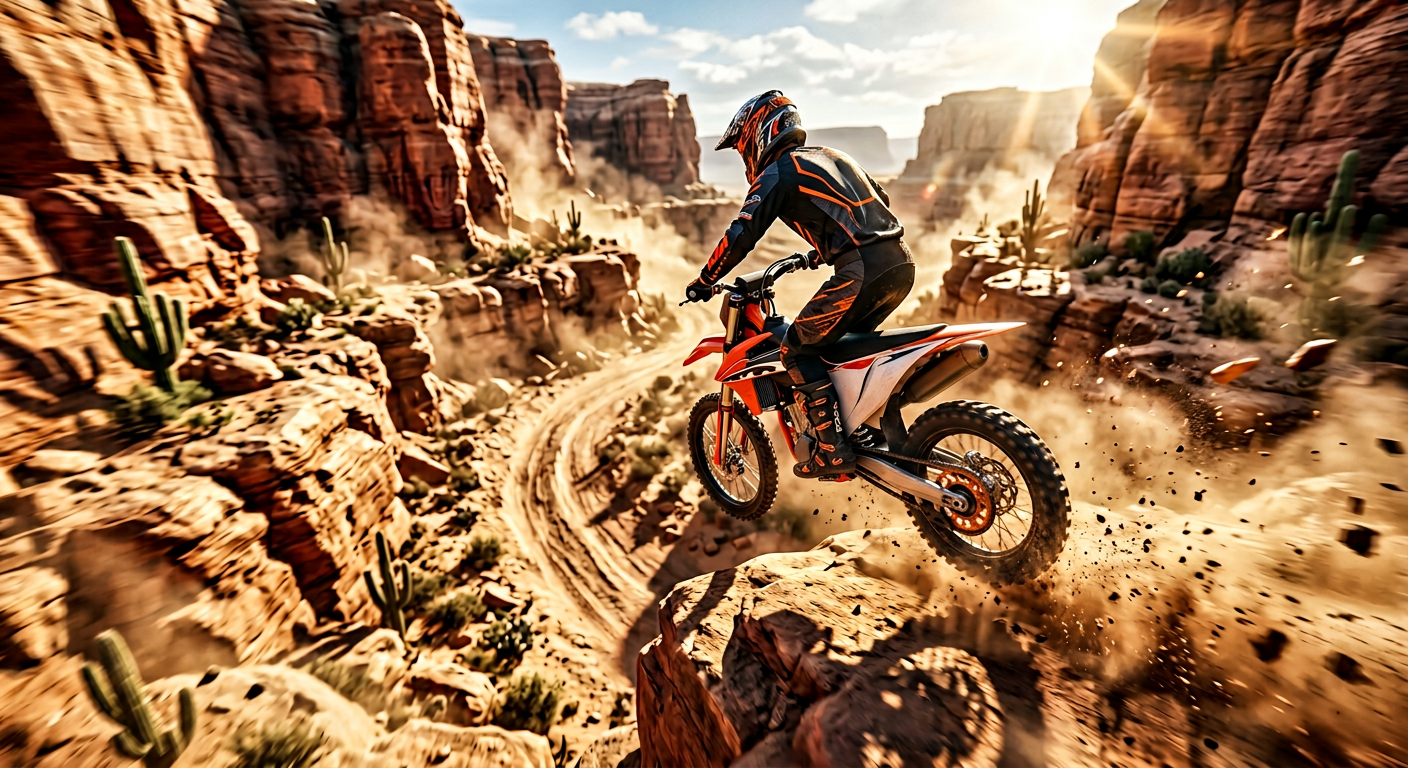
FPV Desert Motocross
- Model
- Nano Banana 2
- Image
- 1408 × 768 px
Prompt
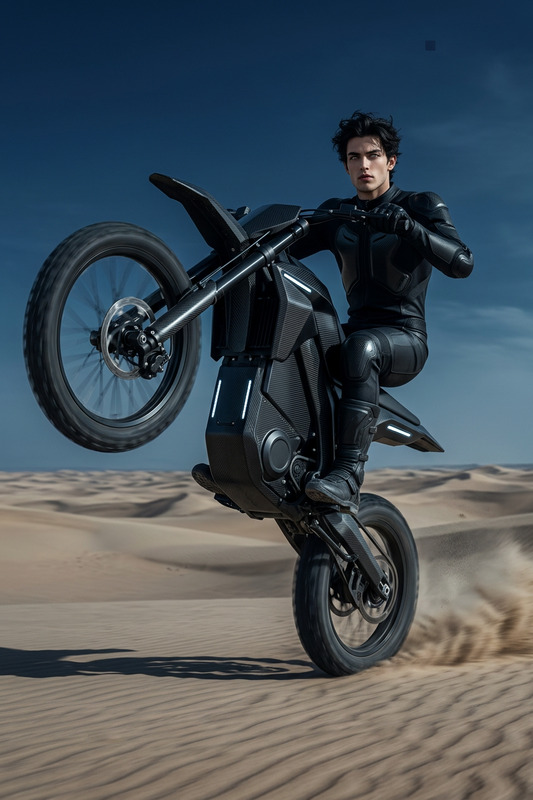
"Subject is an ultra-realistic FPV motocross scene of a rider on a {argument name=""bike model"" default=""KTM 450""} dirt bike racing at extreme speed through a desert canyon; rider wears a black and orange racing suit with full-face helmet; dramatic environment with sandstone cliffs, dust clouds, flying debris, cacti, and strong sun flares; dynamic FPV drone perspective with motion blur and cinematic lighting; includes a mid-air jump shot with sand particles and volumetric dust; high contrast, warm desert tones, photoreal textures, HDR, 8K quality; intense, fast-paced, extreme sports style, no text or logos."
Any aspect ratio
Overview
Experience the thrill of motocross racing through the lens of FPV drone imagery with our FPV Desert Motocross template. Designed using the AI Image Editor, this template employs the nano-banana-2 model to create breathtaking visuals of motocross scenes set in dramatic desert environments. Whether you are an extreme sports enthusiast or a content creator seeking to depict dynamic scenes, this template is your gateway to capturing the essence of speed and adventure.
What It Does
The template allows you to generate ultra-realistic images of motocross riders racing through desert canyons. It enhances the drama with photorealistic textures, cinematic lighting, and dynamic FPV perspectives. Customize elements like the bike model, while maintaining the scene's high contrast, warm desert tones, and photorealistic appeal. The result is high-definition, 8K images that look like they’ve been captured from actual drone footage, perfect for creating exciting content.
Who It's For
This template is ideal for professional videographers, content creators, and sports enthusiasts who want to capture the adrenaline of motocross racing. It's also perfect for marketing teams aiming to produce high-impact visuals for ad creatives or ecommerce ads. With its focus on cinematic style and extreme sports aesthetics, anyone looking to highlight action-packed moments in their projects will find this tool invaluable.
Summary
Immerse your audience in the fast-paced world of motocross with the FPV Desert Motocross template. Leverage the power of AI Image Editor technology and the advanced capabilities of the nano-banana-2 model to produce top-tier, action-packed scenes. Customize to fit your project's needs and experience stunning visuals that enhance your storytelling.
How-To
Choose Template

Customize Scene

Generate Image

Use Cases
Sports Marketing
- Dynamic promotional materials
- Engaging social media content
- High-impact e-commerce ads
Social Media Content
- Instagram Reels
- Facebook Stories
- YouTube Shorts
Project Storytelling
- Animated web series
- Film and video projects
- Interactive storytelling
Best Practices
Balance Scene Elements
Ensure that key elements such as the bike and dust effects are balanced to maintain focus on the rider while enhancing the scene's dynamic energy.Optimize Lighting Effects
Adjust lighting settings to achieve the desired level of drama and depth, ensuring the sun flares and shadows contribute to the overall mood.High-Resolution Export
Always export your images at the highest resolution for optimal quality and detail in prints or digital displays.