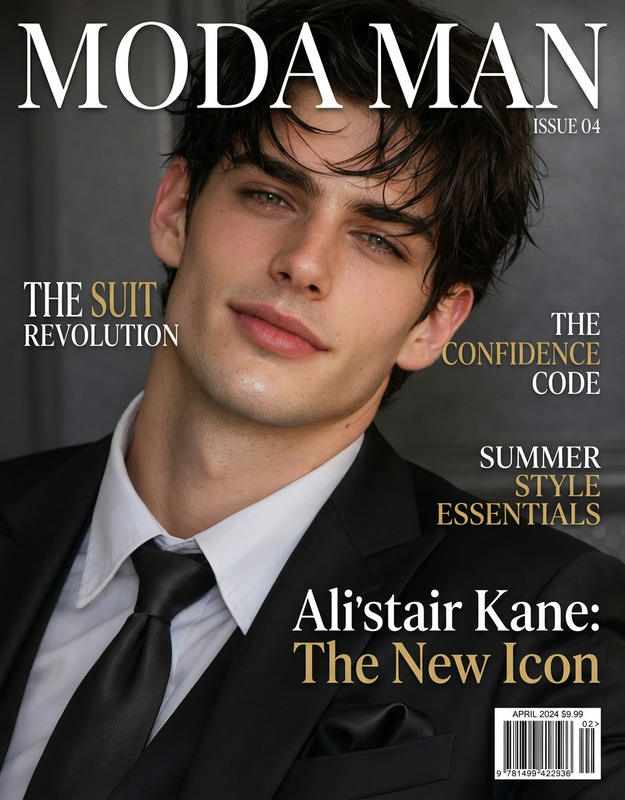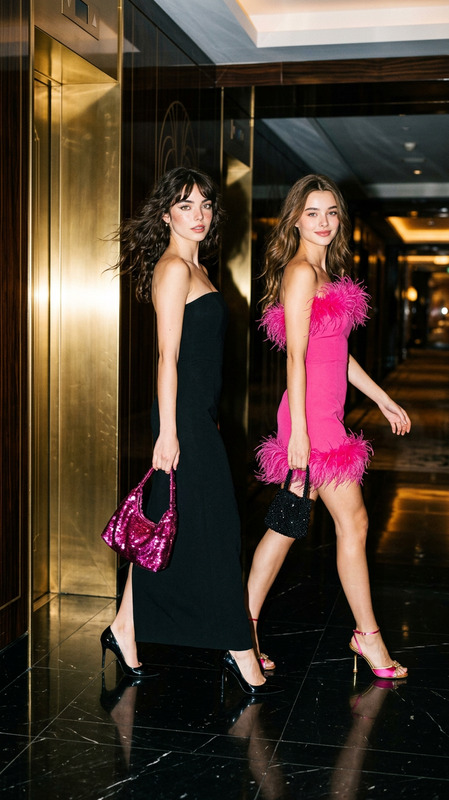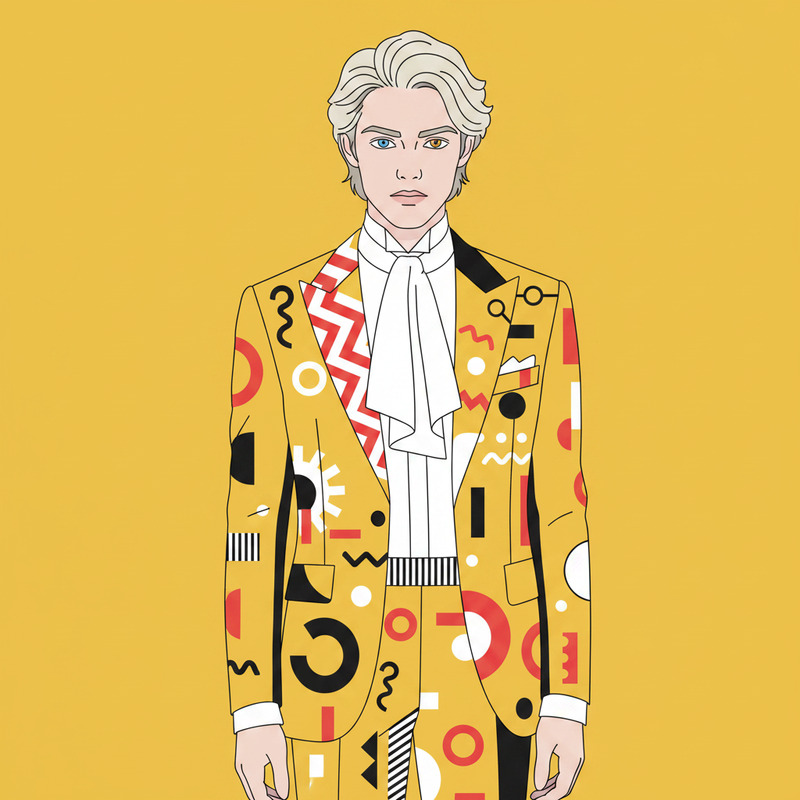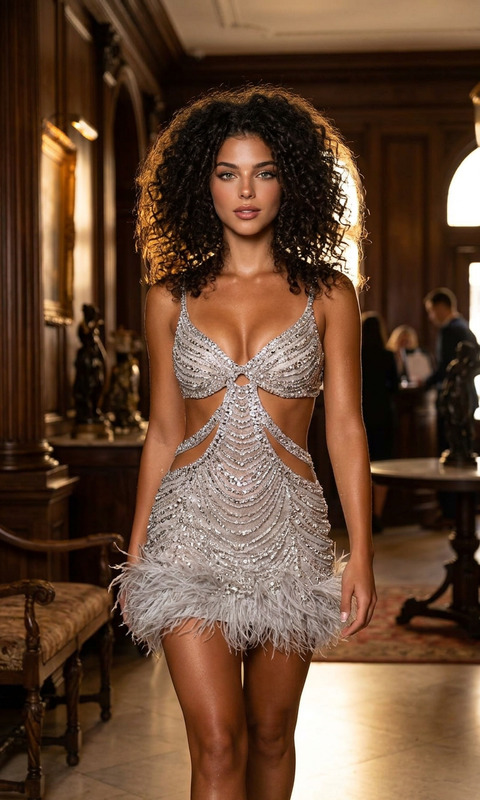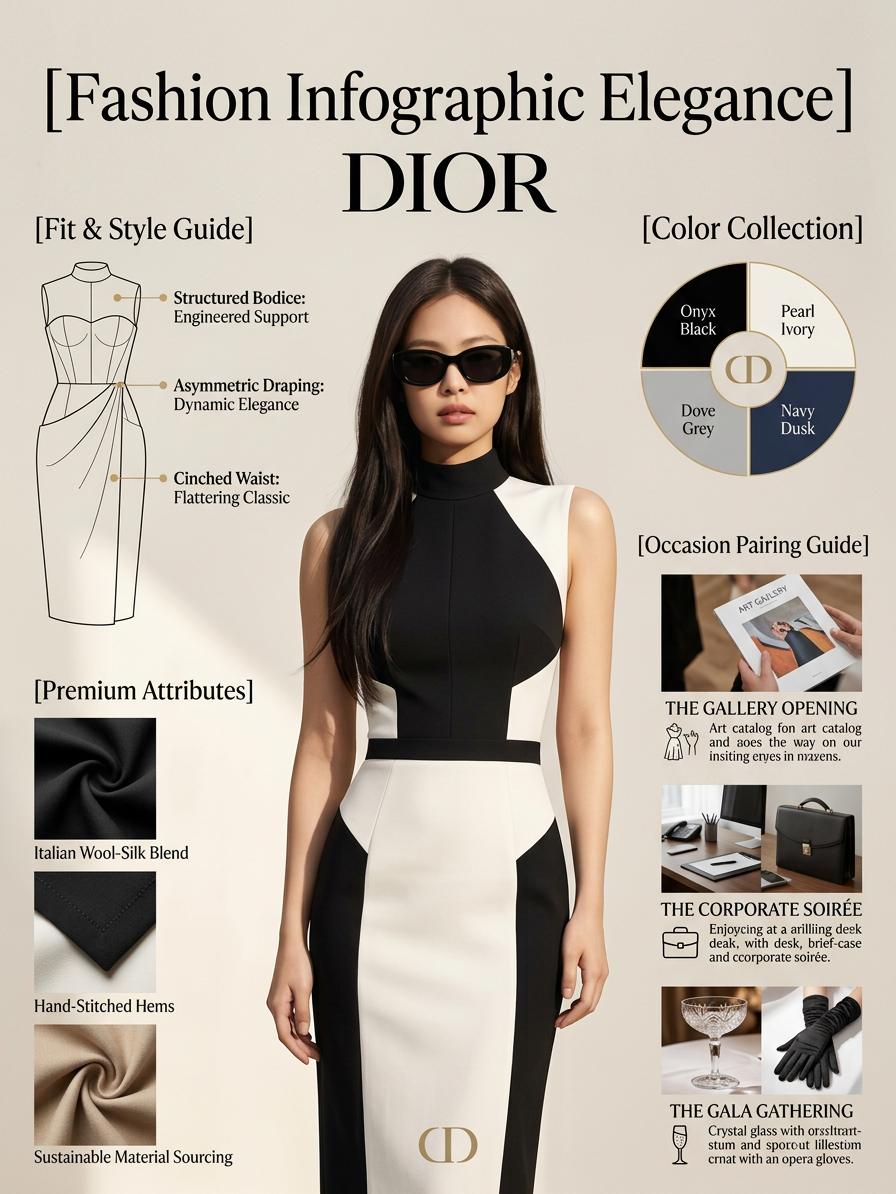
Fashion Infographic Elegance

Fashion Infographic Elegance

ai-image-editor

1 clip
0 uses

Any aspect ratio

Prompt

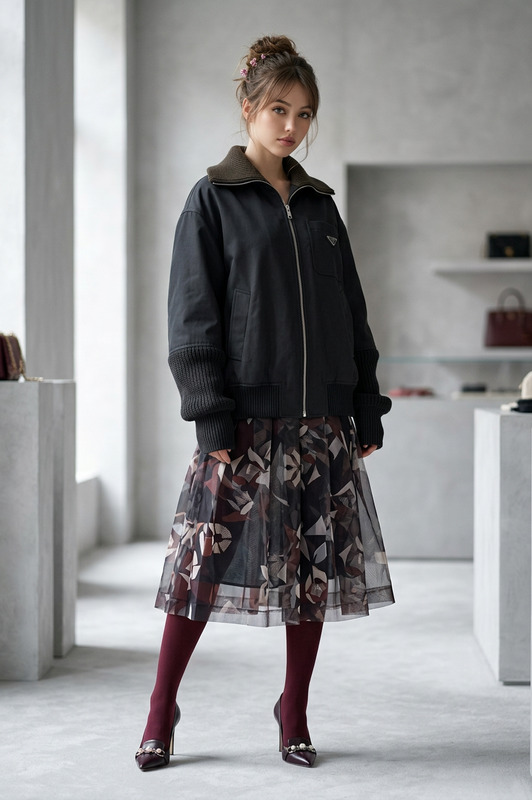
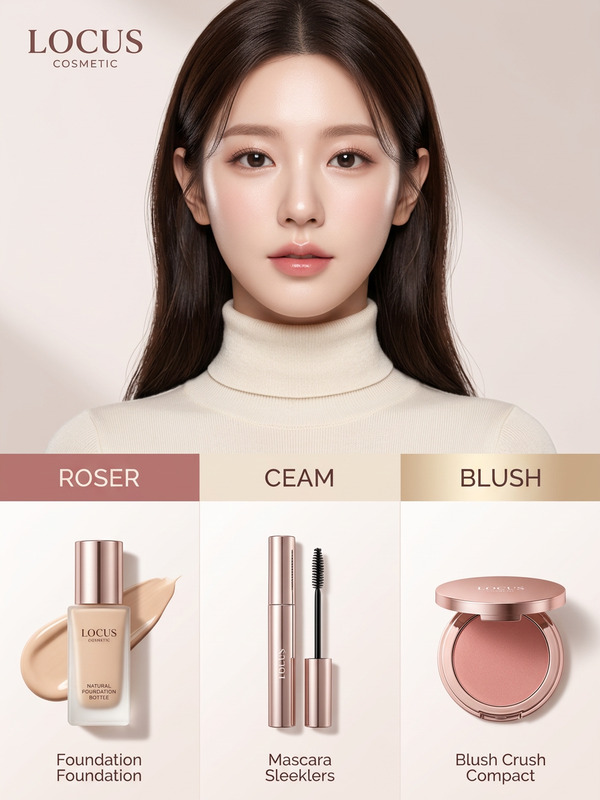
Subject transforms into a high-fashion marketing infographic titled [Fashion Infographic Elegance] by [DIOR], showcasing a bespoke modern classic dress collection. Central composition features subject posing in a [modern and elegant dress] against a neutral minimalist background. Clean editorial layout with refined spacing. Sections include: — Fit & Style Guide: silhouette and structure highlights — Premium Attributes: luxurious fabric, artisanal craftsmanship — Color Collection: curated palette of elegant shades — Occasion Pairing Guide: lifestyle thumbnails showing versatility across events Editorial, magazine-quality design, soft cinematic lighting, elegant typography, polished and sophisticated aesthetic.

AI Image Editor Template: Remixable Photo Transformations for Fast Experiments

This template showcases what you can do with the Magic Hour AI Image Editor: transform, clean up, or restyle any image in a few clicks, then remix it into your own workflow.

It’s designed for:

  • Creators testing visual concepts fast (thumbnails, covers, mockups)
  • Marketers cleaning and adapting assets for campaigns
  • Startup teams building repeatable visual pipelines
  • Developers prototyping AI image workflows before integrating APIs

Use this template as a starting point, then remix it into your own reusable “micro-tool” inside Magic Hour.


What this template does

With this AI Image Editor–based template, you can:

  • Edit any image non-destructively
    Upload or paste an image, then apply AI-powered edits while keeping the original safe.

  • Remove or replace elements
    Use AI to remove objects, people, or text and fill the gap realistically. For more targeted removal, you can also explore the dedicated AI remover and remove object from photo tools, plus the watermark remover where legally appropriate.

  • Change backgrounds and environments
    Quickly swap cluttered or off-brand backgrounds for clean, on-brand scenes. For background-heavy workflows, pair this with the image background remover and AI background generator.

  • Restyle photos and illustrations
    Turn product shots, portraits, or sketches into new styles (e.g., cinematic, studio, cartoon, anime). If you’re exploring stylization at scale, check out AI art generator, AI anime generator, or AI illustration generator.

  • Upscale and repair assets
    Clean up low-res or compressed assets so they’re ready for web or social export. For dedicated enhancement, use AI image upscaler, unblur image, or old photo restoration.

Think of this template as your core, general-purpose AI editor. From here, you can spin out specialized variations—branding cleanup, content repurposing, creative R&D, and more.


How to remix this template in Magic Hour

You don’t need to start from scratch. To build your own version of this template:

  1. Duplicate the template

    • Open this template inside Magic Hour.
    • Use the “remix” or duplication option to create your own editable copy.
  2. Define your input pattern
    Decide what you want users (or your team) to bring into the flow:

    • One main photo (e.g., product shot, headshot, UGC)
    • A set of reference images (e.g., brand examples, mood references)
    • Optional text input (e.g., “describe the background you want”)
  3. Chain transformations logically
    Common patterns that work well in practice:

    • Clean → Style → Export
      • Clean the image (remove clutter/text)
      • Restyle it (background change, lighting, artistic style)
      • Export in multiple aspect ratios
    • Repair → Enhance → Repurpose
      • Fix resolution or damage
      • Enhance (sharpness, color, contrast)
      • Adapt for thumbnails, covers, or social posts
  4. Turn it into a reusable “micro-tool”
    Once your remix works the way you want:

    • Save it as a team template so others can reuse it
    • Standardize instructions (e.g., “Use for product shots only” or “Use for YouTube thumbnails”)
    • Document input expectations in the template description so users get consistent results
  5. Combine with other Magic Hour products
    To extend beyond static images:


Practical use cases

1. Brand and marketing teams

Use this template as the hub of a lightweight creative pipeline:

  • Quickly adapt a single product shot into:
    • Clean e-commerce images
    • Lifestyle scenes
    • Social-first visuals and ad creatives
  • Remove off-brand elements and backgrounds
  • Create on-brand visual systems that teammates can reproduce reliably

You can combine this with:

2. Creators and solo builders

If you’re a content creator, YouTuber, newsletter writer, or solo founder:

  • Turn rough screenshots into polished visuals
  • Clean up headshots and avatars; then push them further with:
  • Generate multiple styles for the same base image (e.g., “professional LinkedIn,” “YouTube-friendly,” “website hero”)

You can also:

3. Product, UX, and technical teams

Use the AI Image Editor as a “visual sandbox” when:

  • Prototyping product UI or marketing pages
  • Testing variants of imagery for landing pages or onboarding
  • Generating placeholder art and avatars for prototypes

For more specialized generation, you can pull in:


How this template fits into the wider Magic Hour ecosystem

The AI Image Editor is often the first stop in a broader Magic Hour workflow. Once you’ve created strong base images with this template, you can:


Tips for getting high-quality results

From experience with production workflows, a few patterns consistently help:

  1. Start with the cleanest source you have
    Even with strong models, clean input yields better output. If necessary, run a quick pass with:

  2. Work in clear steps, not all at once
    Splitting your flow into logical stages (cleanup → restyle → final polish) tends to give more consistent results and makes it easier to debug.

  3. Lock in “canonical” styles for your brand or project
    Once you find a style that works (color, mood, complexity), document it in your template description so teammates and future-you can reproduce it.

  4. Remix for adjacent tasks instead of overloading one template
    If your use case starts to diverge (e.g., product images vs. editorial images vs. social memes), create separate remixes rather than adding complexity to a single flow. This keeps each template focused and easier to maintain.


Who this template is especially good for

  • Growth and marketing teams needing fast creative iteration without heavy design overhead
  • Founders and early-stage teams who want to look “polished” before investing in full-time design
  • Developers and technical PMs testing AI-native product ideas on real assets
  • Agencies and studios building repeatable pipelines for specific clients or verticals

If you regularly say “we just need a quick visual for this,” this template is meant to be your default starting point.


Next steps

  • Open this AI Image Editor template in Magic Hour
  • Remix it into your own version focused on a single, repeatable task (e.g., “clean product shots,” “LinkedIn headshots,” “YouTube commentary thumbnails”)
  • Optionally chain it with other Magic Hour tools like image-to-video, AI talking photo, or face-swap video templates to turn static images into full, production-ready assets

Use this template as your foundation, then evolve it into a tailored, high-leverage visual workflow for your team.

More Like This