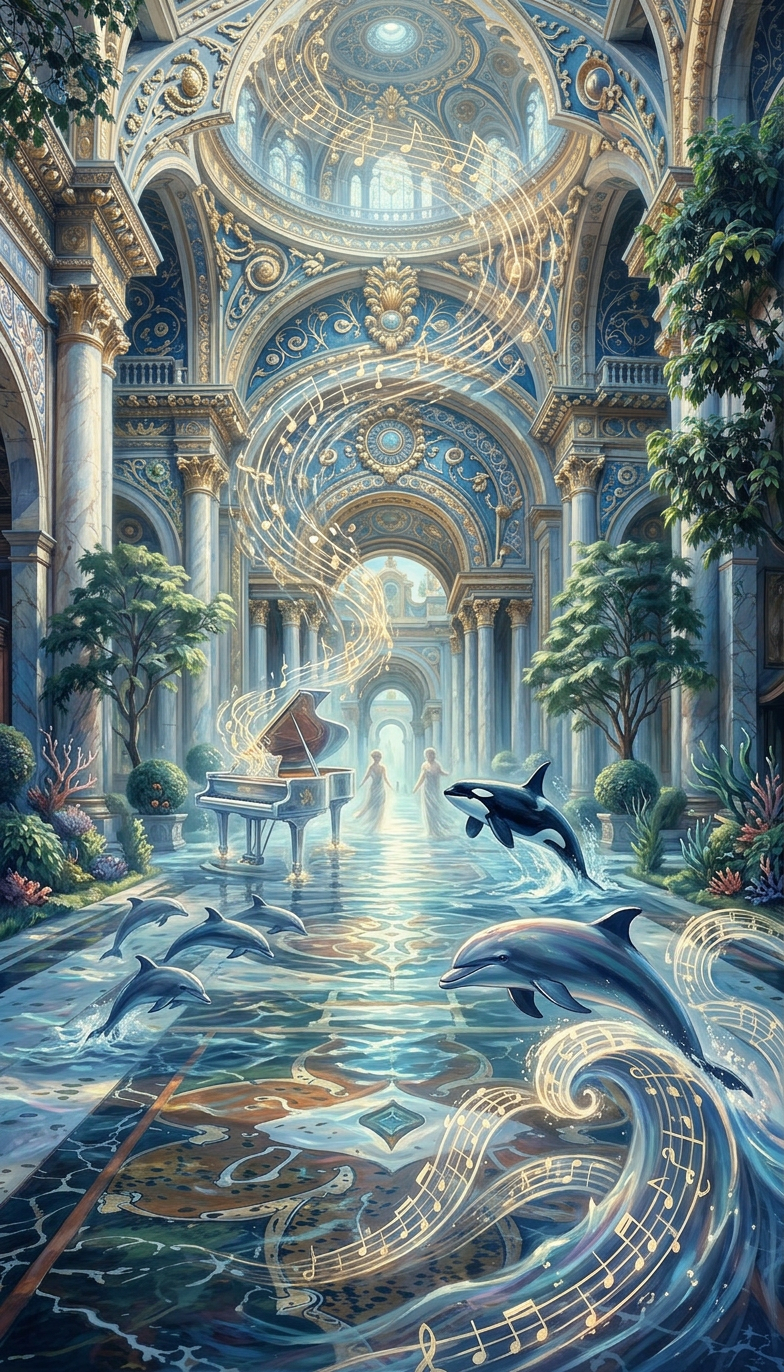
Chopin Surreal Ocean
- Model
- Nano Banana 2
- Image
- 784 × 1372 px
Prompt
Subject inspired by Chopin’s Fantaisie-Impromptu, Op. 66, visualized in a luminous, dreamlike painterly style; a grand piano and flowing musical notes dissolve into light as human figures fade away mid-scene; in their place, dolphins and killer whales emerge gracefully, leaping through waves formed from swirling sheet music and liquid melody; the environment shifts into a surreal oceanic dreamscape where music becomes water and motion; soft glowing highlights, fluid composition, and emotional, ethereal atmosphere blending classical elegance with surreal transformation.
Any aspect ratio
Overview
The Chopin Surreal Ocean template in our AI Image Editor suite offers the perfect blend of classical music inspiration and oceanic dreamscapes. Utilizing the nano-banana-2 model, it transforms ordinary visuals into extraordinary artworks filled with fluid compositions and emotional resonance.
What It Does
This template creates a visual symphony, capturing the essence of Chopin's Fantaisie-Impromptu by transforming it into a painterly oceanic scene. As musical notes dissolve, dolphins and killer whales leap through sheets of music, crafting a surreal marine world. With glowing highlights and an ethereal atmosphere, it offers a breathtaking visual experience.
Who It's For
This template is ideal for video artists, musicians, and marketers looking to create immersive, emotionally charged visuals. If you're working on a project needing a classical yet surreal aesthetic, this tool is perfect for creating content that captivates and mesmerizes audiences, from high-concept product launch videos to YouTube Shorts.
Summary
The Chopin Surreal Ocean template empowers users to create profoundly expressive visuals that merge musical elegance with surreal artistry. By employing this AI-powered tool, you can transform simple images into captivating dreamscapes that resonate emotionally, suitable for various creative applications.
How To
Choose Your Template

Customize Your Scene

Generate and Download

Use Cases
Music Videos
- Incorporate surreal visuals into classical music covers.
- Engage audiences with visually poetic content.
Art Installations
- Bring Chopin's music to life in a contemporary setting.
- Create immersive environments for art lovers.
Cinematic Experiences
- Develop surreal elements for a unique visual style.
- Enhance storytelling with emotional depth.
Best Practices
Focus on Detail
Pay attention to the subtle details of the transformation from musical elements to oceanic scenes for a more profound impact.Experiment with Composition
Try different angles and perspectives to amplify the surreal nature of the scene.Utilize Lighting
Employ soft, glowing highlights to accentuate the dreamlike quality and emotional nuances of your visuals.