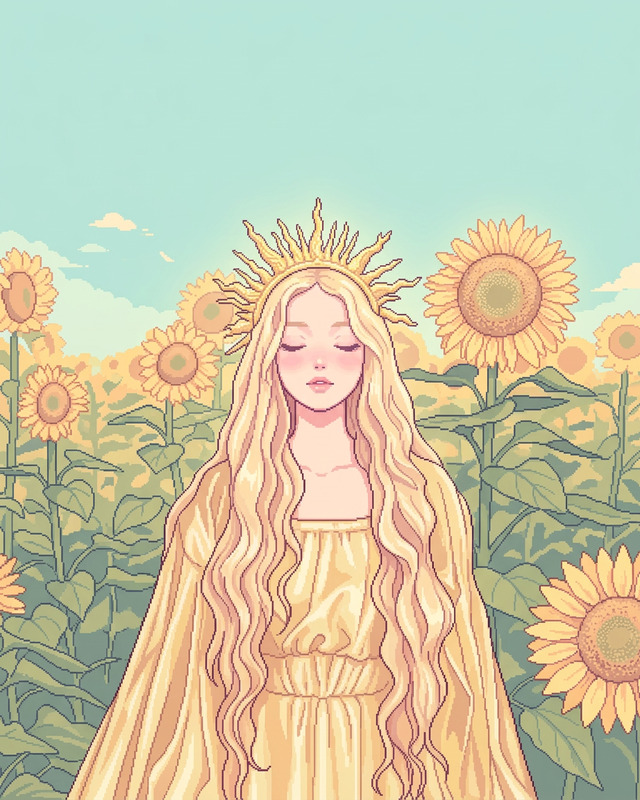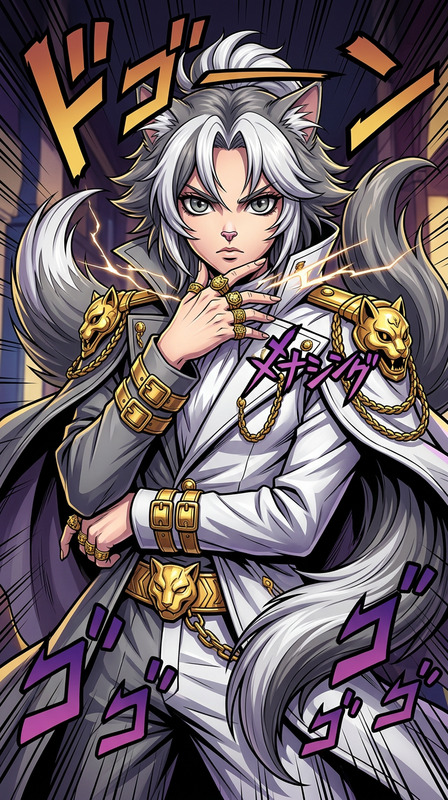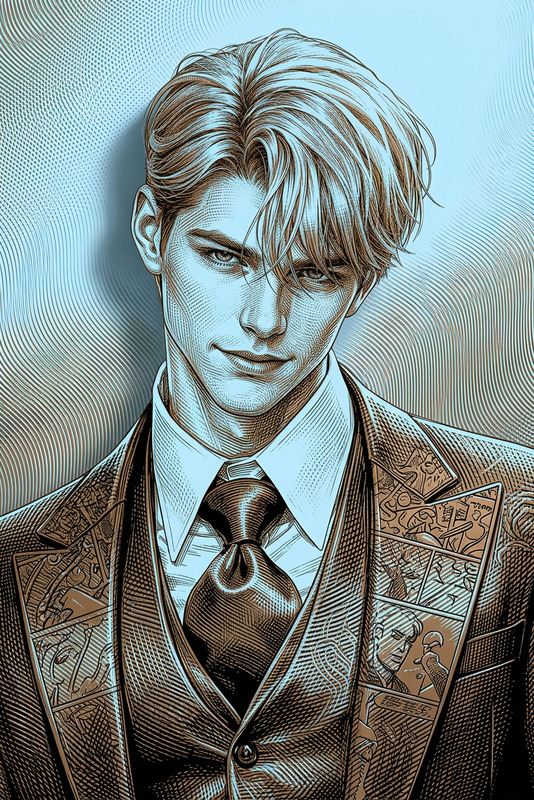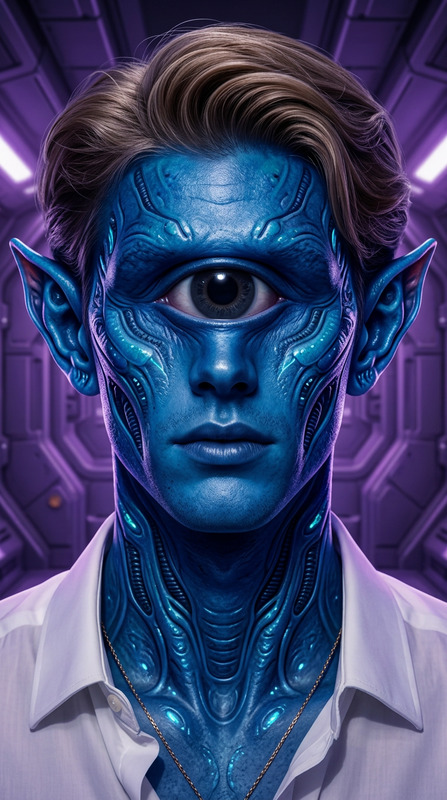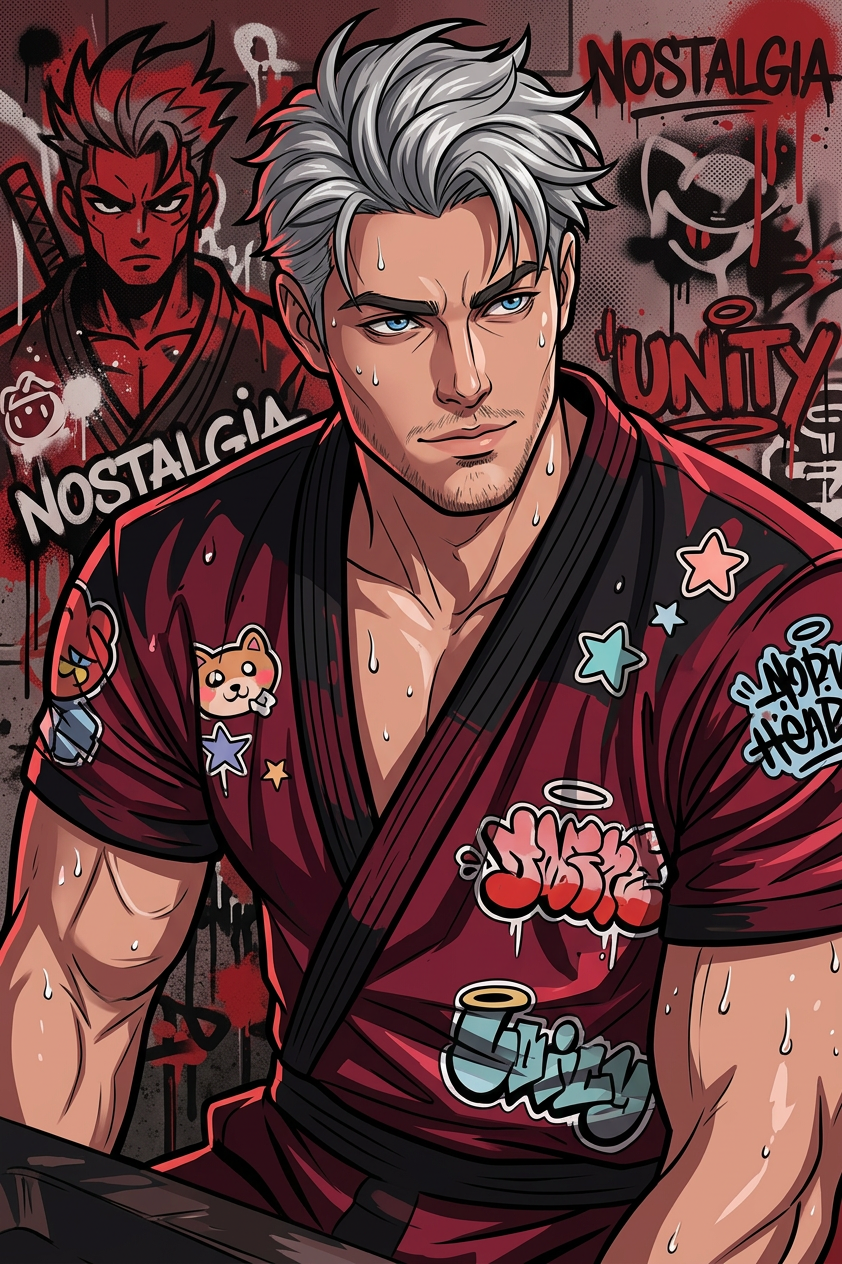
Street Art Anime Portrait

Street Art Anime Portrait

ai-image-editor

1 clip
1 uses

Any aspect ratio

Prompt

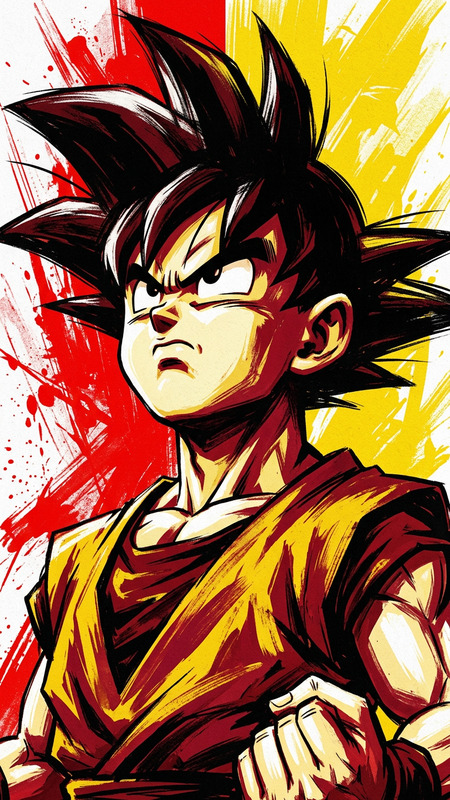
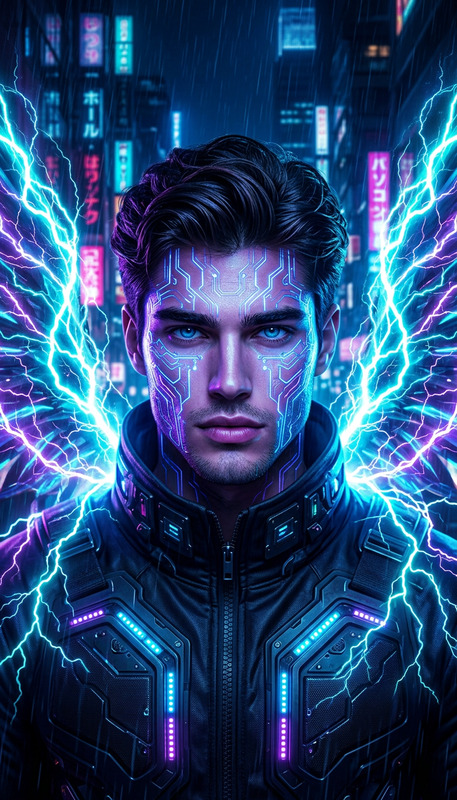
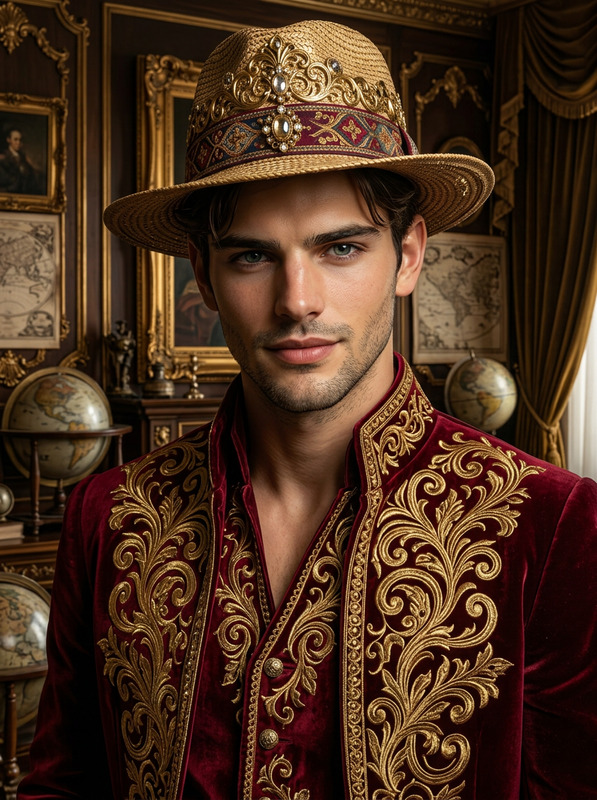
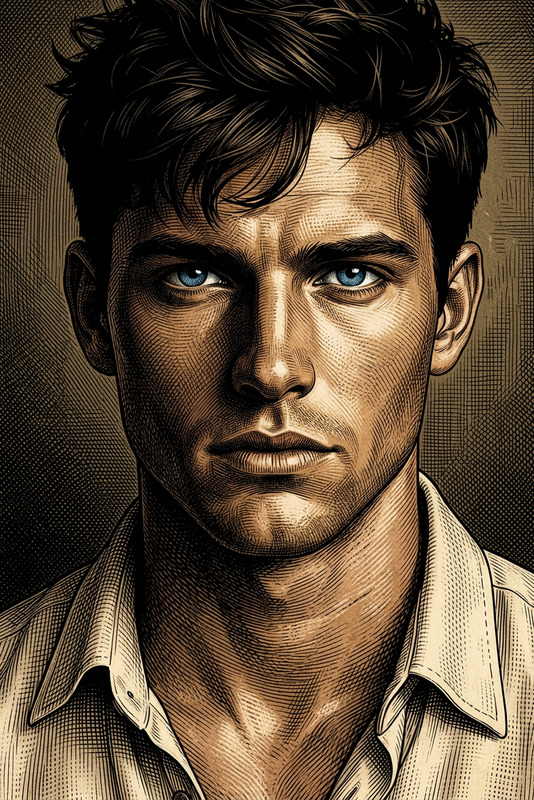
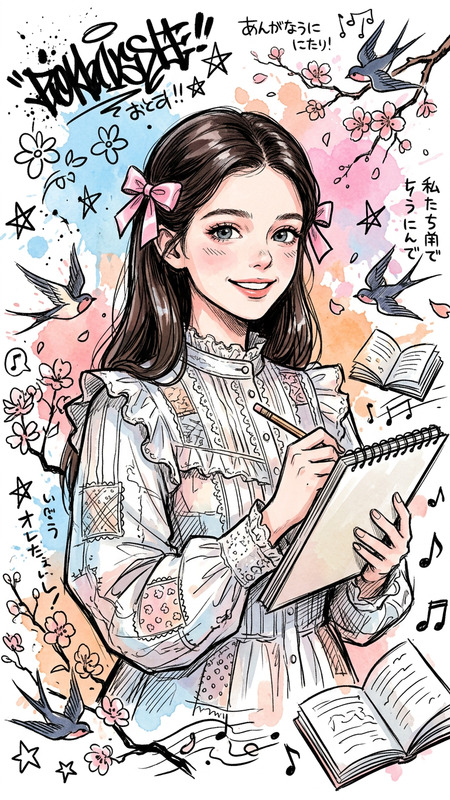
Generate a stylized anime-inspired portrait of a spiky-haired martial artist character in a street art aesthetic, blending photorealistic rendering with cute cartoon-like elements; the composition uses dominant dark red tones to create a nostalgic, playful atmosphere, combining graffiti textures and whimsical character motifs; the visual style merges anime energy with simplified cartoon forms, enhanced by bold outlines and creative distortions

AI Image Editor Template: Turn Any Image Into High-Impact Creative in Minutes

Use this AI Image Editor–powered template to transform, clean up, and reimagine your images directly in the browser. Whether you’re a marketer refining ads, a founder preparing a pitch deck, or a creator building content at scale, this template gives you a fast, repeatable workflow for high‑quality image editing with generative AI.


What You Can Do With This Template

This template is built on the AI Image Editor, so you can:

  • Remove or replace objects (products, people, backgrounds, logos)
  • Clean up images by erasing distractions, wires, trash, text, or blemishes
  • Extend or reframe a shot (e.g., horizontal social ads from a vertical photo)
  • Generate new visual variations of existing creatives for A/B testing
  • Localize visuals (swap languages on signs, adapt clothing, environments, or styles to new markets)
  • Polish brand assets (product photos, banners, thumbnails, hero images) without a traditional design tool

Under the hood, this workflow uses diffusion-based inpainting and outpainting, similar in principle to tools like Adobe Generative Fill or DALL·E’s inpainting, but optimized for speed and iteration in the browser. For background on generative inpainting, see research like “LaMa: Resolution-robust Large Mask Inpainting with Fourier Convolutions” (Suvorov et al., 2021) and “GLIDE: Towards Photorealistic Image Generation and Editing with Text-Guided Diffusion Models” (Nichol et al., 2021).


How to Remix This Template in Magic Hour

You can create your own version of this template by remixing it inside Magic Hour:

  1. Start from the template

    • Open this template in Magic Hour.
    • Upload a sample image similar to what you’ll use repeatedly (e.g., product-on-table, headshot, UI screenshot).
  2. Define your “default” edit pattern
    Think about the edit you want to run over and over:

    • Removing clutter from product photos
    • Replacing boring backgrounds with branded ones
    • Turning rough screenshots into polished marketing visuals
    • Cleaning up UGC (user-generated content) for ads or case studies
  3. Mark key regions for editing
    Use the AI Image Editor to:

    • Mask the region you want to change (object, background, clothing, etc.)
    • Describe what should replace it in clear, specific language (e.g., “soft gradient background in brand colors,” “modern office interior, natural light,” “clean white studio backdrop”).
    • Keep prompts consistent across your remix so results are uniform.
  4. Save your remix as a reusable workflow

    • Once you’re happy with the before/after flow, save it as a new template.
    • Reuse it for future uploads to keep your image style consistent across campaigns, pages, and platforms.
  5. Iterate quickly

    • Duplicate the template to create variants for different channels or markets (e.g., US vs. EU localization, different aspect ratios, different brand color stories).
    • Create separate remixes for:
      • Product shots
      • Profile/creator images
      • Social thumbnails
      • Blog/presentation illustrations

Because all edits are non-destructive, you can always go back and generate alternative options for the same region.


Practical Use Cases for Creators, Marketers, and Builders

For marketers & growth teams

  • Turn raw UGC or screenshots into polished ad creatives
  • Standardize product photos for landing pages and marketplaces
  • Create multiple visual variations for A/B testing without briefing a designer
  • Pair this template with:

For founders & startup builders

  • Quickly upgrade pitch deck visuals and website hero images
  • Clean up demo screenshots (remove sensitive data, messy tabs, or noisy UI)
  • Generate on-brand visuals without hiring a full-time designer
  • Combine this template with:

For creators & content teams

  • Remove unwanted objects or people from photos using Remove Object From Photo and finalize with this editor
  • Turn one session of photos into many content pieces by changing backgrounds, moods, or outfits with:
  • Prepare visual assets for:
    • Social campaigns
    • Newsletters
    • Patreon / member content
    • Course thumbnails and lesson visuals

Recommended Workflows With Other Magic Hour Tools

You can chain this template with other Magic Hour tools to build end‑to‑end visual pipelines:

  1. Generate → Edit → Upscale

  2. Photo Cleanup → Background Control

  3. Static Image → Motion

  4. Personalization & Faces


Tips for High-Quality AI Image Edits

  • Be specific in your instructions
    Instead of “nice background,” try: “soft studio lighting, neutral beige wall, subtle gradient, no furniture.” Text‑guided diffusion models perform best with detailed prompts; see OpenAI’s prompt engineering recommendations and Stability AI’s prompt guides for reference.

  • Think in constraints
    Describe what not to include: “no text, no logos, no people in background, no reflections.”

  • Keep consistency across a series
    Use the same descriptive language and editing pattern for all images in a campaign to maintain a coherent visual identity.

  • Start with the cleanest source possible
    Better inputs (sharp, well-lit images) yield better AI edits. If needed, use:


Advanced Creative Applications

If you’re building more experimental or branded visuals, you can remix this template into specialized workflows and pair it with:

For brand-heavy use cases (albums, covers, avatars, etc.), combine this template with:


Why Use an AI Image Editor Template Instead of Manual Tools?

Traditional editors (Photoshop, Figma, GIMP) give expert users deep control, but they are:

  • Time‑consuming for repetitive tasks
  • Hard to standardize across teams
  • Skill‑dependent (non-designers struggle to match results)

An AI Image Editor template in Magic Hour:

  • Encodes a repeatable editing system you can reuse and share
  • Lets non-designers run pro‑grade edits with a few instructions
  • Scales easily across campaigns and asset libraries
  • Integrates directly into AI-native video and audio workflows (e.g., Text to Video, AI Voice Generator, AI Voice Cloner, AI Voice Changer)

Getting Started

  1. Open this AI Image Editor template in Magic Hour.
  2. Upload a representative image (product, portrait, UI, scene).
  3. Define your “default” edit pattern (what you want this template to always do).
  4. Remix and save your version as a custom template for your team.
  5. Reuse it across campaigns, channels, and experiments.

If you need more specialized starting points, explore related templates like Face Swap Video, Lip Sync, Video to Video, and Animation, and pair them with this AI Image Editor workflow for full end‑to‑end creative pipelines.

More Like This

Insufficient credits