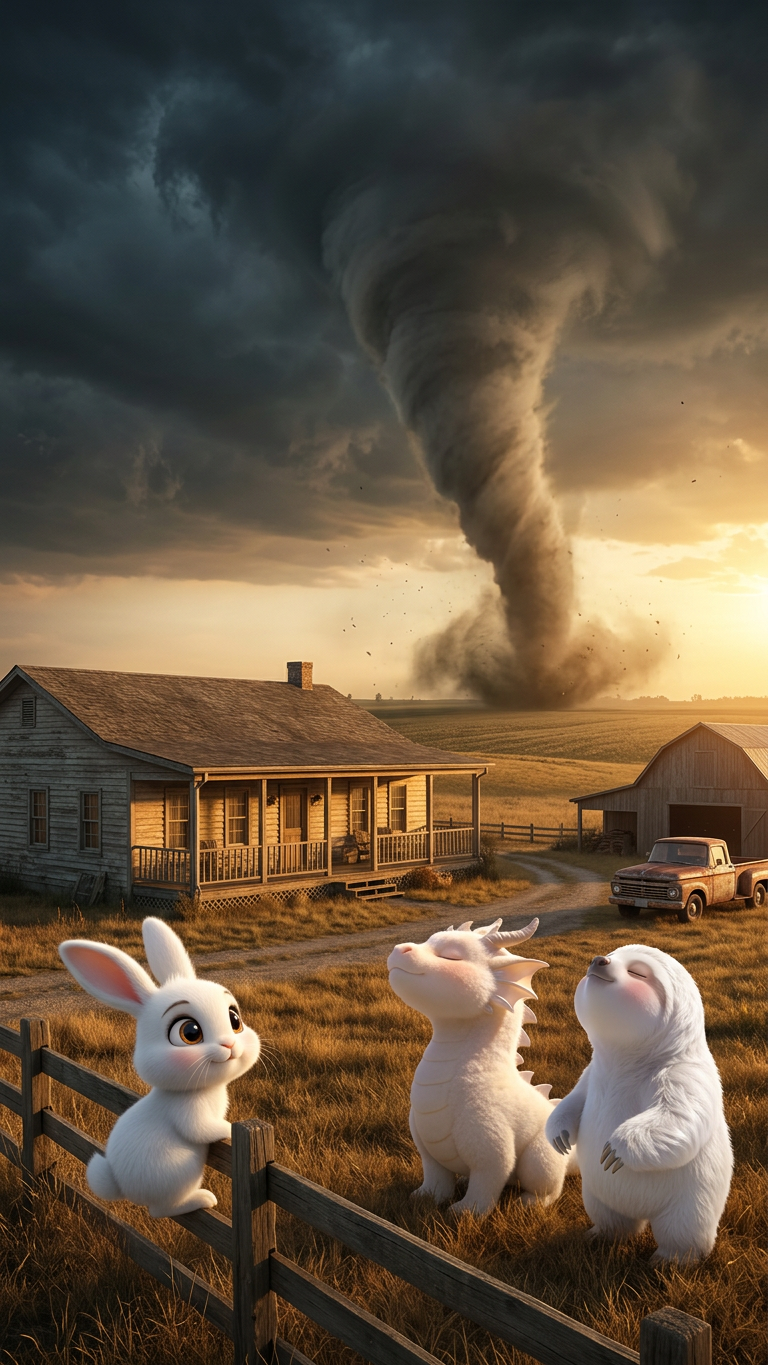
Golden Storm – Wild Intrusion
ai-image-editor
Any aspect ratio
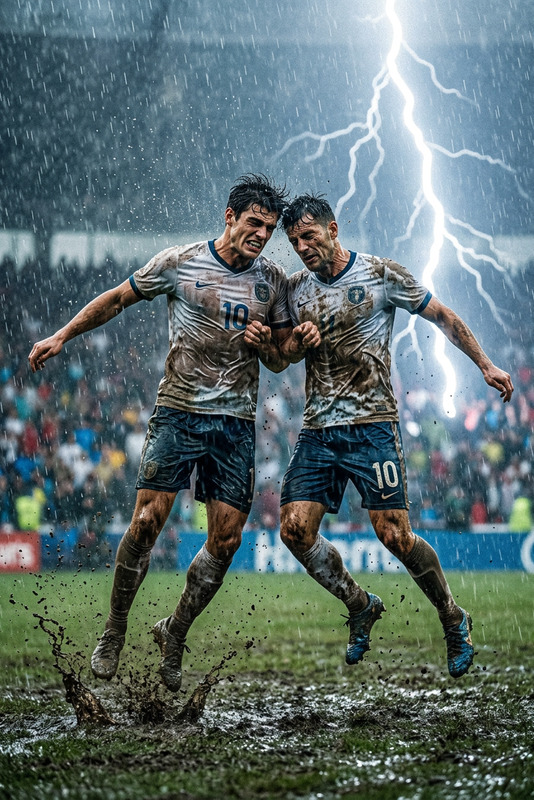
A surreal rural scene at golden hour, where warm sunlight contrasts with a dramatic storm-filled sky. A massive tornado with a visible funnel cloud touches down near a one-story ranch house. In the front yard, subjects stand calmly, creating a strange and unexpected juxtaposition. Cinematic composition, high contrast between warm light and dark storm clouds, moody atmosphere, ultra-detailed, photorealistic, 8K resolution.
AI Image Editor Template: Instantly Re‑Style Your Photos With Precision
Transform any image in seconds using this reusable AI Image Editor template. Whether you’re updating product shots, refining brand visuals, or rapidly iterating creative concepts, this template gives you a fast, repeatable workflow you can remix for your own projects in Magic Hour.
What This Template Does
This template is built on the AI Image Editor and is designed to help you:
- Replace or refine specific elements in a photo (clothes, backgrounds, props, lighting, etc.)
- Clean up images for marketing, social, and product pages
- Create multiple on-brand variations from a single source image
- Prepare assets for other Magic Hour tools (video, avatars, talking photos, etc.)
It’s ideal for:
- Creators and agencies producing content at scale
- Marketers testing visual variants for campaigns or landing pages
- Startup teams iterating quickly on brand look & feel
- Developers and technical users building internal workflows or prototypes
How to Remix This Template in Magic Hour
You can reproduce and customize this template in a few minutes. A typical remix flow looks like:
Open the AI Image Editor
Go to the AI Image Editor.Upload a Base Image
Use:- Product photos
- Portraits or headshots
- Lifestyle imagery
- Concept art or mockups
This template works best with clear subjects and decent resolution. If your source is low-quality, enhance it first with the AI Image Upscaler or Unblur Image.
Describe the Edit You Want
Use short, explicit instructions such as:- “Replace the background with a minimalist studio backdrop.”
- “Change the t‑shirt to a black, fitted, streetwear style.”
- “Clean up skin and lighting for a professional LinkedIn-style headshot.”
- “Turn this room into a modern Scandinavian interior with warm lighting.”
For complex scenes, separate changes into logical steps and iterate.
Refine and Iterate
- Generate multiple variations and compare.
- Keep the strongest version and continue editing from there.
- Use this edited image as a base for other tools like AI Talking Photo or Image to Video.
Save Your Own “Template” Workflow
To turn this into your own reusable template:- Keep a few “prompt recipes” (your best edit instructions) that you can copy/paste.
- Use consistent phrasing to maintain brand style across campaigns.
- Reuse the same base pose or layout, and only change key elements (clothes, background, palette, etc.).
Practical Use Cases for This Template
1. Marketing & Growth Teams
- Create on-brand visuals for landing pages, emails, and performance ads.
- Test background styles (studio, lifestyle, gradient, abstract) on the same product.
- Localize visuals for different markets (environments, cultural references, props).
Combine with:
- AI Image Generator to create initial concepts
- Thumbnail Maker for YouTube and social previews
- AI Meme Generator for fast social variants
2. Product & E‑Commerce Photography
- Replace low-quality backgrounds with clean, consistent studio shots.
- Generate lifestyle scenes around a product without reshooting.
- Standardize catalog images across a large SKU list.
Helpful tools to chain with:
- Image Background Remover for quick cutouts
- AI Background Generator to design on-brand scenes
- AI Clothes Changer for apparel variations
3. Creator & Personal Branding
- Clean up portraits for websites, newsletters, and social.
- Align visual style across LinkedIn, X/Twitter, and personal landing pages.
- Generate alternative outfits and aesthetics from one base photo.
For more specialized workflows:
- AI Headshot Generator for professional profiles
- Avatar Generator for stylized personas
- Gender Swap to explore alternative looks
4. Content, Comics, and Visual Storytelling
- Edit key frames or panels for comics, graphic novels, or storyboards.
- Adjust character outfits, lighting, and environments across a sequence.
- Clean up AI-generated art for publication.
Useful complementary tools:
5. Creative Experiments and Concept Design
- Explore alternate visual directions for brands, interfaces, or environments.
- Rapidly iterate on interior or architectural concepts.
- Produce mood boards and pitch visuals.
Try with:
- AI Interior Design Generator
- Architecture Generator
- AI Art Generator for initial explorations
Turning Edited Images Into Video, GIFs, and Interactive Assets
This template is a strong first step in a multi-stage pipeline. Once you get the image you want, you can send it through other Magic Hour products:
Animation & Character Motion
- Convert your edited character or scene into an animation template using Animation or Image to Video.
- Use Video to Video to stylize existing footage based on your edited image.
Talking & Lip-Synced Content
- Turn portraits into speaking avatars with AI Talking Photo.
- Add mouth motion synced to audio using the Lip Sync template.
- Clone a voice with AI Voice Cloner or generate one with AI Voice Generator.
Face & Identity Experiments
- Swap faces in GIFs with Face Swap GIF or in video using Face Swap Video.
- Use AI Face Editor and AI Face Generator to refine or create new identities.
Shareable Social Formats
- Turn images into short loops with the AI GIF Generator.
- Auto-caption your clips with the Auto Subtitle Generator.
- Create stylized QR entry points with the AI QR Code Generator.
Best Practices for Reliable, High-Quality Edits
Start with the Cleanest Possible Source
- Use sharp, well-lit images where the subject is clearly visible.
- If needed, restore or enhance old assets first with Old Photo Restoration or Photo Colorizer.
Be Specific, Not Vague
- “Make the background cleaner” is less effective than
“Replace the background with a plain white studio backdrop, soft shadows.” - Specify color, style, material, and mood where relevant.
- “Make the background cleaner” is less effective than
Control the Scope of Each Edit
- Focus on one or two elements at a time (background, clothing, lighting).
- Save intermediate versions frequently and branch your experiments.
Maintain Brand Consistency
- Reuse phrasing that encodes your brand’s style:
- “Minimalist, high-contrast, editorial”
- “Warm, natural light, lifestyle photography”
- Keep a library of your most effective prompts and sample outputs.
- Reuse phrasing that encodes your brand’s style:
Combine With Specialized Tools for Edge Cases
- Remove unwanted objects or distractions with AI Remover or Remove Object From Photo.
- Remove or adjust watermarks with the Watermark Remover.
- When scaling up, keep quality high with Video Upscaler and AI Image Upscaler.
Inspiration: Remix Paths You Can Try
Use this template as a base and experiment with different directions:
Stylized Portraits & Avatars
- Run a photo through the AI Image Editor, then stylize it further with:
Brand and Product Visuals
- Edit a product shot here, then generate matching:
Niche & Fandom Content
- Use edited images as a base for:
- Pokemon Generator variants
- DND AI Art Generator character sheets
- Fantasy Map Generator worldbuilding assets
- AI Tattoo Generator ink concepts
- Use edited images as a base for:
Fashion & Outfits
- Adjust garments and styles in place, then explore:
Why Use an AI Image Editor Template Instead of Starting From Scratch?
A structured template like this:
- Reduces trial-and-error and makes results more consistent across a team
- Lets non-designers iterate on visuals without needing deep technical skills
- Acts as documentation for your creative process (especially important for teams and agencies)
- Integrates cleanly into broader AI pipelines involving Text to Video, AI Voice Changer, AI Selfie Generator, and more
By remixing this template inside Magic Hour, you effectively build your own lightweight, AI-powered “design system” for images—fast enough for growth experiments, but consistent enough for production use.
Get Started
- Go to the AI Image Editor.
- Upload a representative image from your workflow.
- Apply the prompt patterns above and save the strongest outputs.
- Reuse those prompts and images as your personal or team template for all future edits.
This template is meant to be a starting point. The most valuable version will be the one you adapt to your own brand, product, and creative constraints—using Magic Hour as the underlying engine for rapid iteration.