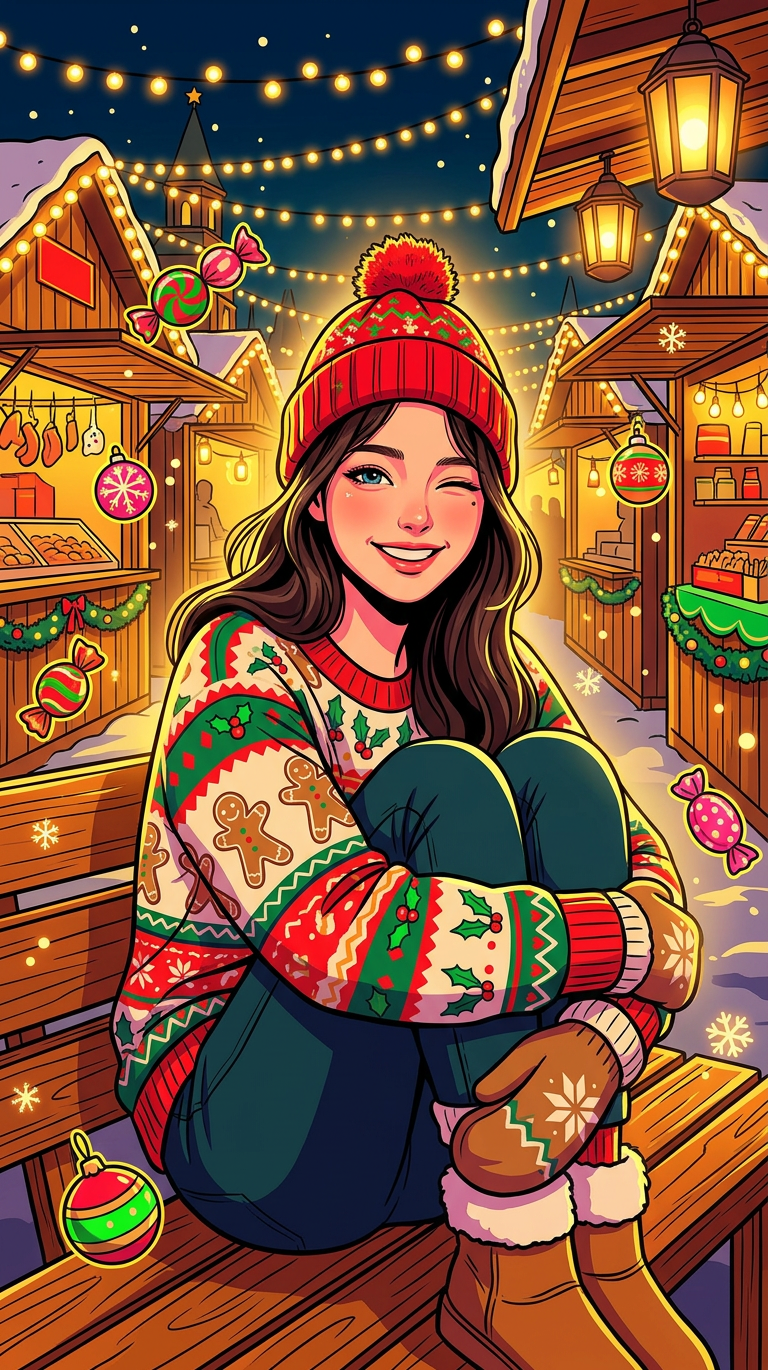
Neon Christmas Wink – Cozy Chaos

Neon Christmas Wink – Cozy Chaos

ai-image-editor

1 clip
2 uses

Any aspect ratio

Prompt

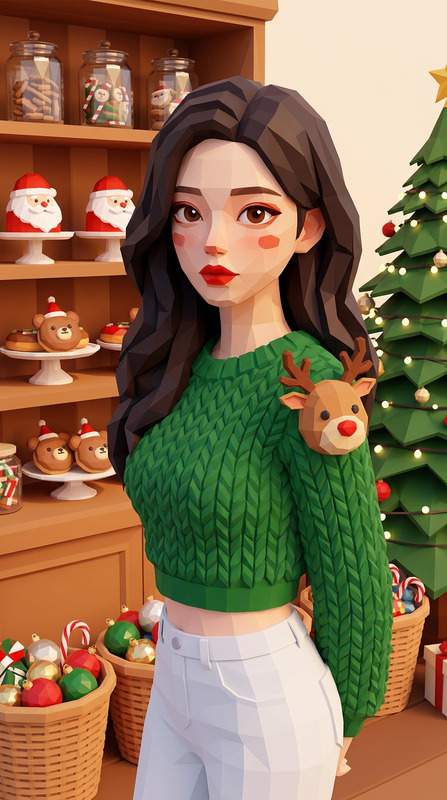
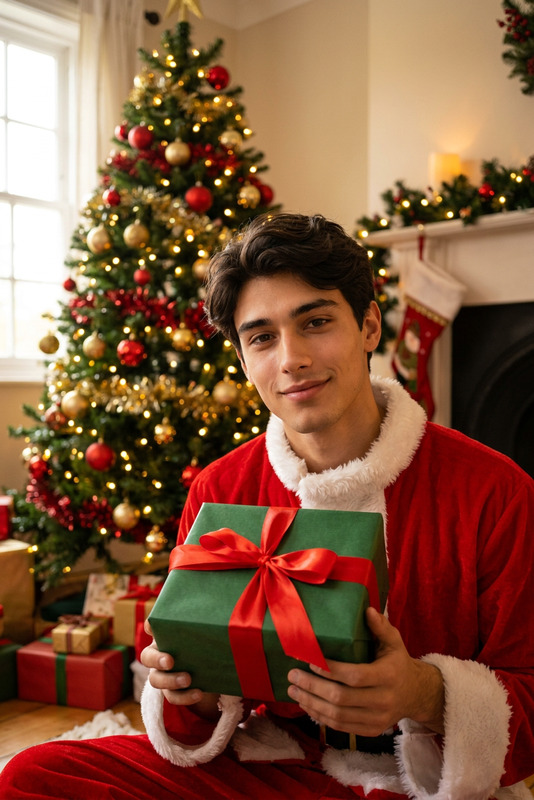
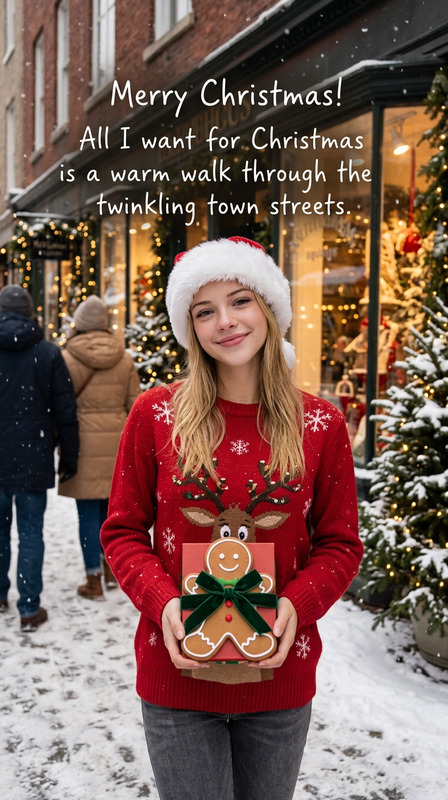
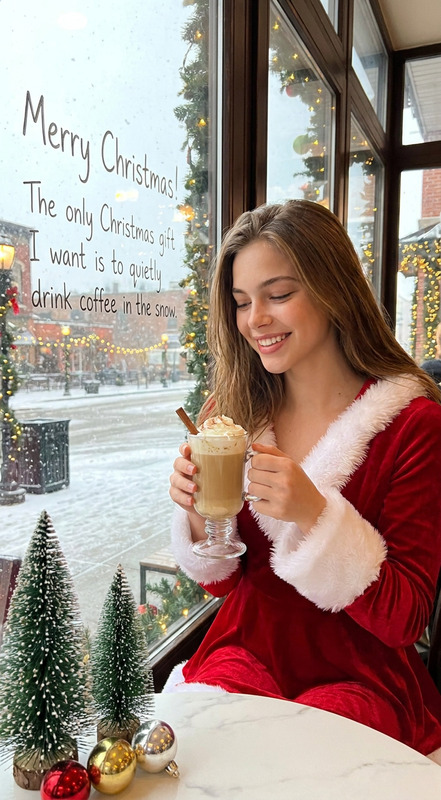
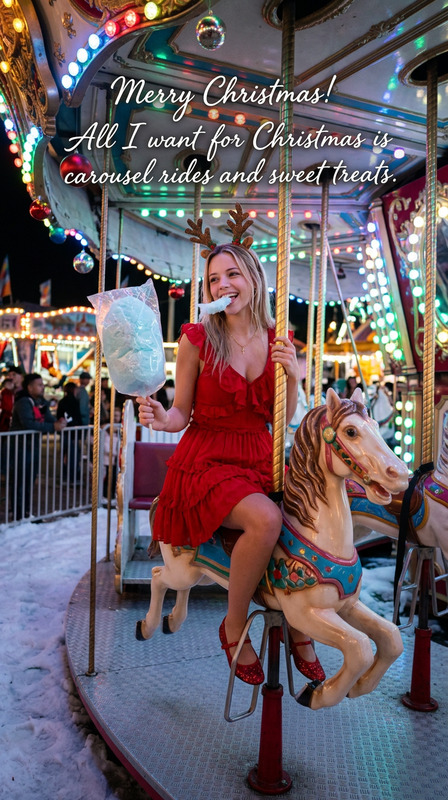
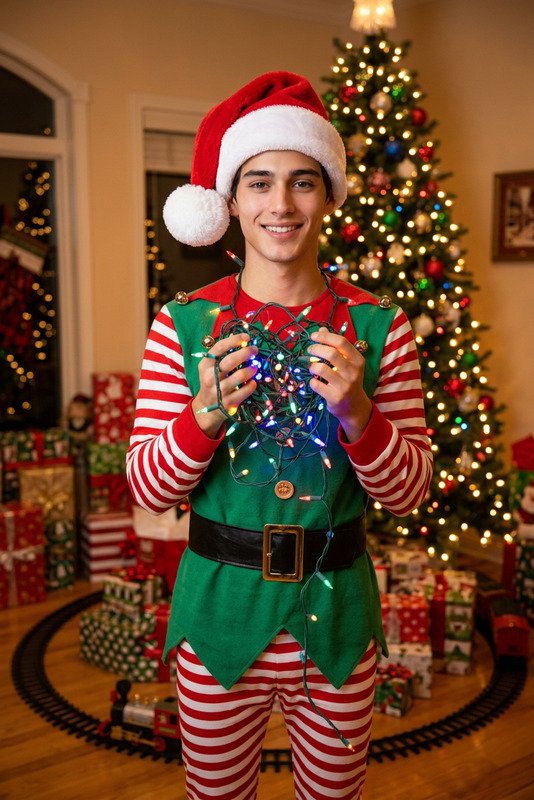
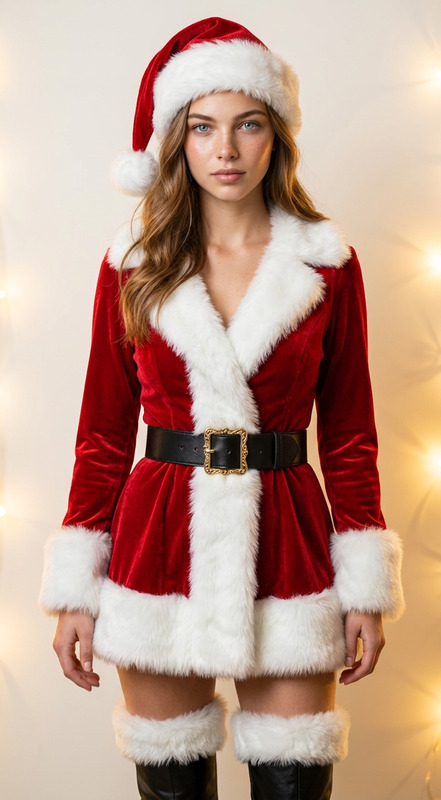
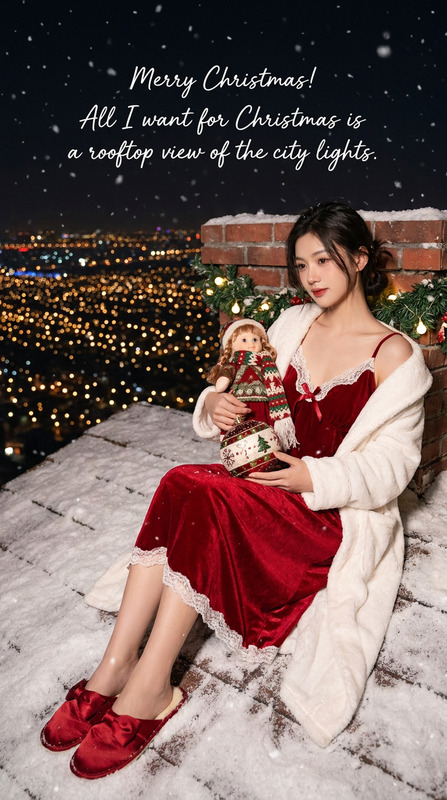
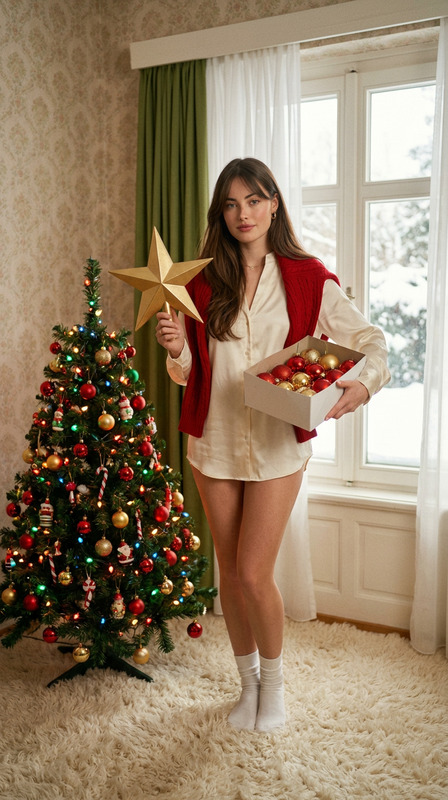
The subject from the reference photo , do not use any traits, gender, clothing, or body features from previous prompts. The subject is sitting on a wooden market bench with knees pulled up and arms wrapped around them, giving a cheerful wink. Set in an outdoor Christmas market with twinkle lights, wooden stalls, and warm hanging lanterns. Cozy, festive, romantic, slightly chaotic and playful holiday atmosphere. Winter outfit inspired by the reference, adapted for a Christmas market setting. Maximalist Christmas sweets-inspired pop art style with flat neon holiday colors (red, green, gold), bold graphic shapes, and surreal details. Low-to-mid angle, slight wide-angle composition with warm bloom, subject centered among glowing Christmas lights, illuminated by soft golden fairy-light glow.

Tags

styles

AI Image Editor Template: Turn Any Image Into a High‑Impact Visual in Minutes

This template was built with the AI Image Editor on Magic Hour. Use it as a starting point to quickly clean up, enhance, or completely transform your own images—then remix it into a custom workflow for your brand or project.


What This Template Is Best For

Use this template when you need to:

  • Upgrade existing photos without reshooting (social posts, ads, thumbnails, product shots)
  • Remove distractions or unwanted objects from an otherwise good image
  • Change backgrounds or environments to match a campaign or brand style
  • Convert rough concept art or screenshots into polished visuals
  • Create multiple variations of a single image for A/B testing

It’s especially useful for:

  • Marketers and growth teams creating ad creatives and landing page imagery
  • Creators, streamers, and YouTubers designing consistent thumbnails and channel art
  • Product teams and founders building pitch decks, app store screenshots, or hero images
  • Designers who want AI-assisted ideation while retaining creative control

How to Remix This Template in Magic Hour

You can create your own version of this template in a few minutes:

  1. Open AI Image Editor
    Go to the AI Image Editor.

  2. Upload Your Base Image
    Use any photo, screenshot, render, or sketch. This template works well with:

    • Product photos (with or without background)
    • Portraits and headshots
    • UI/UX mockups
    • Game or concept art
  3. Describe Your Desired Outcome
    In your edit prompt, be explicit about:

    • Goal – e.g., “high-conversion ecommerce hero image,” “YouTube thumbnail,” “LinkedIn banner,” “game key art”
    • Visual style – realistic, cinematic, anime, flat illustration, 3D, minimal, etc.
    • Brand tone – playful, premium, serious, technical, bold
    • Composition guidance – subject position, text space, focal point
    • Platform constraints – mention if it’s for Instagram, X, YouTube thumbnail, App Store, etc.
  4. Apply Local or Global Edits
    Use the AI Image Editor to:

  5. Generate Variations for Testing
    Once you have a result you like, quickly generate multiple variants:

    • Different backgrounds and color palettes
    • Alternate crops and compositions (room for text vs full bleed visuals)
    • Style variations (photo-real, illustrated, anime, comic, 3D) For more specialized variation generation, also explore the AI Photo Generator and AI Art Generator.
  6. Upscale, Polish, and Export


How This Template Was Built (So You Can Adapt It)

This template combines three common editing patterns that work well across use cases:

  1. Subject-Centric Composition

    • Keep the main subject (product, face, UI, or logo) clearly separated from the background.
    • Ensure there is clean space for copy, CTAs, or overlays if you plan to add text later.
    • For profile photos or avatars, pair this with the AI Headshot Generator or Avatar Generator to keep a consistent identity across platforms.
  2. Background as Brand Canvas

    • Design the background to communicate context and positioning (e.g., “enterprise SaaS,” “premium lifestyle,” “indie game,” “education”).
    • You can prototype backgrounds with:
    • Once you find a direction that works, bake the key stylistic cues (color, texture, lighting) into your prompt so future images are consistent.
  3. Style Systems, Not One-Offs
    Instead of thinking of this as a single image, think of it as a style system:


Example Workflows Built on This Template

You can remix this template into more advanced, multi-step workflows using other Magic Hour tools:

1. High-Conversion Product Visuals

  1. Start with a raw product photo in AI Image Editor.
  2. Remove the original background; generate 2–3 on-brand scene variations.
  3. Clean edges and sharpen details with AI Image Upscaler.
  4. Turn select angles into short product motion clips via Image to Video.
  5. Use Thumbnail Maker to prepare platform-specific creatives for YouTube, social, or marketplaces.

2. Creator / YouTube Thumbnail System

  1. Design a base thumbnail structure in AI Image Editor (host on one side, clean “text area” on the other).
  2. Generate a consistent face or avatar with the AI Selfie Generator or Avatar Generator.
  3. Use AI Meme Generator to test different reaction faces and visual metaphors.
  4. Save the strongest variation as your “thumbnail master.” Remix this template each time you launch a new video or campaign.

3. Game, Anime, or Fantasy Visuals

  1. Start from a basic character or world sketch and clean it in AI Image Editor.
  2. Explore stylizations with:
  3. Use AI Image Editor again to unify style, color grading, and composition.
  4. Turn key art into quick motion promos with Animation or Image to Video.

Connecting Edited Images to Video & Voice

Once you have polished images from this template, you can extend them into richer media:


Advanced Use Cases for Teams and Builders

This template is particularly effective for teams who need scalable, on-brand visuals:

  • Early-Stage Startups

  • Performance Marketing Teams

  • Product & Growth Designers

    • Build reusable visual systems for onboarding flows, in-product education, and release announcements. Use AI Illustration Generator for illustrative styles, and unify everything in AI Image Editor for final polish.

Tips for Better Results

  • Be specific and concrete in your prompts (subject, background, lighting, style, use case).
  • Reference real-world art directions where useful (“studio-lit ecommerce”, “Apple-style product render”, “Ghibli-inspired background”, “comic-book key art”).
  • Reuse successful prompts across projects to build a consistent brand look.
  • For faces and people, combine this template with Gender Swap, Full Body Generator, or AI Outfit Generator to explore options without additional photoshoots.

Start Remixing This Template

  1. Open the AI Image Editor.
  2. Upload an image that’s “almost there” but not yet usable in production.
  3. Use this template’s approach—clean subject, purposeful background, consistent style—to turn it into a polished, on-brand asset.
  4. Save your favorite outputs as your own internal template and keep remixing it for future campaigns, features, and launches.

More Like This