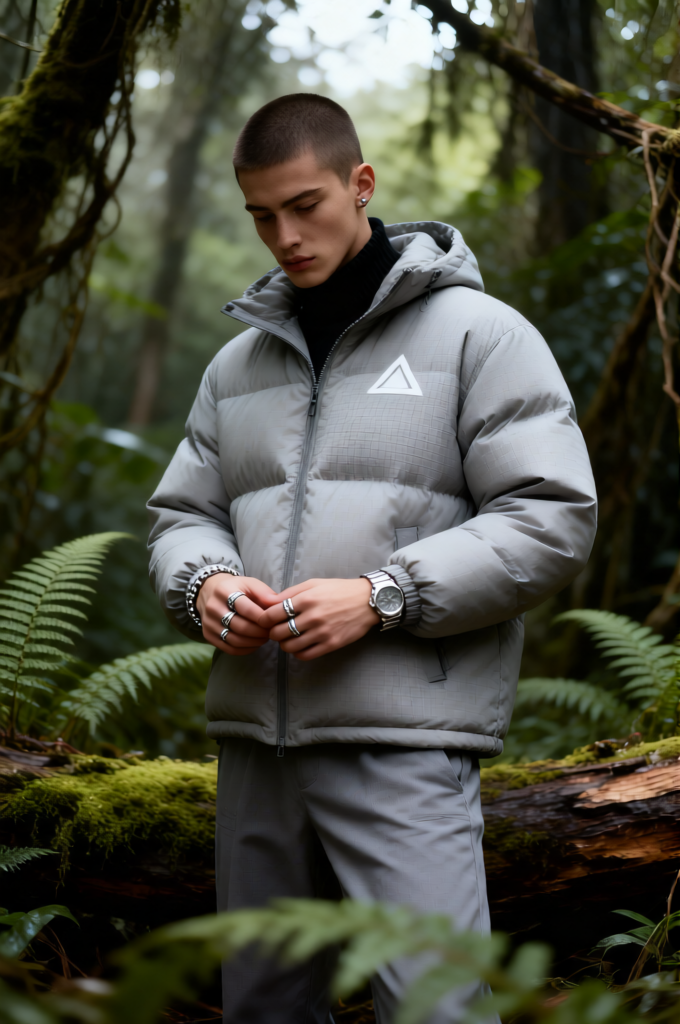
Rainforest Streetwear Editorial

Rainforest Streetwear Editorial

ai-image-editor

1 clip
5 uses

Any aspect ratio

Prompt

Moody high-end streetwear editorial of a subject standing knee-up in a dense, overgrown temperate rainforest. Subject has a short buzz cut, smooth skin, small silver stud earring, and a serious introspective expression looking down at their hands. Wearing a voluminous light grey technical puffer jacket with subtle grid ripstop texture and a white triangular chest logo, paired with matching grey technical trousers. Silver rings and a metallic watch/bracelet catch soft ambient light as the subject adjusts their cuff. Relaxed upright posture, hands at waist level, ignoring the camera. Dense rainforest environment with blurred ferns, moss-covered logs, and tangled branches, foreground foliage partially obscuring legs for depth. Telephoto medium shot (85–105mm), shallow depth of field, f/2.8. Soft diffused overcast lighting through canopy, no harsh shadows. Cool, damp atmosphere. Rich green and earthy tones contrasting neutral grey clothing. Photorealistic, cinematic fashion lookbook style, ultra-detailed fabrics, 8K.

AI Image Editor Template: Instantly Re‑Style & Enhance Any Image

Use this template to quickly transform, clean up, or restyle any image using the AI Image Editor. It’s built for creators, marketers, founders, and technical teams who need fast, high‑quality visuals without tedious manual editing.


What This Template Is For

This template is ideal when you want to:

  • Replace or remove objects in a photo (products, props, people, logos)
  • Clean up backgrounds, distractions, or unwanted text
  • Change clothing, accessories, or visual style in a portrait
  • Turn a basic photo into branded marketing creative or ad variations
  • Prepare assets for social, landing pages, or product launches
  • Create consistent visuals across campaigns and channels

Under the hood, this template uses the same core engine as the AI Image Editor, combined with Magic Hour’s broader visual tools like the AI Remover, AI Background Generator, and Image Background Remover.


How to Use or Remix This Template in Magic Hour

You can either use this template as‑is or clone the logic to build your own version. A practical workflow:

  1. Upload Your Base Image

    • Use any photo: product shots, portraits, UGC, screenshots, mockups.
    • For best results, start with a reasonably clear image (you can also improve low‑res assets with the AI Image Upscaler or Unblur Image).
  2. Describe the Edit in Plain Language

    • Be specific about what you want changed and what should stay the same.
    • Example prompts:
      • “Remove the background and replace it with a clean, light grey studio backdrop.”
      • “Change the t‑shirt to a black hoodie with minimal branding.”
      • “Remove the text on the wall and keep the brick texture.”
      • “Turn this casual office photo into a polished professional headshot, same person, more flattering lighting.”
  3. Refine & Iterate

    • Generate multiple versions and pick the one that best fits your use case.
    • If needed, re‑run with more precise instructions (e.g., “keep the same pose and face, only change the background to a modern office”).
  4. Remix for New Use Cases
    Start from this template and adapt it for:

    • Ad creatives: Re‑style backgrounds, colors, and props to test different angles.
    • Brand consistency: Align visual style with your palette and tone, then reuse the pattern.
    • Content series: Use similar prompts for a whole set of images to keep a consistent look.

All of this can be done directly in Magic Hour with the AI Image Editor.


Advanced Use Cases & Combinations

This template becomes much more powerful when combined with other Magic Hour tools:

1. Product & Ecommerce Visuals

  • Start with a simple product photo.
  • Use the AI Image Editor + AI Background Generator to:
    • Place your product into lifestyle scenes (home, office, outdoor).
    • Generate seasonal versions (holiday, summer, Black Friday).
  • Then upscale for marketplace or web with the AI Image Upscaler.

You can also create short product clips from your edited image using Image to Video.

2. Portraits, Headshots & Personal Branding

For more stylized portraits (anime, manga, character art), you can combine with:

3. Social Content & Creators

4. Branding, Design, and Marketing Assets

5. Creative & Niche Use Cases

If you’re building games, campaigns, or narrative products, combine this template with:

Use the AI Image Editor to refine compositions, remove artifacts, or harmonize style across all assets.


Typical Prompts That Work Well

You can adapt these directly in this template:

  • Cleanup & Removal

    • “Remove the person on the left, extend the background naturally.”
    • “Remove the logo on the shirt, keep the fabric texture consistent.”
    • “Erase the text on the sign and leave it blank.”
  • Background & Scene Changes

    • “Replace the background with a modern, minimal white studio look.”
    • “Place this person in a bright, open office environment.”
    • “Turn this indoor scene into a sunset outdoor rooftop.”
  • Style & Clothing Changes

    • “Change the outfit to a formal business suit, neutral colors.”
    • “Make the style look like a fashion editorial photo, softer lighting.”
    • “Turn this photo into a cyberpunk illustration with neon lights.”
  • Branding & Marketing

    • “Make this image look like a polished landing page hero image, with clean negative space on the right.”
    • “Adapt this photo into an Instagram‑ready square post, slightly brighter and more colorful.”
    • “Turn this flat product photo into a high‑end ecommerce product shot.”

How to Build Your Own Template from This One

To create your own version of this template inside Magic Hour:

  1. Start from this Template
    Use it as a base and simply change the default prompt text and example use cases.

  2. Specialize Around a Workflow

    • For example:
      • “Ecommerce product cleanup & background replacement”
      • “Founder LinkedIn headshot upgrade”
      • “YouTube thumbnail enhancement”
  3. Document Your Prompt Pattern

    • Save prompts that consistently work for your brand or product.
    • Turn them into reusable instructions so your team can get consistent results without prompt engineering each time.
  4. Combine with Other Magic Hour Products

This lets you turn a single edited image into a complete content pipeline: static asset → video → social cuts → ads.


Related Templates and Tools You Might Want

If you like this template, you’ll probably also use:


Best Practices for Reliable Results

  • Use clear, focused source images
    Good lighting and clear subjects typically generate more accurate edits.
  • Be explicit in your instructions
    Call out what must stay unchanged (faces, logos, objects) and what can change.
  • Iterate intentionally
    Save versions that work well and turn them into your own internal “mini‑templates.”
  • Respect rights and safety
    Only upload content you have rights to use and follow platform guidelines when editing faces, brands, or sensitive material.

Use this AI Image Editor template as your starting point for fast, repeatable, high‑quality image edits. Remix it, specialize it to your workflow, and connect it with other Magic Hour tools to build a full, automated visual pipeline for your product, brand, or creative projects.

More Like This