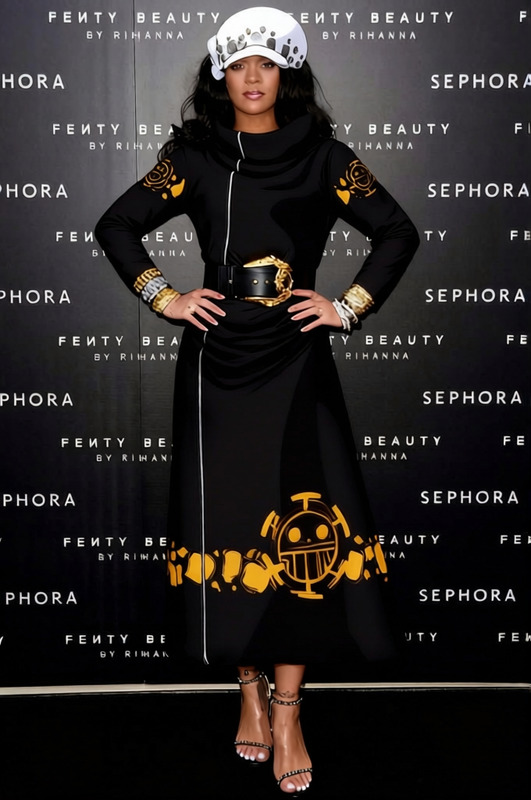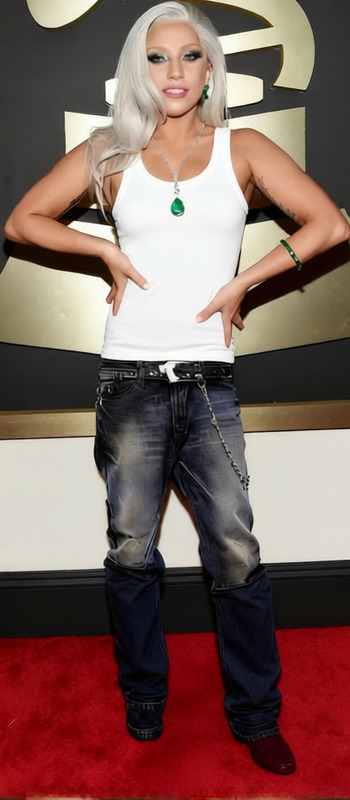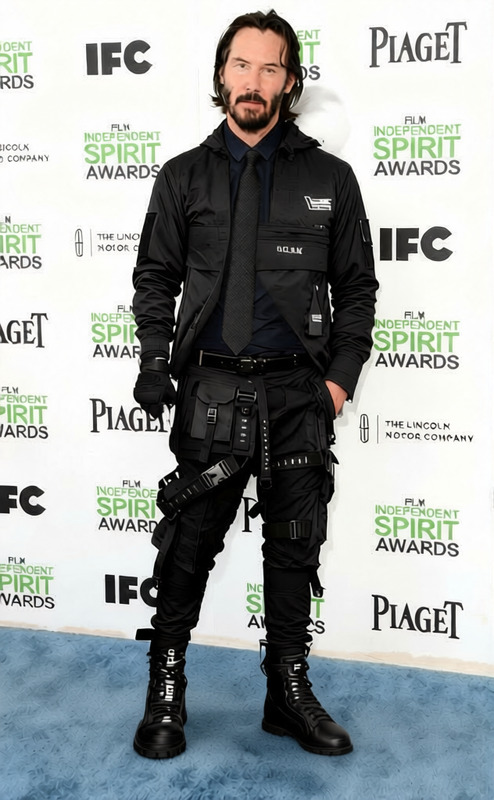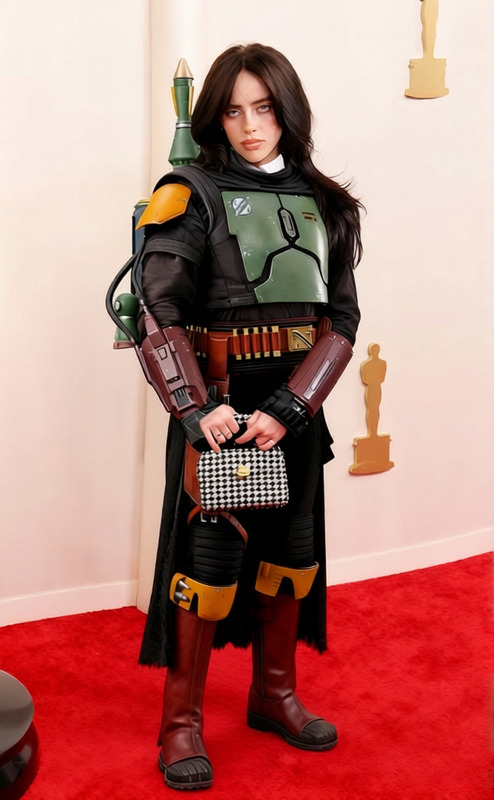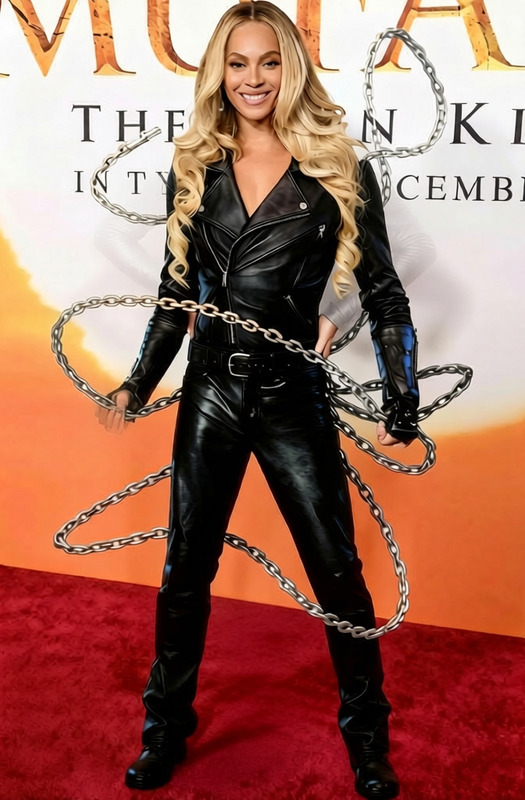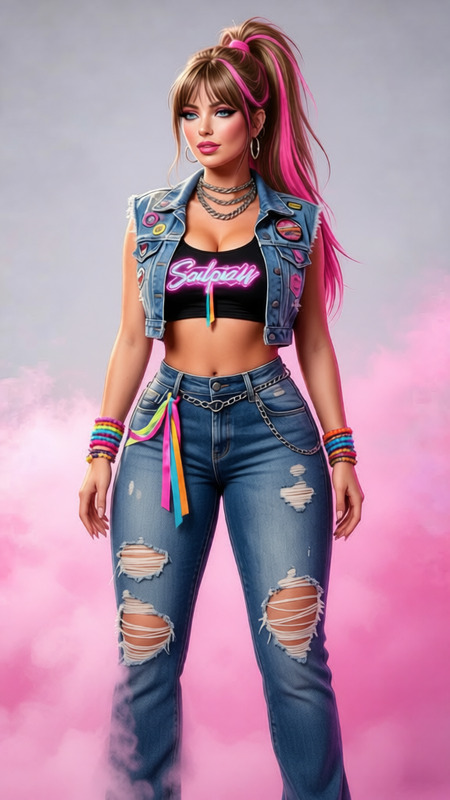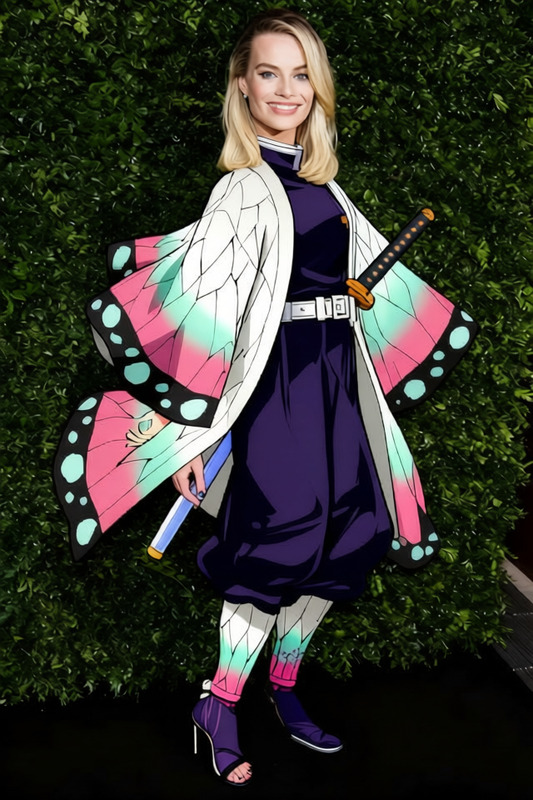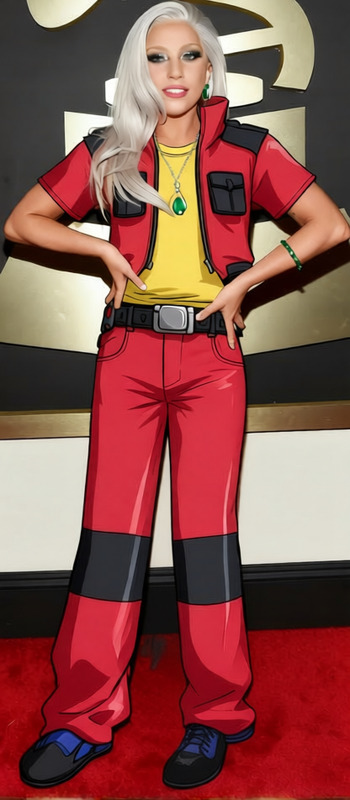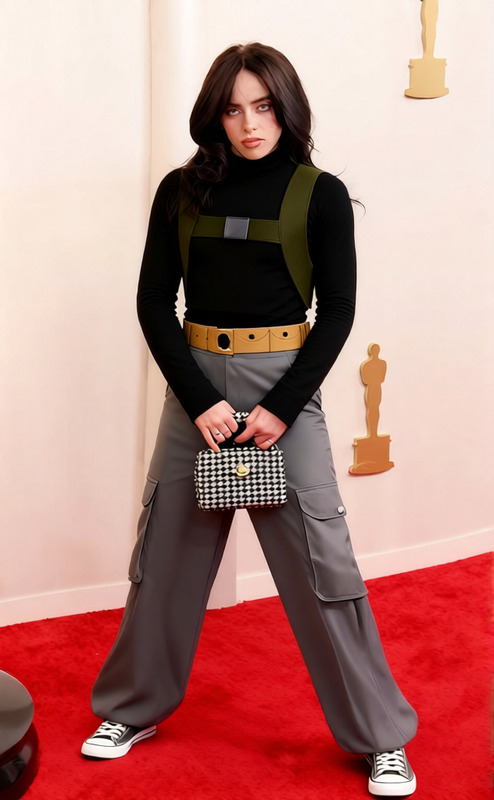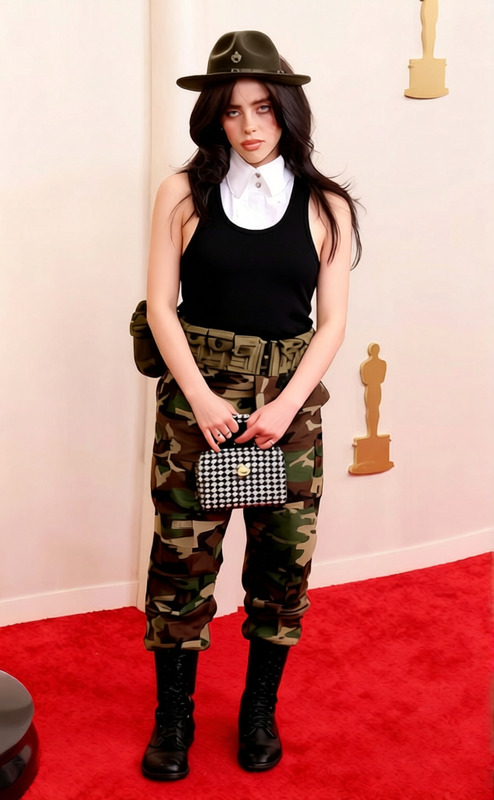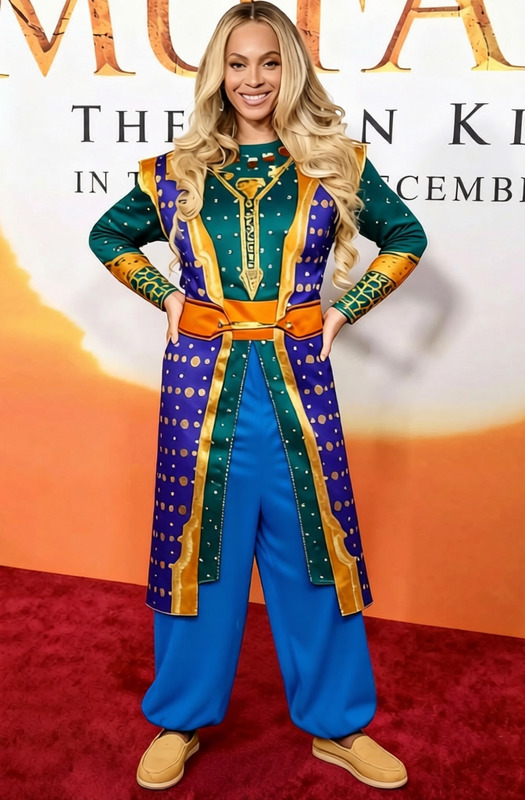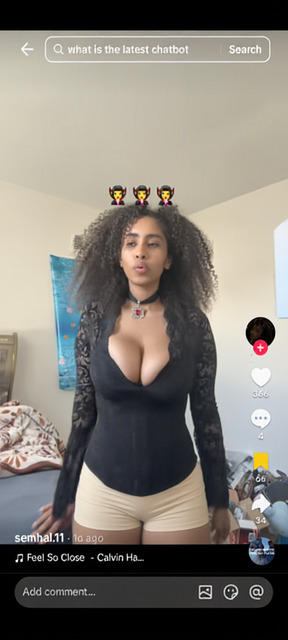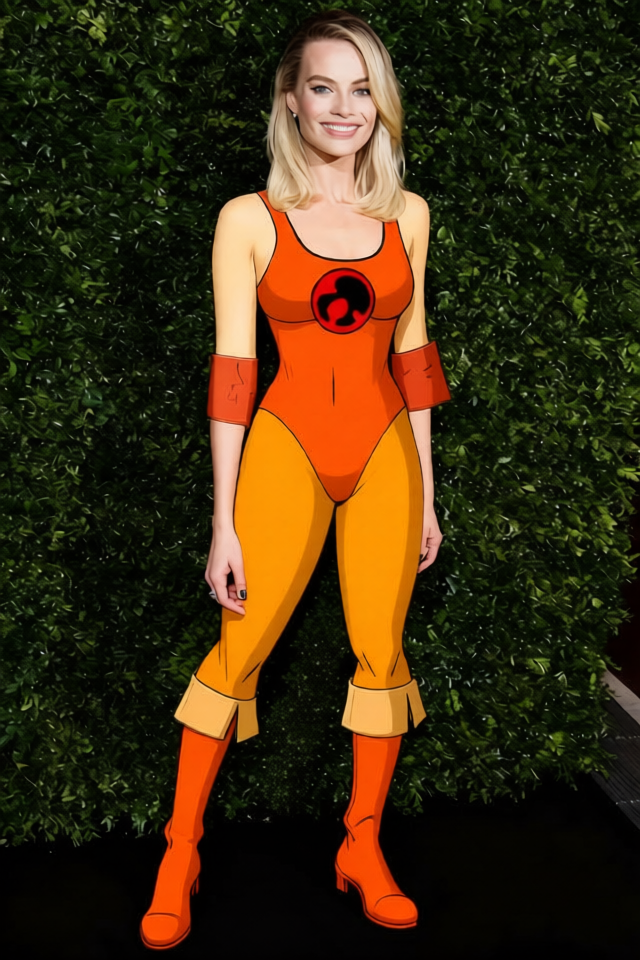
Cheetara - Yellow Bodysuit with Blue Accents
- Model
- Qwen Edit
- Image
- 640 × 960 px
Prompt
remove the leg in the middle and kep the rest the same
Any aspect ratio
Overview
The "Cheetara - Yellow Bodysuit with Blue Accents" template leverages the AI Image Editor to craft stunning visuals with the help of advanced AI technology. Whether you're working on creative design projects or personal art, this tool facilitates precise editing capabilities.
What It Does
This template uses the power of the AI Clothes Changer technology to modify images by removing unwanted elements without disrupting the cohesive appearance of your design. With the specialized prompt, you can easily remove specific parts like a leg in an image, retaining the balance and aesthetics of the remaining elements.
Who It's For
This template is ideal for designers, digital artists, and anyone in creative industries looking for precise image editing features. It’s suitable for those who need to alter clothing in images or remove distracting elements, providing a consistent look across their projects.
Summary
Utilize the "Cheetara" template to achieve refined image edits that maintain artistic integrity. It's perfect for scenarios where detailed clothing adjustments or element removal in images is needed. Pair it with the AI Image Upscaler for pristine image quality.
How to Use
Choose Your Template

Customize Your Image

Generate and Download

Use Cases
Fashion Design
- Alter garment appearance while keeping design integrity.
- Remove unwanted elements from fashion shoots.
Digital Art
- Remove distractions for clear focal points.
- Retain artistic composition while editing.
Marketing Materials
- Ensure consistency across marketing visuals.
- Quickly adapt images for various campaigns.
Best Practices
Select High-Quality Images
Start with high-resolution images to maintain quality after editing.Use Specific Prompts
Clearly define what elements to remove or adjust to ensure precision.Review Edits
Assess the final output to ensure it aligns with your intended design goals.
Frequently asked questions
More Like This