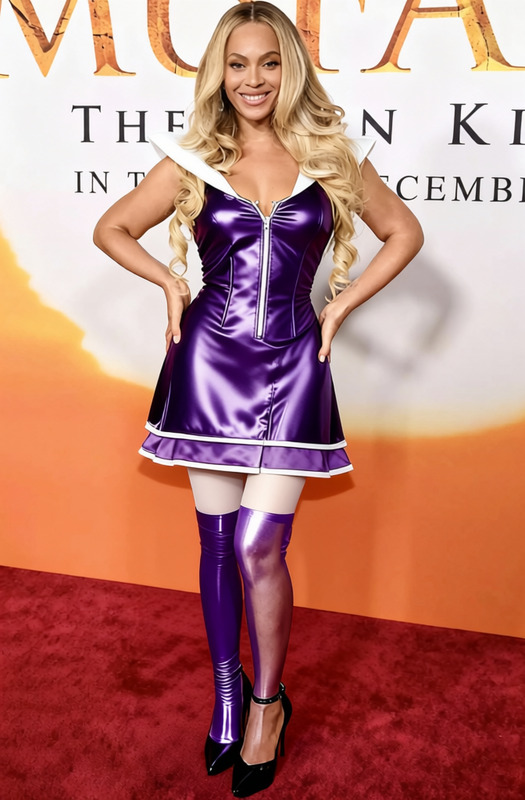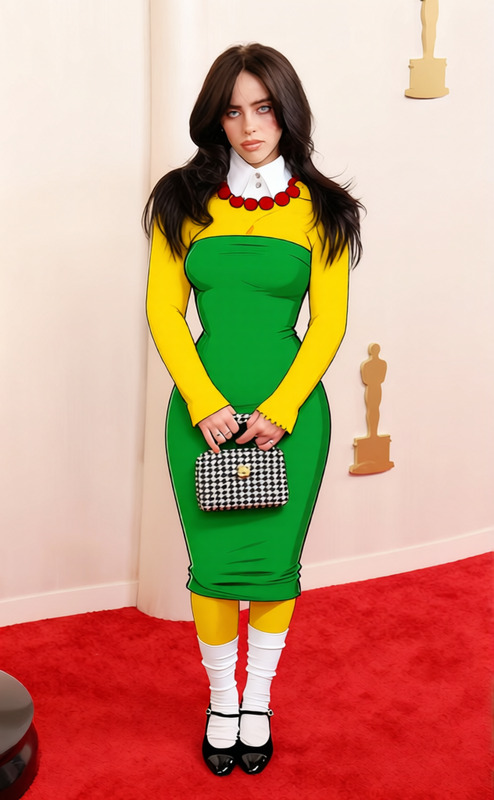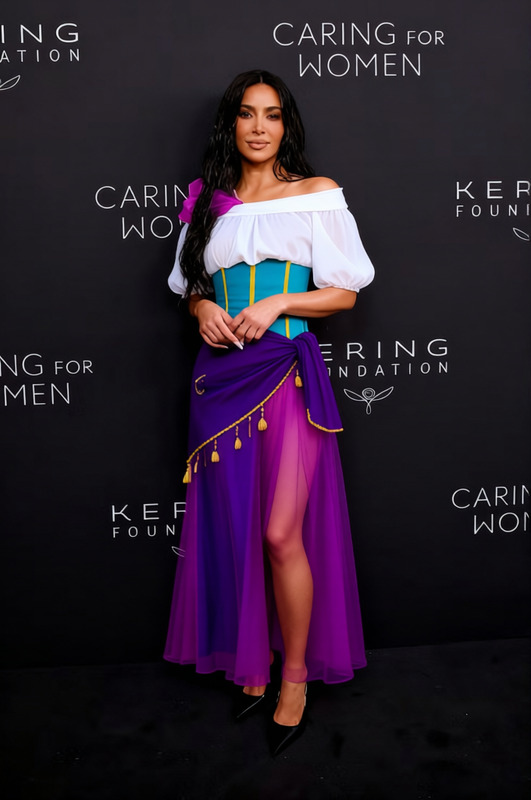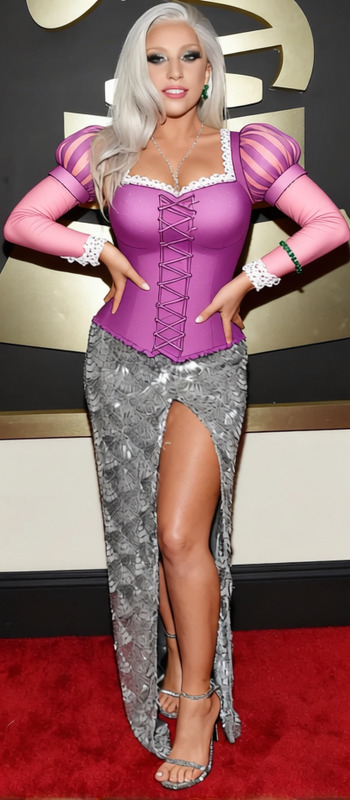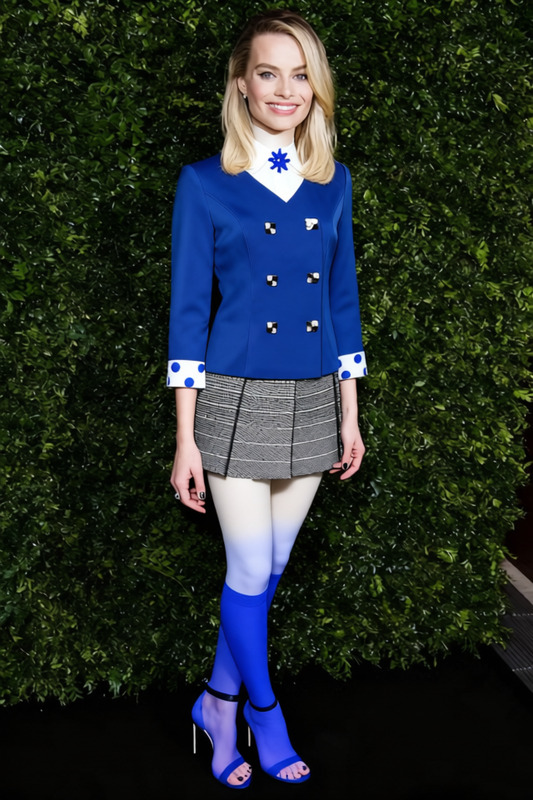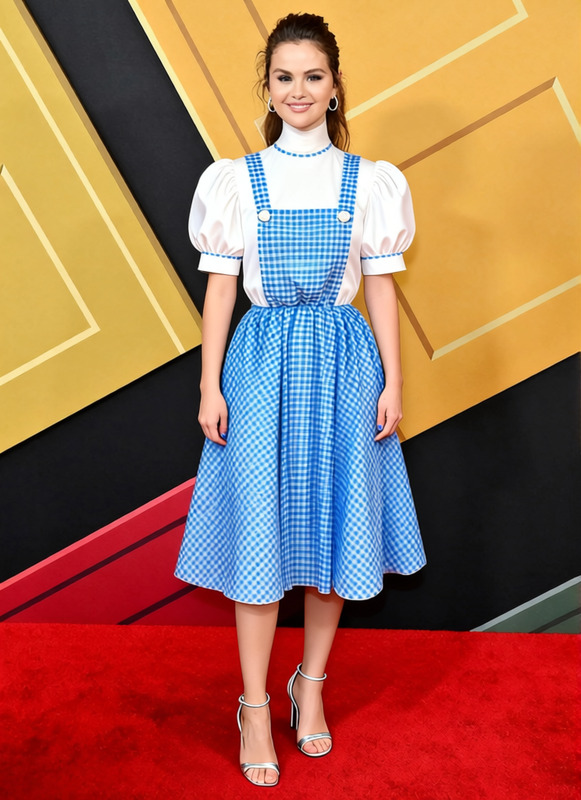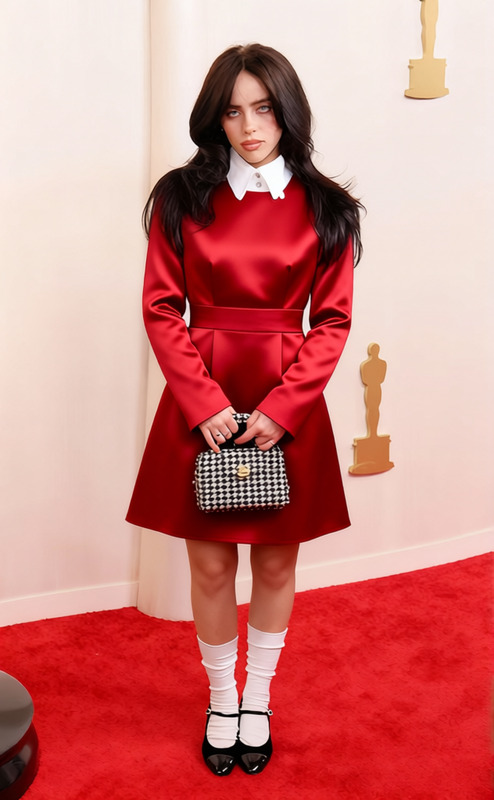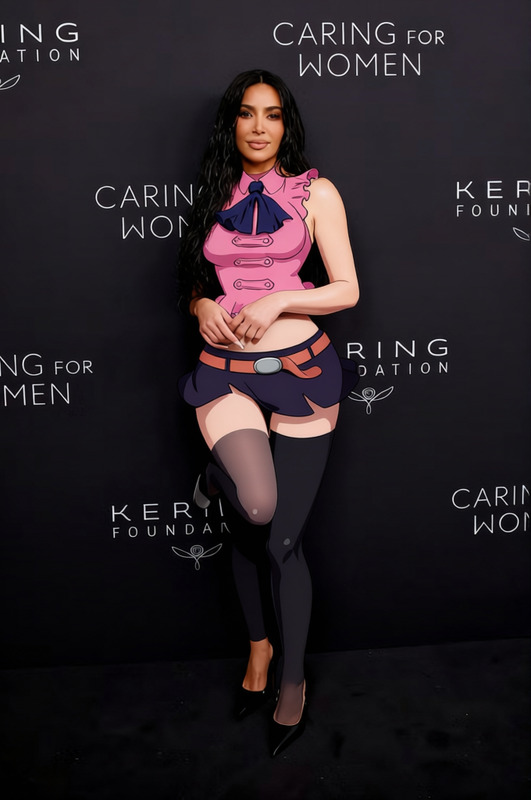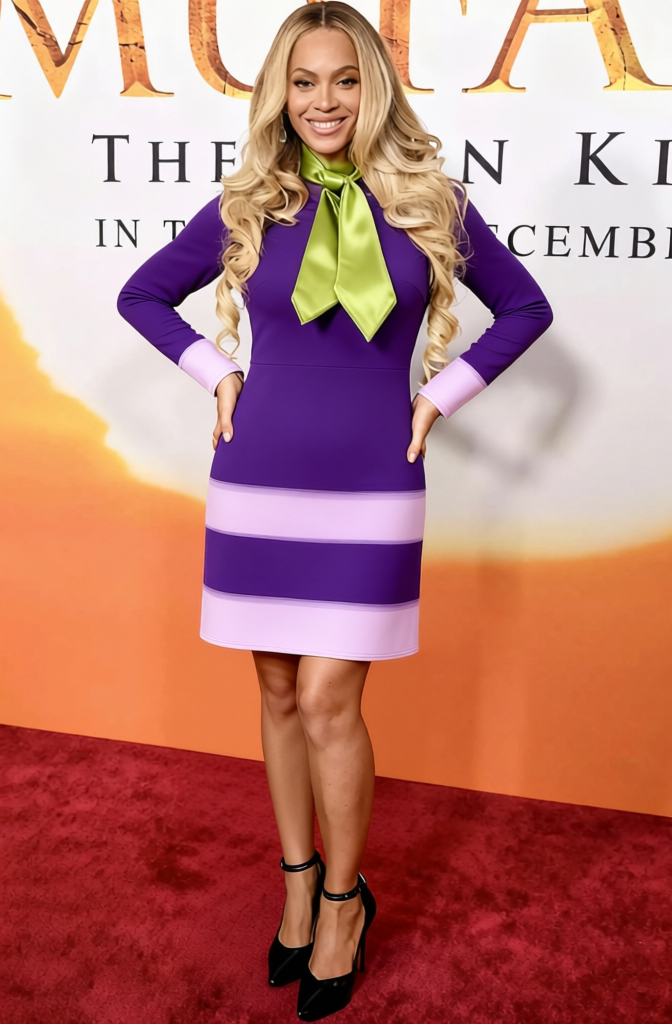
Daphne Blake Purple Dress With Green Scarf
- Image
- 672 × 1024 px
Any aspect ratio
Overview
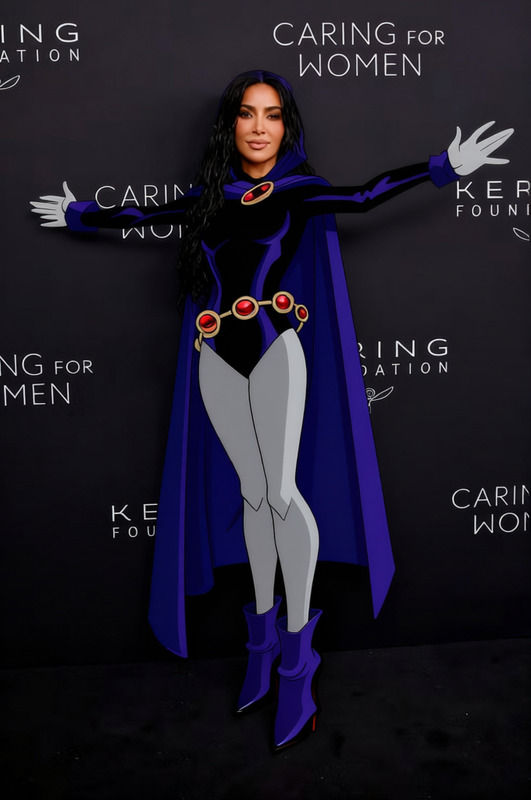
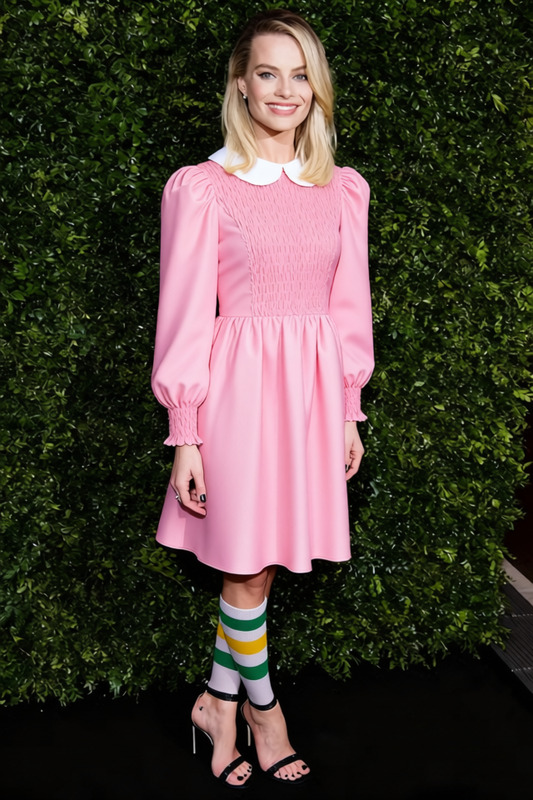
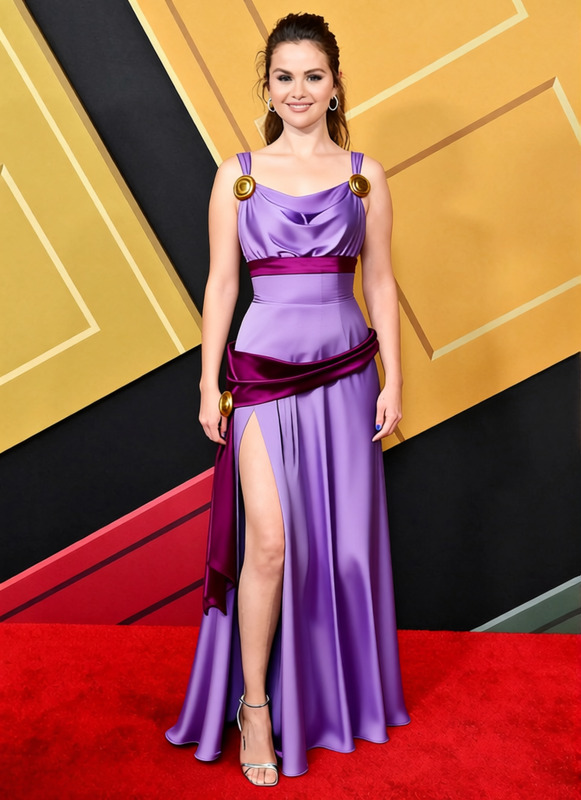
This template lets you transform any character into the iconic Daphne Blake wearing a purple dress with a green scarf. It's perfect for creating character-themed visuals or adding a playful twist to your media content.
What It Does
The AI Clothes Changer template takes a given image and modifies the clothing to match the classic look of Daphne Blake. It focuses on retaining the style and fit of the dress and scarf while ensuring realistic texture and color in the context of the image.
Who It's For
This template is ideal for content creators, graphic designers, and cosplay enthusiasts who want to explore different character looks quickly. Whether you're creating fan art or marketing visuals, this tool saves time and effort.
Summary
Utilizing the AI Image Editor, this template transforms images by changing character outfits, using advanced technology to maintain high-quality visuals. Perfect for a variety of creative projects, from marketing to personal art.
How To Use
Select Template

Modify Inputs

Generate Output

Use Cases
Marketing Campaigns
- Eye-catching character art
- Increase engagement with thematic content
Social Media Content
- Improve post reach
- Engage wider audiences
Fan Art Projects
- Quick generation of ideas
- High-quality results for sharing
Best Practices
Choose High-Quality Images
Start with clear and well-lit images for the best transformation results.Consider Contextual Elements
Make sure the background and lighting in your original image match the desired outcome.Experiment with Styles
Try different style settings in the AI Image Generator to find the right look for your project.
Frequently asked questions
More Like This