Magic Hour Changelog: 2026
November 2026
Use Your Original Audio with Wan 3.0
Wan 3.0 is now available in Talking Photo and Audio-to-Video. Add a photo and a recording, then choose a 6- to 10-second section to animate at 720p. The export keeps that section of your original recording as its soundtrack.
Use Talking Photo to animate a portrait with your own voice, or open Audio-to-Video to guide the motion with a photo and a clip of your recording.
Try Wan 3.0 in Audio-to-Video
Choose Wan 3.0 and add a photo and audio.
Choose Which Part of a Song to Preview
The free Music Video Generator now lets you choose any five seconds of your song for a preview. It used to start at the beginning of the track.
Upload a song and drag the highlighted range to the part you want, such as the chorus. The free preview is 480p.

Try the Free Music Video Preview
Upload your song and choose the section to preview.
Write Longer Prompts for LTX 2.5 and Seedance
In the dashboard, Text-to-Video and Image-to-Video now accept up to 4,000 characters for LTX 2.5, Seedance 2.0 and Seedance 2.5, up from 2,000. LTX 2.5 also supports the higher limit in both API endpoints.
Use the extra space to describe the order of actions, camera moves, and details you want to keep consistent across a clip.
Try a Longer Video Prompt
Open Text-to-Video with LTX 2.5 selected.
Nano Banana 2 Is Now Nano Banana 2.1 in Magic Hour
Nano Banana 2 has been retired as a separate option in Magic Hour. New image generations and edits that previously used Nano Banana 2 now run on Nano Banana 2.1.
Existing Image Generator and Image Editor API integrations can keep sending the old model value. If you are updating your integration, use nano-banana-2.1 to make the model explicit.
View Nano Banana 2.1
See the model for image generation and editing.
Generate and Edit Images with Seedream 5 Flash
Seedream 5 Flash is now available on paid plans in AI Image Generator and AI Image Editor. Generate images from a prompt or edit an image using additional images as references. Outputs go up to 2K.
Seedream 5 Flash is also available through the Image Generator and Image Editor APIs. Set model to seedream-v5-flash.
Use it when you want to try several concepts before refining one. You can generate up to four images at a time in AI Image Generator, then open your favorite in AI Image Editor and use another image to guide the edit.
Prompt used for the example below: “Triptych of a ceramic coffee mug: a close-up of the handle, the mug on a breakfast table, and the mug held in two hands, consistent warm style”.

Try Seedream 5 Flash
Choose Seedream 5 Flash and describe the image you want.
Edit Videos with Kling 4.0 in the API
Kling 4.0 is now available to paid users of the AI Video Editor API. Set the model to kling-4.0 to edit 3- to 30-second clips at 720p or 1080p.
Send the source clip and describe what you want to change. You can also attach named image references and mention them with @name in your prompt.
View the Video Editor API Docs
See the request fields for Kling 4.0.
Use Google Omni 1.2 in the Video API
Google Omni 1.2 is available in the Image-to-Video and AI Video Editor API endpoints. Use model gemini-omni-1.2 for clips from 3 to 15 seconds.
In Image-to-Video, set audio to false when you want a silent clip for a separate soundtrack. For example, animate a product photo and add the narration later.
View the Image-to-Video API Docs
See the model and audio request fields.
Create Longer Videos with Google Omni 1.2
Google Omni 1.2 replaces 1.1 in the web app. Use it to create videos from text or images, or edit existing clips. Those modes support clips from 3 to 15 seconds.
Check the credit estimate before generating. The cost depends on resolution, duration, and whether you use a video reference.
Google’s release demo shows a beehive explainer with labels that follow the action.
Watch Google’s Omni 1.2 beehive demo
Try Google Omni 1.2
Choose a duration and describe your clip.
Write Longer Prompts for Kling 4.0
Kling 4.0 now accepts prompts up to 10,000 characters in Text-to-Video and Image-to-Video, up from 2,500.
That gives you room to describe a sequence in detail without trimming the instructions that matter. For example, spell out the camera movement, what the subject does, and how the lighting changes from the opening shot to the end.
Try Kling 4.0
Open Kling 4.0 in Text-to-Video.
Use More Seedance 2.5 References in the Text-to-Video API
Seedance 2.5 now accepts up to 50 named references per Text-to-Video API request, up from 10. You can include up to 30 images, 10 videos, and 10 audio clips within that total.
Mention each reference by name with @ in your prompt. Audio references need an image or video reference. The worker trims video and audio references to 30 seconds combined for each media type.
For example, use 12 product images and a short motion reference to guide one clip.
View Text-to-Video API Docs
See the references field and example request.
Export a Video Frame as a JPEG
You can now save a still from a completed video directly in My Library. Open the video, choose Export frame (JPEG) from the More menu, and scrub to the moment you want.
Select Download JPEG to save the frame without using generation credits. For example, pull a still for a thumbnail or use it as a starting image for your next clip.
Open My Library
Choose a finished video and pick a frame.
Save and Reuse a Generation Setup
Save a completed generation as a workflow to keep its prompt, model, settings, and inputs together in My Library.
For example, if you want to make another version of an image edit, choose Save workflow on the finished result. Then go to My Library, open Saved Workflows, and choose Use workflow. Your setup opens in the creator so you can make changes before generating again.
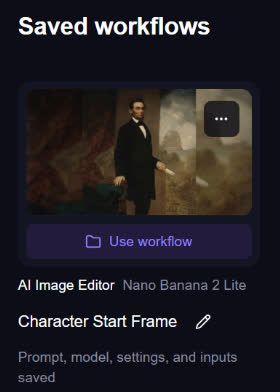
Open Saved Workflows
Find and reopen your saved setups.
Generate Images from Text with Seedream 4.5
Seedream 4.5 can now create images from a text prompt in AI Image Generator. Creator, Pro, and Business users can generate up to four images per request at resolutions from 640px to 4K.
For example, start with no reference image and enter “A red ceramic teapot on a walnut table beside a sunlit window, editorial product photograph, natural shadows, no text.” The image below was generated with that prompt at 640px in a 9:16 aspect ratio.

Try Seedream 4.5
Describe the image you want to create.
A 256,000-Credit Pack for Larger Projects
You can now buy 256,000 credits in one purchase. The new pack costs $480 USD before applicable taxes.
If you are budgeting for a larger batch of videos or images, choose the 256,000-credit option under Credit Packs and review the total in your currency.
View Credit Packs
Compare one-time credit packs.
Create Nano Banana 2.1 Storyboards in 4, 9, or 16 Panels
Nano Banana 2.1 is now available in AI Storyboard Generator on all plans. Choose 4, 9, or 16 panels, use a 16:9 or square layout, and add up to 10 reference images. Each storyboard costs 150 credits.
Plan a sequence of shots from one scene description. The model uses its 4K setting for the full storyboard grid; individual panel resolution varies with the layout.
Example: four shots of a red-haired girl in a yellow raincoat and her corgi exploring a lighthouse, climbing the stairs, discovering a map, and watching a storm. These are four panels from one Nano Banana 2.1 storyboard.

Build a Storyboard
Choose Nano Banana 2.1 in the model menu.
Use Characters, Moodboards, and Brand Kits on Free Accounts
Signed-in free accounts can now use saved Characters, Moodboards, and Brand Kits with Qwen Image 2.1 to create and edit images. You can also use compatible Qwen-generated start frames in LTX video workflows. Normal generation credits still apply.
Reuse your saved visual references without a paid subscription. Qwen accepts up to three input images in total, including uploads and every image in a Brand Kit. Exact text and logos can vary.
For example, use a candle Brand Kit to create a product photograph featuring its amber jar and botanical label, as shown below.

Create with Saved References
Choose Qwen Image 2.1 and add your saved references.
Higher Credit Rates for H3 Character Replace and Animate
MiniMax H3 in Character Replace and Animate now costs 48 credits per second at 480p, 96 at 720p, and 144 at 1080p. These rates are double the previous rates.
Review the generation quote when planning your clip. 480p is available across plans; 720p and 1080p require Creator, Pro, or Business in the dashboard.
For example, a five-second H3 character replacement at 480p now costs 240 credits.
Review H3 Character Pricing
Choose MiniMax H3 and review the quote.
Edit Existing Videos with Kling 4.0
Kling 4.0 is now available in AI Video Editor on Creator, Pro, and Business. Upload a video, describe the change, and select a clip from 3 to 30 whole seconds. The edit keeps the source video’s aspect ratio.
Choose 720p at 96 credits per second or 1080p at 144 credits per second. Use text instructions to change an object, color, or scene without rebuilding the clip from scratch.
For example, upload a street scene and ask: “Make all the yellow taxis bright green.” A five-second edit at 720p costs 480 credits.
Edit a Video with Kling 4.0
Upload a clip and describe your edit.
Longer Voiceovers and More Control through the API
AI Voice Generator and Voice Cloner API requests now accept scripts up to 5,000 characters. Both support language selection and speech speed from 0.75× to 1.30×.
Build longer narrations and set the delivery pace directly in your request. Use GET /v1/voices to find curated voice IDs and their preview URLs. API key and credit requirements apply.
For example, choose a voice ID from the catalog and request a Russian voiceover with style.language set to russian and style.speed set to 0.9. Keep the returned project ID to check its progress.
View Voice API Docs
See request fields and examples.
MiniMax H3 for Talking Photos
You can now choose MiniMax H3 in the Talking Photo dashboard. Add a photo and speech, with an optional prompt to guide the animation.
Use a short script to turn a portrait into a talking video. H3 supports clips up to 15 seconds: 480p is available across plans, and 720p requires Creator, Pro, or Business. This mode does not support 1080p.
For example, upload a portrait and a five-second voiceover, choose MiniMax H3 under Generation Mode, and add a brief motion prompt.
Try H3 Talking Photo
Choose MiniMax H3 under Generation Mode.
New Credit Rates for Kling 3.0
Kling 3.0 generation now uses updated credit rates in Text-to-Video, Image-to-Video, and their API workflows.
For 720p clips without a video reference, silent video costs 60 credits per second, up from 48. Video with audio costs 84 credits per second, up from 72. Other resolutions and reference modes have different rates.
For example, a five-second 720p clip costs 300 credits without audio or 420 credits with audio. Review the displayed quote before starting a generation.
Check Kling 3.0 Quote
Choose your duration, resolution, and audio setting.
Choose Exact Clip Durations with Wan 3.0
Wan 3.0 now supports every whole-second duration from 2 to 30 seconds in Text-to-Video and Image-to-Video, including lengths such as 12 or 18 seconds.
Set a clip length that fits your edit instead of choosing a nearby preset. Wan 3.0 requires Creator, Pro, or Business in the dashboard; credit costs still depend on resolution and duration.
For example, choose Wan 3.0 and set 12 seconds for a short scene, or use 18 seconds when animating a starting image.
Create with Wan 3.0
Choose Wan 3.0 and set your clip length.