Olivia Wilde What Did You Say
Overview
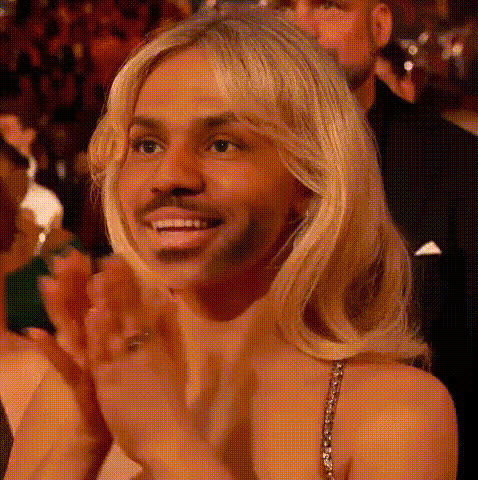
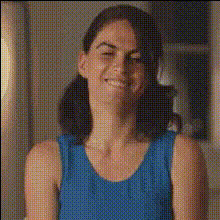
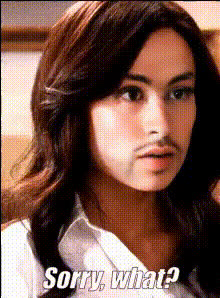
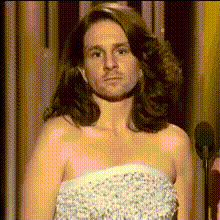
The Olivia Wilde What Did You Say template takes video editing to a new level by allowing you to swap faces in your videos effortlessly. This Video Face Swap tool captures attention with captivating edits featuring Olivia Wilde's likeness.
Designed with ease of use in mind, this template is ideal for integrating into creative projects, social media content, and meme videos.
What It Does
The template is designed for Video Face Swap applications, enabling users to replace a face in their chosen video with that of Olivia Wilde. It's not just about swapping; the technology ensures the facial expressions and movements are synchronized for a realistic output.
This tool works well with existing video editing workflows, enhancing projects with a fun and unique twist. Perfect for Face Swap enthusiasts seeking to bring a personalized touch to their videos.
Who It's For
Whether you are a meme creator, a social media influencer, or a video editor, this template offers a great opportunity to add a spark of creativity to your projects. It's particularly beneficial for those in advertising looking to create eye-catching content quickly.
Additionally, educators and trainers can use it to create engaging explainer videos by incorporating recognizable faces.
Summary
Incorporating the Video Face Swap technology, the Olivia Wilde What Did You Say template simplifies the process of creating engaging, high-quality video content. The choice of face swap not only entertains but also boosts content interaction.
Explore the endless possibilities and make your video content pop with this innovative tool.
How To
Choose the Template

Customize Your Inputs

Generate and Download

Use Cases
Meme Creation
- Inject humor into social media
- Create viral content easily
Social Media Content
- Boost follower interaction
- Increase shares and likes
Video Advertising
- Capture audience attention
- Differentiate from traditional ads
Educational Videos
- Interactive lessons
- Increased retention
Best Practices
Select High-Quality Source Videos
For the best results, use high-resolution videos to ensure the swap is seamless and the output is clear.Adjust Lighting Conditions
Ensure that the lighting in your source video matches the lighting in the Olivia Wilde face to maintain realism.Use for Short Clips
To maintain viewer interest and processing efficiency, apply face swaps to shorter video clips where the impact is immediate.