Consistent Character AI
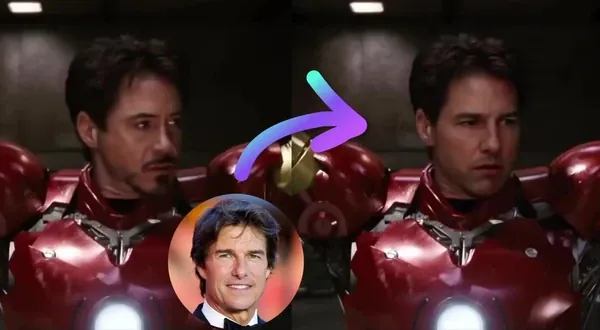
Save photos once, then reuse a person across face swaps, talking photos, and supported image and video tools.
Trusted by teams at
How to Create a Consistent AI Character
Save a person's photos once for reuse across supported image and video tools.
- 1

Upload reference photos
Add 1–12 clear photos of one person from different angles with good lighting for the best consistency. - 2

Name your Character
Give them a name. Magic Hour builds a combined reference you can find and select in any project. - 3
Create with a consistent face
Choose your saved Character in a supported tool instead of uploading their photo again. Model and plan access still apply.


Consistent AI Character Use Cases
Reuse a saved person's reference in supported tools for new scenes and campaigns.
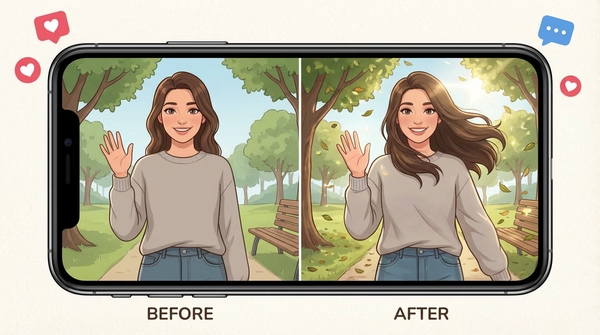
Use one Character across multiple AI-generated videos and images without re-uploading photos or re-describing the same person every time.
Build a recurring subject for episodic videos, social series, or multi-part campaigns where the same person needs to appear across every clip.
Use one consistent person as a brand face across product videos, ads, and social content — without booking or rescheduling shoots.
Upload photos of a creator, founder, model, or team member once. Select them in any tool whenever you need them.
Skip re-uploading photos for every generation. Select a saved Character and go directly to creating.
Use the same Character in Text to Video for scripted scenes, Image to Video for animated portraits, and AI Image Editor for styled compositions — all from one saved reference.
Save different people as separate Characters and pull the right one into the right tool for each scene or campaign.
In signed-in Create, open a completed still-image result's More (⋯) menu and choose Save as… → Character. Choose Reference for a product, place, or other reusable image.
Why Creators Love Characters
Save a person once, then select their reference in supported Magic Hour tools instead of uploading their photos again.
Upload once, use everywhere
Save reference photos once and select your Character in any supported tool instantly.
Reuse a person across transformation tools
Choose a saved Character in Face Swap Photo, Face Swap Video, Character Replace, Body Swap, or Talking Photo.
Up to 12 reference photos
More angles means stronger likeness consistency across your generations.
Auto-built collage reference
Magic Hour combines all your photos into one optimized reference automatically.
Works in Text to Video and Image to Video
Select your Character in the References panel. Their primary image is used for single-face tools.
Works in AI Image Editor and AI Image Generator
The auto-collage is used as a multi-image likeness reference for richer, more consistent results.
Consistent Character AI Features
One saved reference, applied consistently across every supported tool

Upload once, use everywhere
Add reference photos once and select the same Character across Text to Video, Image to Video, AI Image Editor, and AI Image Generator.

Up to 12 reference photos
More angles and expressions give the AI more to work with for better consistency across generations.

Auto-generated collage reference
Magic Hour automatically combines all reference photos into a single collage, optimized for tools that use multi-image likeness.

Primary image control
Set any photo as the primary image. Used as the Character thumbnail and in tools that use a single face reference like Text to Video and Image to Video.

Works across every supported tool
Characters plug directly into supported tools with no re-uploading, no re-describing, and no starting over between projects.
Edit anytime
Add or remove photos, swap the primary image, or rename a Character at any time. The collage reference updates automatically.
Consistent Character AI FAQ
Yes. Save a person or AI character with 1–12 reference photos, then select that Character in Text to Video, Image to Video, AI Image Editor, or AI Image Generator. Magic Hour uses the saved reference to keep the same person across new generations.
You can upload between 1 and 12 photos. For best results, use clear, well-lit photos of one person from multiple angles. More variety across angles and expressions generally produces stronger consistency.
Clear photos with good lighting, a visible face, and different angles work best. Avoid blurry photos, group photos, sunglasses, masks, heavy filters, and photos where the face is obscured.
The primary image is the Character's thumbnail and the photo used when you select that Character in Face Swap Photo, Face Swap Video, Character Replace, Body Swap, or Talking Photo. The first photo you upload is set as primary by default. You can change it at any time.
When you upload multiple photos, Magic Hour automatically generates a side-by-side collage of all reference images. This collage is used in AI Image Editor and AI Image Generator, which support multi-image likeness for richer consistency.
Reuse a Character's primary photo in Face Swap Photo, Face Swap Video, Character Replace, Body Swap, and Talking Photo. Saved Characters also work in supported Text to Video, Image to Video, AI Image Editor, and AI Image Generator workflows. Model, plan, and credit requirements still apply.
Yes. In signed-in Create, open a completed still-image result's More (⋯) menu and choose Save as…. Pick Character for a reusable person or Reference for a product, place, or other image, then name and save it for supported tools.
Yes. You can add or remove photos, change the primary image, and rename a Character at any time. The collage reference updates automatically when you make changes.
You can save unlimited Characters on every plan, including Free. Each Character can include 1–12 reference photos and can be edited, renamed, or deleted at any time. Paid plans unlock using saved Characters in premium tools.
Go to the Characters page to view, create, edit, and delete your saved Characters.
Yes. Characters are designed for real people — creators, founders, models, brand spokespeople, or anyone you want to appear consistently across your content.
Yes. Save your selected AI influencer image as a Character using More (⋯) → Save as… in signed-in Create. Select that Character in supported tools when creating the next image or video; model and plan access still apply.
We Value Your Privacy & Data Security, Always
Commercial use, no AI training, deletion controls, and feature-specific retention. Trust & privacy
Commercial use
Subscriptions and credit packs permit commercial use of outputs. Users without either purchase are limited to personal, non-commercial use.
No training
We do not use customer prompts, uploads, or outputs to train AI models. This covers free, paid, and API use.
Delete anytime
Delete saved projects or request account deletion. Retention varies by feature; account deletion has a separate 14-day restoration period.
Security
Encrypted in transit and at rest. Access is restricted for operations and support.