Neon Music Studio
- Model
- Nano Banana 2
- Image
- 1376 × 768 px
Prompt
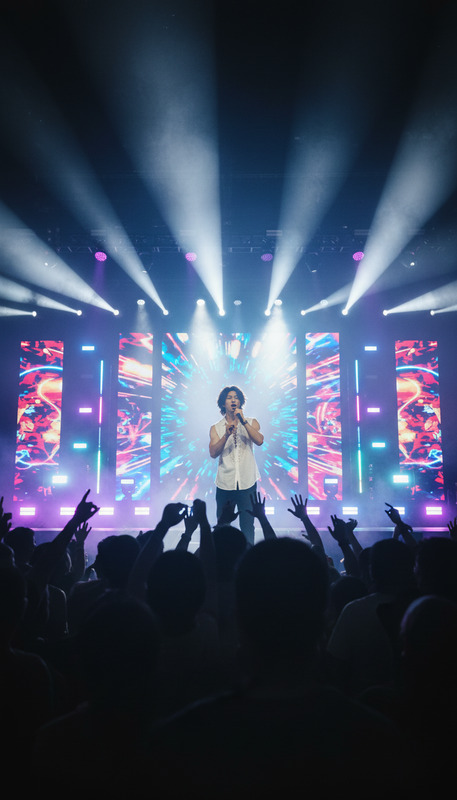
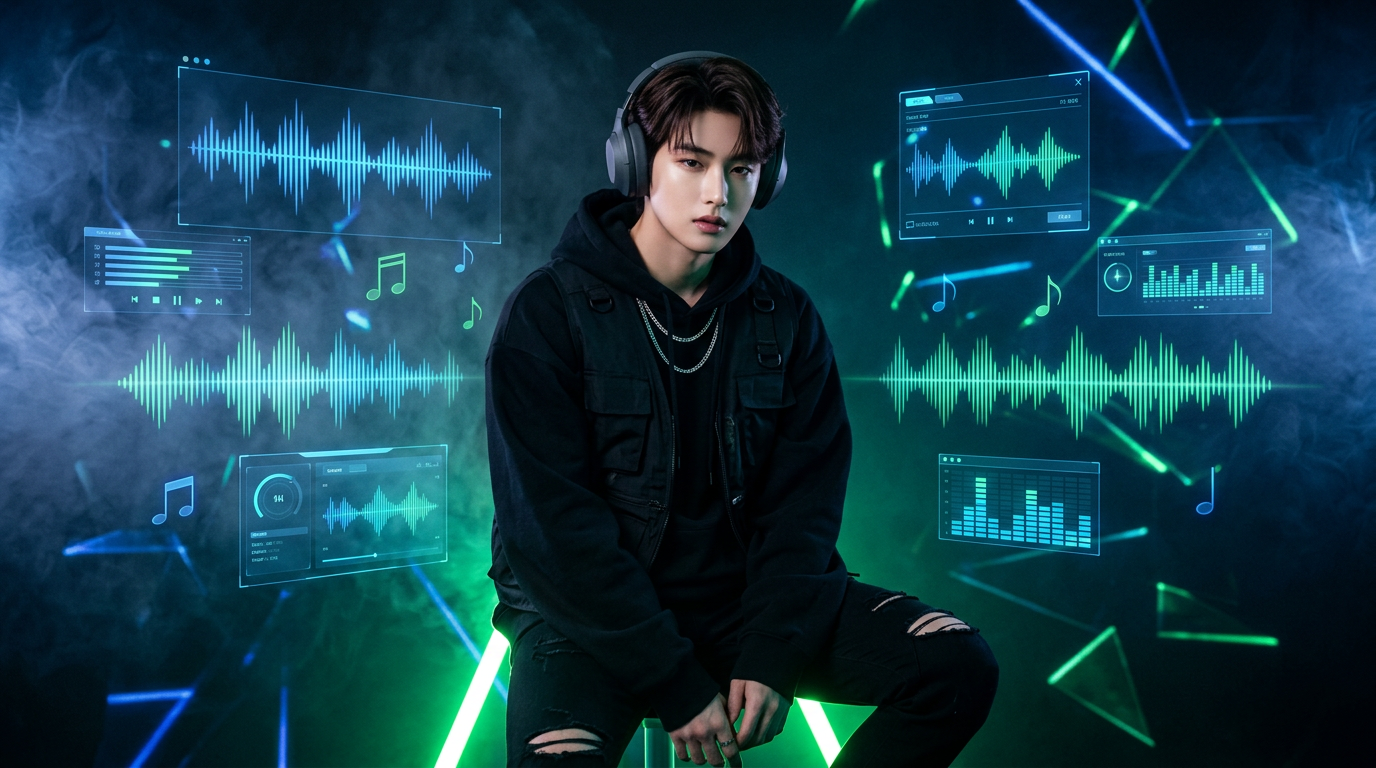
Subject in casual streetwear and headphones, sitting on a glowing neon-green stool; dark digital studio environment with holographic sound waves, floating music notes, and UI panels; dramatic neon lighting with fog, high contrast, shallow depth of field; cinematic 35mm style, immersive music vibe, ultra-detailed, 8K, 16:9 ratio.
Any aspect ratio
Overview
The Neon Music Studio template is for creators who want to transform their music projects with striking visual effects. Utilizing the nano-banana-2 model, this AI Image Editor combines vibrant neon colors with a musical theme to produce compelling imagery. Ideal for dynamic projects, it delivers a high-contrast, cinematic experience in a 35mm style.
What It Does
This template allows users to craft visually appealing music-themed images by customizing details such as streetwear styles, neon lighting, and digital studio settings. By leveraging the capabilities of AI, it brings 8K ultra-detailed imagery to life, complete with holographic sound waves and music-related elements for a fully immersive experience.
Who It's For
Neon Music Studio is perfect for musicians, video producers, and content creators who wish to enhance their projects with vivid, high-tech visuals. Whether making music videos or social media content, this template provides a unique edge with its immersive neon and holographic styles.
Summary
With Neon Music Studio, you'll have access to a tool that combines sound, light, and design into a distinct visual impression. Check out other AI-powered options like our AI Image Editor and the versatile Image to Video product for further creative enhancements. Elevate your project by tapping into the latest in AI technology and visual storytelling.
How to Use Neon Music Studio
Choose the Neon Music Studio Template

Customize Your Design

Generate Your Music Visuals

Use Cases
Music Video Production
- Neon-light infused music visuals
- Holographic sound waves and music notes
Social Media Content
- Vibrant and high-contrast imagery
- Compatible with various social platforms
Album Covers and Art
- Cinematic 35mm style
- Ultra-detailed for print and digital use
Best Practices
Focus on Lighting
Use neon lighting to accentuate the subject and important elements. This will help to draw the viewer's attention and enhance the overall visual impact.Incorporate Music Elements
Ensure that music-related visuals, such as floating notes and sound waves, are prominently featured to keep the design theme consistent.Optimize Depth of Field
Use shallow depth of field to create a focused foreground and blur any distracting background elements for a professional look.