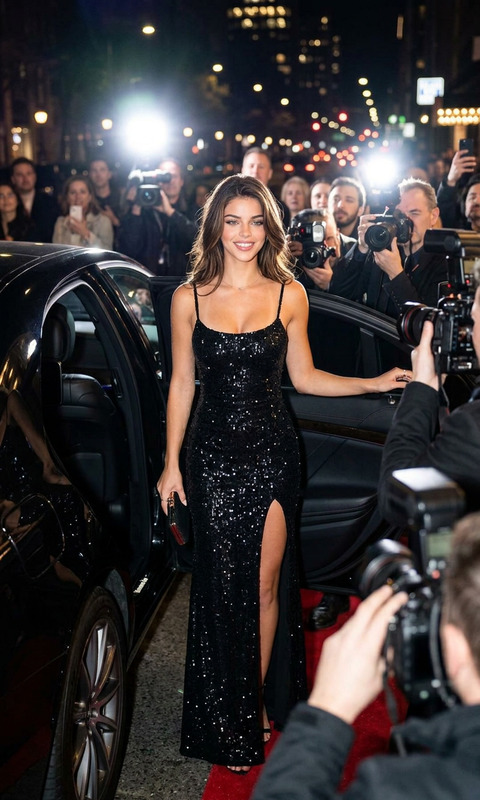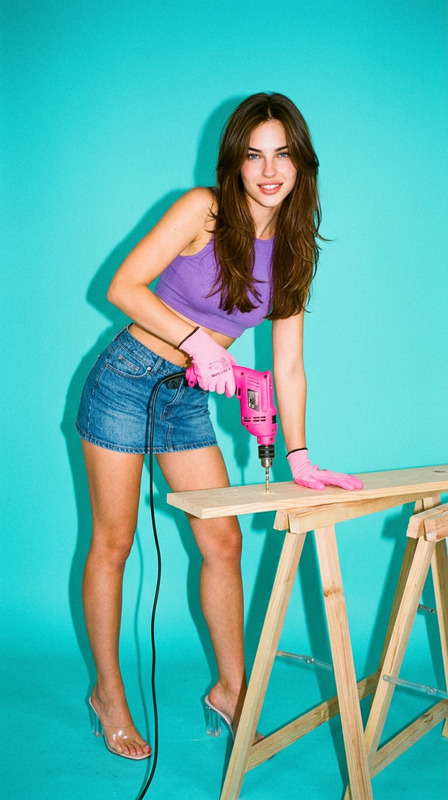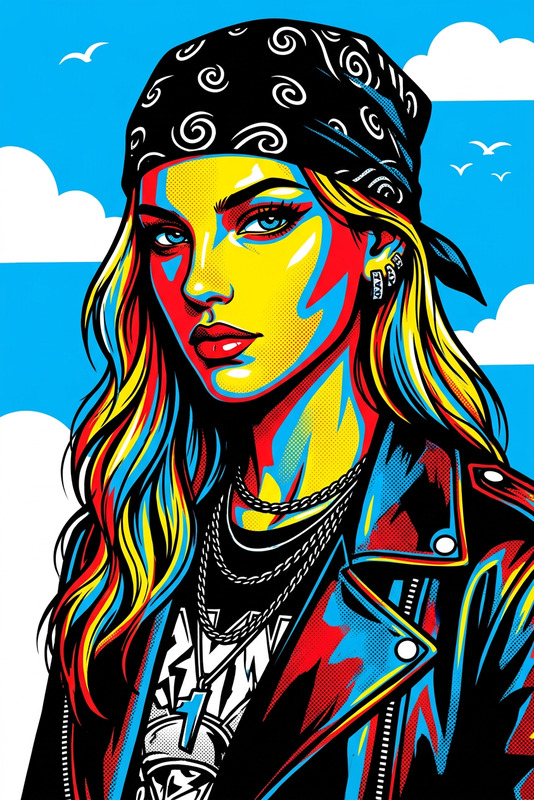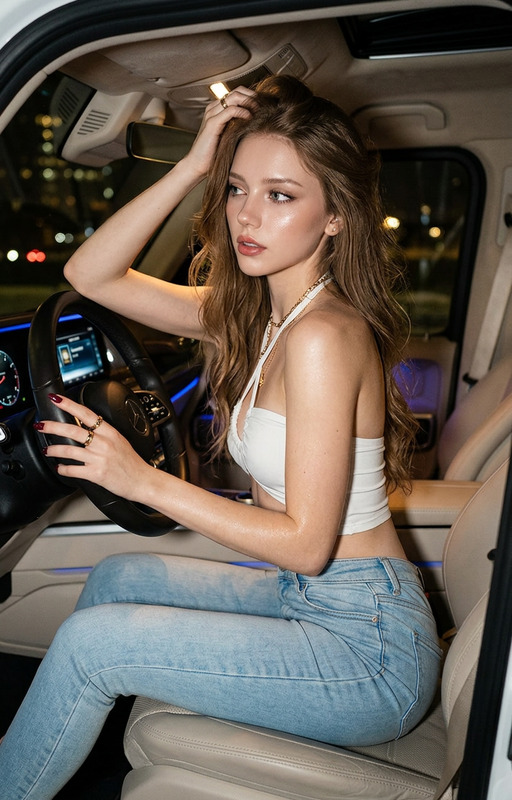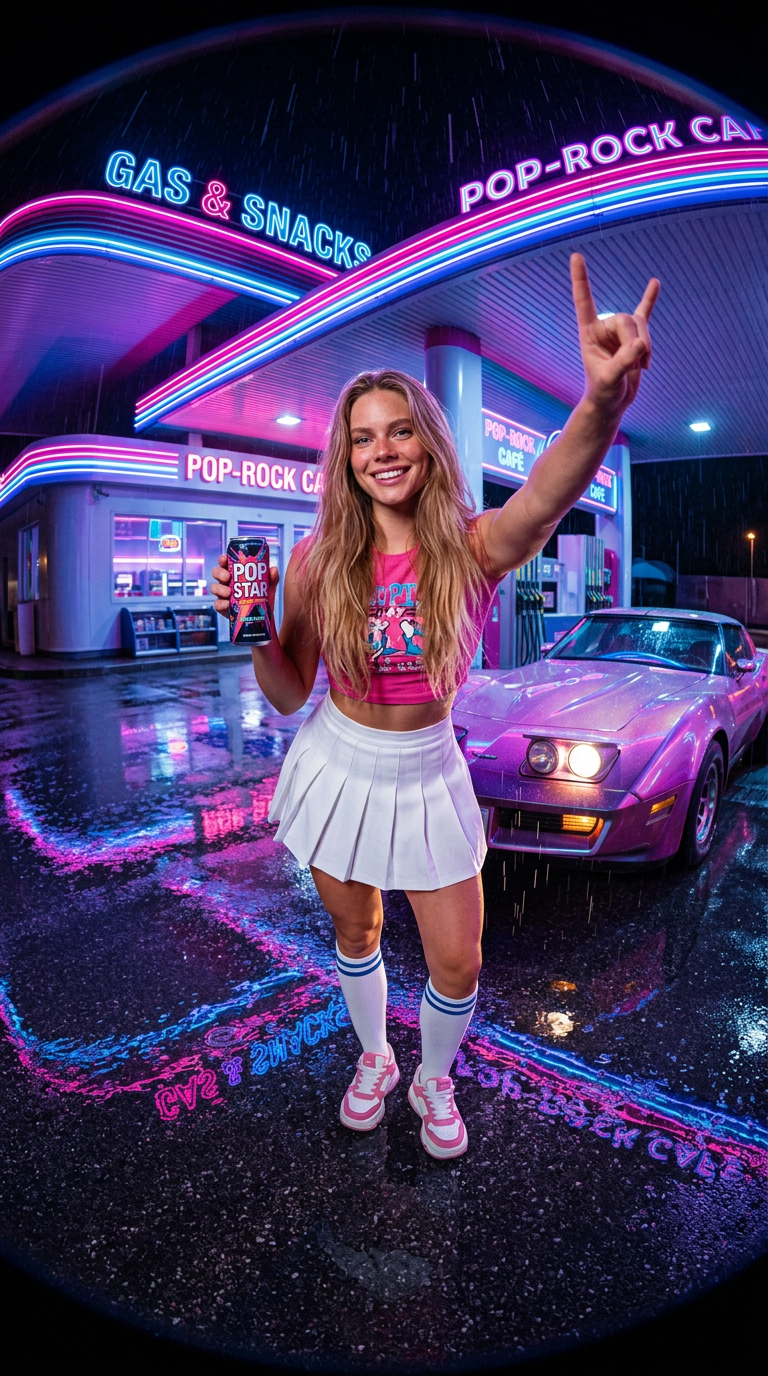
Gas Station Pop Star

Gas Station Pop Star

ai-image-editor

1 clip
11 uses

Any aspect ratio

Prompt

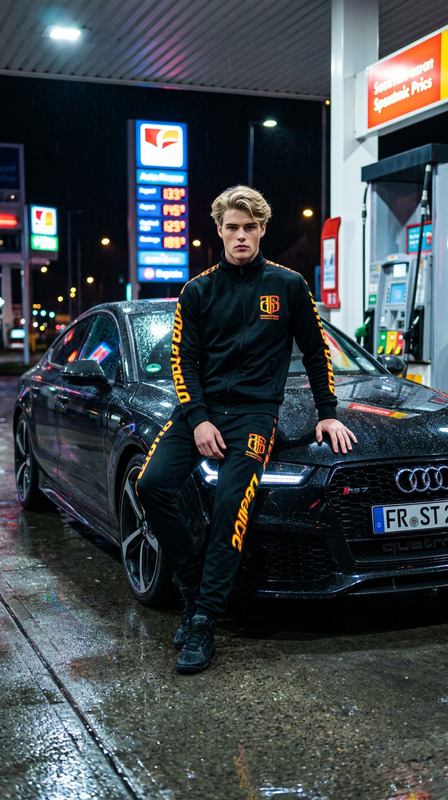
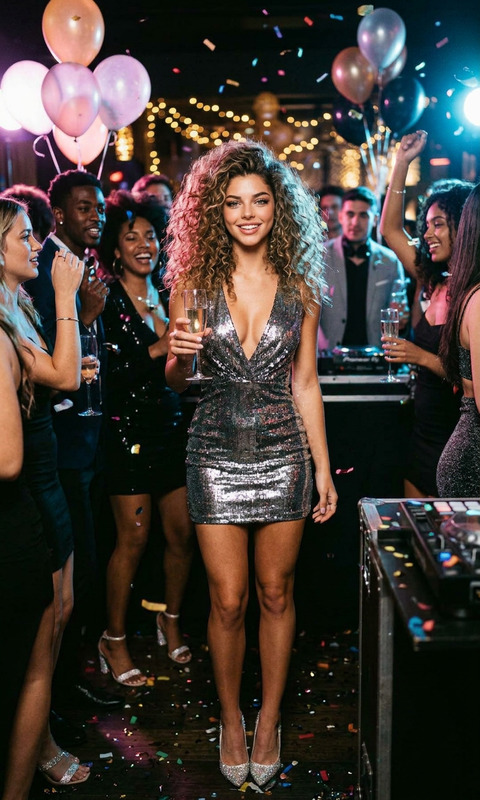
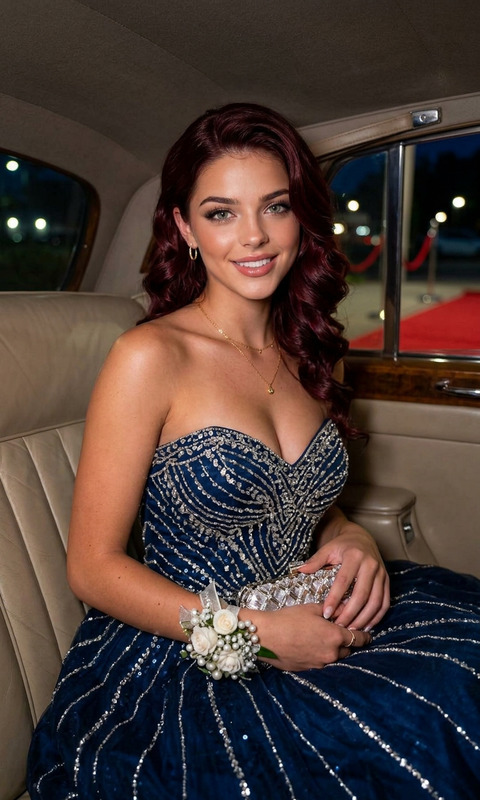
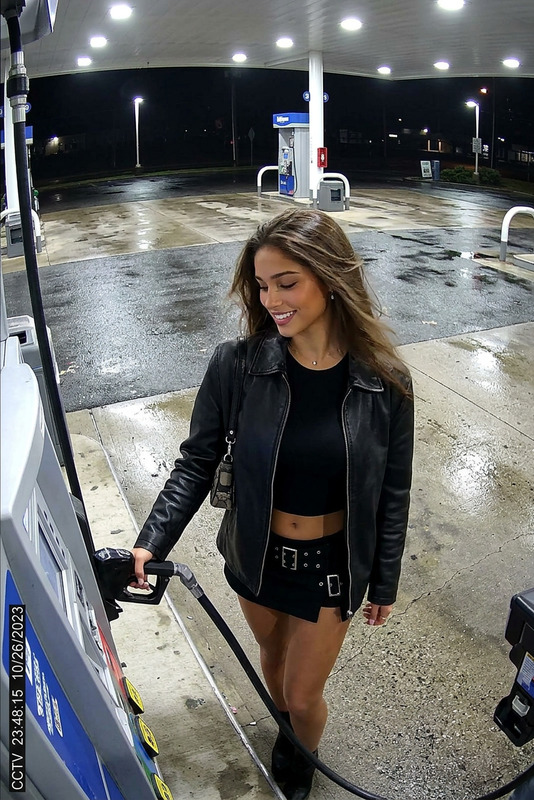
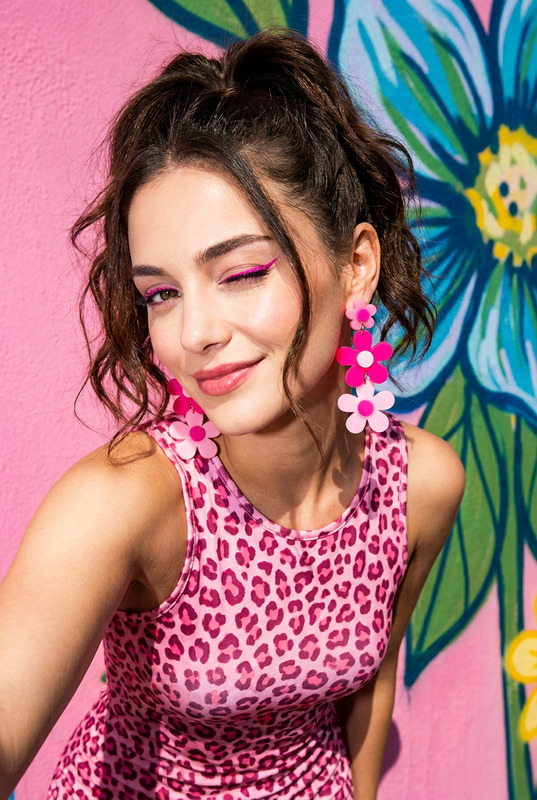
Subject is a confident pop singer with a curvy athletic figure, smiling and posing at a neon-lit gas station at night; wearing a pink crop top, white mini skirt, knee-high socks, and sneakers; holding a drink in one hand while making a bold gesture with the other; wet asphalt reflects bright pink neon lights, with a sports car and gas station in the background; shot with a wide fisheye lens from a slightly low angle, creating dynamic distortion; vibrant, rainy atmosphere, cinematic lighting, sharp focus, 9:16 composition.

AI Image Editor Template – Smart Visual Editing for Fast Experiments

Use this template to quickly transform any image with the AI Image Editor. It’s designed for creators, marketers, and builders who want to ship high-quality visuals fast—without learning complex design tools.


What this template is for

This template is ideal when you need to:

  • Clean up or enhance product photos
  • Swap backgrounds for ads, landing pages, or social posts
  • Remove unwanted objects, text, or watermarks
  • Ideate multiple visual directions for a campaign
  • Turn sketches, mockups, or moodboards into production-ready visuals
  • Create consistent brand visuals across channels

It’s powered by the same underlying technology as tools like the AI Photo Generator, AI Art Generator, and AI Face Editor, but tuned for fast, iterative editing on your existing assets.


How to use and remix this template in Magic Hour

You can use this template as a starting point, then customize or “remix” it into your own editing workflow:

  1. Open the AI Image Editor
    Go to the AI Image Editor and upload any image: product shots, portraits, UI mockups, illustrations, screenshots, or brand assets.

  2. Define your edit in plain language
    Describe the transformation you want. Examples:

    • “Remove the background, replace with a soft gradient in brand colors”
    • “Change the t-shirt to a black hoodie with no logo”
    • “Clean up skin, remove blemishes, keep natural texture”
    • “Turn this photo into a comic book-style illustration”
  3. Mask and refine what should change
    Highlight only the area you want to edit (e.g., background, clothing, objects, text). This keeps the rest of the image intact and maintains realism and consistency.

  4. Generate multiple options and iterate
    Run the edit, compare several variations, then refine your prompt based on what’s working. Many teams treat this step like A/B testing for visuals: keep what matches your brand, discard the rest.

  5. Save as your own template
    Once you have an edit you like, you can reuse the same pattern (prompt + masking approach + input type) as your own internal “template” for:

    • Batch product image updates
    • Recurring content formats (e.g., social posts, thumbnails)
    • Brand-safe variations for performance marketing

Practical remix ideas for different use cases

Use this template as a base and adapt it depending on what you’re building.

1. Product & e‑commerce visuals

Remix tip: Create one “hero product” image, then duplicate and adapt it into: a lifestyle version, a minimalist version, and a social-first version—using the same core subject.

2. Marketing, content, and social campaigns

Remix tip: Standardize one layout (subject placement, logo position, color palette), then use the AI Image Editor to swap backgrounds, add props, or change style per campaign—without touching the layout.

3. Brand, identity, and creative direction

Remix tip: Start with an on-brand base image, then create multiple “visual territories” by editing only style, color, and environment while keeping the same subject. This helps stakeholders compare directions side-by-side.

4. People, portraits, and headshots

Remix tip: Maintain the same face or identity while using the AI Image Editor to change environments, outfits, or styles—ideal for consistent creator branding, team pages, or multi‑channel campaigns.


Advanced workflows: connecting images, video, and voice

The AI Image Editor template can be the first step in richer, multi‑modal workflows:

Remix tip: Use this template for “design blocking” (getting the look right) and then chain into video, voice, or animation tools to produce full campaigns or content series.


Quality, cleanup, and restoration

To keep outputs production‑ready for clients and stakeholders, pair the AI Image Editor template with:


Designing for experimentation and reuse

This template is intentionally flexible so you can:

  • Standardize a repeatable editing workflow for your team
  • Rapidly test multiple creative hypotheses before committing to a direction
  • Build your own “template library” of prompts and edit patterns for specific use cases (DTC product shots, B2B landing pages, UGC ads, education, games, etc.)
  • Combine with specialized generators like the AI Background Generator, AI Interior Design Generator, or Architecture Generator when you need environment‑specific imagery

If you’re already working with LLMs, you can also treat your prompts and editing patterns as semi‑structured recipes—making them easier to reuse programmatically across campaigns or clients.


Get started

  1. Open the AI Image Editor.
  2. Upload an image you want to transform.
  3. Describe your edit in clear, specific language.
  4. Iterate until you have a version you’d reuse.
  5. Save that pattern as your own remix of this template.

Use this page as a reference whenever you need to turn a single image into a flexible, reusable creative asset that can power ads, content, product pages, and multi‑format campaigns across the Magic Hour ecosystem.

More Like This