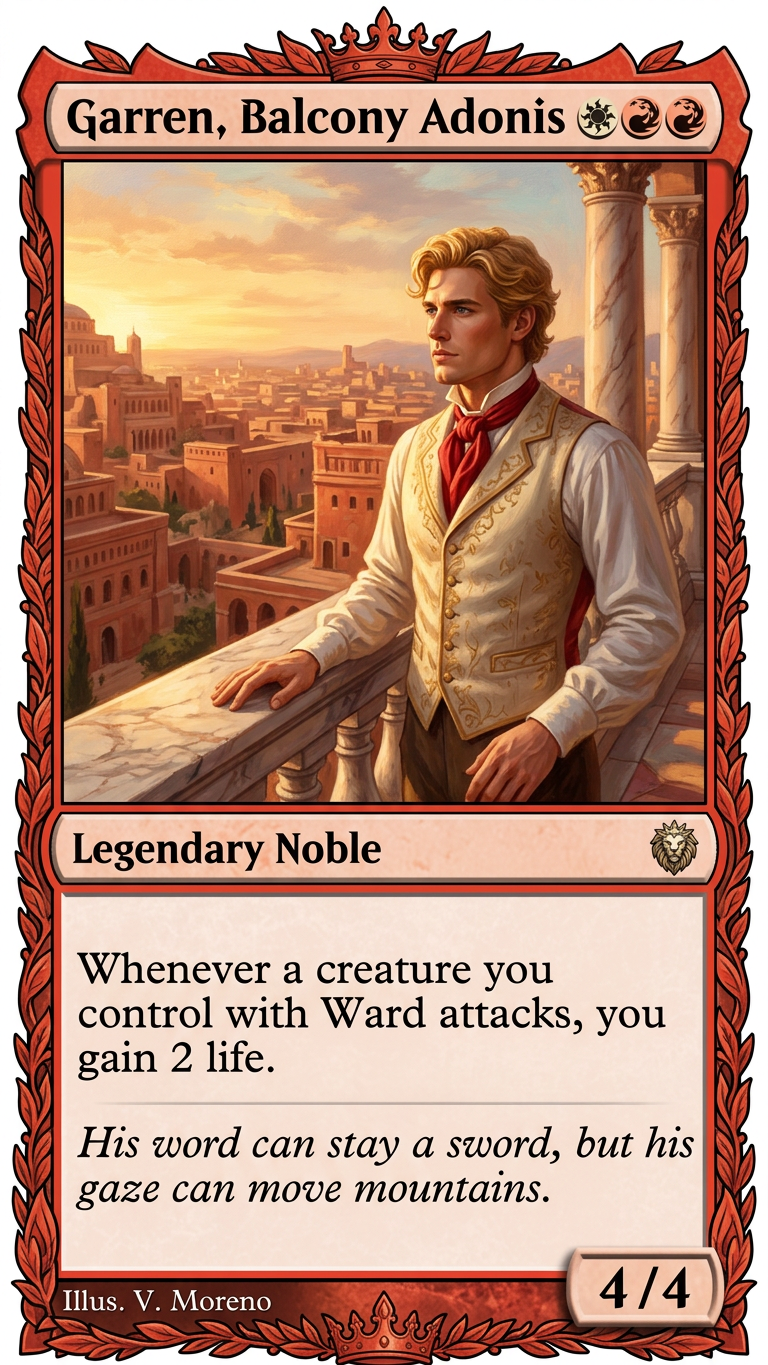
Fantasy Card – Balcony Noble

Fantasy Card – Balcony Noble

ai-image-editor

1 clip
5 uses

Any aspect ratio

Prompt

Full-bleed original fantasy trading card filling the entire frame, red-themed frame with a crown motif and title “Garren, Balcony Adonis” plus stylized cost icons; central painterly illustration of a heroic blond man in a cream waistcoat and red cravat standing on a marble balcony at golden hour, overlooking a warm red-stone city, low-angle cinematic lighting with visible brush texture; below is a type line for a legendary noble, a small metallic set symbol, and a text box with ability-style rules and italic flavor text; bottom shows artist credit and bold “4/4”; clean matte print, sharp edges, no background outside the card.

AI Image Editor Template: Clean Product Mockup with Realistic Shadows

Use this Magic Hour AI Image Editor template to turn a flat product shot into a premium, studio-style mockup with natural shadows and reflections—without Photoshop or manual masking.

This template is ideal for:

  • Product marketers and DTC brands
  • Designers and growth teams testing new creatives
  • Startup founders refining landing pages or pitch decks
  • Marketplace and Etsy sellers upgrading listings

What This Template Does

This AI Image Editor template is designed to:

  • Remove messy or distracting backgrounds around your product
  • Add clean, minimal backgrounds that match your brand look
  • Generate realistic shadows, depth, and lighting around the object
  • Preserve product details (logos, labels, textures, edges)
  • Create consistent, repeatable imagery for ads, landing pages, and social

It works especially well for:

  • Tech devices (phones, laptops, wearables)
  • Consumer packaged goods (bottles, cans, boxes, cosmetics)
  • Apparel on hangers, flat-lay, or mannequins
  • Small objects (accessories, tools, toys)

How to Remix This Template in Magic Hour

You can recreate and customize a version of this template directly inside Magic Hour using the AI Image Editor.

  1. Upload your base image
    Start with a high‑quality product photo: good lighting, sharp focus, and clear separation between the product and background will give the best results.

    • If your image is low resolution, you can enhance it first using the AI Image Upscaler.
    • If the image is blurry, run it through Unblur Image before editing.
  2. Clean the background
    Use the AI Image Editor’s object-aware tools to isolate your product and remove clutter:

  3. Create a studio-style environment
    Replace the background with a clean, brand-aligned setting:

  4. Add realistic shadows and reflections
    This template focuses heavily on naturalistic lighting:

    • Use AI Image Editor to infer light direction from your product photo
    • Generate soft shadows under and behind the product so it “sits” in the scene
    • Subtle reflections can be added for glass, metal, or glossy surfaces

    Realistic shadows are critical for trust and conversion—flat, shadowless products can look fake or AI-generated, which reduces credibility in ad performance tests and marketplaces.

  5. Refine colors and details
    Ensure the final result is accurate to your real product:

    • Adjust tones so packaging colors and skin tones (for models) stay true
    • Use zoomed-in passes to check edges, text, and small details
    • If you need ultra-sharp detail for hero imagery, upscale the final output with AI Image Upscaler.
  6. Export variations for testing
    Once you’re happy with a base look, duplicate and tweak:

    • Different backgrounds for A/B testing in ads
    • Seasonal or campaign-specific versions (holiday, launch, discount)
    • Platform-specific crops for thumbnails, PDP images, and carousels
      For thumbnails and social, you can also leverage Thumbnail Maker.

Best Practices for High-Converting Product Imagery

To get the most out of this AI Image Editor template:

  • Start with the highest quality input you have
    AI can enhance and re‑light, but it works best from a sharp, well-exposed product shot.

  • Keep lighting consistent across your catalog
    Use this template to build a repeatable visual style:

    • Same light direction and shadow softness
    • Similar background palettes
      This consistency matters for ecommerce trust and brand recognition.
  • Avoid misleading edits
    Don’t change:

    • Product dimensions or proportions
    • Critical color attributes (e.g., foundation shades, clothing colors)
    • Legally sensitive marks (safety labels, certifications)
      Many marketplaces (e.g., Amazon, Etsy) and ad platforms have policies against misleading edited product photos; keep edits cosmetic, not deceptive.
  • Design for where the image will live

    • Website hero: strong contrast, lots of white space, big focal product
    • Marketplace: clear silhouette, neutral background, readable packaging
    • Paid social: slightly bolder background colors and compositions

Suggested Workflows for Different Use Cases

1. SaaS or hardware marketing pages

2. Fashion and apparel brands

  • Start with flat-lays or model photos.
  • Use:

3. Beauty, cosmetics, and CPG


Turn Static Product Mockups into Video and Animation

Once your still images look polished with this template, you can extend them into motion:


Combine with Other Magic Hour Tools for Complete Creative Pipelines

For performance marketers, founders, and creative teams, this template slots into broader AI‑assisted workflows:


Why Use Magic Hour’s AI Image Editor for Product Mockups?

Compared with manual tools or traditional design workflows, this template plus Magic Hour AI gives you:

  • Speed – Go from raw photo to polished mockup in minutes, not hours.
  • Consistency – Apply the same treatment across hundreds of SKUs or concepts.
  • Flexibility – Instantly test alternate backgrounds, lighting moods, or compositions.
  • Scalability – Non-designers on your team can produce on-brand assets without bottlenecking your design function.

For creators, marketers, and founders shipping campaigns weekly, this template is a practical way to standardize product images and accelerate experimentation.


Getting Started

To create your own version of this template:

  1. Open the AI Image Editor.
  2. Upload a product photo or generate one first using the AI Photo Generator or AI Image Generator.
  3. Follow the workflow above to clean the image, build a studio background, and add realistic shadows.
  4. Export multiple variations and integrate them into ads, landing pages, and social content—then iterate quickly, using performance data to guide new edits.

Use this template as a starting point, then remix it to match your brand’s lighting, color system, and visual language.

More Like This

Insufficient credits