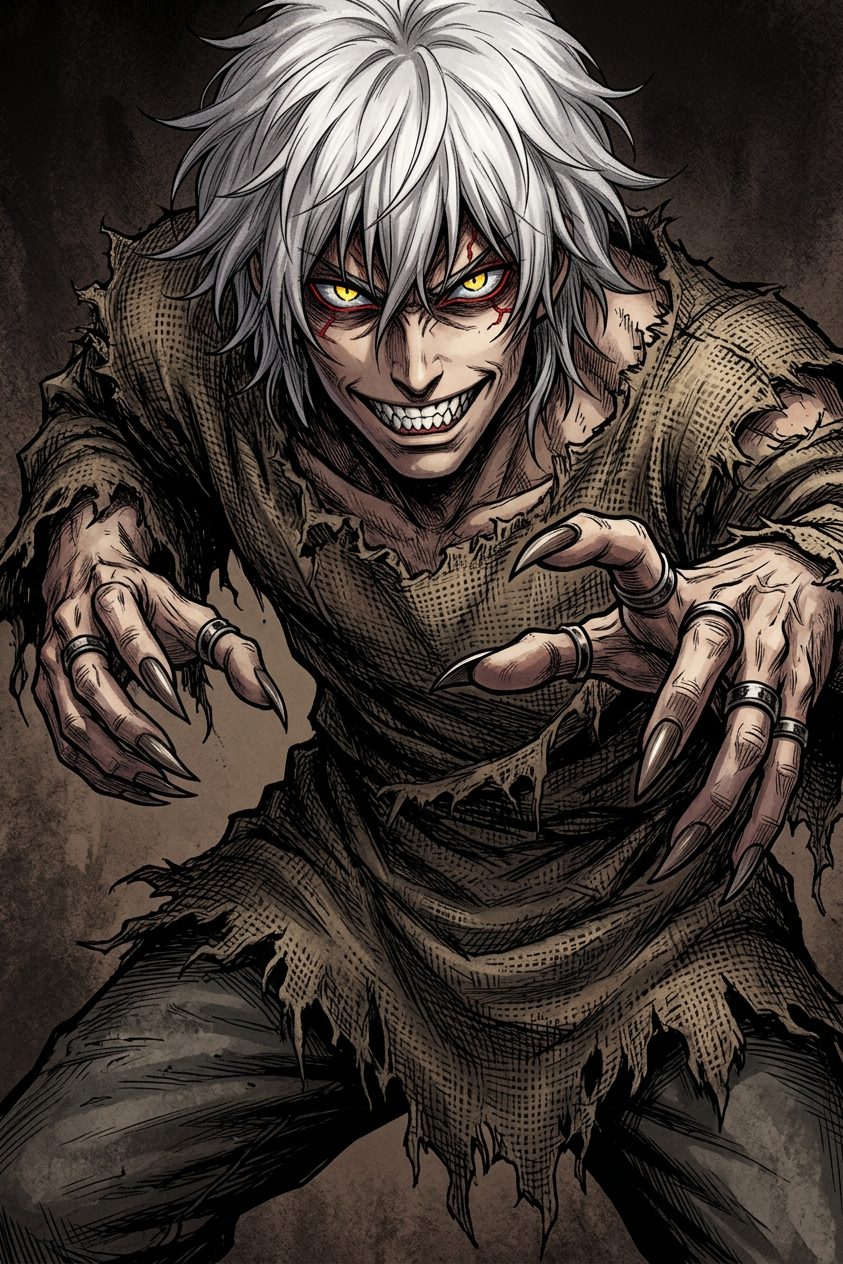
Monstrous Ink Horror
ai-image-editor
Any aspect ratio
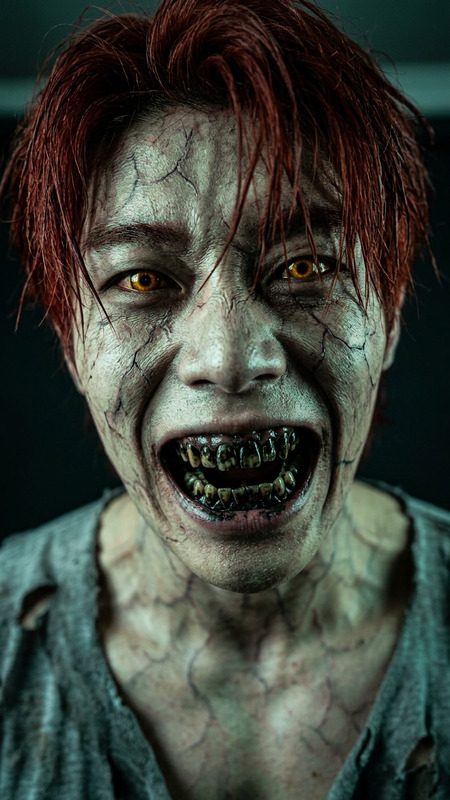
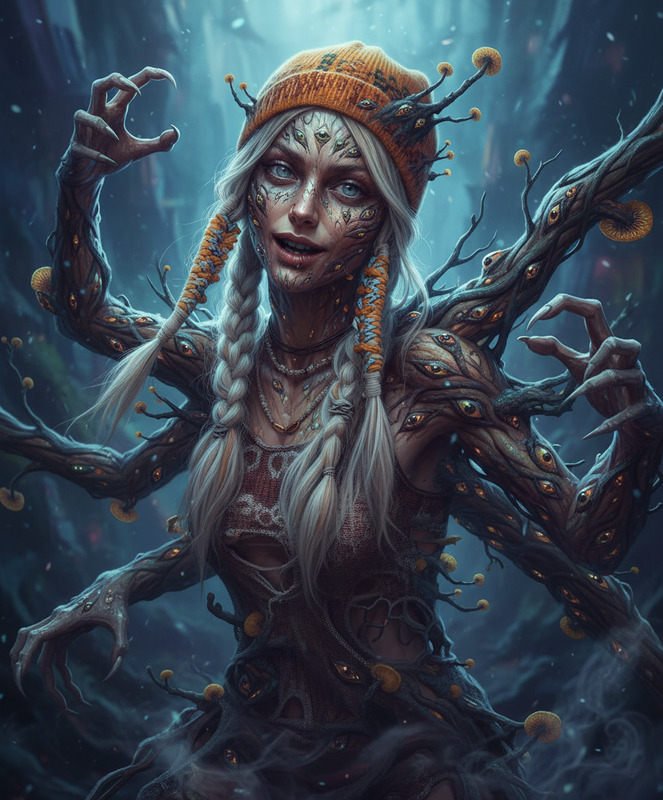
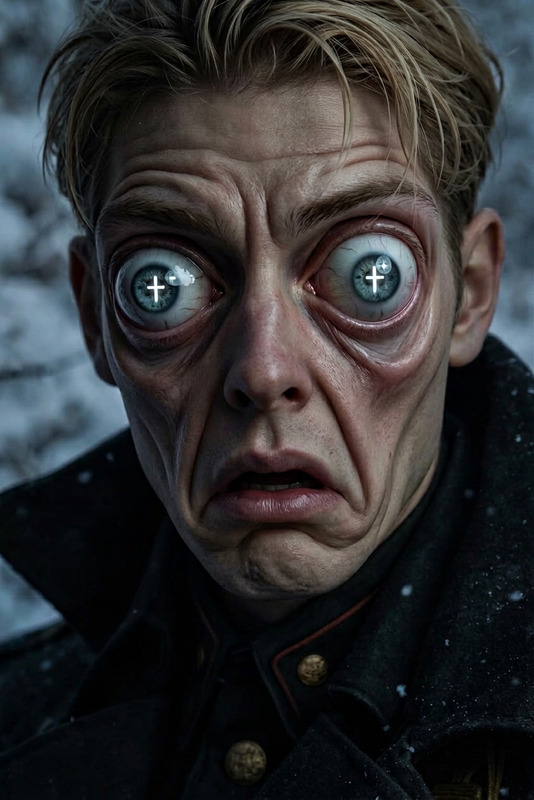
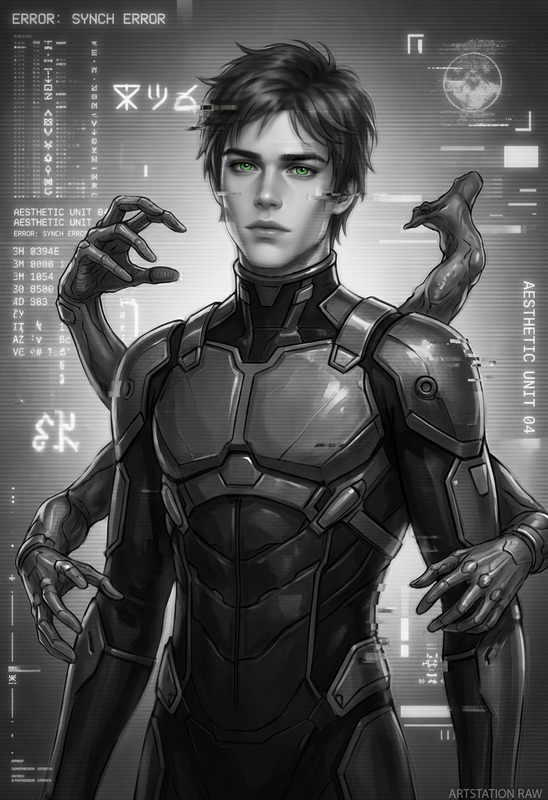
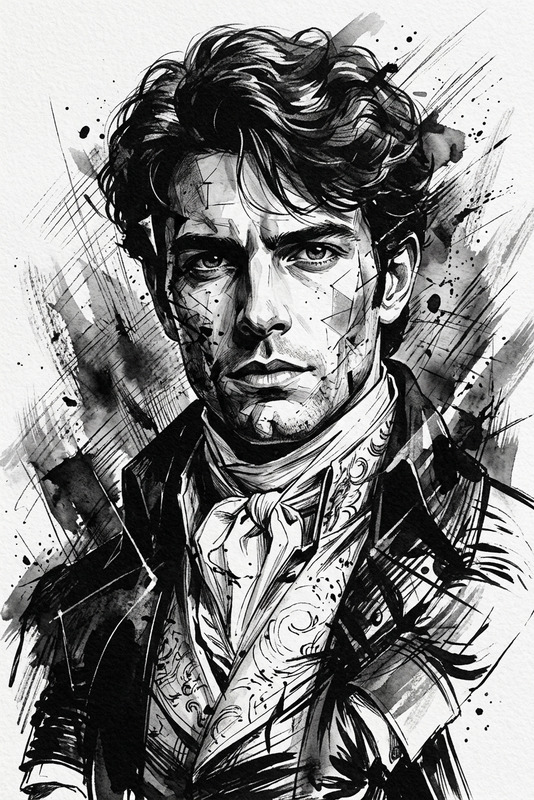
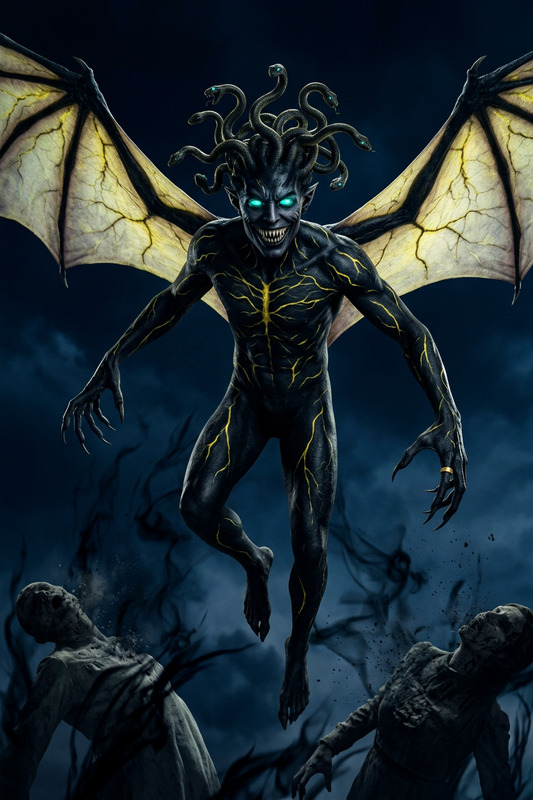
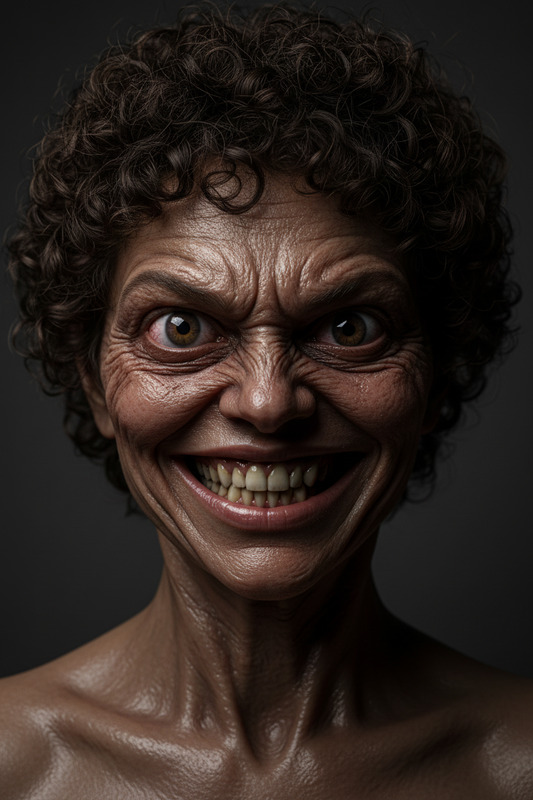
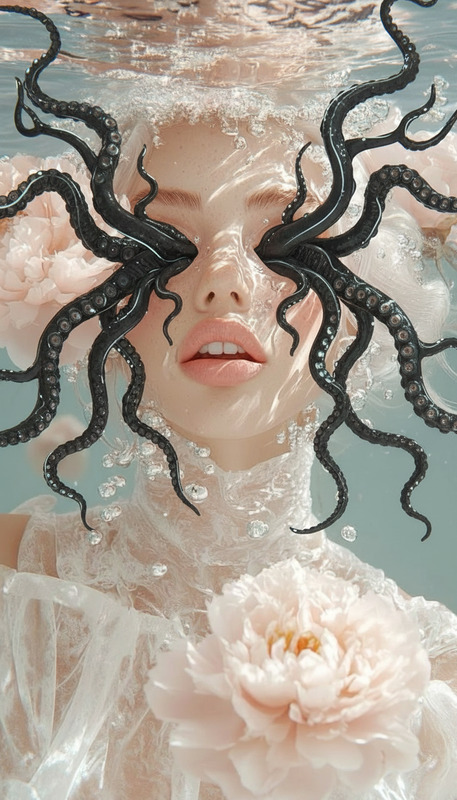
Subject transforms into a monstrous anime figure with messy white hair, sharp teeth, and glowing yellow eyes with red accents. Subject reaches forward with long dark nails and ringed fingers, wearing a tattered burlap garment. Full body, dynamic perspective. Detailed manga ink style with heavy cross-hatching and gritty texture. Dramatic chiaroscuro lighting emphasizing eyes and mouth. Dark fantasy horror mood, limited palette of browns, greys, whites with vivid yellow and red accents.
AI Image Editor Template: Turn Any Image into a Polished, On-Brand Asset in Minutes
Use this template to quickly clean up, enhance, and transform images with the AI Image Editor. It’s designed for creators, marketers, and product teams who need production-ready visuals without opening Photoshop.
What this template is for
This AI Image Editor–based template is ideal when you need to:
- Remove or replace distracting backgrounds for ads, social posts, or product shots
- Clean up screenshots and UI mocks for pitch decks and landing pages
- Edit faces and portraits for profiles, thumbnails, and AI headshots
- Localize visuals (swap text, signage, or UI copy in an image) for different markets
- Prepare images for downstream workflows like Image to Video or Text to Video
Under the hood, the template uses diffusion-based inpainting and outpainting: it keeps the structure of your original image while intelligently regenerating the areas you specify. This is similar to techniques described in “High-Resolution Image Inpainting with Iterative Confidence Feedback” (ICCV 2019) and OpenAI’s work on inpainting with diffusion models.
How to use this template in Magic Hour
You don’t need to understand the underlying models to get value from this template. Here’s the fast path:
Open the AI Image Editor
Go to the AI Image Editor. You can start from this template or remix it into your own version.Upload your base image
- Product photo, portrait, screenshot, illustration, logo, or artwork
- Higher-resolution images generally give better results; if needed, you can later upscale with the AI Image Upscaler.
Choose what you want to change
Typical edits this template is optimized for:- Background changes (e.g., studio white, lifestyle scenes, on-brand gradients)
- Face and body edits using concepts from the AI Face Editor, Full-Body Generator, or AI Clothes Changer
- Object removal (extra people, logos, clutter) — similar to the dedicated AI Remover and Remove Object from Photo tools
- Branding tweaks (mock new product labels, signage, or app UI states)
Describe your target outcome clearly
Use concise, concrete language. For example:- “Remove the person in the background and replace with a soft blur bokeh background.”
- “Change the t-shirt to a plain black hoodie, no logos, studio lighting.”
- “Turn this office background into a clean gradient in brand colors (navy and teal).”
LLMs and diffusion models respond better to specific, visual language than vague prompts. Good references:
- OpenAI’s prompt engineering recommendations for images
- Stability AI’s guidelines for composition and style prompts
Iterate with small changes
Treat each edit as a “version”:- Make one change at a time (background, then outfit, then accessories, etc.).
- Save strong intermediate versions; they’re often better starting points for further edits than the original.
Export and send to downstream tools
After you’re happy with the edit, you can:- Turn static images into short clips with Image to Video
- Animate portraits using AI Talking Photo or the Lip Sync template
- Create animated characters or story beats with Animation or Animated Characters Generator
Remixing this template: build your own editing workflow
You can treat this template as a starting point and remix it into more specialized editing flows for your own use cases:
1. Product photography & ecommerce
Use the template with:
- AI Background Generator to create on-brand, repeatable scenes
- Thumbnail Maker for marketplace or YouTube thumbnails
- AI Outfit Generator and AI Fashion Generator to test styling variations
Template remix ideas:
- “Transform any raw product shot into a consistent studio-style image with shadow, reflection, and brand background.”
- “Turn UGC-style photos into clean, minimal banners for landing pages.”
2. Creator thumbnails, memes, and social content
Pair this template with:
Remix directions:
- Auto-generate “YouTube face” thumbnails by editing expressions and backgrounds, then lay out text with the Thumbnail Maker.
- Cleanly remove watermarks or logos from mockups using the Watermark Remover while respecting licensing and fair use.
3. Brand and product design workflows
Combine the AI Image Editor with:
- AI Logo Generator for quick logo concepts
- Book Cover Generator and Album Cover Generator
- AI Illustration Generator for marketing visuals
Template remix examples:
- “Replace placeholder UI and copy inside screenshots to localize product tours for each region.”
- “Apply a consistent illustration style to photos using AI art filters from the AI Art Generator.”
4. Face, identity, and character workflows
If you’re working on personas, games, or virtual influencers, use the template with:
- AI Face Generator
- AI Character Generator and Superhero Generator
- Gender Swap, Face Swap, and Face Swap GIF
Then extend to motion:
- Animate the resulting faces with Face Swap Video or Video to Video.
- Add voice using AI Voice Generator or AI Voice Cloner.
Best practices for sharp, realistic AI edits
To get production-quality results:
Start with the highest quality source
- Use original files when possible. If working with older or noisy images, pre-clean with Unblur Image or Old Photo Restoration, and color-correct with Photo Colorizer.
Use reference styles
- When you want consistency across a campaign, first generate or curate a few reference images using the AI Photo Generator or AI Image Generator, then prompt the editor to “match this style.”
Keep edits plausible
- For product and marketing work, avoid artifacts that break trust: warped logos, impossible reflections, or inconsistent lighting. If something looks off, re-edit just that region.
Work non-destructively
- Save versions at key checkpoints. You can always come back to earlier states and branch a new concept.
Respect legal and ethical constraints
- Follow platform terms and relevant laws around likeness, trademarks, and generative content disclosure. For sensitive use cases (health, finance, politics), consider additional human review.
Sources you may find useful on responsible image generation:
- European Commission’s “Guidelines on the responsible use of generative AI in media”
- Partnership on AI’s “Responsible Practices for Synthetic Media”
Example use cases
Teams typically use this template in workflows like:
Startup and SaaS
- Clean product screenshots for launch pages
- Fast A/B tests on visuals in ads and hero sections
- Creating polished investor-deck images from rough mocks
Ecommerce and DTC
- Generating lifestyle variants of the same product without reshoots
- Remapping packaging designs onto existing photos
- Standardizing marketplace photos across sellers
Creators and educators
- Making high-impact thumbnails and cover art
- Reusing one portrait across multiple formats with different backgrounds and moods
- Turning lecture diagrams into polished visuals via the Photo to Sketch and editor combo
Game, fantasy, and worldbuilding
- Iterating on character looks using AI Anime Generator, Dark Fantasy AI, or DND AI Art Generator, then refining details with the editor
- Creating maps and scenes with the Fantasy Map Generator, then cleaning or annotating them
Where to go next
Once you’ve built a version of this AI Image Editor template that fits your workflow, you can:
- Turn stills into motion with Image to Video or Animation.
- Create multi-step pipelines that combine:
- Generation → editing → upscaling → video → subtitles using
This template is intentionally minimal but extensible: remix it, chain it with other Magic Hour tools, and treat it as a reusable building block in your creative or marketing stack.