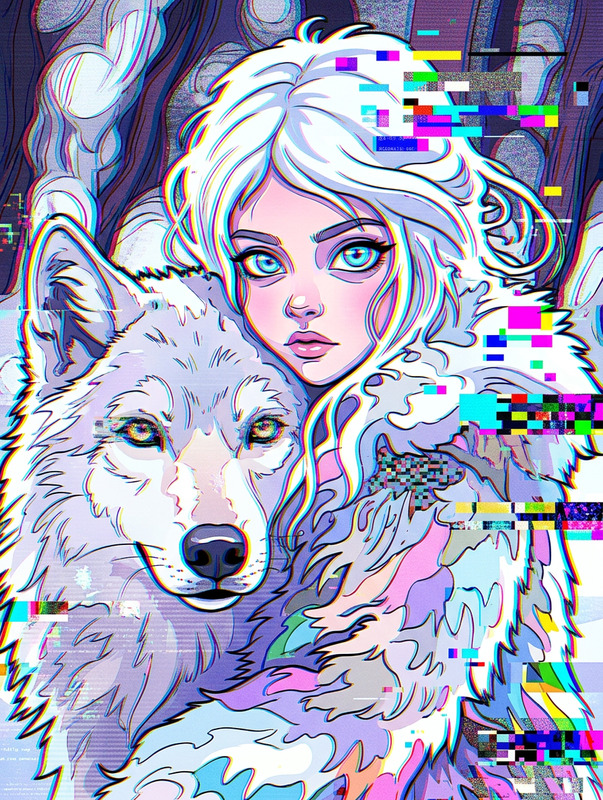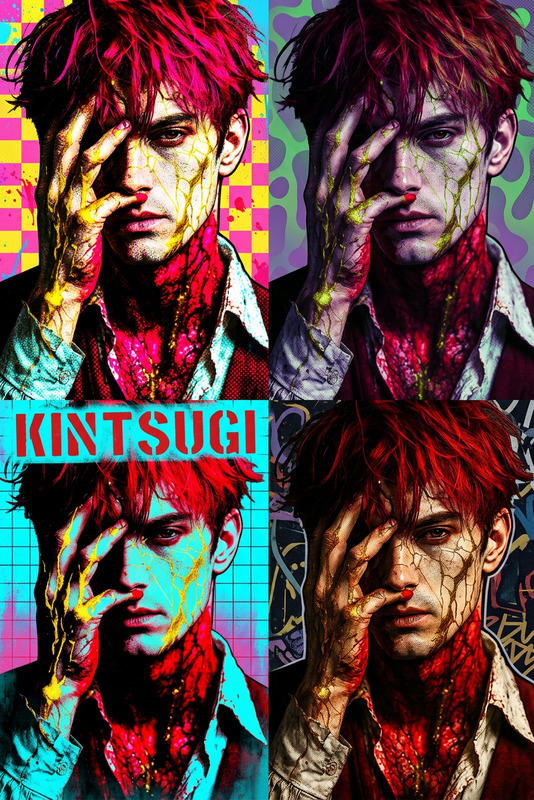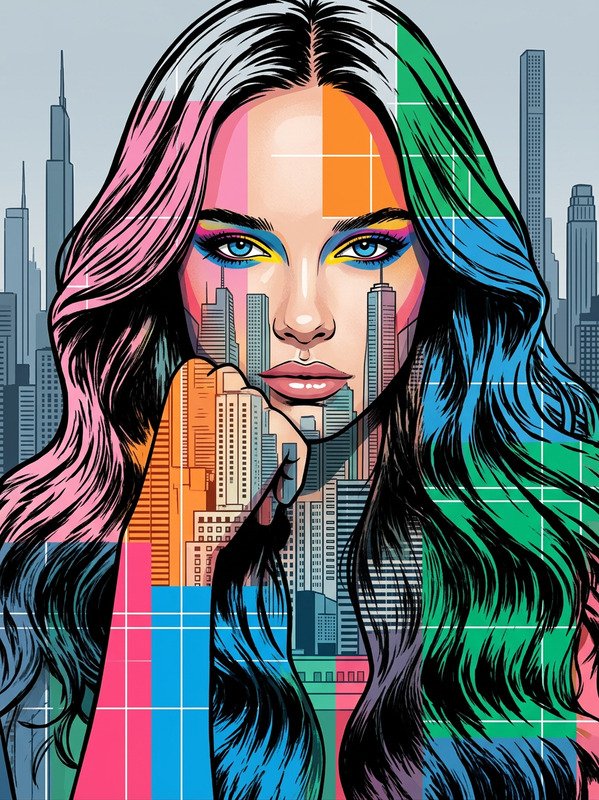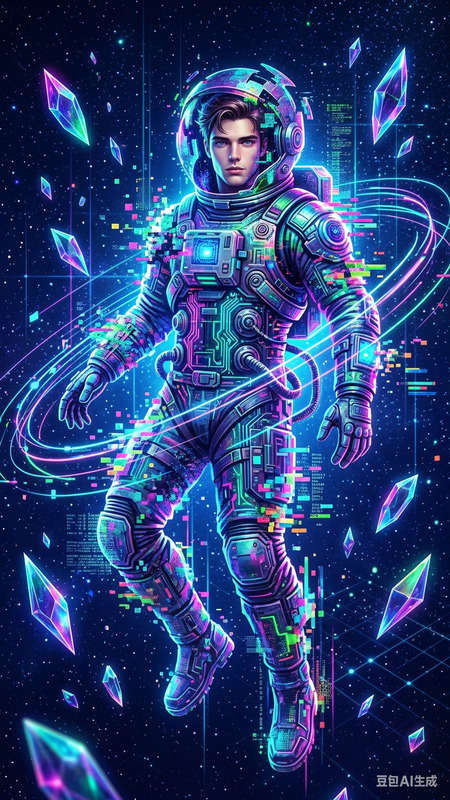
Glitch Poster Artifact Art

Glitch Poster Artifact Art

ai-image-editor

1 clip
2 uses

Any aspect ratio

Prompt

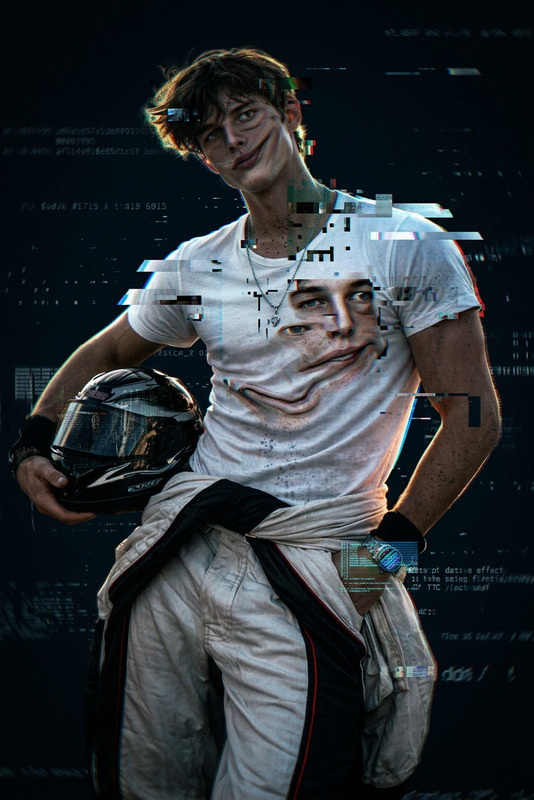
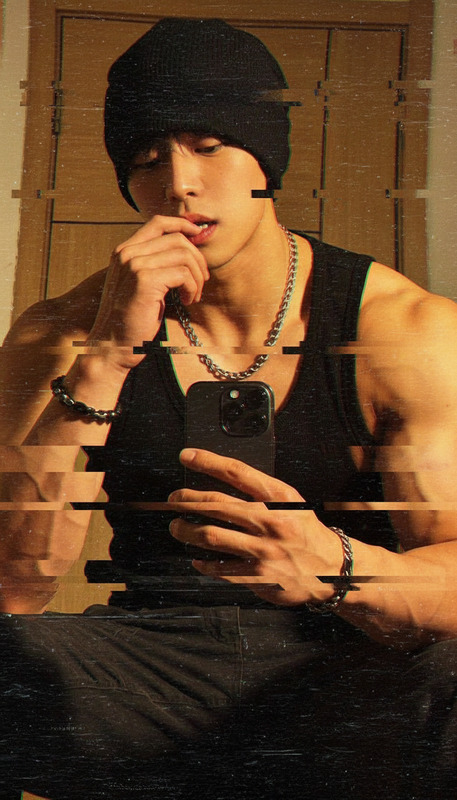
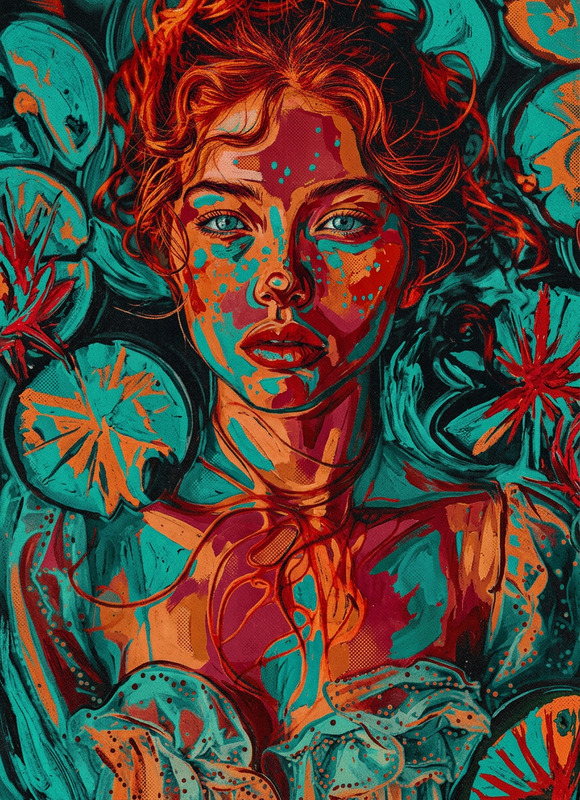
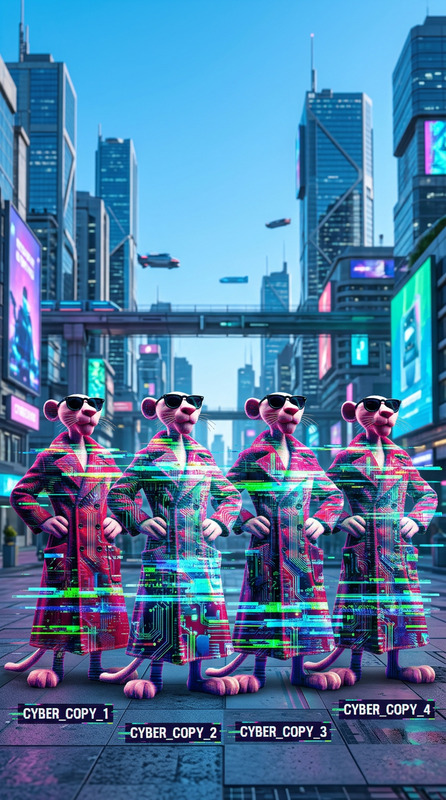
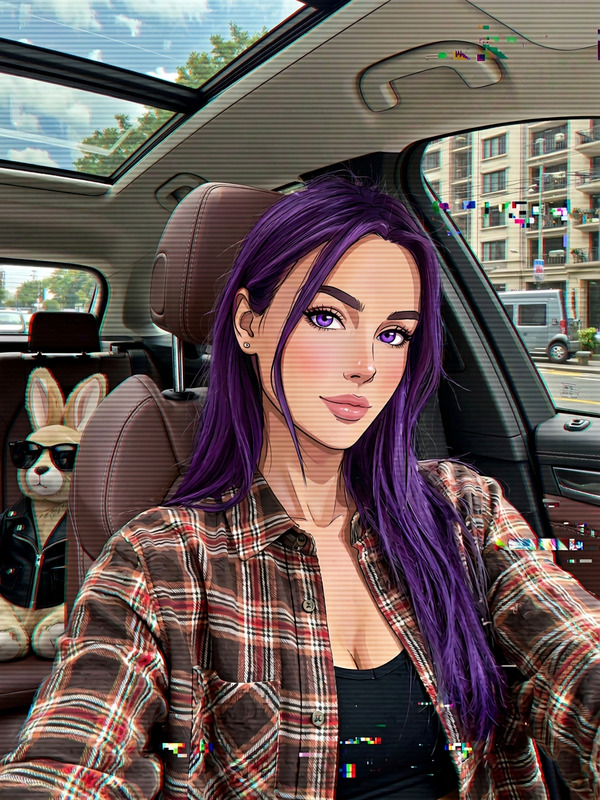
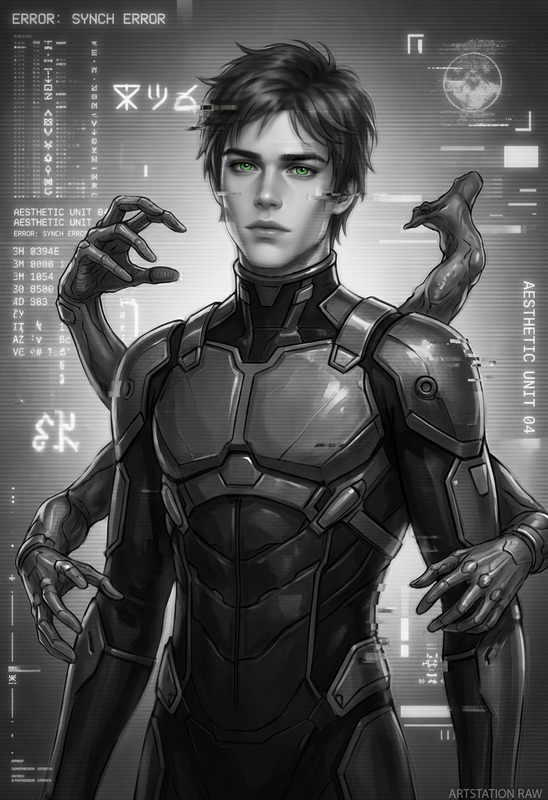
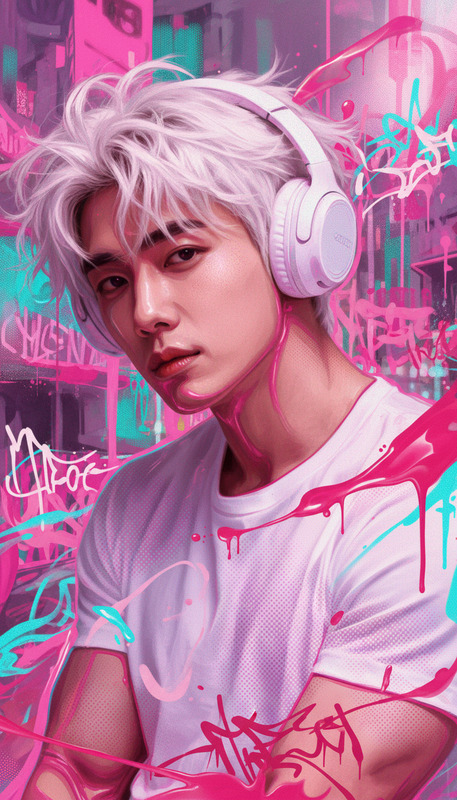
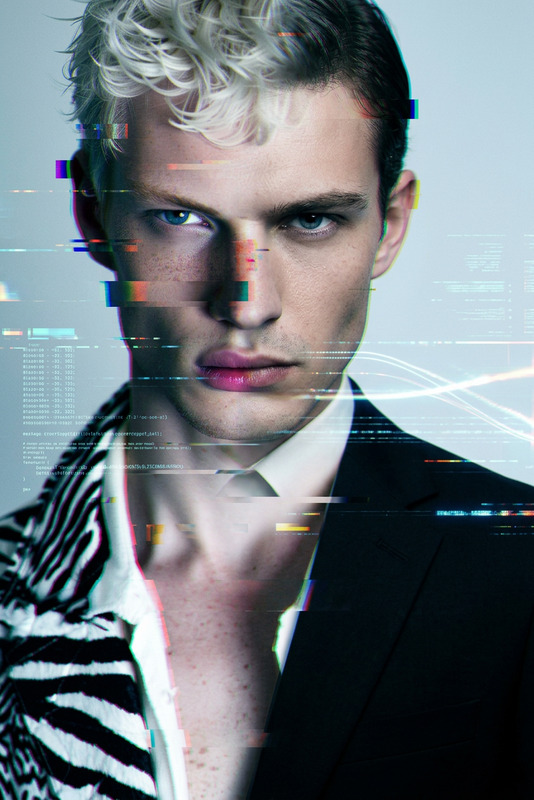
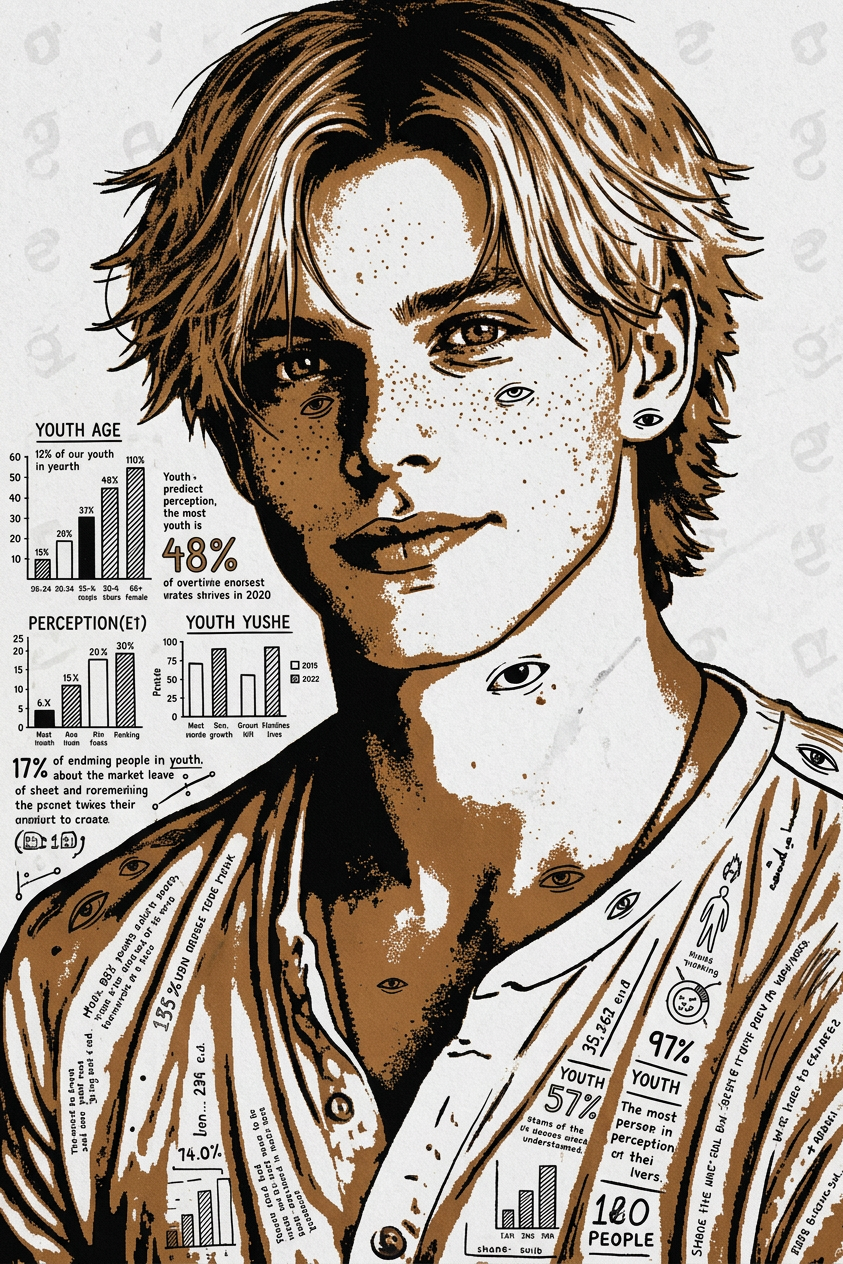
A full-page poster-style illustration in black and bronze tones, featuring intricate infographic details and marginalia on textured paper. The subject is rendered in a deliberately imperfect “bad-art” aesthetic with low-resolution quality, visible JPEG artifacts, and a raw printed feel. The subject incorporates abstract surreal elements with subtle strange eye motifs, set against a plain background with a faint watermark effect, creating an experimental, playful, and unconventional visual composition.

Transform Any Image with AI Image Editor Templates on Magic Hour

This template is built with the AI Image Editor, so you can quickly remix it into your own branded, production-ready visuals—no design team required.

Whether you’re a creator, marketer, or startup founder, this page walks you through:

  • What this template does and when to use it
  • How to remix it in Magic Hour in under a few minutes
  • How to combine it with other Magic Hour tools for full content workflows
  • Practical examples and ideas you can adapt for your own projects

What This Template Does

This template is a reusable starting point for editing images with AI. Built on Magic Hour’s AI Image Editor, it lets you:

  • Replace or enhance backgrounds
  • Add, remove, or refine objects in a scene
  • Clean up photos for social, ads, and product pages
  • Apply stylistic changes (e.g., “studio lighting,” “cinematic look,” “editorial style”)
  • Make consistent, on-brand assets for campaigns, decks, and landing pages

Under the hood, the AI Image Editor uses generative models similar to inpainting/outpainting in tools like Stable Diffusion and DALL·E. That means it can both understand what’s in your image (people, objects, layouts) and generate new pixels that blend naturally into the photo.


How to Remix This Template in Magic Hour

You can rebuild or customize this template in Magic Hour in a few quick steps:

  1. Open AI Image Editor
    Go to the AI Image Editor. This is where all image-based templates like this one are created and remixed.

  2. Upload Your Base Image
    Use any:

    • Product photo
    • Portrait or headshot
    • Social media image
    • Illustration or mockup

    Higher-resolution, well-lit images generally produce better AI edits and upscales. If your source is low-res, you can enhance it first with the AI Image Upscaler.

  3. Define Your Goal in Natural Language
    In your prompt, be explicit about:

    • What to change: “Remove the background,” “Add a laptop on the desk,” “Turn this living room into a Scandinavian interior.”
    • The desired style: “Minimalist product shot,” “Hyper-realistic,” “Cartoon/anime,” “Editorial fashion photography.”
    • Any constraints: “Keep the person’s face the same,” “Preserve the logo,” “Keep the colors close to the original.”

    Clear, specific prompts reduce trial-and-error and keep results consistent across multiple images.

  4. Edit, Refine, and Iterate

    • Run the edit, review the result, and adjust your prompt if needed.
    • Try alternative text instructions to compare options.
    • Save any version you like as part of your personal “template” workflow.
  5. Save as a Reusable Workflow
    Once you find a combination of instructions that works, reuse it for:

    • New product variants
    • New campaign creatives
    • Different formats (thumbnails, banners, covers)

    This is how you effectively “clone” this template and adapt it to your own brand and use cases without rebuilding from scratch each time.


Example Use Cases You Can Build from This Template

Use this AI Image Editor template as a foundation for a range of content workflows:

1. Social Media & Creator Content

Combine this template with:

2. Marketing & Performance Creatives

  • Quickly produce A/B variants of hero images and paid ads by editing backgrounds, props, color schemes, and compositions.
  • Generate industry-specific visuals (e.g., SaaS dashboards, ecommerce product shots, lifestyle scenes) and refine them in the editor.
  • Use AI Logo Generator and Book Cover Generator alongside this template to create coherent brand assets across formats.

After editing your base images, you can:

3. Product & Ecommerce Imagery

You can also experiment with:

4. Professional Headshots & Personal Branding

  • Start with a regular selfie and upgrade it into a polished portrait using:

  • Use the AI Image Editor to fine-tune backgrounds (office, studio, neutral color), adjust composition, or align the look with your website and LinkedIn.

If you plan to animate these later:

5. Concept Art, Comics, and Visual Storytelling

Then use the AI Image Editor to:

  • Correct faces and hands with AI Face Editor.
  • Align panels, character consistency, and backgrounds for a coherent visual narrative.

Turning Edited Images into Video, Animation, and Interactive Content

This template is only the starting point. Once you’ve edited your images, you can turn them into richer content inside Magic Hour.

From Image to Animated Content

From Static Faces to Talking Characters

If your edited image features a person or character:


Building Custom Templates from This One

To create your own reusable template based on this:

  1. Define a Narrow, Repeatable Use Case
    Examples:

    • “Clean, high-contrast product-on-solid-background for ecommerce.”
    • “LinkedIn-ready headshots with soft office background.”
    • “Comic-style character portraits for a game or series.”
  2. Lock in a Prompt Pattern
    Write a single prompt that describes your target look and behavior. Keep structure consistent, only swapping the specifics (e.g., product type, character description, background theme).

  3. Test on Multiple Inputs
    Run 5–10 different images through your prompt:

    • If results are consistent, you have a working “template.”
    • If not, refine the wording and rerun.
  4. Document Your Workflow
    Keep a short internal note (for yourself or your team) describing:

    • Where to upload the base images.
    • The exact prompt to use.
    • How the output is used downstream (social, ads, product pages, pitch decks).
  5. Connect Your Template to Other Magic Hour Tools
    For example:


Related Templates and Tools to Explore

If you like this AI Image Editor template, you may also want to explore:

You can also experiment with specialized generators for niche workflows:


Best Practices for High-Quality AI Image Edits

To get consistently strong results from this template:

  • Use clear, detailed prompts: specify subject, style, mood, and context.
  • Start from good source images: sharp, well-lit, with clear subjects.
  • Iterate in small steps: adjust prompts gradually rather than jumping between very different instructions.
  • Keep a library of “winning” prompts and reuse them to build your own internal template catalog.
  • Use enhancement tools like Unblur Image, Old Photo Restoration, and Photo Colorizer if you’re working with legacy or low-quality assets.

By starting from this AI Image Editor template and remixing it to your needs, you can build a fast, repeatable pipeline for images that are on-brand, high-quality, and ready for use across ads, social, product pages, and video—entirely inside Magic Hour.

More Like This