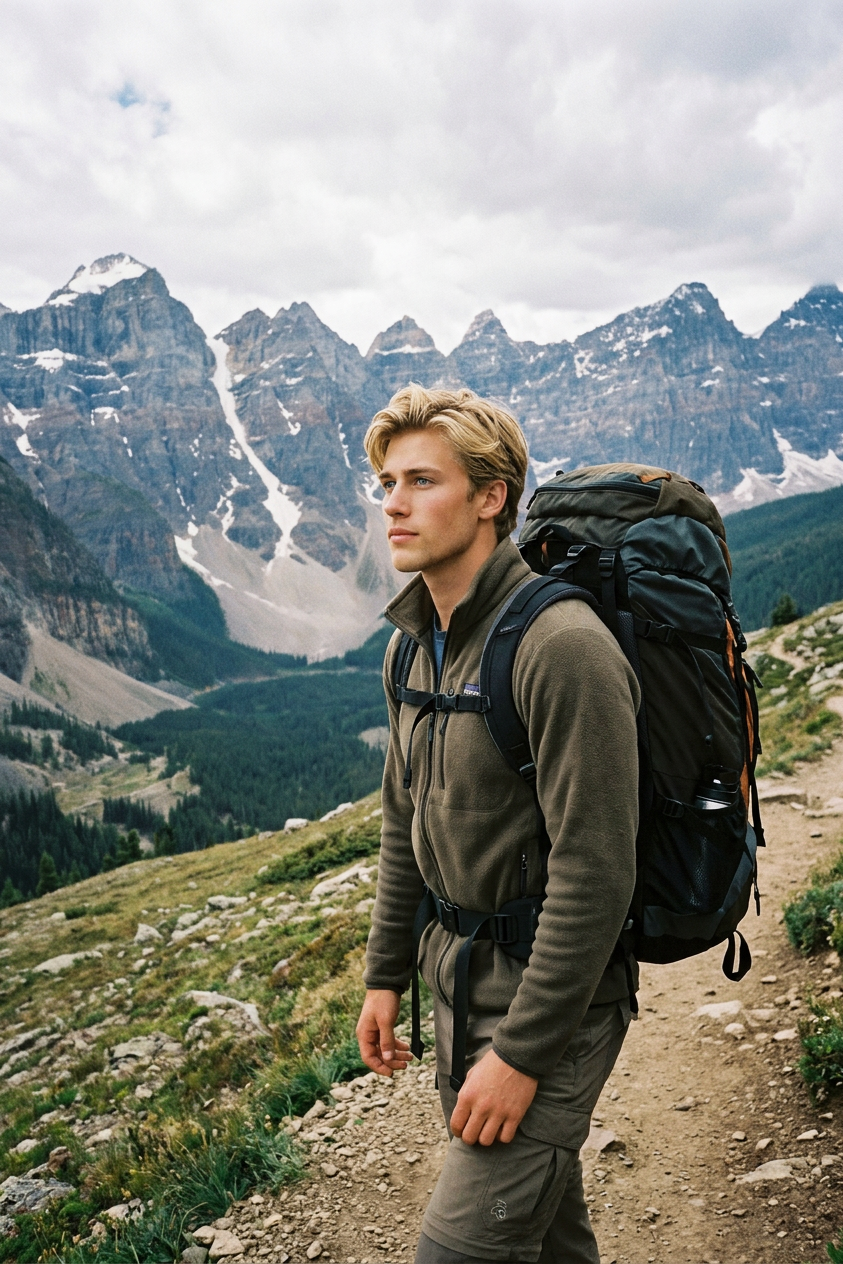
2006 Rockies Hiking Memory
Any aspect ratio
Slightly blurry 2006-style digital photo of a lone hiker with a large backpack pausing on a dirt mountain trail in the Rockies, looking out over vast mountain ranges under a cloudy sky. Photorealistic but nostalgic low-digital clarity, natural outdoor lighting, muted tones, high detail in landscape, documentary travel photography feel, subtle motion blur, atmospheric and realistic composition.
Overview
Experience the raw beauty and nostalgia of a 2006 Rockies hike with our AI Image Editor template. Revitalize your old hiking memories with a touch of digital artistry that preserves the essence of your adventurous spirit. The image editor's balanced enhancement recreates your recollections with precision, incorporating the mood and atmosphere unique to that time. Capture your journey with natural lighting and muted tones that transport you back in time.
What It Does
This template applies AI-driven editing techniques to give your photos a blend of nostalgic and modern feels, enhancing clarity while maintaining a 2006-style aesthetic. It utilizes the AI Image Editor powered by the nano-banana-2 model to simulate the distinct look of digital photography from that era. Expect photorealistic results with added details and atmospheric effects that draw out the rugged beauty of mountainous landscapes.
Who It's For
This template is perfect for outdoor enthusiasts, travel photographers, and anyone wishing to revisit and share their hiking memories with an updated twist. Creators looking for a way to enhance old photo albums or social media influencers wanting to evoke a sense of nostalgia in their feeds will find this tool exceptionally useful.
Summary
Transform your hiking photos into stunning visual stories with our 2006 Rockies Hiking Memory template. By using advanced AI features, your images capture the robust narratives of your past adventures. Explore other enhancements, such as AI Photo Relighting, to add a sense of depth and mood to your travel photography collections. Your unique journey deserves to be portrayed with authentic charm and clarity.
How To
Choose Your Template

Customize Your Image

Generate the Image

Use Cases
Personal Photo Albums
- Revitalize deteriorated images.
- Add photorealistic effects.
Social Media Content
- Share nostalgic photo stories.
- Use updated visuals for travel blogs.
Memory Gifts
- Create personalized travel logs.
- Design photo gifts with a story.
Best Practices
Preserve Original Quality
When uploading your image, ensure that it maintains good resolution to enable better enhancement by the AI functions.Focus on Landscape Details
Emphasize the landscape details in the prompt to enhance the natural beauty and atmosphere of your photo.Maintain Nostalgia
Adjust the prompt to retain subtle motion blur and muted tones to keep the nostalgic feel intact.