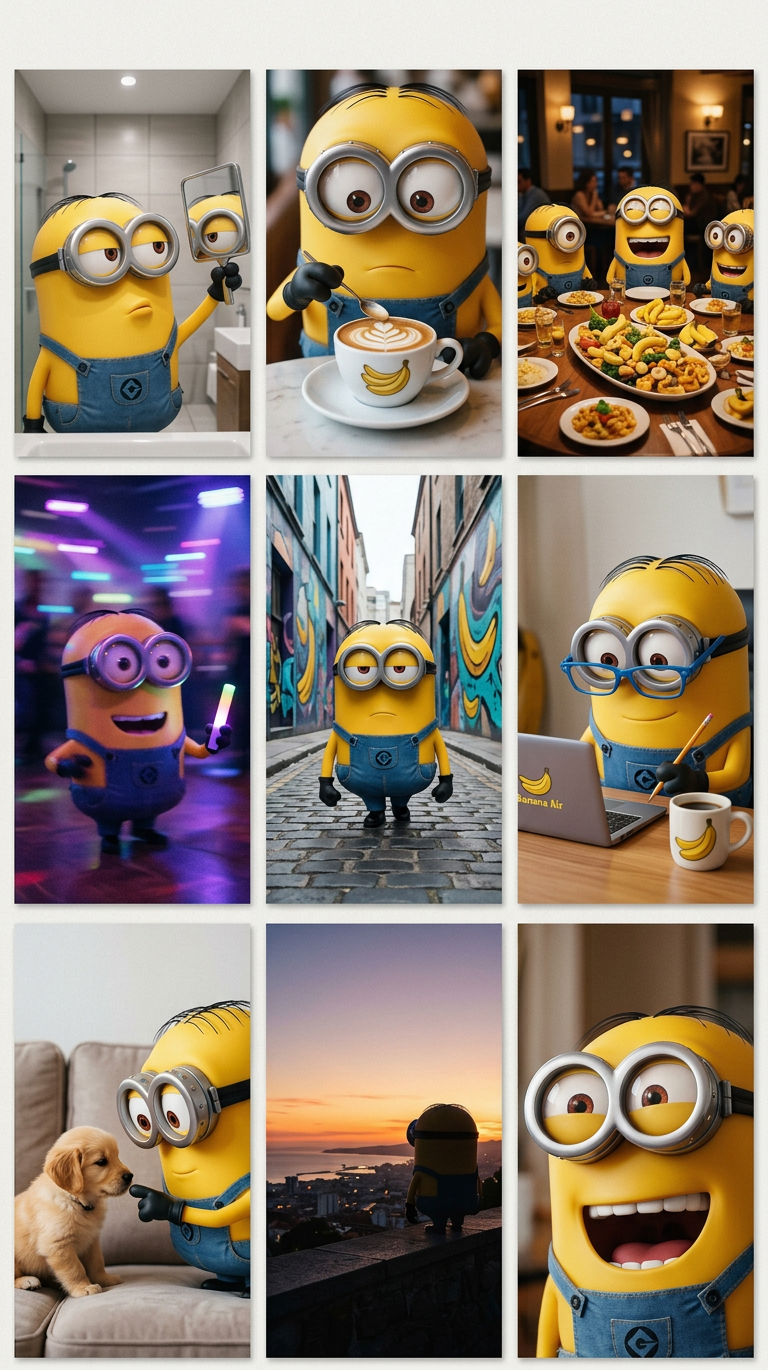
Weekend Photo Dump Grid

Weekend Photo Dump Grid

ai-image-editor

1 clip
7 uses

Any aspect ratio

Prompt

A 9-image “photo dump” grid capturing this subject’s weekend: mirror selfie, café shot, friends at dinner, blurry party moment, walking shot, laptop + coffee work scene, pet interaction, sunset view, and a candid laugh; cohesive lifestyle storytelling, natural candid feel; photorealistic, high detail; mixed lighting and angles, subtle film-like tones.

AI Image Editor Template – Remixable Workflow for Fast, High-Quality Visual Edits

Use this template to turn any image into a clean, on-brand asset in a few clicks. It’s built on Magic Hour’s AI Image Editor, and designed so you can quickly remix it for your own product shots, social posts, ads, or storyboards.


What This Template Is For

This template is ideal if you need to:

  • Clean up or enhance product photos for landing pages or app stores
  • Remove unwanted objects, text, or backgrounds from images
  • Reframe or recompose an existing image into a new layout
  • Turn a rough concept or mockup into a polished, shareable asset
  • Generate multiple branded variations from a single source photo

It’s especially useful for:

  • Startup teams shipping marketing assets on short timelines
  • Designers and PMs iterating quickly on UI, ads, or pitch visuals
  • Creators repurposing content across platforms (web, social, email)

Under the hood, this template uses the same tech as the AI Photo Generator, AI Image Generator, and AI Image Upscaler, but optimized for direct editing instead of starting from scratch.


How to Remix This Template in Magic Hour

You can clone this workflow and adapt it to your own use case in minutes. At a high level:

  1. Open the Template in Magic Hour

    • Start from this template and load your reference image.
    • Use any image you own or have rights to (product photo, brand visual, illustration, UI mock, etc.).
  2. Define Your Edit Goal in Plain Language
    In the prompt field, clearly describe what you want changed. Examples:

    • “Remove the background and replace it with a clean white studio backdrop.”
    • “Turn this rough sketch into a polished, realistic product render with soft studio lighting.”
    • “Convert this daytime outdoor scene into a cinematic sunset, keeping the subject the same.”
    • “Clean up all artifacts, sharpen text on the label, and make colors more saturated but natural.”
  3. Use the Image as Grounded Context
    The AI Image Editor uses your input image as an anchor, so you can:

    • Keep structure and layout, but change style or mood
    • Preserve the subject while adjusting background, colors, or lighting
    • Maintain brand elements (logos, typography, layout) while improving quality
  4. Iterate Quickly with Variations

    • Generate multiple variations and pick the best one for your use case.
    • Adjust your prompt between runs (e.g., “make lighting softer,” “more minimal background,” “more realistic textures”).
    • For social or ad testing, keep the same core image and experiment with different compositions or backgrounds.
  5. Export and Connect to Other Magic Hour Tools
    Once you have a final image, you can:


Example Use Cases You Can Clone

You can remix this template to behave like multiple different workflows:

1. Product Photo Cleanup & Rebranding

  • Start from a raw product shot on your phone.
  • Prompt: “Clean studio product photo, soft shadows, minimal white background, keep logo and packaging exactly the same.”
  • Use Image Background Remover if you want to isolate the product, then refine with AI Image Editor.
  • Export final hero image and variants for thumbnails via the Thumbnail Maker.

2. Social Media & Ad Creative Refresh

  • Load existing ad creative or a social post that performed well.
  • Prompt: “Keep composition and main subject, change background to a modern office, slightly brighter colors, ad-ready.”
  • Create multiple versions for A/B testing across platforms.
  • For meme-style content, pair this with the AI Meme Generator.

3. Concept Art and Mockups for Product Teams

  • Upload a wireframe, rough render, or mood board image.
  • Prompt: “Turn this rough layout into a polished marketing image with realistic lighting, modern product style, and neutral background.”
  • Enhance realism or stylization using AI Art Generator or AI Illustration Generator before or after editing.

4. Portrait, Avatar, and Creator Assets

5. Removing Distractions and Fixing Imperfections

  • Start from an otherwise good image that has issues (clutter, unwanted logos, people in the background).
  • Prompt: “Remove all people in the background, keep main subject, smooth the floor, consistent shadows, keep existing color palette.”
  • For more targeted cleanup, use Remove Object from Photo or the AI Remover, then refine through the template.

Advanced Workflows: Connect to Other Magic Hour Capabilities

If you’re building end-to-end creative pipelines, this template can sit in the middle of a broader chain:


Practical Prompting Guidelines (What Works Best)

For consistent, high-quality results in this template:

  • Be specific about what must stay the same vs. what can change

    • Example: “Keep the product shape, label text, and brand colors. You can change background, lighting, and reflections.”
  • Describe the final use case

    • “Website hero image,” “App Store screenshot,” “performance ad for mobile,” or “pitch deck slide” helps the AI infer composition and clarity needs.
  • Reference visual styles in words, not just adjectives

    • Instead of only “modern” or “clean,” try:
      • “Minimal, Apple-style product photo”
      • “Soft studio lighting like a DTC skincare ad”
      • “Flat illustration style suitable for SaaS landing page hero section”
  • Iterate in small steps

    • Run an initial edit, then adjust:
      • “Same as previous, slightly more contrast”
      • “Same composition, but make the background darker and less saturated”
  • Respect legal and ethical constraints

    • Only edit images you have rights to use.
    • Avoid impersonation or misleading edits; use Face Swap and Gender Swap responsibly and with consent.

When to Use This Template vs. Other Magic Hour Tools

Use this AI Image Editor template when:

  • You have an existing image that’s “almost right” and needs targeted improvement.
  • You want consistency across a set of product shots or brand visuals.
  • You’re editing for clarity, quality, and alignment—not generating from a blank canvas.

Consider these complementary tools when:


How to Adapt This Template to Your Own “House Style”

To turn this into a reusable system for your brand or product:

  1. Lock in a Reference Look

    • Run a small set of your favorite brand images through the AI Image Editor.
    • Describe your style in the prompt (e.g., “high contrast, bold colors, generous whitespace, clean typography where visible”).
    • Save the prompt + process for reuse.
  2. Create a Reusable Prompt Pattern

    • Example pattern:
      • “Keep subject: [X]. Background: [Y]. Lighting: [Z]. Use colors consistent with [brand], clean and minimal. Output: ready for [channel].”
    • Replace [X]/[Y]/[Z] each time, keep the rest stable.
  3. Standardize Across the Stack

  4. Document Your Settings and Prompts Internally

    • Keep a short internal style sheet: preferred prompt phrases, target resolutions, and example “good outputs” for new team members.

Getting the Most Value as a Creator, Marketer, or Builder

This template is optimized for people who care about:

  • Speed: move from rough asset → polished output in minutes.
  • Consistency: keep visuals on-brand across campaigns and surfaces.
  • Control: edit real images instead of relying only on random generations.
  • Scalability: connect with other Magic Hour tools to generate entire asset suites (images, video, voice) from a small set of core visuals.

Remix this AI Image Editor template, tune it to your own brand and workflows, and then reuse it as the backbone of your visual system—whether you’re running a one-person startup or coordinating a full marketing team.

More Like This

Insufficient credits