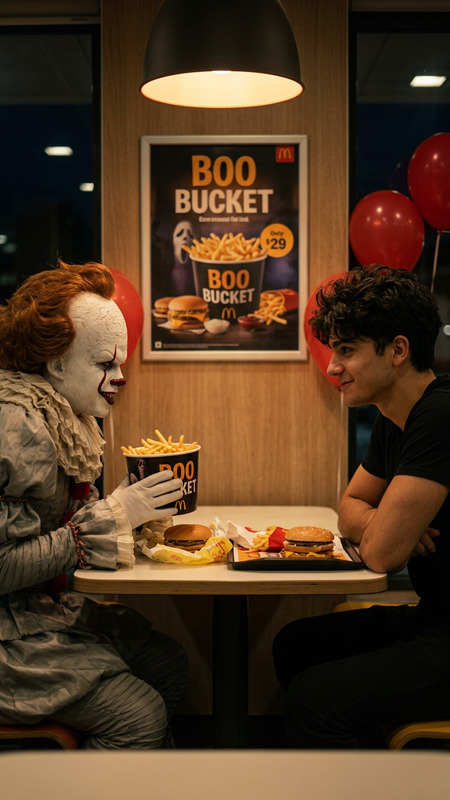
Late night at a suburban McDonald’s
image-to-video
Any aspect ratio
A wide-angle, documentary-style photograph of an abandoned McDonald's at midnight, with a brightly lit neon sign in Chinese and Malay characters, flickering fluorescent lights on the ceiling, steam rising from a frying pan of chicken, plastic chairs scattered around a slightly cluttered table stained with chili peppers, and a simple green insulated bag in the corner. Taken with a handheld 35mm lens, the slightly angled shot, with some noise, reflects off the wet tile floor, creating a nostalgic and rustic feel, focusing on the table as the central focal point of a late-night family meal.
Tags
showcaseBring Still Images to Life with Image‑to‑Video Animation
Turn any static image into a smooth, cinematic video clip with this Image‑to‑Video template on Magic Hour. Whether you’re prototyping product motion, animating characters, or adding life to social content, this remixable template gives you a fast, repeatable workflow you can adapt to your own visuals.
What This Template Does
This template uses Magic Hour’s Image‑to‑Video engine to:
- Animate a single image into a short, looping or narrative video
- Preserve your original style, composition, and subject while adding motion
- Generate ready‑to‑share content for social, marketing, product demos, or storytelling
You bring one or more reference images; Magic Hour handles motion, transitions, and realistic visual coherence frame‑by‑frame.
Who This Template Is For
This Image‑to‑Video template is designed for:
- Creators & editors – repurpose existing artwork, photos, or thumbnails into scroll‑stopping motion for Reels, Shorts, TikTok, or campaigns.
- Marketers & growth teams – prototype motion ads, landing page hero animations, or product showcases without a motion‑graphics team.
- Startup builders & PMs – quickly visualize product interactions, app flows, or concept animations for pitches and user testing.
- Game & character artists – animate concept art or characters as reference for gameplay, cutscenes, or teasers.
If you’re comfortable with tools like Figma, Canva, or basic video editors, you’ll be productive in minutes.
How to Remix This Template in Magic Hour
You can clone this workflow in Magic Hour by starting from your own image and following a simple process:
Prepare your source image
- Use high‑quality, well‑lit images for best results.
- Portraits, characters, product photos, app screenshots, and illustrations all work well.
- If you need a starting asset, generate one with the AI Image Generator or AI Photo Generator.
Open Image‑to‑Video
- Go to Image‑to‑Video on Magic Hour.
- Upload your source image (or an improved version from the AI Image Editor or AI Face Editor).
Describe the motion
- In your prompt, clearly describe what should move and how:
- “Slow camera zoom‑in on the character, subtle hair movement, cinematic lighting.”
- “Rotating product on a virtual turntable, clean white background, soft reflections.”
- “Parallax movement on background, gentle head turn, blinking eyes.”
- For character‑centric motion, consider combining later with AI Talking Photo or Lip Sync for voice and mouth animation.
- In your prompt, clearly describe what should move and how:
Generate and iterate
- Run Image‑to‑Video and evaluate:
- Does the motion match your concept?
- Is the focus on the right subject?
- If needed, refine your prompt to be more specific about:
- Motion speed (e.g., “subtle,” “dynamic,” “slow cinematic pan”)
- Camera behavior (zoom, pan, rotate, parallax)
- Emotional tone (dramatic, playful, calm, techy)
- Run Image‑to‑Video and evaluate:
Polish, combine, or repurpose
- Upscale final frames or cover images with the AI Image Upscaler.
- Extend or remix clips using:
- Video‑to‑Video for style‑consistent variations or alternate motion passes.
- Animation templates to explore other animated formats.
- Add dialogue or narration with the AI Voice Generator or AI Voice Cloner, then sync expressions using AI Talking Photo or Lip Sync.
Practical Use Cases
Here are concrete ways creators and teams can apply this template:
1. Character & Avatar Animation
- Animate portraits or avatars generated using:
- Add subtle idle movement (breathing, head tilt, blinking) or camera moves for intros, stream overlays, VTuber‑style personas, or story content.
- Layer on personality with AI Meme Generator or AI Talking Photo.
2. Product & App Showcases
- Turn static app screens or product renders into micro‑demos:
- Gentle pan over UI screens, CTA highlights, or state transitions.
- Rotating devices, packaging, or hardware shots.
- Combine with:
- AI Art Generator for on‑brand illustrated mockups.
- Text‑to‑Video when you want to go from concept script to full motion, then refine key frames via Image‑to‑Video.
3. Marketing & Social Content
- Transform campaign visuals into short motion assets for:
- Ad creatives, hero section backgrounds, email headers, or launch teasers.
- Generate supporting visuals with:
- Then animate key images with this Image‑to‑Video workflow for richer engagement.
4. Stylized & Genre‑Specific Motion
- Combine genre‑focused generators with Image‑to‑Video:
- AI Anime Generator for anime scenes and characters.
- Dark Fantasy AI or Fantasy Map Generator for moody, cinematic pans.
- Comic Book Generator for motion‑comic style frames.
- Then apply camera moves, atmospheric motion (fog, light flicker, particles), or parallax.
Tips for Strong Results
Use clean, focused source images
Avoid busy backgrounds if the subject is small or unclear. If needed, simplify with:Control where attention goes
Be explicit in your prompt about:- “Camera stays focused on the face, background moves subtly.”
- “Product remains centered; background rotates slightly.”
- “Foreground character in sharp focus, background soft.”
Start subtle, then push
Begin with light camera motion or environmental effects; once you’re happy with coherence, experiment with more complex motion.Design for your channel
Decide whether you’re targeting vertical, square, or horizontal usage from the outset so framing and composition feel deliberate.
Advanced Combinations for Power Users
For teams building pipelines or reusable content systems:
Face & identity workflows
- Create a base animated scene with Image‑to‑Video, then localize faces using:
- Useful for personalized campaigns, region‑specific talent, or UGC‑style variants.
Voice‑driven content
- Clone or generate a voice with:
- Animate a talking host or spokesperson:
- Generate a portrait via AI Headshot Generator or AI Selfie Generator.
- Animate expression and subtle motion with Image‑to‑Video.
- Sync speech with Lip Sync or AI Talking Photo.
Style‑consistent universes
- Use specialized generators to build a library of on‑brand characters and scenes:
- Animate key frames with this Image‑to‑Video template to build recurring characters or episodic content.
Related Magic Hour Tools Worth Exploring
To expand from this template into a broader creative stack, explore:
- Video‑to‑Video – restyle or re‑interpret existing video with different looks or moods.
- Animation templates – additional prebuilt animation flows.
- AI GIF Generator – convert your image‑to‑video clips into lightweight, shareable GIFs.
- Video Upscaler – improve clarity and sharpness for final delivery.
- Auto Subtitle Generator – add captions for social and international audiences.
How to Adapt This Template to Your Own Use Case
To create your own version of this Image‑to‑Video template in Magic Hour:
- Identify a single strong image (or a small set) you want to bring to life.
- Open Image‑to‑Video and upload your image.
- Write a motion prompt that describes:
- The camera movement (pan, zoom, rotate, parallax).
- What in the scene should move (subject, background, props, effects).
- The emotional tone and aesthetic (cinematic, playful, dark, minimal).
- Generate, review, and iterate until you have a clip that:
- Keeps your subject stable and recognizable.
- Aligns with your brand or narrative.
- Fits your intended channel (social post, ad, intro, product page).
- Save this combination of image + prompt as your personal “template” pattern, then reuse it with new images for consistent, scalable content.
By remixing this template, you can turn any static visual asset into a flexible animation building block, and stack it with other Magic Hour tools to build complete, production‑grade video experiences.