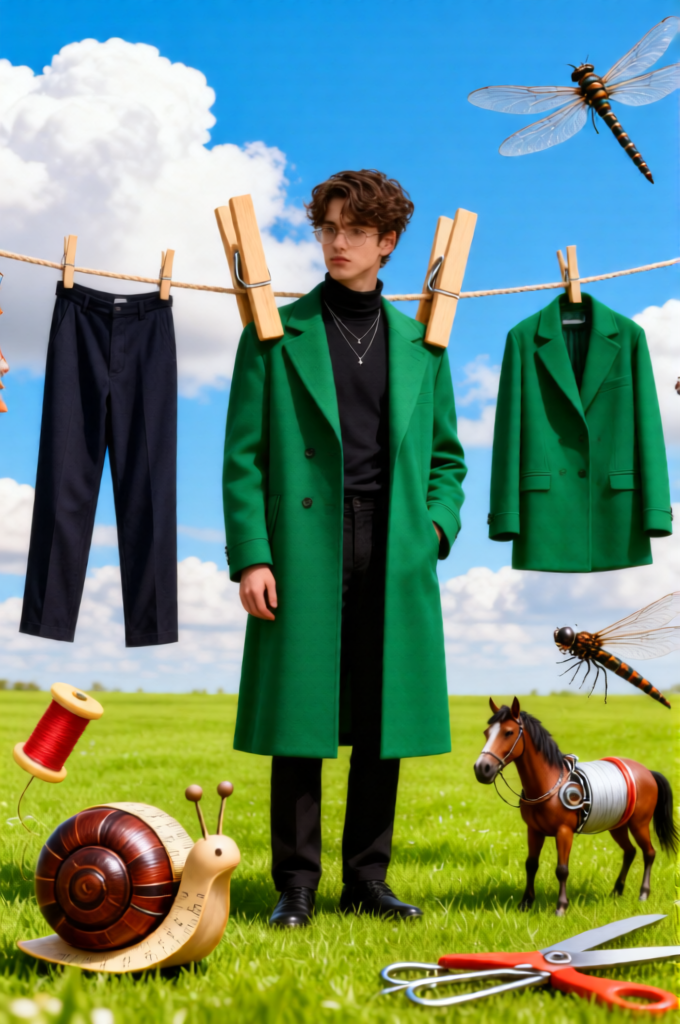
Surreal Fashion Clothesline Dream

Surreal Fashion Clothesline Dream

ai-image-editor

1 clip
4 uses

Any aspect ratio

Prompt

A surreal fashion collage set against a bright sunny sky with fluffy clouds and a vibrant green grass field. In the center, a young person wearing a long green designer coat is clipped to a clothesline by giant wooden clothespins, as if they were laundry. Other garments, like dark trousers and another green jacket, hang alongside. On the grass below, surreal insects and animals made of sewing tools: a snail made of a measuring tape, a horse made of a thread spool and safety pins, and a dragonfly made of scissors. Playful, high-fashion aesthetic, whimsical vibe, saturated colors, no text, clean composition.

AI Image Editor Template: Turn Any Photo Into a Polished, On‑Brand Asset in Minutes

Use this template to take a raw photo and turn it into a clean, professional, share‑ready image with the AI Image Editor. Remove distractions, fix flaws, and adjust style so your final image is ready for landing pages, ads, pitch decks, social, or product documentation—without opening Photoshop.


What This Template Is For

This template is designed for:

  • Founders & marketers – polish hero images, ad creatives, and social posts fast
  • Content & growth teams – standardize visuals across campaigns and channels
  • Designers & PMs – prototype visual ideas before handing off to design
  • Developers & builders – create documentation/feature images without a design team

Typical use cases:

  • Clean up a founder headshot for your website or pitch deck
  • Turn a phone snapshot into a product marketing image
  • Remove objects, people, or text from a demo photo or UI screenshot
  • Re-style a photo to match a brand mood (minimal, cinematic, playful, etc.)
  • Prepare an image as the base for image‑to‑video or talking photo content

This template uses the AI Image Editor as the core tool, but you can easily extend it with other Magic Hour tools when you’re ready.


How to Remix This Template in Magic Hour

You can either use this template as‑is or create your own customized version in a few steps:

  1. Open AI Image Editor
    Go to the AI Image Editor.

  2. Upload Your Base Image
    Start with:

    • A portrait (for profiles, decks, LinkedIn)
    • A product shot (for ecommerce, app store, landing pages)
    • A brand scene (office, event, workspace)
    • A screenshot (for UI, dashboards, analytics, or product tours)
  3. Decide Your Goal for the Edit
    Be explicit in what you want the final image to do. For example:

    • “Make this look like a professional SaaS landing page hero image.”
    • “Turn this casual selfie into a clean, modern headshot.”
    • “Remove background clutter and keep only the product, well lit.”
    • “Re-style this office photo with a warm, cinematic color grade.”
  4. Describe the Transform in Your Prompt
    Use direct, outcome‑focused instructions. Examples you can remix:

    • Clean founder headshot

      • “Keep the person’s face and expression. Remove the background, replace it with a soft gradient in neutral colors. Subtle studio lighting. No text.”
      • To go further, you can later use the AI Headshot Generator to generate more variations from this base look.
    • Product hero image

      • “Keep the app interface. Replace the background with a clean, abstract gradient. Add soft lighting and subtle depth so it looks like a modern SaaS marketing site. No brand text or logo.”
      • You can also generate UI‑centric variants or complementary assets with the AI Art Generator or Thumbnail Maker.
    • Object removal / cleanup

      • “Remove the person in the background and any clutter from the table. Keep the main subject sharp and natural.”
      • For heavy cleanup workflows, combine with the AI Remover or Remove Object from Photo.
    • Brand‑style restyle

      • “Match a minimal tech brand aesthetic: cool tones, high contrast, soft directional light, simple background, no extra props.”
  5. Iterate with Micro‑Prompts
    After the first result, refine in small steps:

    • “Slightly brighter overall.”
    • “More natural skin tone, reduce smoothing.”
    • “Lower contrast, keep details in the shadows.”
    • “Simpler background, fewer shapes.”

    These incremental changes are easier to control and give you more predictable outcomes than rewriting the entire prompt.

  6. Save as Your Own Reusable Template
    Once you get a result you like, you can:

    • Reuse the same prompt pattern with new images
    • Maintain consistent style across campaigns and team members
    • Treat it as your internal “brand image recipe” in Magic Hour

Consider maintaining a small library of prompt patterns for:

  • Founder/headshot style
  • Product UI style
  • Social/announcement style
  • Case study / testimonial visuals

Recommended Workflows and Combinations

Use this AI Image Editor template as the base layer in broader workflows:

1. From Polished Image to Video

  • Image → Short Video

    • Clean your image with this template
    • Then animate it using Image to Video for product teasers, social intros, or hero animations
  • Image → Talking Photo

    • Edit and clean a portrait or illustration
    • Then bring it to life with AI Talking Photo to create explainers, onboarding flows, or sales outreach content
  • Image → GIFs & Micro‑Content

    • Finalize a brand‑consistent image
    • Turn it into an animated loop with the AI GIF Generator

2. Creating a Visual System for Your Brand

Start from a single “master look” created with this template, then:

3. Leveling Up Quality and Resolution

For production assets:

  • After editing with this template, enhance sharpness and resolution using the AI Image Upscaler
  • If the original image is low‑quality or blurry, stabilize it first with Unblur Image
  • Repair old or damaged source material via Old Photo Restoration, then apply this template for a modern, clean presentation

Examples of Use Cases You Can Recreate

You can remix this template to handle a wide range of real‑world tasks:

  • Founder / Team Headshots

    • Start with a phone photo
    • Clean background, adjust lighting, normalize colors
    • Use AI Headshot Generator to generate multiple professional variations (different outfits, lighting, crops) based on the same person
  • App & SaaS Marketing

    • Capture a raw screenshot of your dashboard
    • Use AI Image Editor to simplify the background and integrate subtle gradients or device frames
    • Extend into motion via Animation Templates or Text to Video for feature walkthroughs
  • Ecommerce / Product Shots

    • Take a basic product photo on any surface
    • Remove the background and generate a clean studio or lifestyle setting
    • If you’re working with fashion images, combine with the AI Fashion Generator or AI Clothes Changer to test styling directions
  • Social and Content Marketing

    • Create hero visuals for LinkedIn posts, newsletters, or blog articles
    • Use the same brand prompt template for consistency
    • Generate platform‑specific versions with the Thumbnail Maker and Album Cover Generator for YouTube or podcast artwork

How to Write Strong Prompts for This Template

To get predictable, high‑quality results, structure your prompts with four parts:

  1. Subject – what must stay the same

    • “Keep the person’s face and pose.”
    • “Keep the app UI as is, don’t change the layout.”
  2. Background & Environment – what should change

    • “Replace background with a soft gradient in brand colors.”
    • “Simple, clean studio background with subtle depth.”
  3. Lighting & Style – the visual mood

    • “Soft, even lighting, natural skin tones, minimal shadows.”
    • “High‑contrast, cinematic lighting with cool tones.”
  4. Constraints – what to avoid

    • “No logos or text.”
    • “No extra objects or people in the background.”

Example prompt you can adapt:

“Keep the person’s face, expression, and pose. Replace the background with a simple, soft gradient in neutral colors. Soft studio lighting, natural skin tone, light retouching only. No text, no logos, no extra objects.”


Related Magic Hour Tools Worth Exploring

Depending on your workflow, this AI Image Editor template pairs well with:

If you’re working with faces specifically, you may also want to explore:

These can help you prototype character concepts, test variations, or generate synthetic personas while keeping the final polishing step in the AI Image Editor.


Creating Your Own Version of This Template

To build a version tailored to your brand or product:

  1. Choose 3–5 reference images that feel “on‑brand” (from your site, Dribbble, Behance, etc.).
  2. Describe the shared traits in a prompt: colors, lighting, background complexity, mood.
  3. Apply that description to 3–10 different photos in the AI Image Editor.
  4. Refine until they all look consistent, then save the final prompt pattern for your team.
  5. Document your pattern (for example: “SaaS hero style v1”) so others can reuse it in Magic Hour.

By treating this AI Image Editor template as a starting point and then remixing it with your own prompts and the tools above, you can build a lightweight, scalable visual system for your product, brand, or startup—without needing a full design stack for every asset.

More Like This

Insufficient credits