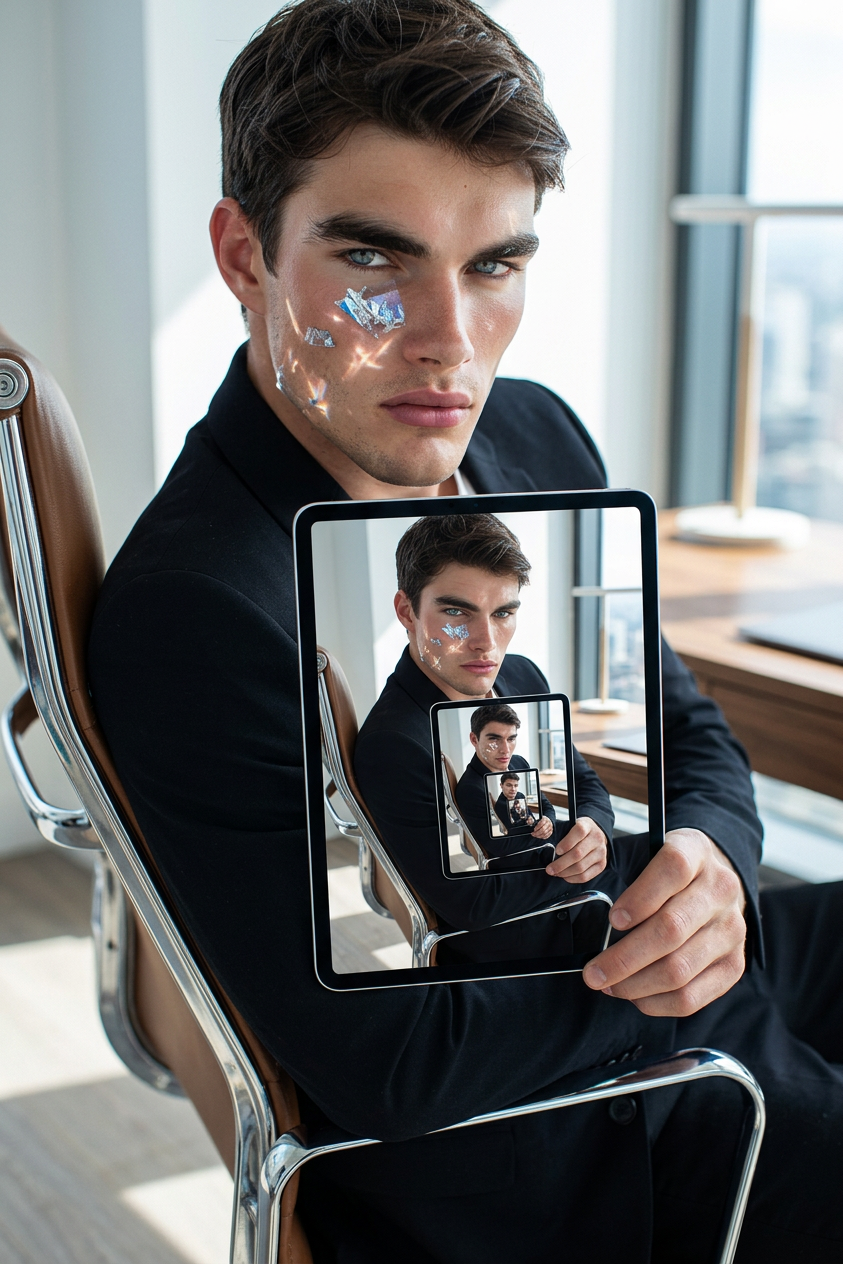
Recursive iPad Scene

Recursive iPad Scene

ai-image-editor

1 clip
1 uses

Any aspect ratio

Prompt

Create a realistic scene of the subject sitting in an office chair holding an iPad. On the iPad screen, show the same scene repeating infinitely (the subject holding an iPad showing the same image). Maintain identity, lighting, and perspective consistency. Ensure smooth, natural recursion with no distortion or artifacts.

AI Image Editor Template: Turn Any Photo Into Production-Ready Creative

Use this template to quickly transform, clean up, and enhance photos with the AI Image Editor. It’s designed for creators, marketers, and teams who need on-brand visuals fast—without jumping between Photoshop, freelancers, and multiple tools.

This page explains what the template does, when to use it, and how to remix it inside Magic Hour to build your own customized version.


What this template is for

This AI Image Editor–based template is ideal for:

  • Ad creatives – swap backgrounds, remove distractions, and generate multiple variations for A/B tests.
  • Social & content – turn one photo into a full set of thumbnails, carousels, or hero images.
  • E‑commerce & product shots – clean up product photos, change environments, and generate lifestyle scenes.
  • Founders & personal brands – create profile images, banners, and social headers that look professionally designed.
  • Prototyping and concept art – rapidly explore visual ideas before committing to full production.

It sits at the center of the Magic Hour visual stack and works especially well alongside:


What you can do with this AI Image Editor template

With this template as a starting point, you can:

1. Clean and restore photos

Use this workflow to repair legacy brand assets, product archives, or user-generated content you want to reuse.

2. Change backgrounds and environments

Typical use cases:

  • Create consistent studio-style backgrounds for product catalogs.
  • Place people or products into lifestyle, office, or outdoor scenes for ads and landing pages.
  • Generate themed or seasonal variants (Black Friday, holidays, product launches) without reshoots.

3. Re-style people, outfits, and faces

If your template focuses on portraits or people, you can:

This is especially useful for team headshots on startup sites, LinkedIn profiles, and media kits.

4. Build branded content, thumbnails, and covers

For marketers and content teams, pair this template with:

Use the AI Image Editor to:

  • Align all assets with brand colors, typography overlays, and visual style.
  • Clean up auto-generated text or artifacts.
  • Refine details that standard generators can’t easily control.

5. Turn edited images into video and motion

Once you’ve finalized an image via this template, you can move into motion:

This workflow turns one edited hero image into a multi‑asset campaign: static, GIFs, and video.


How to remix this template in Magic Hour

You can use this template as-is, or treat it as a starting point and customize it for your own workflow.

To create your own remix:

  1. Open the template in Magic Hour

    • Start from the AI Image Editor template inside your Magic Hour account.
    • Upload a sample image representative of what you’ll typically edit (a product shot, a portrait, a thumbnail, etc.).
  2. Define your transformation steps

    • Decide what you want your remix to consistently do, e.g.:
      • “Clean background + sharpen subject + on‑brand color grade”
      • “Turn raw portrait into LinkedIn-ready headshot”
      • “Convert messy product photo into a clean e‑commerce shot”
    • Combine editor operations (crop, cleanup, background change, style passes, color adjustment) into a repeatable flow.
  3. Integrate other Magic Hour tools (optional)

  4. Test with real use cases

    • Run several real assets (ad creatives, product photos, team portraits) through your remix.
    • Adjust your sequence until the output is consistent and reliable across different inputs.
  5. Save and reuse as your own “mini tool”

    • Once you’re happy with the flow, save it as your own reusable template within Magic Hour.
    • Share it with your team so designers, marketers, and founders can generate on-brand visuals without rebuilding the process each time.

This remixed template then becomes an internal, reliable way to get “your look”—even as your team scales or works async.


Related Magic Hour workflows to explore

Depending on your goals, this AI Image Editor template slots into several powerful pipelines:


Why teams use this AI Image Editor template

For time-constrained teams, this template offers:

  • Consistency – Once you lock in a look and process, anyone on the team can apply it without design expertise.
  • Speed – Turn raw, imperfect inputs into campaign-ready assets in minutes instead of days.
  • Cost efficiency – Reduce dependence on external design resources for routine or iterative tasks.
  • Scalability – Reuse the template across campaigns, channels, and products while keeping visuals aligned.

If you already use AI or traditional tools (Figma, Photoshop, Canva), this template acts as a powerful pre‑ or post‑processing step: clean and standardize inputs before design, or auto‑polish outputs after design.


Next steps

  • Use this template as-is to quickly edit and enhance your next batch of images.
  • Remix it into your own version tailored to:
    • Your brand colors and visual system
    • Your product shots and catalog
    • Your team’s headshots and personal branding
  • Connect it with adjacent tools like AI Image Generator, AI Background Generator, and Image to Video to build a complete visual pipeline inside Magic Hour.

Start with this AI Image Editor template, then turn it into the reusable visual engine for your brand.

More Like This

Insufficient credits