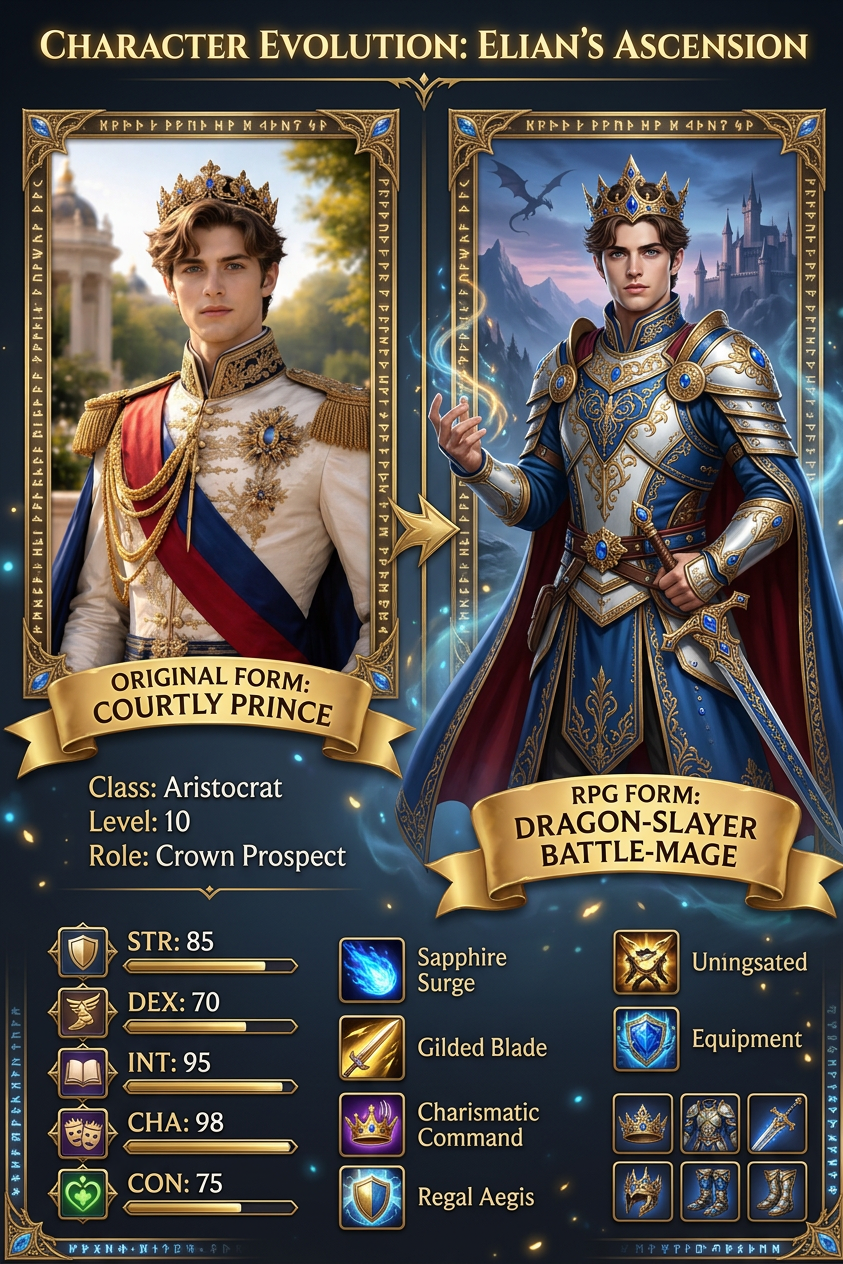
RPG Status Screen

RPG Status Screen

ai-image-editor

1 clip
5 uses

Any aspect ratio

Prompt

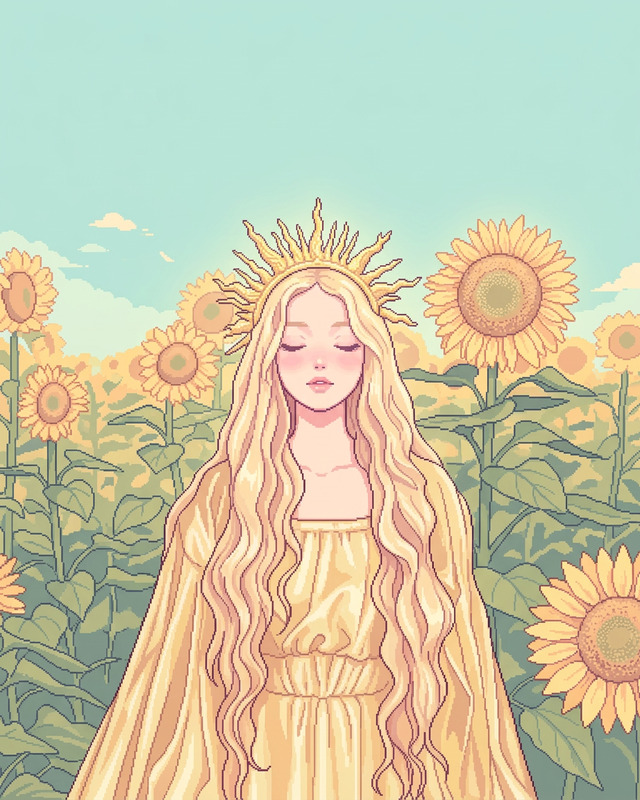
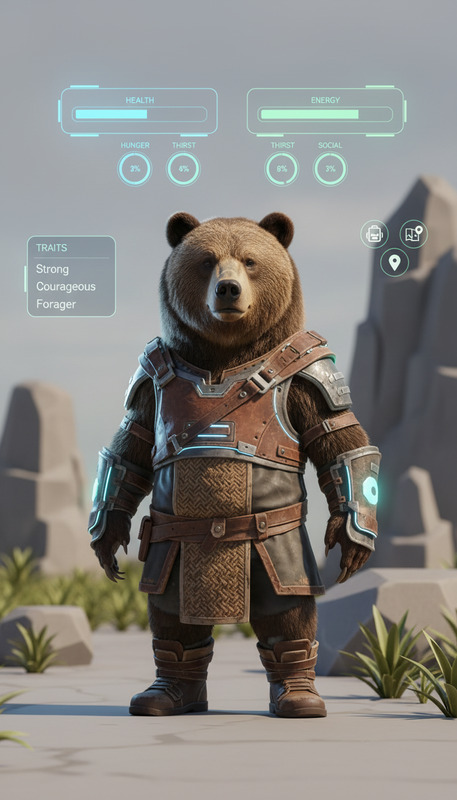
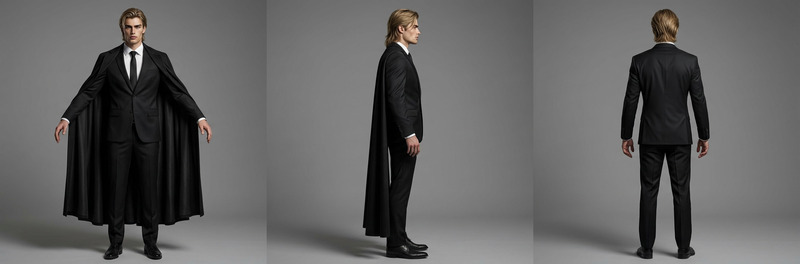
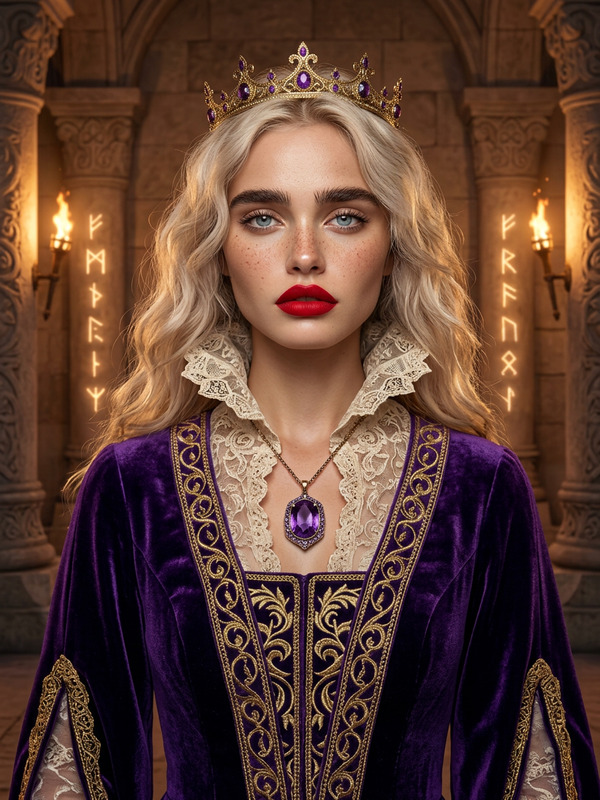
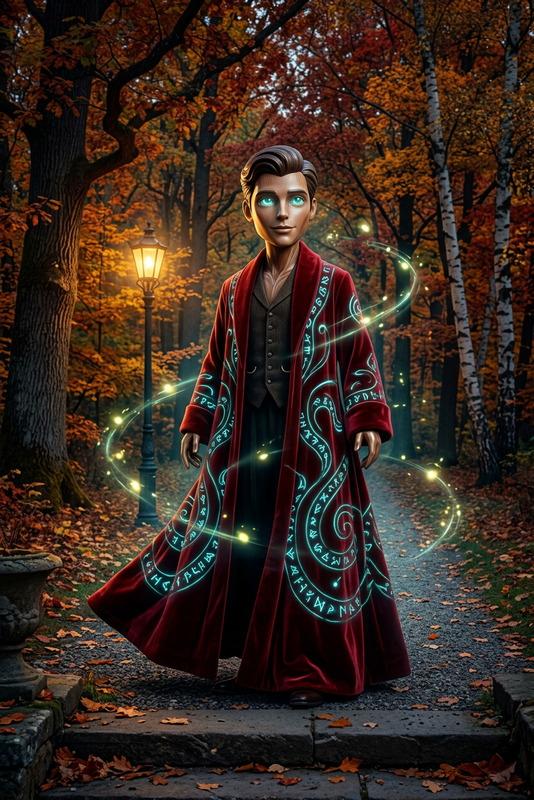
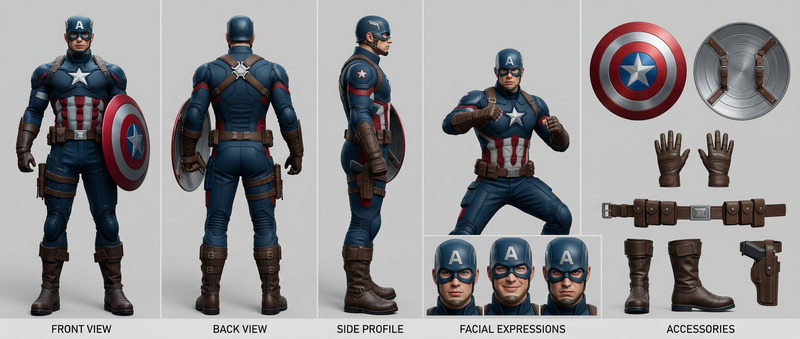
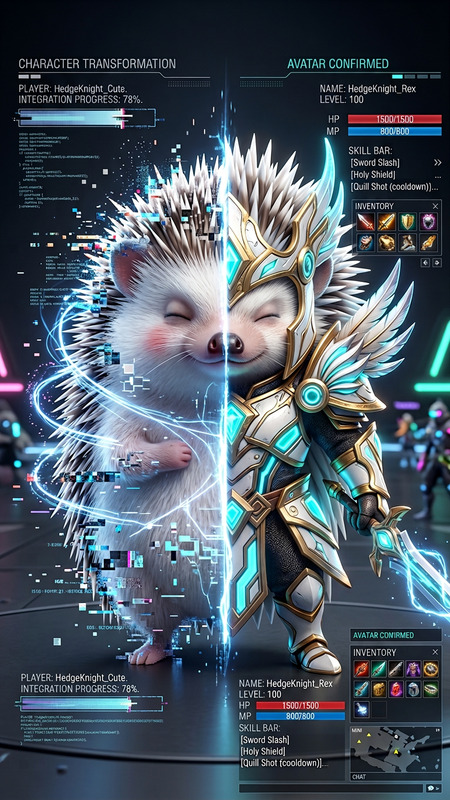
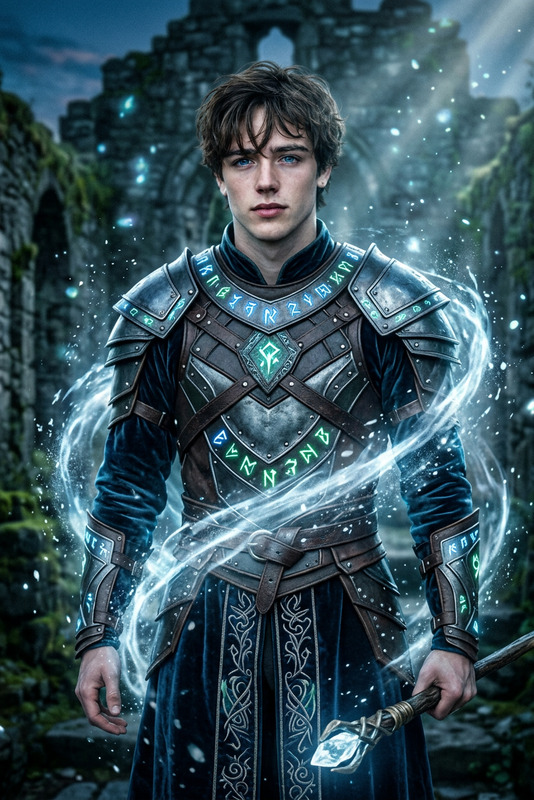
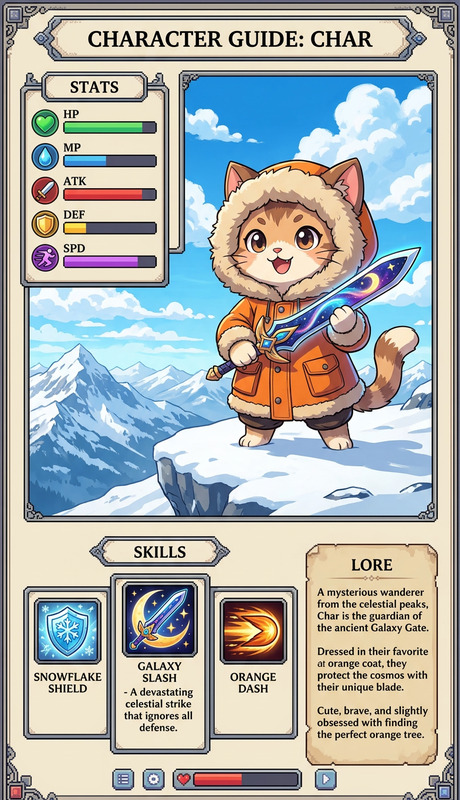
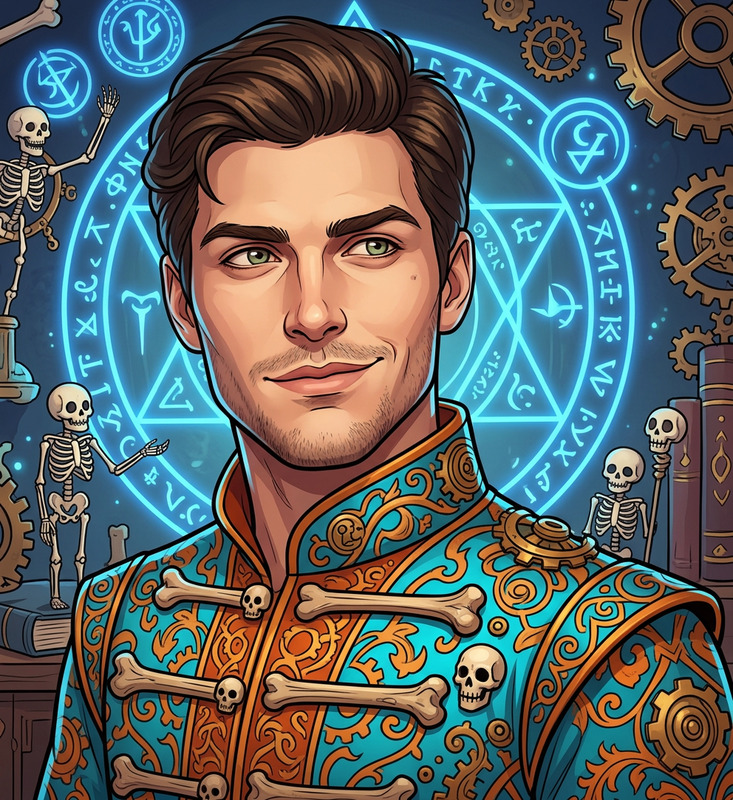
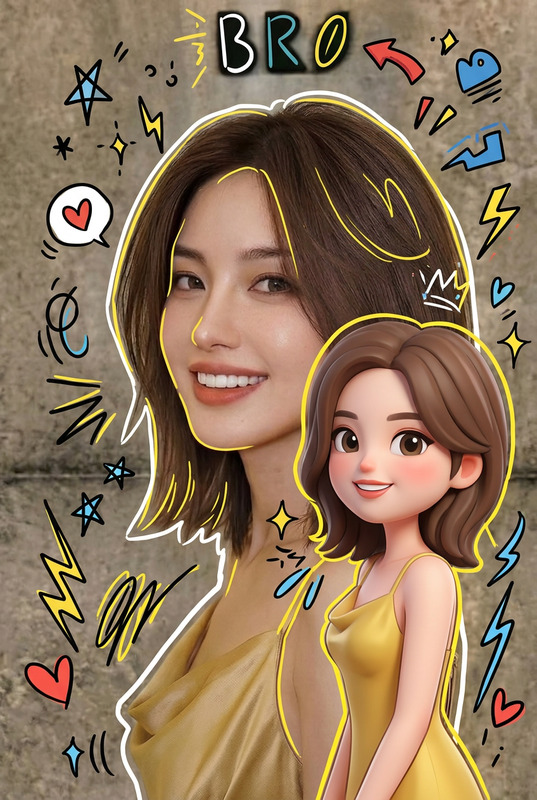
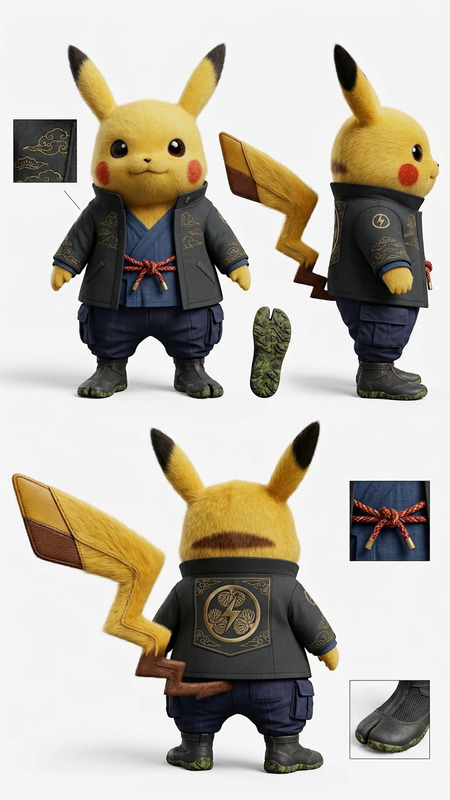
Create an RPG character status screen using the original character. Keep design/style, change outfit to fantasy RPG, adjust pose. Show original vs RPG version side by side. Add stylish UI (stats, skills, icons). Use matching fantasy background.

AI Image Editor Template: Turn Any Photo Into a Cinematic, On‑Brand Visual in Minutes

Use this template to quickly transform existing photos into polished, on-brand assets with the AI Image Editor. It’s ideal for creators and teams who need production-quality visuals without spending hours in Photoshop or briefing a designer.


What This Template Is Best For

This AI Image Editor–based template is optimized for:

  • Social content: LinkedIn carousels, Twitter/X posts, Instagram stories, TikTok thumbnails
  • Marketing assets: hero images, blog headers, landing page art, app store creatives
  • Product & brand visuals: mockups, “before/after” images, feature highlight graphics
  • Concept iterations: fast visual experiments for pitch decks, product ideas, and campaigns

Because it starts from a real photo, it’s especially effective when you want to keep core structure and composition, but upgrade style, mood, and detail.


How to Use (or Remix) This Template in Magic Hour

You can either use this template as-is or remix it into your own version. In both cases, the flow in Magic Hour is essentially:

  1. Open AI Image Editor
    Go to the AI Image Editor.

  2. Upload a base image

    • Use a product shot, portrait, screenshot, or brand photo.
    • Higher resolution and clear subject separation tend to yield cleaner edits.
  3. Describe the transformation you want
    Use a short, precise prompt. For example:

    • “Make this look like a cinematic still, soft lighting, shallow depth of field, muted teal and orange color grade.”
    • “Turn this office photo into a futuristic startup hub, glass walls, subtle neon, realistic lighting.”
    • “Same composition, but in a clean isometric illustration style, tech startup branding, white background.”
  4. Apply localized or global changes
    Within AI Image Editor you can:

  5. Iterate fast

    • Save promising results.
    • Slightly tweak your prompt to explore different aesthetics (minimalist, cyberpunk, editorial, comic-book, etc.).
    • Keep a small set of “prompt recipes” that match your brand (see below).
  6. Export for your channel


How to Remix This Template for Your Own Brand

To create your own branded version of this template in Magic Hour:

  1. Define your visual language in text
    Give the editor a clear description of your brand look:

    • “Clean, minimal, white background, soft shadows, product-focused, Apple-style product photography.”
    • “Bold colors, thick outlines, comic-book style, dynamic angles.”
    • “Neutral, editorial photography, natural lighting, human-centered SaaS brand visuals.”
  2. Codify “prompt recipes”
    Save prompts that you and your team can reuse. Example frameworks:

    • Make this image look like a [style] brand shot: [adjective 1], [adjective 2], [lighting], [background type], [color palette].
    • Transform this photo into a [illustration/comic/anime/manga] style while keeping [subject] and [composition] the same.

    For illustration-heavy looks, check out:

  3. Standardize key shot types
    Create separate “micro-templates” for:

    • Hero images (landing pages, campaigns)
    • Product feature visuals (UI screenshots on devices)
    • Founder & team portraits (polished, consistent headshots)
    • Social snippets (quote images, announcement visuals)

    For people images, pair the editor with:

  4. Build a reusable pipeline
    Many teams use AI Image Editor as one step in a wider Magic Hour pipeline. Common patterns:


Example Use Cases for This Template

1. SaaS Landing Page Hero

  • Upload a product screenshot with a simple background.
  • Use the template to:
    • Place it into a realistic device mockup (laptop/phone)
    • Add subtle gradients and light flares
    • Harmonize colors with your brand palette

Then, if needed:

2. Founder & Team Photos That Look Consistent

  • Start from real photos, even if lighting/backgrounds differ.
  • Prompt for: “professional, consistent lighting, soft studio background, same color palette.”
  • For new hires or missing photos, generate supporting visuals with:

3. Turning User-Generated Content Into On‑Brand Creatives

  • Take customer photos or screenshots from social.
  • Use AI Image Editor to:
    • Remove clutter (plus AI Remover / Watermark Remover, where appropriate and allowed)
    • Replace backgrounds with branded gradients or scenes
    • Style-match everything for ads, landing pages, or slide decks

4. Concept Art & Pitch Deck Visuals

  • Start with a rough sketch or basic photo.
  • Transform it into high-fidelity concept art using prompts like:
  • Upscale final picks with AI Image Upscaler for presentations or investor decks.

Connecting This Template With Other Magic Hour Workflows

Because this template is built on top of the AI Image Editor, it plays well with other Magic Hour products and templates:


Prompting Tips for High‑Quality Edits

Advanced users often treat prompts like declarative art direction. Some patterns that tend to work well:

  • Style + Medium + Lighting + Mood

    • “Cinematic photo, soft diffused lighting, high dynamic range, subtle film grain, calm and focused mood.”
    • “Flat vector illustration, bold shapes, minimal shading, bright startup color palette.”
  • Keep & Change constraints

    • “Keep the person’s face, pose, and clothing, but change the background to a modern office, natural light, realistic depth of field.”
    • “Keep layout and text legible, but restyle the image as an editorial magazine illustration.”
  • Reference real-world styles or genres

    • “In the style of minimalist tech branding, similar to modern SaaS landing pages.”
    • “Comic-book style with heavy inking and halftone textures” (pairs well with the Comic Book Generator).

Where helpful, compare outputs against your existing brand guidelines or moodboards and adjust wording over time. A few iterations usually converge on a reliable “house style.”


Ethical and Practical Considerations

  • Consent & rights: Only upload images you have the rights and permission to use, particularly for identifiable people or third‑party IP.
  • Disclosure: For commercial use, consider disclosing AI-assisted imagery in line with your organization’s policies or local regulations.
  • Consistency over novelty: In production workflows, prioritize repeatable prompts and visual predictability over one‑off “cool” effects.

Getting Started

  1. Open the AI Image Editor.
  2. Upload a photo you already use in your product, brand, or marketing.
  3. Paste a short, precise prompt describing your ideal outcome.
  4. Save 2–3 strong variants as your “visual baseline.”
  5. Remix this template by evolving those baselines into reusable prompt recipes for your team.

From there, you can connect the edited outputs to other Magic Hour tools—turning a single photo into a full suite of on‑brand images, videos, GIFs, and social assets in a single workflow.

More Like This