Espresso Drink Guide
- Model
- Nano Banana 2
- Image
- 1408 × 768 px
Prompt
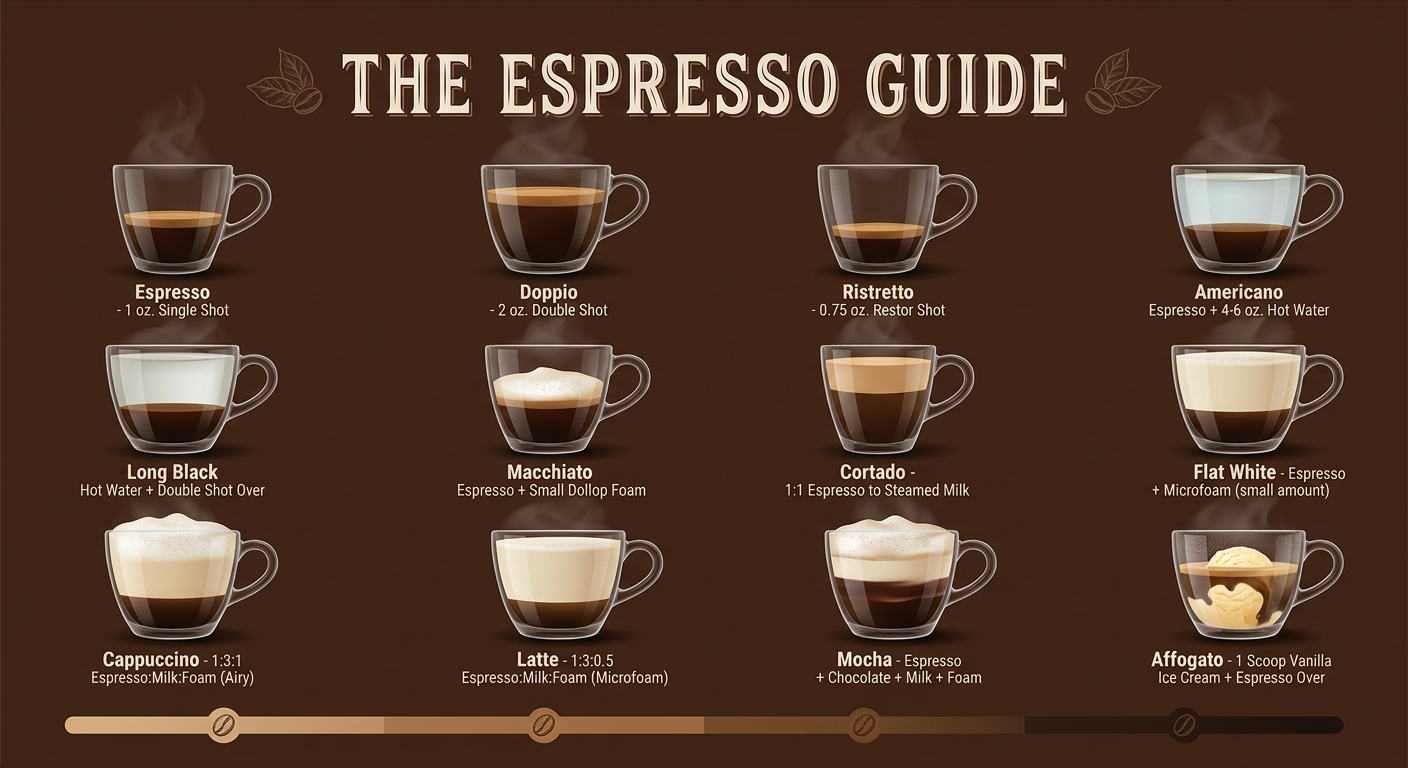
Elegant coffee infographic showing 12 classic espresso-based drinks arranged in a 4x3 grid on a rich dark roasted-bean brown background. Each drink is displayed as a transparent glass cup cross-section revealing distinct colored layers — dark espresso at the bottom, steamed milk in creamy white, foam as airy cloud-like caps, chocolate syrup in deep brown, vanilla in pale gold. Drinks include: Espresso, Doppio, Ristretto, Americano, Long Black, Macchiato, Cortado, Flat White, Cappuccino, Latte, Mocha, Affogato. Each glass has a clean label underneath in modern sans-serif typography with the drink name and a one-line ratio description (e.g. ""1:1 espresso to steamed milk""). A large decorative title at the top reads ""THE ESPRESSO GUIDE"" in elegant serif letterpress style with a subtle coffee bean illustration. Warm ambient lighting with soft shadows under each glass, slight condensation on cold drinks, wisps of steam rising from hot drinks. Bottom bar shows a roast-level gradient strip from light to dark with bean icons. Clean editorial layout, premium café poster aesthetic, photorealistic glass rendering with illustrated diagram overlay.
Any aspect ratio
Overview
The Espresso Drink Guide template provides a stunning AI Image Editor experience, offering a visually engaging way to present classic espresso drinks. Leveraging the power of nano-banana-2, this template arranges 12 popular coffee drinks in an infographic style, ideal for cafe promotions and educational content.
What It Does
The Espresso Drink Guide template creates a high-quality infographic illustrating 12 espresso drinks. This template handles everything from photorealistic glass rendering to beautifully arranged layout, ensuring each coffee type is distinctly represented with cross-section views and proportion labels. It is perfect for creating a premium café poster aesthetic.
Who It's For
This template is ideal for coffee enthusiasts, baristas, and café owners who want to enhance their marketing materials. It's equally useful for bloggers and educators aiming to elevate their product demo videos and tutorials, providing an informative yet stylish visual appeal.
Summary
With the Espresso Drink Guide, users can easily create compelling visuals for espresso-based beverages. This tool is a part of the wider AI Image Editor offerings, enabling users to craft beautiful, informative displays of coffee drinks with minimal effort.
How to Use
Choose the Template

Customize the Input

Generate the Infographic

Use Cases
Café Menu Displays
- Catch attention with photorealistic visuals
- Simplify guest decision-making
Social Media Content
- Boost engagement with stylish posts
- Educate followers with ratio descriptions
Coffee Brewing Classes
- Enhance visual learning
- Provide a clear reference for students
Best Practices
Optimize for Print Quality
Choose a high-resolution output to ensure clarity and detail when printing your infographic.Align Brand Aesthetics
Customize colors and typography to match your café's branding guidelines.Utilize Diverse Visuals
Leverage different coffee types and preparation styles in your designs to appeal to a broader audience.