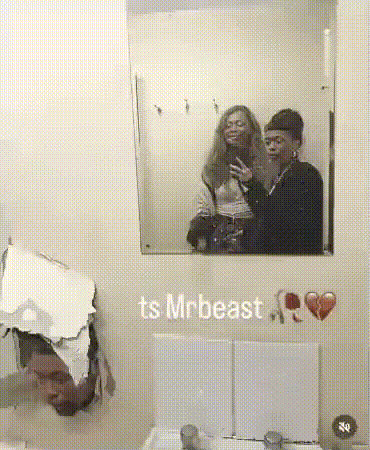
Playful Mirror Selfie

image-to-video

1 clip
6 uses

Any aspect ratio

Prompt

Captured in front of a mirror, showing both the subject and the phone in a casual mirror selfie. The subject suddenly does a quick playful flip, lands smoothly back in front of the mirror, then raises two fingers in a peace sign and says hi to the camera with a friendly smile

Tags

transformations

Bring Static Art to Life with Image-to-Video Animation

Turn any image into a smooth, cinematic video with this Image-to-Video template on Magic Hour. Whether you’re a creator, marketer, or developer, you can quickly remix this template to generate short animated clips, product hero shots, character motions, or social-ready visuals—starting from a single still frame.

This template is built on Magic Hour’s Image-to-Video technology, so you can go from concept to finished video in minutes, without editing timelines or keyframes.


What This Template Does

This Image-to-Video template lets you:

  • Animate a single image into a short video clip
  • Add natural motion (camera moves, subtle character movement, ambient dynamics)
  • Create loops that work well for social, ads, and hero sections
  • Maintain the original style and composition while adding depth and movement

It’s ideal for:

  • Product and landing page visuals
  • Character and concept art motion tests
  • Marketing campaigns and social posts
  • Mood videos and motion storyboards
  • Explainers and visual prototypes

Because it uses Image-to-Video, you keep tight control over the visual look while outsourcing the motion work to the model.


How to Remix This Template in Magic Hour

You can create your own version of this template in a few steps:

  1. Start from the template

    • Open this Image-to-Video template in Magic Hour.
    • Click “Remix” (or the equivalent action) to duplicate it into your workspace.
  2. Swap in your own image

    • Upload a still image (photo, illustration, render, poster, concept art, etc.).
    • For best results:
      • Use clear subjects and strong composition.
      • Avoid extremely low-resolution or heavily compressed images.
      • If needed, clean or adjust your image first with the AI Image Editor or boost quality with the AI Image Upscaler.
  3. Preview and refine

    • Generate a preview to see how the motion feels.
    • If the movement is too subtle or too strong, try:
      • Slightly changing the source image (e.g., adjust pose, framing, or background).
      • Using a variant of your image from the AI Image Generator or AI Art Generator and re-running.
  4. Export and reuse

    • Download the generated video and plug it into:
      • Landing pages (above the fold hero loops)
      • Paid ads and social posts
      • Product demos and pitch decks
    • If you need higher quality delivery, you can enhance output with the Video Upscaler.

Because this template is fully remixable, you can duplicate it across campaigns, swap creatives, and keep a consistent motion style with minimal overhead.


Powerful Combos: Build Rich Pipelines Around This Template

For teams and technical users, this template is most powerful when chained with other Magic Hour tools. Here are practical workflows you can set up:

1. Generate → Animate → Upscale

  1. Generate the base image
  2. Animate with this Image-to-Video template
    • Remix this template and feed in the generated image.
  3. Enhance the final video
    • Run the output through the Video Upscaler for sharper delivery in web or paid placements.

This pipeline is well-suited for marketers and startups testing creative variations quickly.

2. Character Motion for Talking or Lip-Synced Clips

If your image includes a character or portrait:

  • Animate the full frame with this template to add subtle body and camera motion.
  • Then, for dialogue or music-driven content, chain with:

Use this when building UGC-style ads, explainers, or quick proof-of-concept avatars.

3. Face-Driven Variations and Personalized Animations

You can personalize the same motion with different faces:

This is useful for growth loops, social campaigns, and personalization at scale.


When to Use Image-to-Video vs Other Magic Hour Products

Understanding the boundaries of Image-to-Video helps you design the right pipeline:

  • Use this Image-to-Video template when:

    • You already have a strong key visual and want to add motion.
    • Consistent look and style are more important than radical visual changes.
    • You need quick iterations on hero visuals, ads, or concepts.
  • Consider Video-to-Video when:

    • You already have a live-action or stock clip and want to restyle it (e.g., realistic → anime, 3D render → painterly).
    • You want to preserve timing and structure from an existing video.
  • Consider Text-to-Video when:

    • You’re starting from a script, idea, or storyboard and don’t have base images yet.
    • You want the model to handle both visuals and motion from scratch.
  • Consider Animation when:

    • You’re focusing on more stylized or illustrative motion.
    • You want to experiment with character animation, comics, or animated concepts.

Use the right tool for the job, then link them together as needed.


Best Practices for High-Quality Image-to-Video Results

To get consistent, production-ready results:

  1. Start from a clean, focused image

  2. Use strong subject separation

    • Clear foreground vs background improves motion quality and depth perception.
    • For portraits, ensure the face is not heavily occluded.
  3. Aim for sufficient resolution

    • If your source is small, run it through the AI Image Upscaler before animating. This can yield noticeably better motion detail.
  4. Stay consistent across a series

    • For campaigns, generate a small library of base images from the same style source (e.g., AI Art Generator or AI Photo Generator) and then animate each via the template.
    • This keeps the art direction consistent while varying motion and framing.

For a deeper understanding of generative video and best practices, it’s useful to look at research and benchmarks like Google’s Lumiere, Meta’s Emu Video, and OpenAI’s video systems, which all emphasize the importance of high-quality source imagery and clear subject structure for better motion coherence.


Use Cases for Professionals and Teams

This template is optimized for time-constrained teams who need leverage:

  • Marketers & Growth Teams

    • Generate multiple ad creatives and hero loops fast.
    • Localize or personalize campaigns by swapping in region-specific visuals and animating them with the same motion style.
    • Combine with Auto Subtitle Generator for social-ready exports.
  • Product & Startup Teams

    • Create product demo loops from static UI shots or renders.
    • Use animated visuals in pitch decks and investor updates.
    • Quickly prototype new landing page hero sections before sending to design.
  • Creators & Studios

    • Explore motion options for concept art, storyboards, and character designs.
    • Pair with Animated Characters Generator for evolving character ideas.
    • Build animated sequences by chaining multiple Image-to-Video clips with consistent style.
  • Developers & Technical Users

    • Integrate this template as a repeatable building block in tools or workflows that accept user-uploaded images and return animated clips.
    • Combine with other Magic Hour endpoints (image generation, upscaling, video enhancement) to create fully automated creative pipelines.

Related Tools Worth Exploring

Depending on your project, consider combining this Image-to-Video template with:


How to Get the Most Out of This Template

To use this template effectively:

  1. Treat your source image as your “storyboard frame.” Put in the effort there.
  2. Remix the template, swap the asset, and iterate quickly—optimize by trying a few different base images rather than micro-tuning a single one.
  3. Chain tools: generate → clean/edit → upscale → animate → enhance.
  4. Standardize your process so your team can consistently recreate results across campaigns and projects.

By centering your workflow around this Image-to-Video template and plugging in the right Magic Hour tools around it, you get a repeatable, scalable way to turn static visuals into high-impact motion content without a full video production team.

More Like This

Insufficient credits