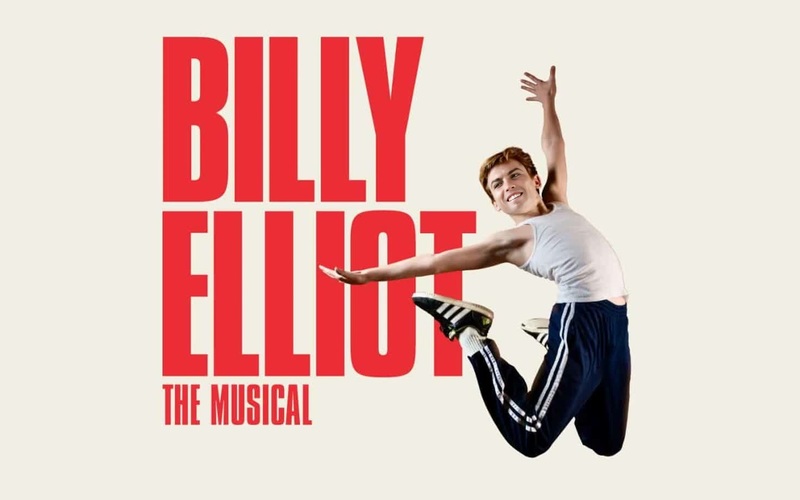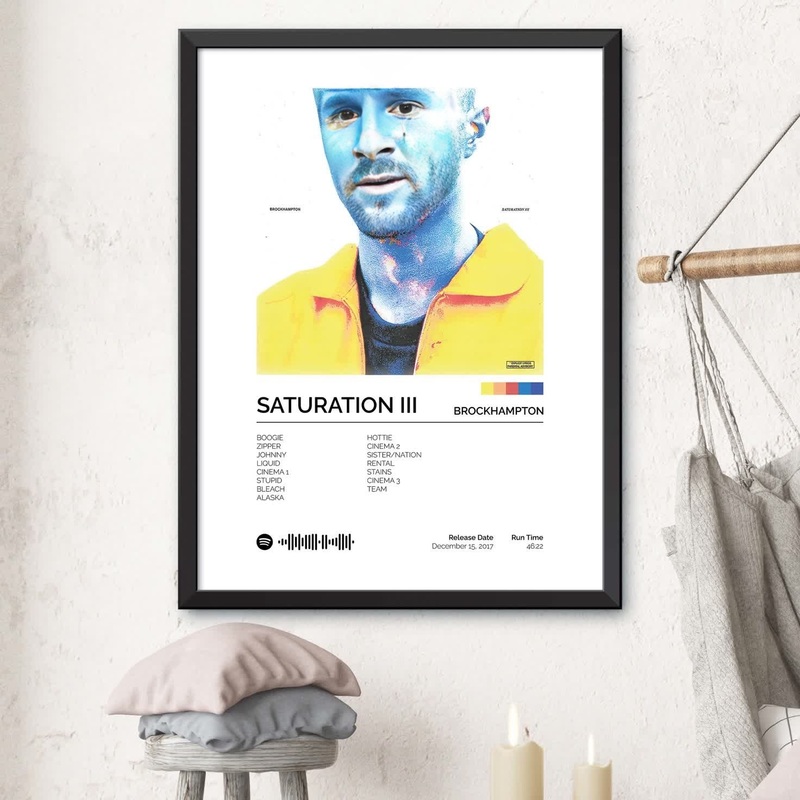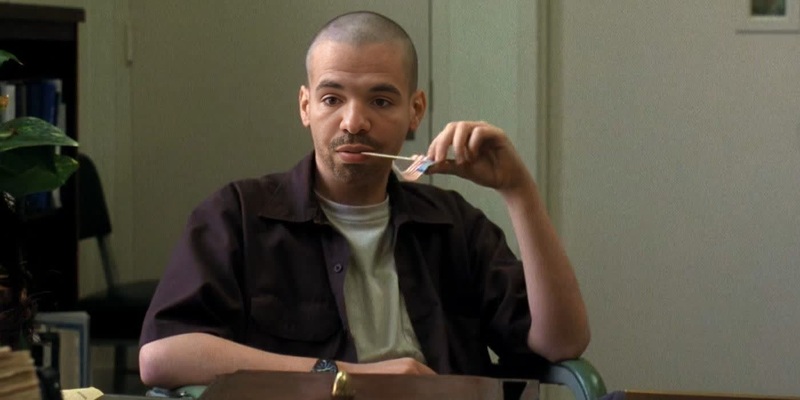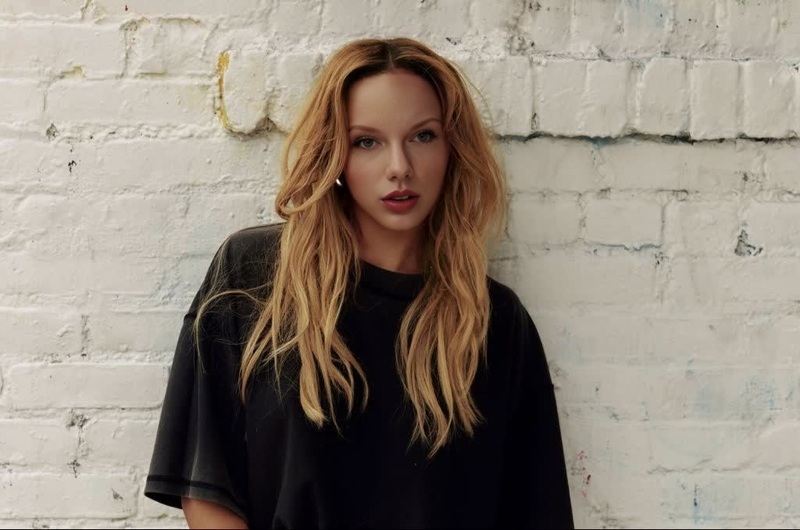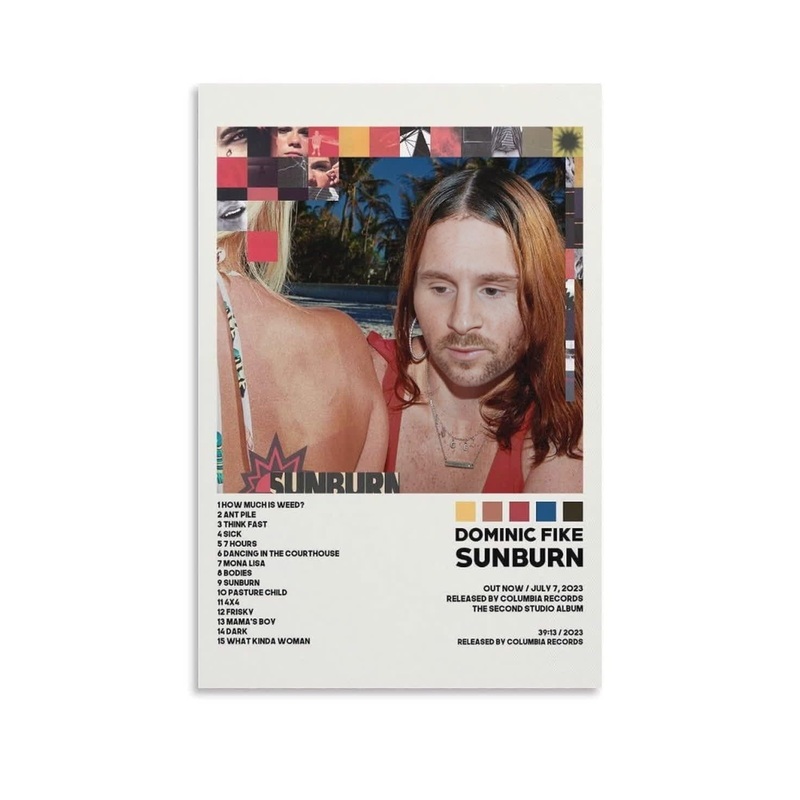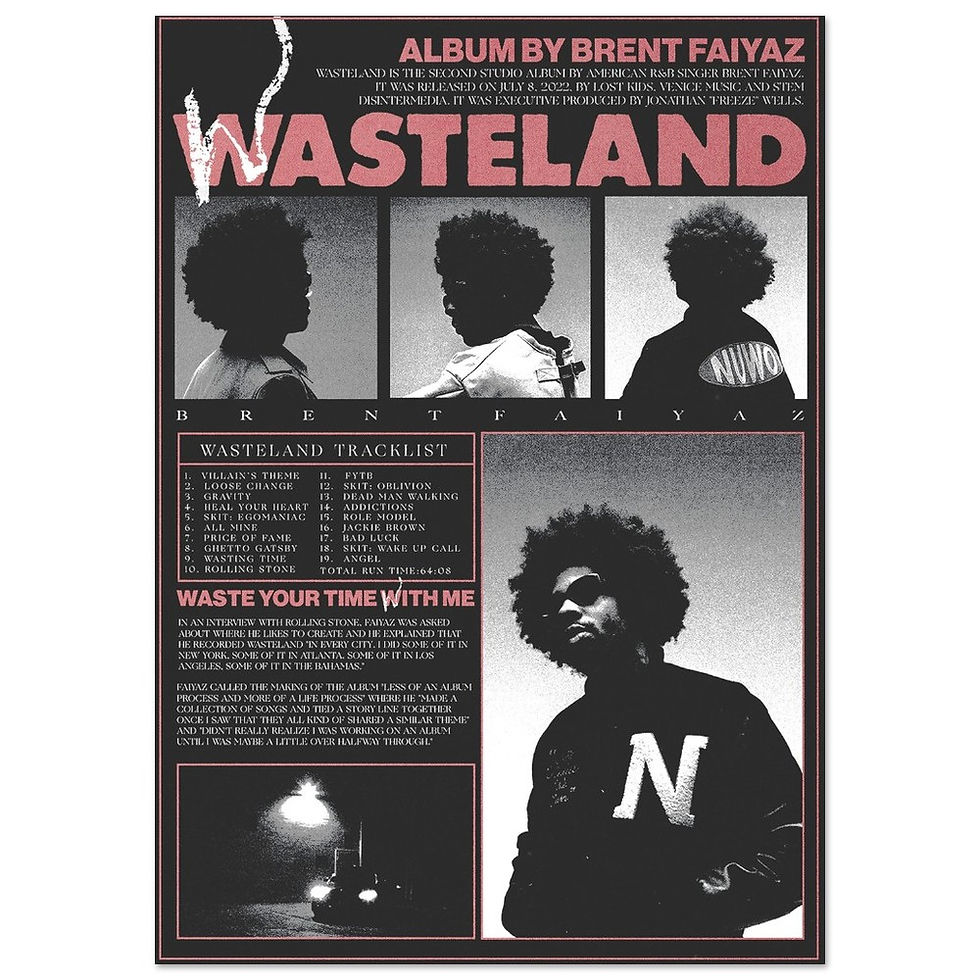
Brent Faiyaz Wasteland Press Portrait

Brent Faiyaz Wasteland Press Portrait

face-swap

1 clip
0 uses

Any aspect ratio

Tags

transformations

Turn Any Video Into a Seamless Face Swap

Use this template to instantly replace a face in any video with another person’s face—while preserving expressions, lighting, and motion. It’s built on Magic Hour’s production-grade Face Swap engine and is fully remixable, so you can adapt it to your brand, your actors, or your clients in a few clicks.


What This Template Does

This template uses Magic Hour’s Face Swap Video workflow to:

  • Detect and track faces frame by frame
  • Map a new face onto the original subject
  • Preserve original head movement, expressions, and camera motion
  • Blend skin tone, lighting, and perspective for a natural result

Typical use cases:

  • Creators: turn a single performance into multiple localized or branded versions
  • Marketers: test different spokespersons without re‑shooting content
  • Startups: generate quick variations for ads, landing pages, or product explainers
  • Agencies: prototype creative concepts for clients before committing to a full shoot

How to Remix This Template in Magic Hour

You can use this template as a starting point and fully customize it inside Magic Hour.

  1. Open the base flow

    • Go to Face Swap Video.
    • Load or select this template if it’s featured, or start from the default face-swap flow.
  2. Upload your target video

    • Choose the video whose face you want to replace (e.g., talking head, product demo, reaction shot, UGC-style clip).
    • Strong, even lighting and a clear view of the face will give better results.
  3. Add the new face

    • Upload a reference photo or frame of the person you want to insert (yourself, an actor, a client, etc.).
    • For consistency, use a high‑resolution, front-facing image with a neutral expression.
  4. Preview, refine, and export

    • Generate a preview to check facial alignment, realism, and continuity.
    • If needed, swap in a different reference photo or try a cleaner source video.
    • Export the final video and use it directly in your editing, campaigns, or product flows.

Because this is a template, you can duplicate the logic, swap in new inputs, and quickly create your own reusable “face swap recipes” for different brands, actors, or channels.


Ideas for Extending This Template

You can chain Magic Hour tools to build more advanced, end‑to‑end workflows around this face swap.

1. Talking Characters and Avatars

Turn a swapped-face video into a talking spokesperson or character:

This stack is useful for:

  • Virtual presenters and product explainers
  • Localized, multi‑language content with the same on‑screen face
  • Personalized video messages at scale

2. Content Localization and A/B Testing

Use the same shot with different faces or personas:

  • Create multiple variants by swapping different faces into the same base video.
  • Combine with Auto Subtitle Generator for localized captions.
  • Use Video Upscaler to deliver final outputs in higher resolution.

This works well for:

  • A/B testing different spokespersons in performance marketing
  • Region‑specific or demographic‑targeted creatives
  • Creator collaborations where you keep the same edit but switch who appears on camera

3. Synthetic Shoots and Virtual Production

Use AI to pre‑visualize or replace on‑camera talent:

You can also:


Best Practices for Realistic Face Swaps

To get production-quality results:

  1. Use clean, high‑resolution inputs

    • Video with a clear, unobstructed face and minimal motion blur.
    • Reference images that are sharp, front‑facing, and well‑lit.
  2. Match pose, lighting, and angle where possible

    • The closer your reference photo is to the pose in the target video, the more natural the swap.
    • Avoid heavy shadows, extreme side profiles, and strong color casts when possible.
  3. Pay attention to identity consistency

    • If you’re producing a series (e.g., a recurring virtual host), keep a small set of “golden” reference photos for that person and reuse them.
    • Upscale and refine key portraits with AI Image Upscaler and AI Face Editor before you use them for repeated swaps.
  4. Fit it into your existing stack


Related Magic Hour Tools You Might Combine With This Template

For creators, marketers, and developers assembling full AI video pipelines, this template pairs well with:


Ethical and Legal Considerations

When working with face swap and identity‑related AI, it’s important to:

  • Obtain consent from anyone whose likeness you use, especially for commercial content.
  • Clearly label synthetic or modified media where required by platform policies or local regulation.
  • Respect trademarks, copyrights, and publicity rights for public figures, brands, and characters.

Many platforms and regulators are increasingly focused on synthetic media. Building transparent workflows now will make your content more resilient to future policy shifts.


Who This Template Is For

This Face Swap template is optimized for:

  • Creators and YouTubers who want more variants from each shoot
  • Performance marketers and growth teams running multi‑persona or multi‑market campaigns
  • Product and startup teams building AI‑driven video features into their products
  • Studios and agencies prototyping creative concepts and pitch videos quickly

If you are using Magic Hour programmatically or in internal tools, this template can serve as a reference flow for how to chain face swap with generation, animation, and enhancement tools.


Get Started

  1. Open Face Swap Video.
  2. Upload your target video and your reference face.
  3. Remix the template logic for your own use case.
  4. Combine it with tools like Lip Sync, Image to Video, or AI Voice Cloner to build a complete AI video pipeline.

Use this template as your baseline, then iterate quickly: new faces, new performances, same workflow.

More Like This

Insufficient credits